Creating Packages with Data Packager
You can create packages with your IDE, web browser or command-line tool.
Creating a Package using IDE
The IDE follows the same use cases to manage a single package with web editor. The key differences are:
- When you add a data record (data records) to a package, the record(s) is/are read from Temenos Transact and stored in JSON format in the workspace.
- When you deploy or validate a package, the package content is read from the workspace (for example, an enquiry in JSON format) and then it is pushed to Temenos Transact as a unit.
- Creation of a package happens through Maven archetype (like a template).
The IDE mode provides connectivity to Source Control systems and it also has the functionality for comparing files.
Maven Archetype
Archetype is a Maven plugin whose task is to create a project structure as per its template. The Maven archetype enables to create an empty package with a name, version, and optionally a description.
Maven archetypes are compatible with most IDEs in the market (for example Eclipse or IntelliJ IDEA) For more information, refer Apache Maven Project.
Prerequisites
- The DSF packager archetype is distributed in the Design Framework m2repo. Unzip it or merge it into the local repository.
- The Eclipse distribution used should include the Maven support through m2eclipse. The standard Maven archetype is distributed as m2eclipse.
- The Design Framework packager Eclipse support is distributed in the Design Framework p2repo. For more information, see Installing Data Packager.
dsf-archetype-catalog.xml
In short, an Archetype is a Maven project templating toolkit. If you already have a definition with several archetypes, you might want to add the new definition in your existing archetype. If not, you can reuse the full definition below.
<?xml version="1.0" encoding="UTF-8"?>
<archetype-catalog xsi:schemaLocation="http://maven.apache.org/plugins/maven-archetype-plugin/archetype-catalog/1.0.0 http://maven.apache.org/xsd/archetype-catalog-1.0.0.xsd"
    xmlns="http://maven.apache.org/plugins/maven-archetype-plugin/archetype-catalog/1.0.0"
    xmlns:xsi="http://www.w3.org/2001/XMLSchema-instance">
  <archetypes>
    <archetype>
      <groupId>com.temenos.dsf</groupId>
      <artifactId>dsf-package-archetype</artifactId>
      <version>19.0.0</version>
      <description>dsf-package-archetype</description>
    </archetype>
  </archetypes>
</archetype-catalog>
Creating a DSF Package from an Archetype in Design Studio or Eclipse IDE.
The below steps guide you to create a DSF package:
- In the top menu of Eclipse, go to File > New > Project, expand Maven, select Maven project and click Next.
- Clear the Create a simple project (skip archetype selection) check box and click Next.
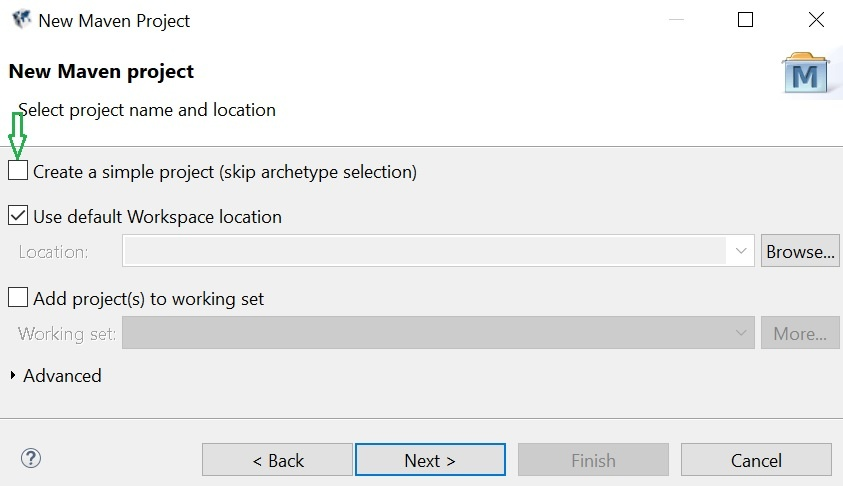
-
Click Configure and then click Add Local Catalog.
-
Browse for dsf-archetpe-catalog.xml from dsf-m2repo.zip and provide a Description.
-
Click OK and then Apply.
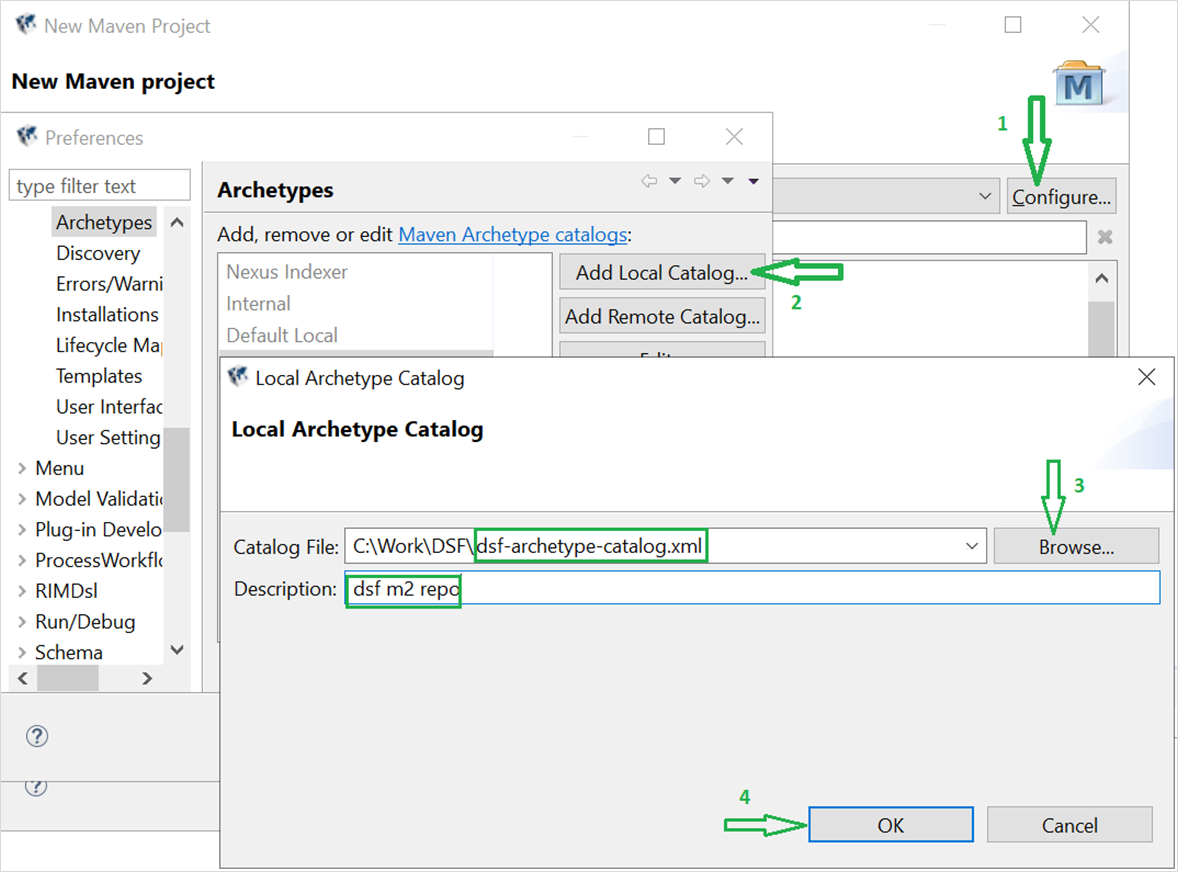
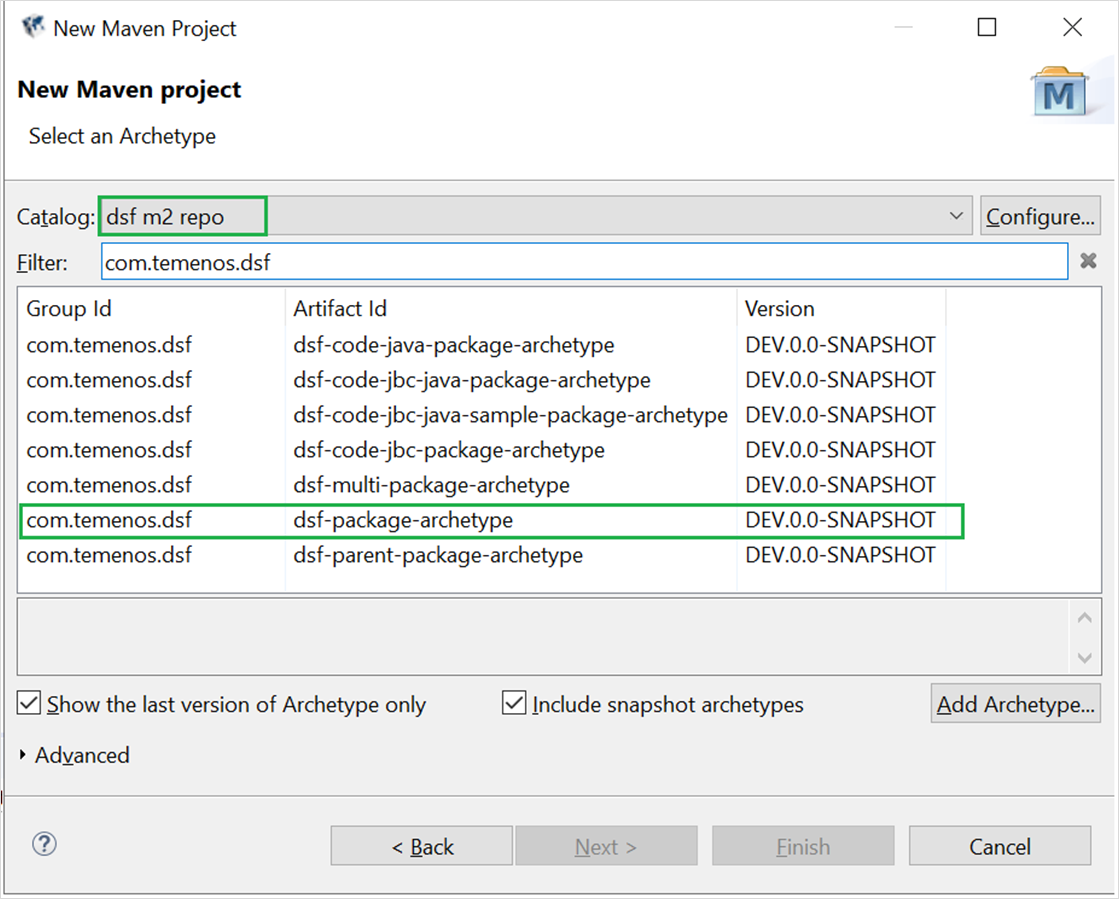
- Search for filter com.temenos.dsf and select the Include snapshot archetypes check box.
- Specify archetype parameters and click Finish.
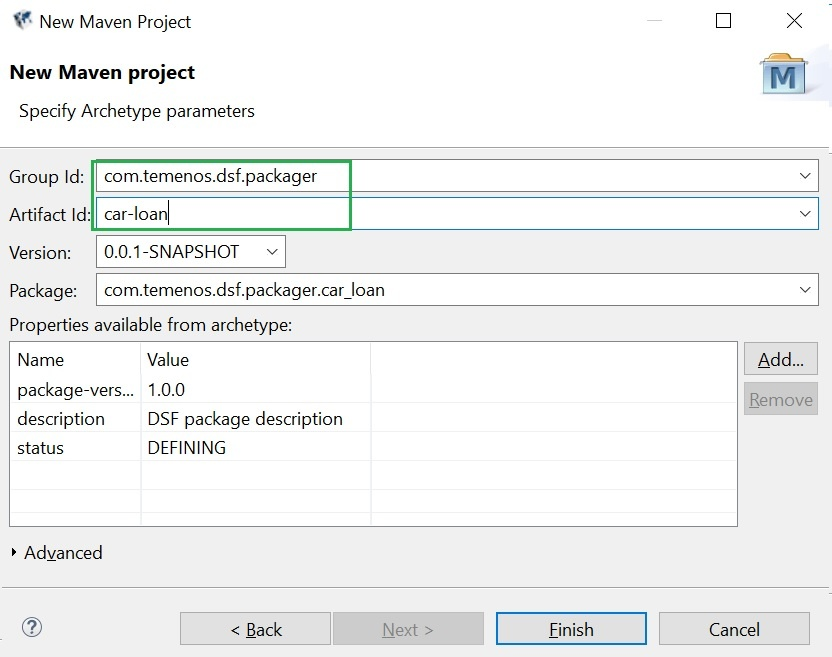
Result:
An empty package is created. It consists of the following artefacts:
- An Eclipse project.
- t-package.json file that describes the package content (without the data records).
- pom.xml file that you can use to build and/or validate the package in a Continuous Integration setup.
Creating a Package Through a Package Zip Import
The below steps guide you to create a package through importing a zip package.
- Open Design Studio or Eclipse IDE.
- From the File menu, choose Import Projects, select the archive from the local file system and click Finish. The package is loaded into Package Explorer as shown below. All packages will have the same structure.
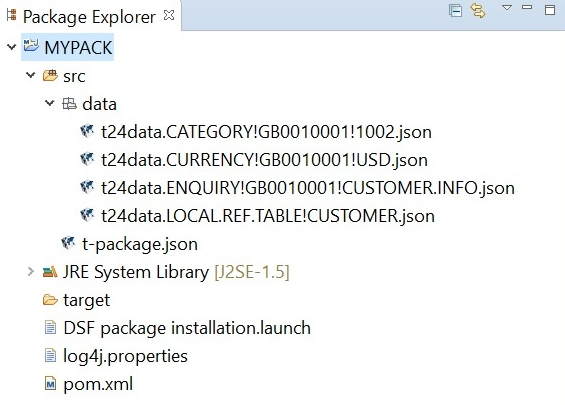
- The serialized structure of a package will be a zip with src/data/*.json and src/t-package.json.
- Package definition is stored in t-package.json.
- The JSON files will follow this file naming convention: component.type!recordId.json.
- Temenos Transact multi-company records will follow this file naming convention: component.type!CO.CODE!recordId.json.
- Double click the t-package.json file. You are prompted to create a dsf-server project in the workspace.
- Click Yes. The package is opened in Web Designer.
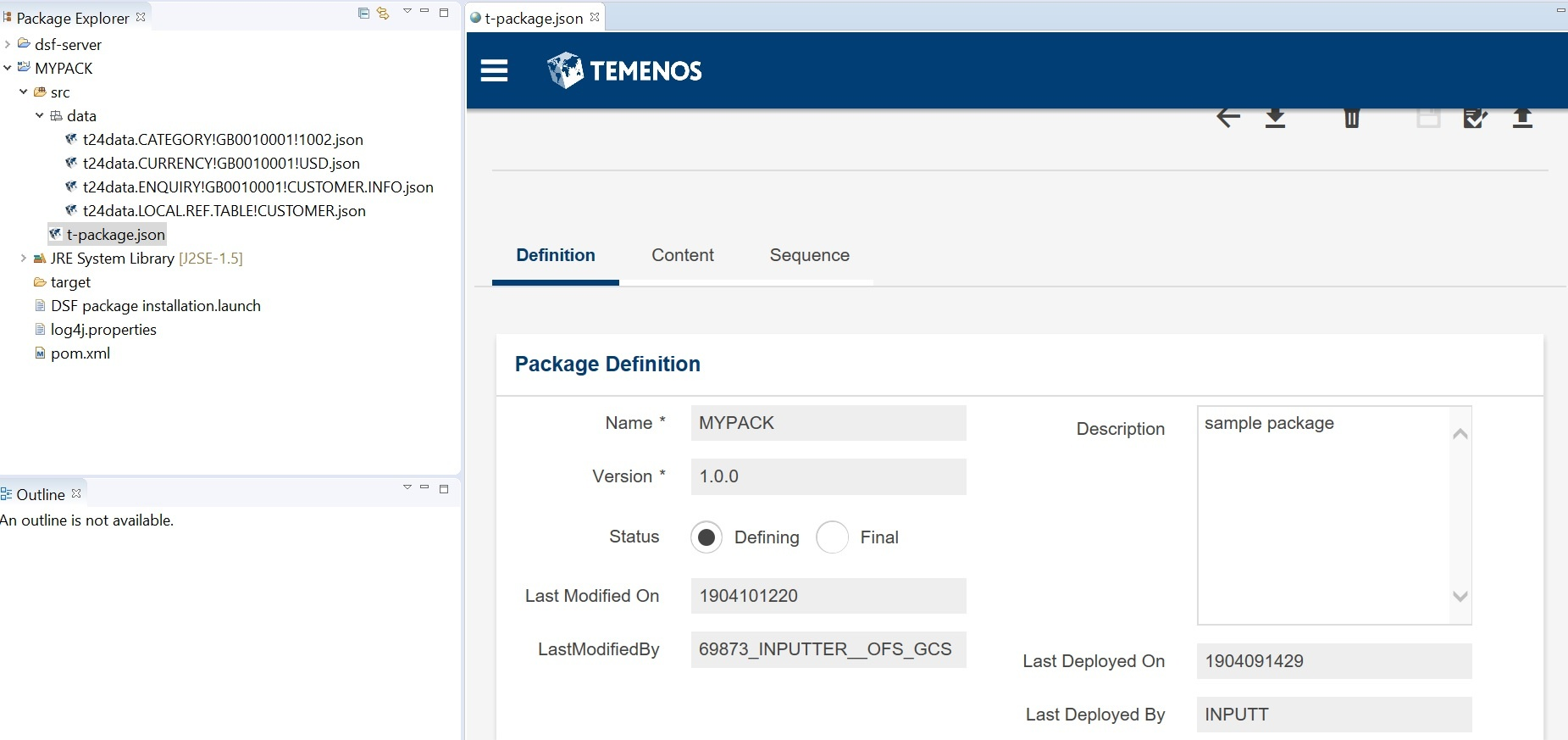
- You can add data records to the package through the Add, Edit or Delete package data records.
- From the IDE, you can validate or deploy a package and any errors encountered will be displayed in the top error pane.
- You can also download a package from the IDE by clicking the Download button. You will be prompted to select the download path and the package will be saved in .zip format.
Creating a Package using the Command Line
You can use a command-line utility to create a package from a CSV file with a connection to dsf-iris.war to get data from the back end.
You can use the same CSV file that is used for Adding data records to a package through a CSV file with just one line on top. This is to import just one package.
The API and CLI utility to create a package out of a CSV file includes package definition and data content. You can call the utility through a Maven call. The sample pom.xml file is shown below.
Prerequisites
- m2repo of Design Framework that you can unzip in your Maven repository or t24-binaries folder.
- Running Design Framework API server and Temenos Transact.
Sample pom.xml file
The API server used by default is available at http://localhost:9089/dsf-iris. You can specify another server with the system property dsf.iris18.host.
You need to modify the arguments within the pom.xml file to match your folder structure.
<project xmlns="http://maven.apache.org/POM/4.0.0" xmlns:xsi="http://www.w3.org/2001/XMLSchema-instance"
    xsi:schemaLocation="http://maven.apache.org/POM/4.0.0 http://maven.apache.org/xsd/maven-4.0.0.xsd">
    <modelVersion>4.0.0</modelVersion>
    <groupId>com.bank.dsf.packager</groupId>
    <artifactId>create-packages</artifactId>
    <version>0.0.1-SNAPSHOT</version>

    <build>
        <plugins>
            <plugin>
                <groupId>org.codehaus.mojo</groupId>
                <artifactId>exec-maven-plugin</artifactId>
                <version>1.1.1</version>
                <executions>
                    <execution>
                        <phase>test</phase>
                        <goals>
                            <goal>java</goal>
                        </goals>
                        <configuration>
                            <mainClass>com.temenos.dsf.packager.cli.DsfPackageCreate</mainClass>
                            <arguments>
                                <!-- Argument 1 (mandatory) - CSV file or folder with csv files to create package(s) -->
                                <argument>C:/Users/test/Downloads/packages/T24data/EB_API.csv</argument>
                                <!-- Argument 2 (mandatory) - Output folder in which generated packages will be included -->
                                <argument>C:/Users/test/Downloads/packages/</argument>
                            </arguments>
                        </configuration>
                    </execution>
                </executions>
            </plugin>
        </plugins>
    </build>
    <dependencies>
        <dependency>
            <groupId>com.temenos.dsf.packager</groupId>
            <artifactId>dsf-api-cli</artifactId>
            <version>DEV.0.0-SNAPSHOT</version>
        </dependency>
    </dependencies>
</project>
CSV File Syntax
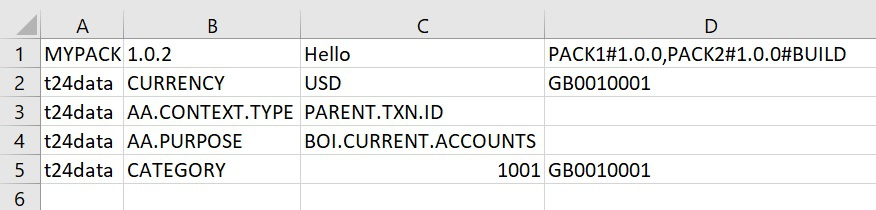
- The first line defines the package description and then other lines are regular data records lines.
First line syntax:
package_name,package_version,package_description,dependencies (Description and dependencies are optional.)
The dependencies section syntax:
package_name#package_version#dependency_type DEPLOY/BUILD, default=DEPLOY (Type is optional.)
- Sample 1: Car-loan package with version 1.0.0
car-loan,1.0.0
t24data,"AA.PAYMENT.TYPE","ACCOUNT.PRINCIPAL"
t24data,"AA.PROPERTY.CLASS","ACCOUNT"
t24data,"AA.PROPERTY.CLASS.ACTION","ACCOUNT-ADJUST.BILL"
- Sample 2: Car-loan package with version 1.0.1, a description and 2 dependencies. The second one only with BUILD dependency.
car-loan,1.0.1,"Hello","car-loan#0.1,common-loan#>1.0.0#BUILD"
t24data,"AA.PAYMENT.TYPE","ACCOUNT.PRINCIPAL"
t24data,"AA.PROPERTY.CLASS","ACCOUNT"
t24data,"AA.PROPERTY.CLASS.ACTION","ACCOUNT-ADJUST.BILL"
- Sample 3: CSV with MYPACK package with version 1.0.2, a description, two dependencies and data records with company code specified.
Creating a Package in Web Browser
Before you begin
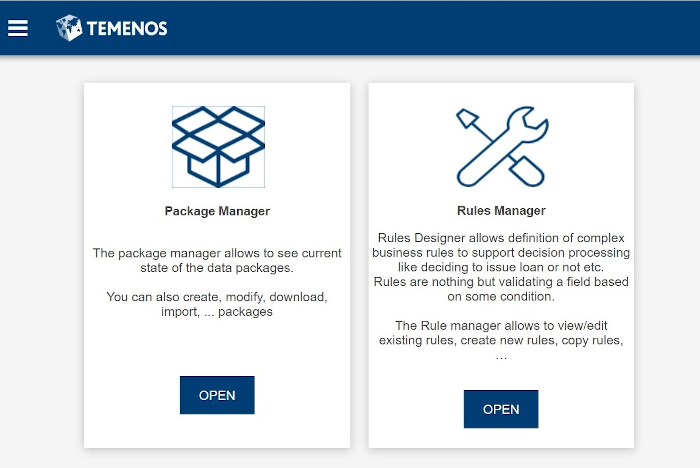
Open the following URL in your web browser: http[s]://<DNS_NAME>/dsf-uxp/ or http[s]://<ip-address>:<port>/dsf-uxp. Ensure that the home page is displayed as shown below.
Procedure
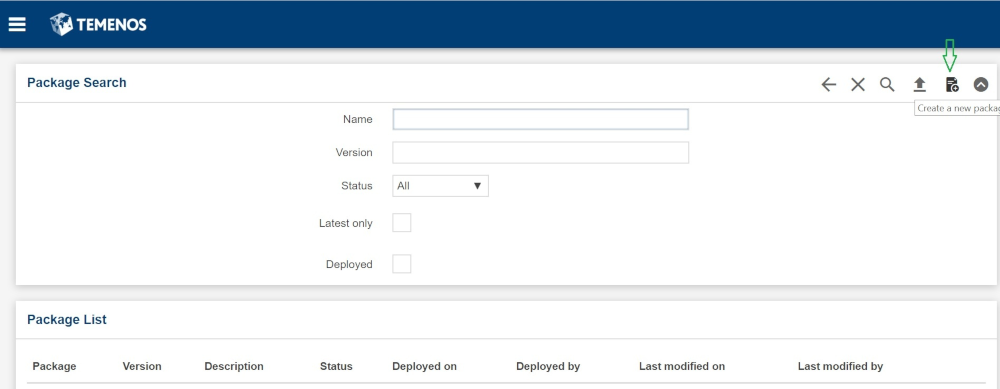
- Navigate to the Package Manager screen and click Create New Package. The package editor opens with empty content.
- In the Package Definition tab, provide the mandatory package name. Use semantic versioning; by default version is 1.0.0 and it can be changed. Optionally, you can provide a description of the package content in the Description field.
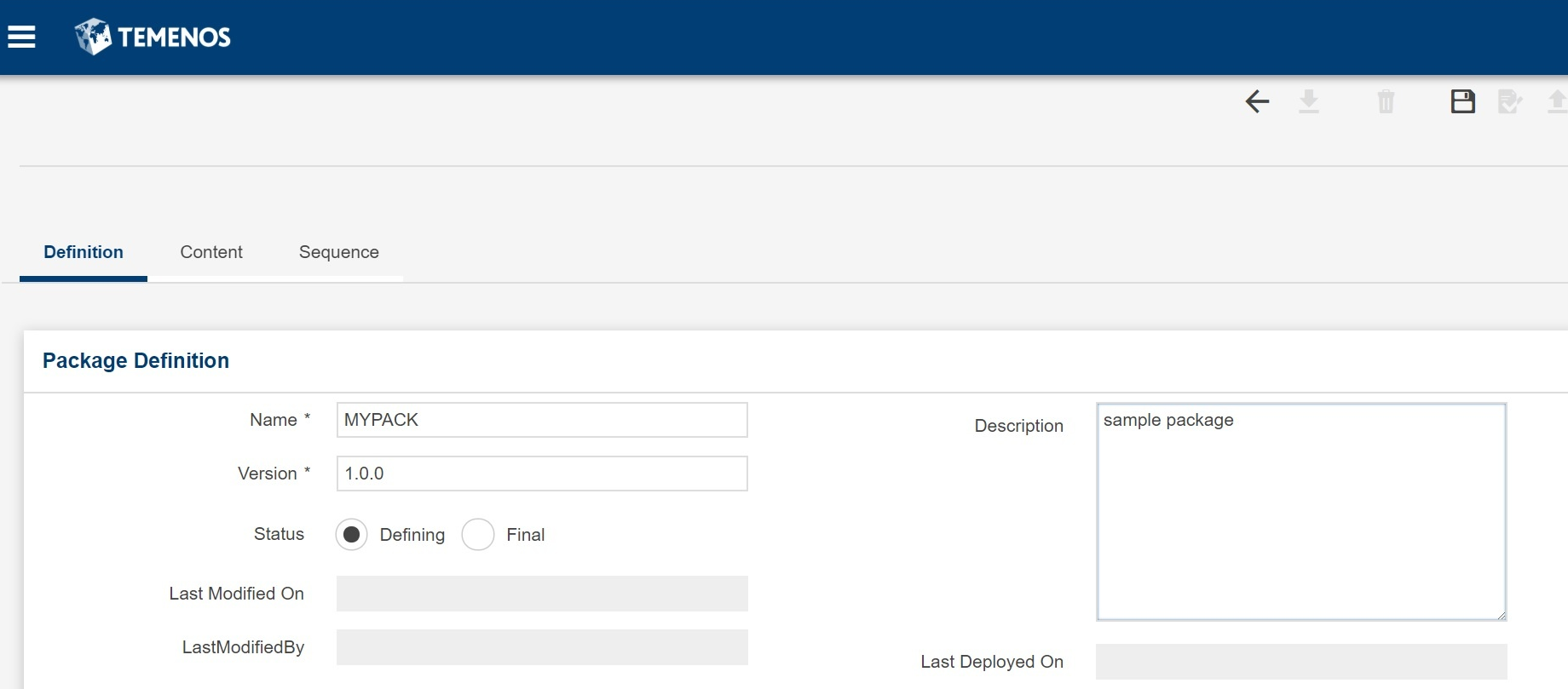
You can set the status of the package to DEFINING or FINAL. When the status is FINAL, it means the package will be sealed and no more content can be added. A FINAL package can only be deployed once (in case of success).
- Last Modified On, Last Modified By and Last Deployed On are read-only audit fields.
- Last Modified On shows the last time the package was modified.
- Last Modified By shows the last user that modified the package.
- Last Deployed On shows the last time the package was deployed.
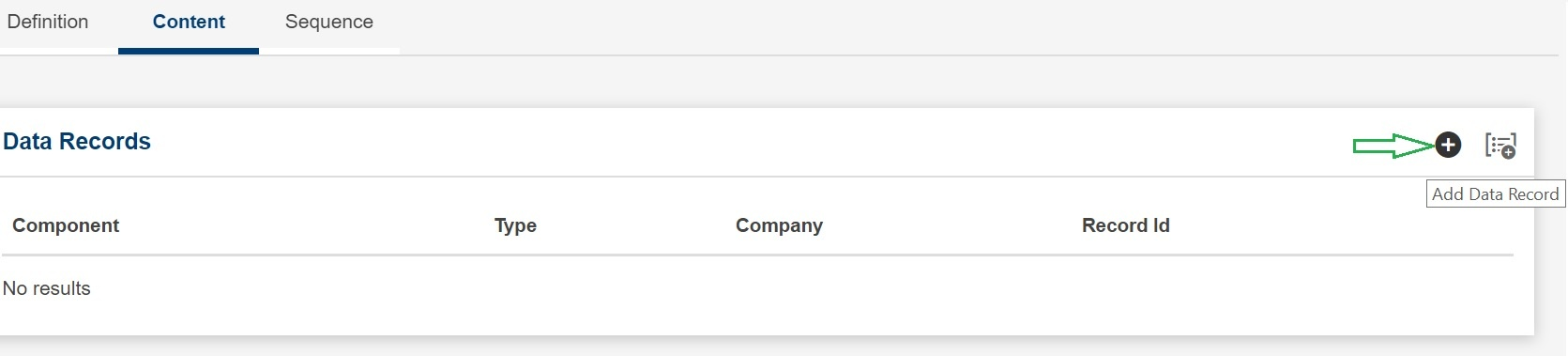
- Navigate to the Content Tab, and click the + icon (Add Data Record) to import a single data record. For more information about Bulk import, see Adding data records to a package through a CSV file.
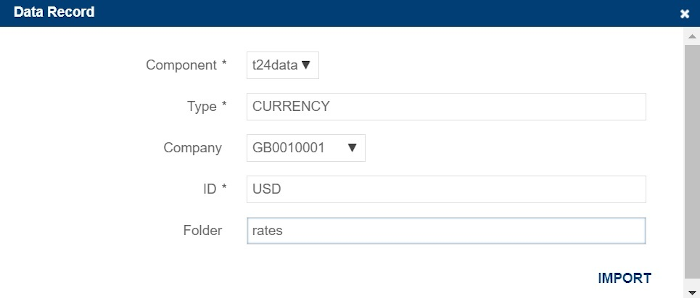
A dialog window is displayed for adding a data record. It has 5 fields.
- The Component field defaults to t24data. In future, there will be other components too (tapdata, aa...). t24data is a component with which you can basically access all Temenos Transact applications.
- The Type field takes a valid application name. Type will provide a content assistance with filtered list of available applications from Temenos Transact.
- A drop-down with list of all available companies will be displayed in the Company field and you can choose from a specific company.
- The ID field takes the record ID. Click Import to add data record to the Content Tab. Once data records are added, click the Close icon (x) to close the dialog pop-up window.
- The Folder field is used to define a folder structure for data records for better clarity or readability of large packages. (Only valid folder names are acceptable.) If a Folder name contains leading slash ( /), then a subfolder will be created. When the folder name is not specified, it takes the default folder structure: src/data. Once data records are added, click the Close icon (x) to close the pop-up window.
At any stage while adding data records, at record level, you can also edit or delete a record from the package definition using the Edit and Delete buttons. - Click Save to save the data package. (Save does not deploy but saves the package definition in database.) This just saves the package definition only in DSF repository.
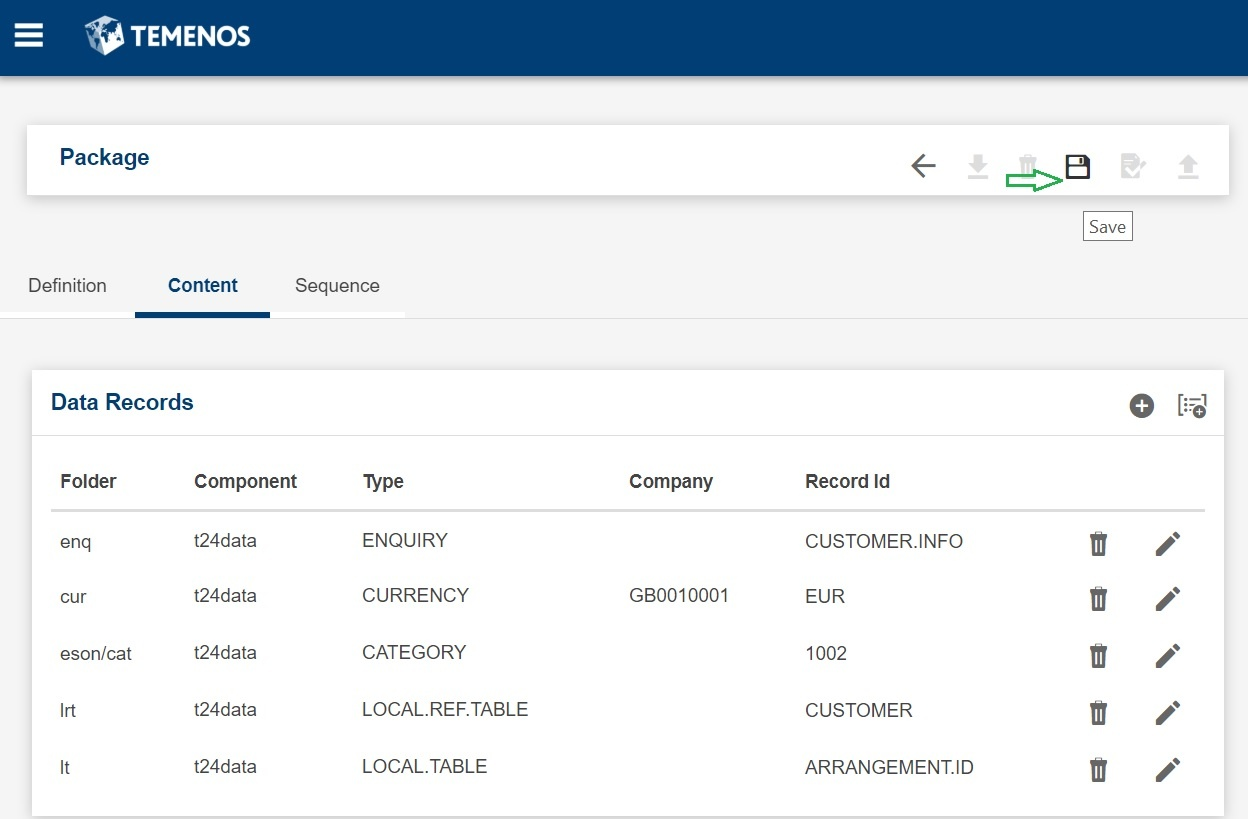
Once the package is saved, a list of action buttons are enabled.
- Either validate or deploy the package against Temenos Transact using the Validate and Deploy buttons. (When you deploy a package, the system will first run a validation anyway.)
You can also delete a package using the Delete button.
Differences Between the IDE and Browser Modes
|
Feature |
IDE mode |
Browser mode |
|---|---|---|
|
Package definition |
In file system/SCM (source of truth) In DSF Repository upon saving |
In DSF Repository upon saving |
|
Data record |
Saved in file system/SCM when loading a package |
In Temenos Transact |
|
Add data to a package |
Use case 1: Add a data record with UI
Use case 2: Copy a JSON file to the package/src/data folder
|
Use case 1:
|
|
Package validation |
Validates the data in the file system or SCM system. |
Revalidate the data already in Temenos Transact. It is only needed to revalidate the existing (deployed) package. |
|
Package deployment |
Deploys the data in the file system or SCM system. |
Redeploys the data already in Temenos Transact. |
|
Package synchronization |
Available |
Not available |
|
Package Folder structure |
Available with a Refresh option |
Available |
In this topic