Installing and Setting up Data Packager
Read this topic to learn how to install and configure Data Packager.
Installing Data Packager
Setting up the Application Server
The below steps guide you to setup the application server.
- Place the two war files dsf-iris.war (for API) and dsf-uxp.war (for UI) in application server deployments folder (for example: .\Temenos\jboss\standalone\deployments).
- Start the server and ensure that both war files are deployed successfully.
Setting up the m2 repository for the command line and IDE mode
You need the m2 repository (for example dsf-m2repo-19.0.0.zip) to be able to execute builds with Maven commands and use Maven archetypes to create projects in your IDE.
To set up the repository using the command-line or offline mode, enter the following Maven settings in the settings.xml file that is in the configuration directory in Design Studio.
<?xml version="1.0" encoding="UTF-8"?>
<settings xmlns="http://maven.apache.org/SETTINGS/1.0.0" xmlns:xsi="http://www.w3.org/2001/XMLSchema-instance" xsi:schemaLocation="http://maven.apache.org/SETTINGS/1.0.0 http://maven.apache.org/xsd/settings-1.0.0.xsd">
  <localRepository>C:\DSF\R19\dsf-m2repo-19.0.0</localRepository>
  ....
</settings>
To set up the repository using an IDE:
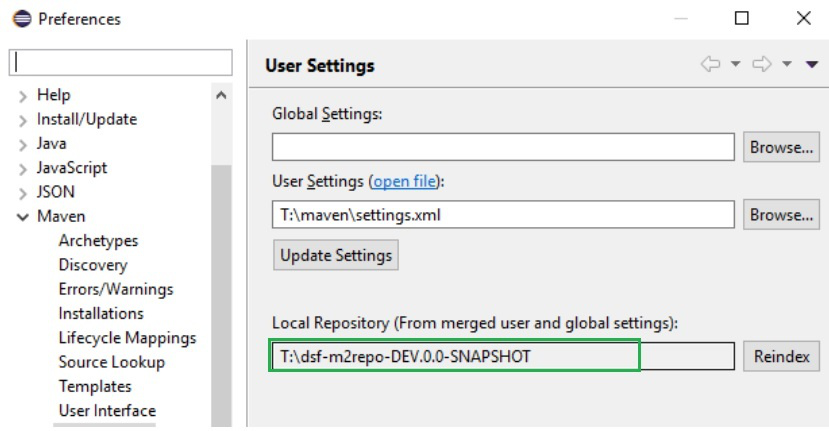
- In Eclipse, use Maven m2 local repository. Go to Windows > Preferences > Maven > User Settings > Local Repository and provide the path to the repository.
- In Design Studio, extract dsf-m2repo-19.0.0.zip and merge the m2-repository into t24-binaries.
Installing Eclipse plugin for the Development Environment
Before you begin
You need the p2 repository file, for example dsf-p2repo-19.0.0.zip.
The below steps guide you to install Eclipse plugin for a development environment.
- In Design Studio or Eclipse IDE, install new software: click Help > Install New Software.
- Click Add to add a repository. A new window opens.
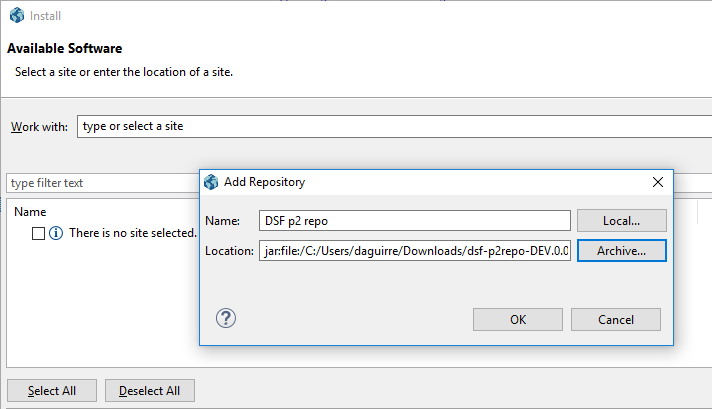
- Click Archive and browse for the repository file.
- Select DSF p2repo.

- Click Next.
- Click Next, ... and then click Finish.
- Click OK on security warning and wait for the installation to complete.
- Restart the IDE for the changes to take effect.
Deployment Setup for Development Environment
Data Packager uses the OFS through IRIS APIs. If you deploy packages in transactional mode, you will need to increase the timeout for EJB OFSProcessingBean.
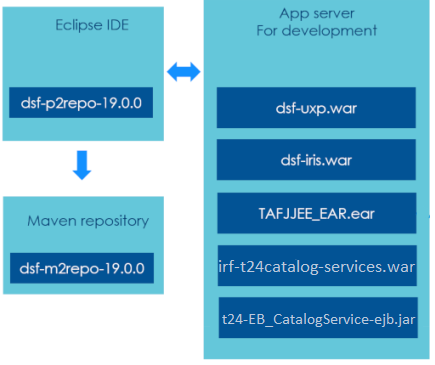
You require an application server with the following artefacts:
- Temenos Transact and TAFJ
- dsf-iris.war
- dsf-uxp.war
- irf-t24catalog-services.war
- t24-EB_CatalogService-ejb.jar
Deployment Setup for System Integration Testing (SIT), User Acceptance Testing (UAT) and Production Environments
Data packager uses OFS through IRIS APIs. If you deploy packages in transactional mode, you will need to increase the timeout for the EJB OFSProcessingBean.
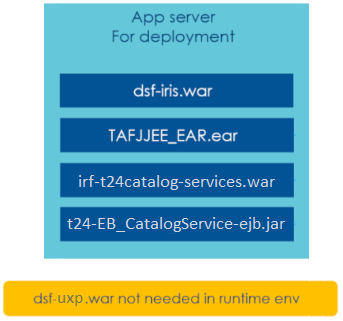
The recommendation is to have a separate application server instance that includes the following artefacts:
- dsf-iris.war
- TAFJJEE_EAR.ear
- irf-t24catalog-services.war
- t24-EB_CatalogService-ejb.jar
Managing Server Connections
In IDE mode
In the IDE mode, you can use a server view that allows to connect to an IRIS API server. You can connect to an API server in HTTP or HTTPS mode.
- Double click the t-package.json file in the imported package. You are prompted to create a dsf-server project in the workspace.
- Click Yes to create a server project called dsf-server.
- In the dsf-connection.json file, define the environment variables such as name, URL and credentials.
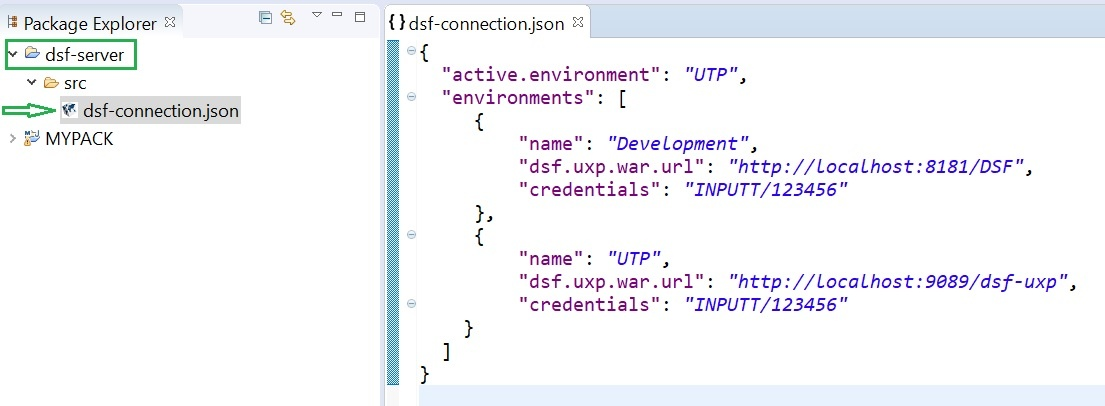
By default, the connection will use HTTP.
Through deployed war files
The dsf-connection.json file is used to manage the server connection. It is located in the WEB-INF/classes directory in dsf-iris.war.
Server Properties
The following is a sample server.properties file.
{
  "active.environment": "DEV",
  "environments": [
     {
         "name": "DEV",
         "dsf.uxp.war.url": "http://localhost:9089/dsf-uxp",
         "credentials": "INPUTT/123456"
     },
     {
         "name": "SIT",
         "dsf.uxp.war.url": "http://xxx.yyy.zzz:9089/dsf-uxp",
         "credentials": "INPUTT/123456"
    }
  ]
}
|
Property |
Description |
|
active.environment |
Name of the active environment out of the list defined in the Environments section . |
|
environments/name |
Name of an environment |
|
environments/dsf.uxp.war.url |
URL that points to dsf-uxp.war |
|
environments/credentials |
Not yet used |
In this topic