Installing Arrangement Microservice in Kubernetes (K8)
This section helps you to install the Arrangement Microservice in Kubernetes (K8).
Prerequisites
- Ensure to install Docker Engine in the deployment environment.
- Turn on Linux containers in Docker.
Enable Kubernetes:
Kubernetes must be enabled after the docker is installed. Here are the steps:
- Open the Docker Desktop app.
- In the Settings section, select the Enable the Kubernetes checkbox.
- Navigate to Settings > Resources. Increase the CPU and Memory as required.
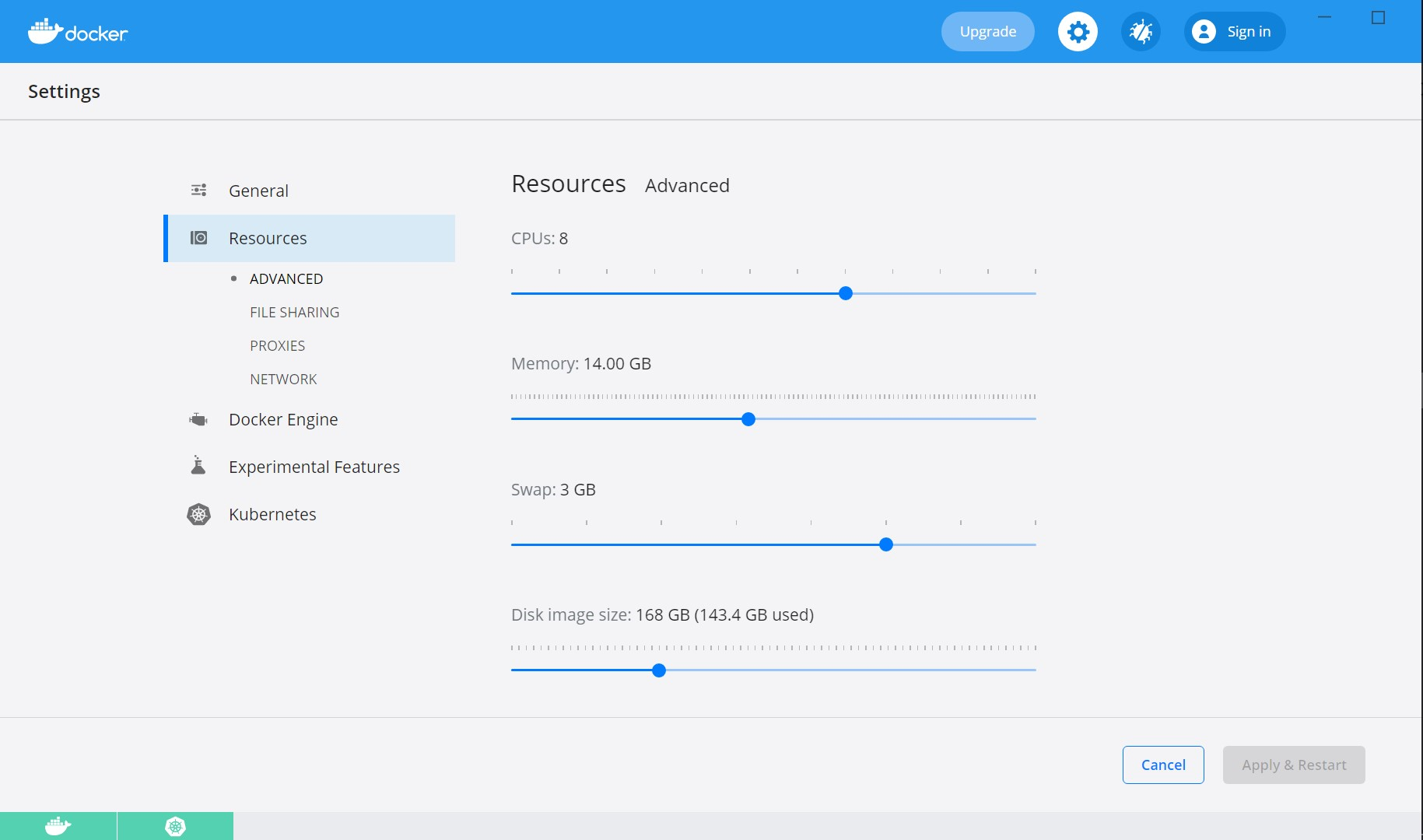
Kubernetes requires a minimum of 6 CPUs to run smoothly.
- Install Helm and set helm path as an environment variable on the system.
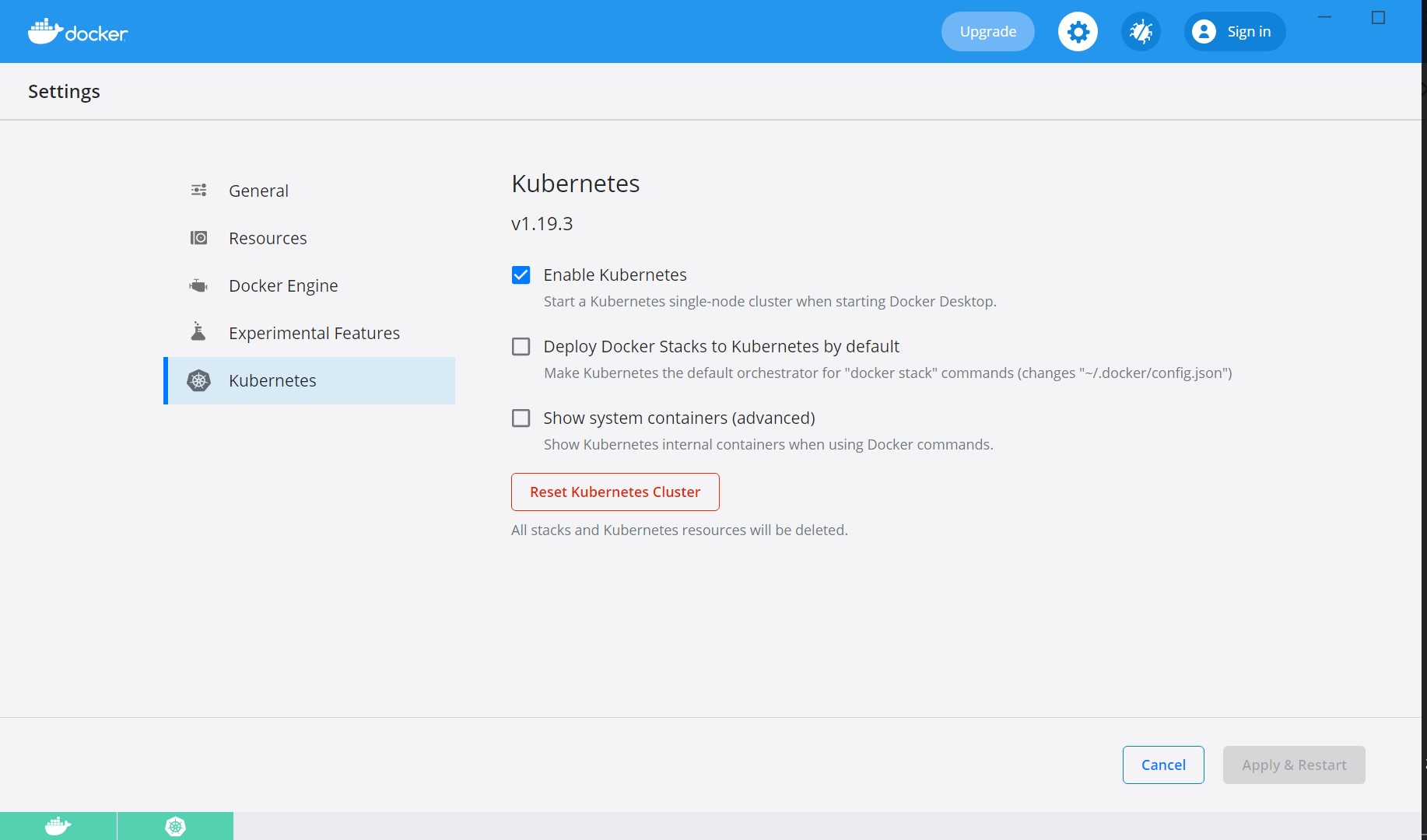
Deployment of Arrangement Microservice
K8 images
K8 Helm packs would be available as a separate bundle in the package provided by distribution. However, Arrangements Helm Images Generation section can be referred to understand on how to generate the K8 Helm images.
In this deployment approach, the arrangement-helm-pack-<release_number>.zip is used to load the docker images and then deploy the service in kubernetes cluster.
Prerequisites
- Before starting the start-arrangement script, make sure the database scripts are executed and the database is up and running.
- Active Kafka instances that need to be configured for transact, event processor and generic ingestion (communicating with Account Aggregation) respectively.
Now, you can install a standalone MySQL server manually. Otherwise, to install and start the database server automatically, follow these steps:
Start the Service
MySQL Database
Follow the below steps to start the service:
- Navigate to the extracted
arrangement-helm-sql-pack-<release_number>.zipfile :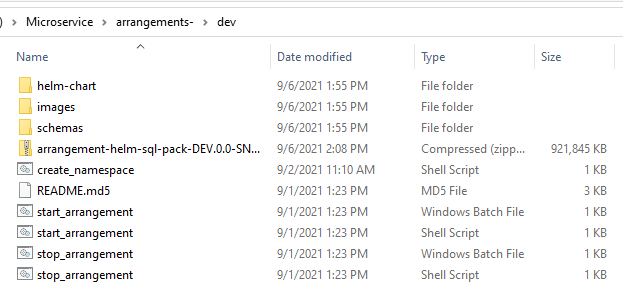
- Navigate to the images folder where the service, ingester images are available and load the images on the docker using the command: docker load --input <image-name>

- Open the service startup script start_arrangement.bat/start_arrangement.sh by navigating to the folder where service startup scripts are available and configure DB and Kafka connection parameters as applicable as per the setup done as part of prerequisite step.
- Once the images are loaded into the docker, start the kubernetes scripts by navigating to the folder where the scripts are available.
-
MySQL Database
- For Windows : start_arrangement.bat
- For Linux : start_arrangement.sh
MSSQL Database
- For Windows : start_arrangement-mssql.bat
- For Linux : start_arrangement-mssql.sh
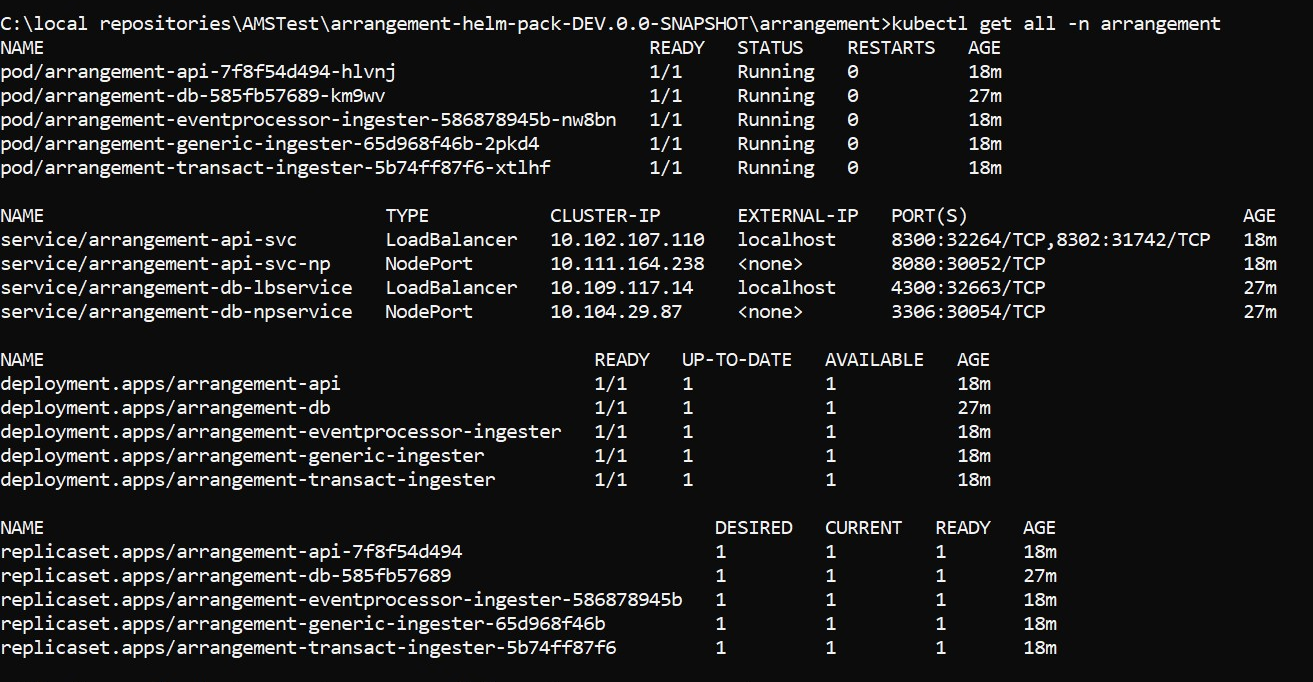
- Once the deployment is successful, the APIs can be tested.
The format of API's URL is given below:
- Base Path
http://<IP_ADDRESS>:<PORT>/<context-root>/api/<version>/
For Example: http://localhost:8300/ms-arrangement-api/api/v1.0.0/
- The resource path of the endpoint can be found in the swagger document.
Undeploying Microservices
Execute the files to stop the service:
MySQL Database
- For Windows : stop_arrangement.bat
- For Linux : stop_arrangement.sh
MSSQL Database
- For Windows : stop_arrangement-mssql.bat
- For Linux : stop_arrangement-mssql.sh
MSSQL Database
Follow the below steps to start the service:
- Navigate to the extracted
arrangement-helm-sql-pack-<release_number>.zipfile : - Navigate to the images folder where the service, ingester images are available and load the images on the docker using the command: docker load --input <image-name>
- Open the service startup script start_arrangement.bat/start_arrangement.sh by navigating to the folder where service startup scripts are available and configure DB and Kafka connection parameters as applicable as per the setup done as part of prerequisite step.
- Once the images are loaded into the docker, start the kubernetes scripts by navigating to the folder where the scripts are available.
-
MySQL Database
- For Windows : start_arrangement.bat
- For Linux : start_arrangement.sh
MSSQL Database
- For Windows : start_arrangement-mssql.bat
- For Linux : start_arrangement-mssql.sh
- Once the deployment is successful, the APIs can be tested.
The format of API's URL is given below:
- Base Path
http://<IP_ADDRESS>:<PORT>/<context-root>/api/<version>/
For Example: http://localhost:8300/ms-arrangement-api/api/v1.0.0/
- The resource path of the endpoint can be found in the swagger document.
Undeploying Microservices
Execute the files to stop the service:
MySQL Database
- For Windows : stop_arrangement.bat
- For Linux : stop_arrangement.sh
MSSQL Database
- For Windows : stop_arrangement-mssql.bat
- For Linux : stop_arrangement-mssql.sh
K8 Ingress
This deployment approach exposes the Account Aggregation MS APIs through the domain name "arrangement.com" and is implemented based on the NodePort service in K8 pack.
Follow the below steps (prior to deployment of the K8 packs) to configure and access the MS APIs through the domain name.
- Set the domain name ("127.0.0.1 arrangement.com") in the hosts file of Windows by navigating to C:\Windows\System32\drivers\etc.
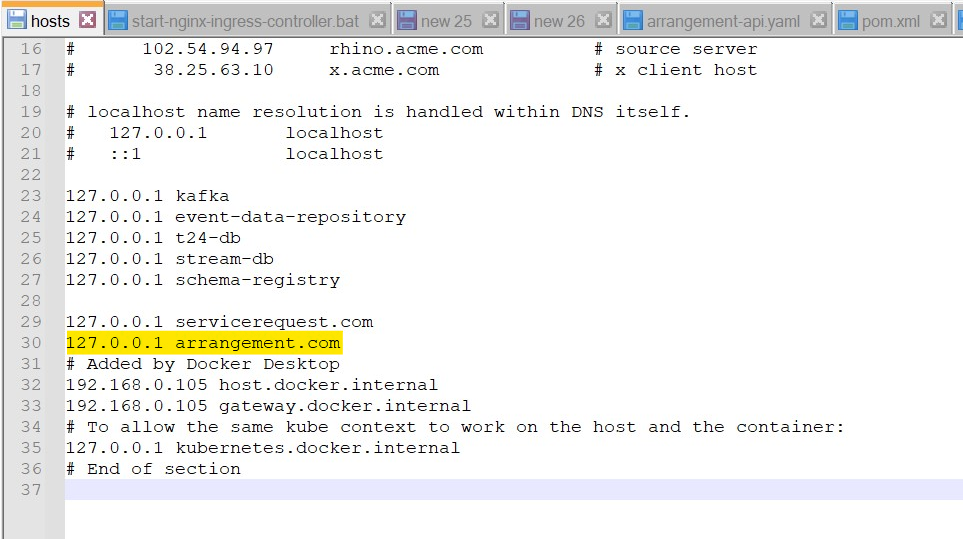
- Once the domain name is added, please restart the system for the changes to come in effect.
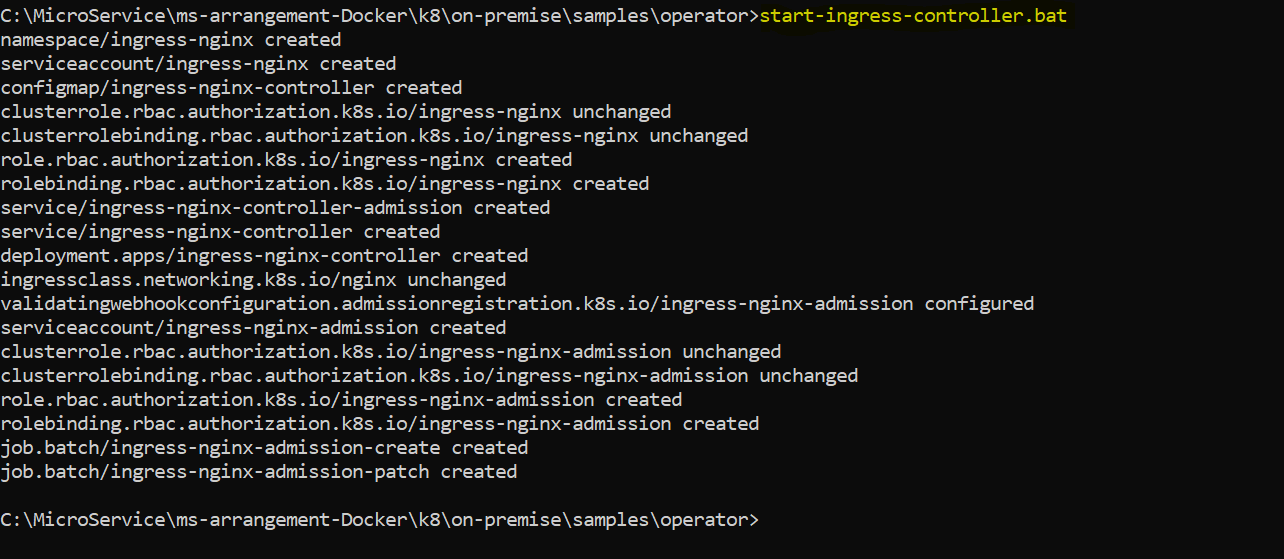
- Secondly, navigate to operator folder in K8 (On-Premise/Helm images) package and execute start-ingress-controller.bat/start-ingress-controller.sh file to start the ingress controller.
- Now, deploy the K8 (On-Premise/Helm images) packs by following the respective deployment instructions mentioned on the other tabs.
- Finally, we need to execute start-ingress.bat/start-ingress.sh to start the ingress services by navigating to samples folder in K8 (On-Premise/Helm images) package accordingly as shown below:
- Now, access the Arrangement APIs using the domain name (arrangement.com) as shown below:

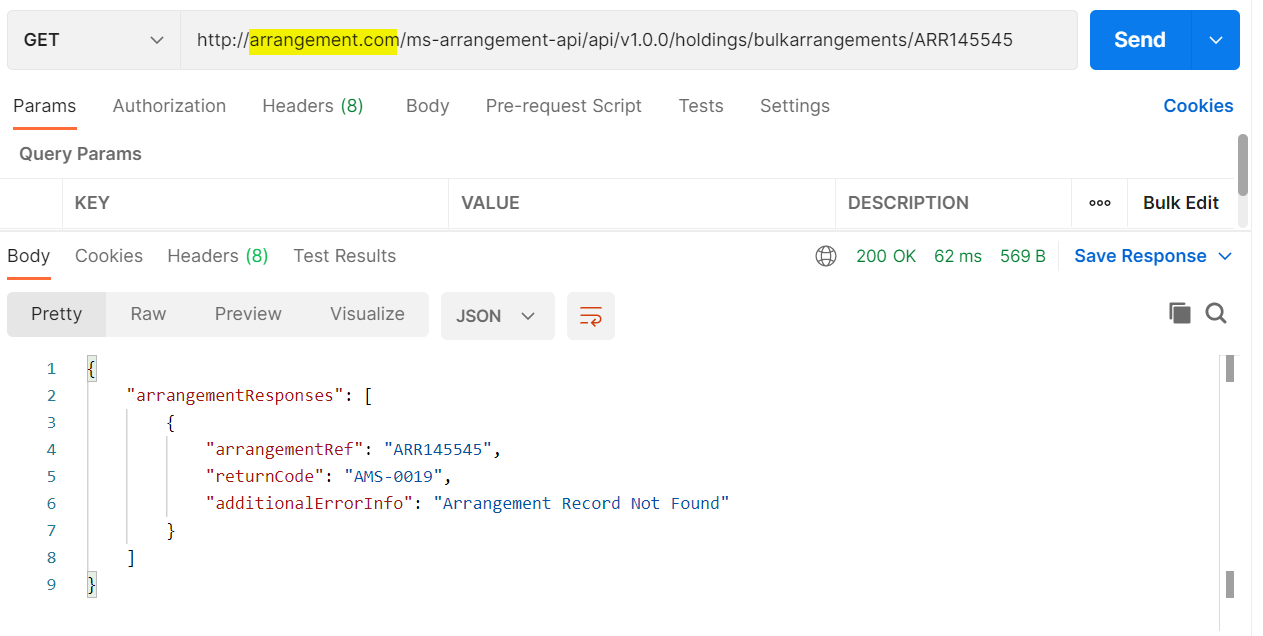
The format of API's URL is given below:
- Base Path
http://<DOMAIN_NAME>/<context-root>/api/<version>/
For Example: http://arrangement.com/ms-arrangement-api/api/v1.0.0/
- The resource path of the endpoint can be found in the swagger document.
Undeploying Microservice
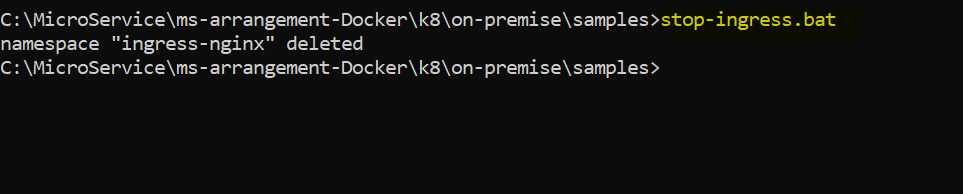
For undeployment of ingress we just need to execute stop-ingress.bat/stop-ingress.sh as shown below by navigating to the samples folder of K8 (On-Premise/Helm images) package.
In this topic