Migrating Microservices to JDK 11
This section explains the build and runtime changes required in microservices related to JDK 11 artefacts compilation and execution.
Prerequisite
Ensure to perform the following actions before migrating the microservices to JDK 11.
- Download and install the latest openjdk-11 pack from Red Hat build of OpenJDK.
- After installation, configure the Java_Home and Java_Path environment variables.
- Click Windows Search button.
- Search the Advanced System Setting.
- Click Environment Variables which is available at the bottom right corner.
- To set the Java_Path and Java_Home for the particular user on a Window system, change the Java_Path and Java_Home in User variables.
- To set the Java for all the users on the system, modify the Java_Path and Java_Home in the System variable.
-
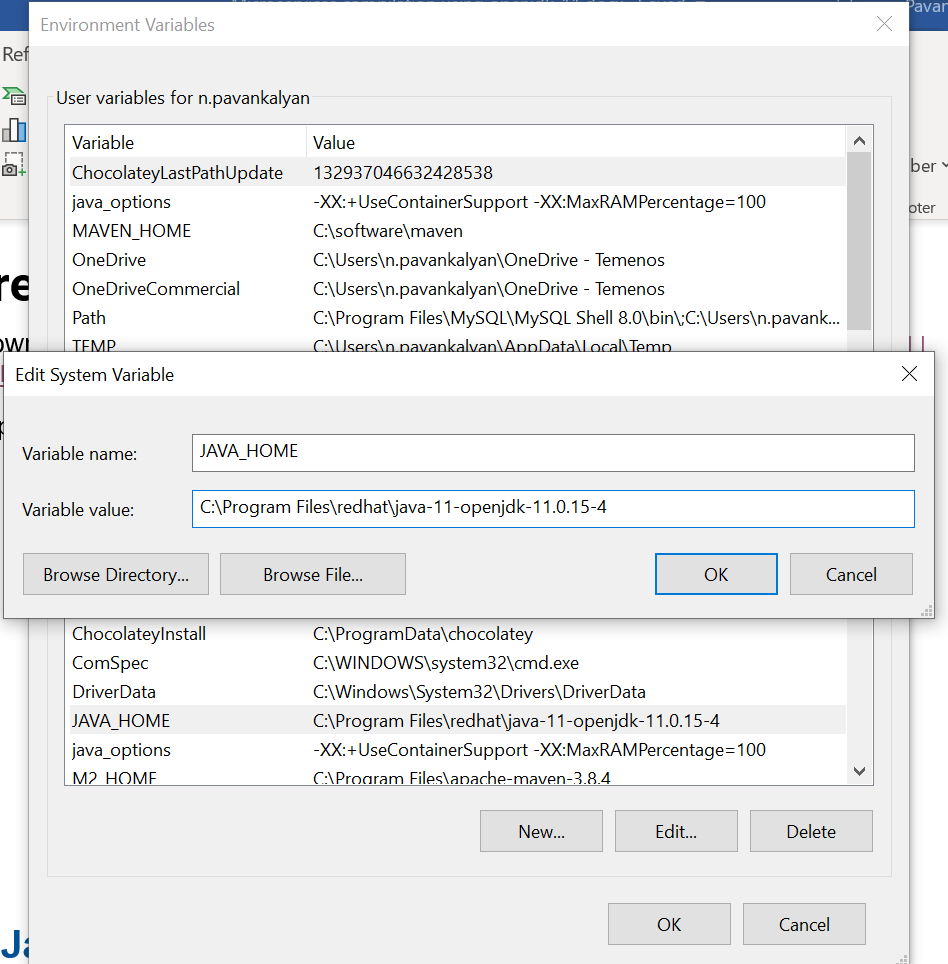
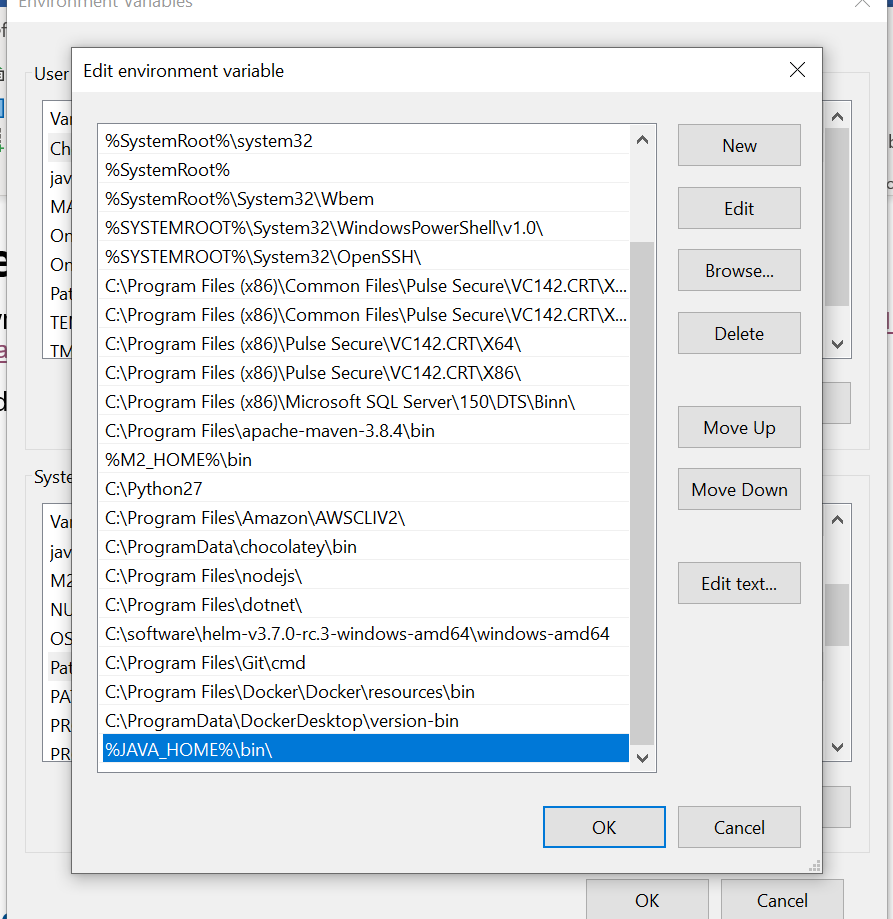
Java on command prompt picks the JDK version from the Java_Path environment variable, whereas, Maven uses the JAVA_HOME environment variable to pick the JDK version to build the project and run it's plugin.
The user can set the Java_Home environment variable in the System variables as shown in the screenshot below.
The user variable and the system variable are available under Environment Variables.
The user can set the Java_Path environment variable in the System variables, as shown in the screenshot below.
-
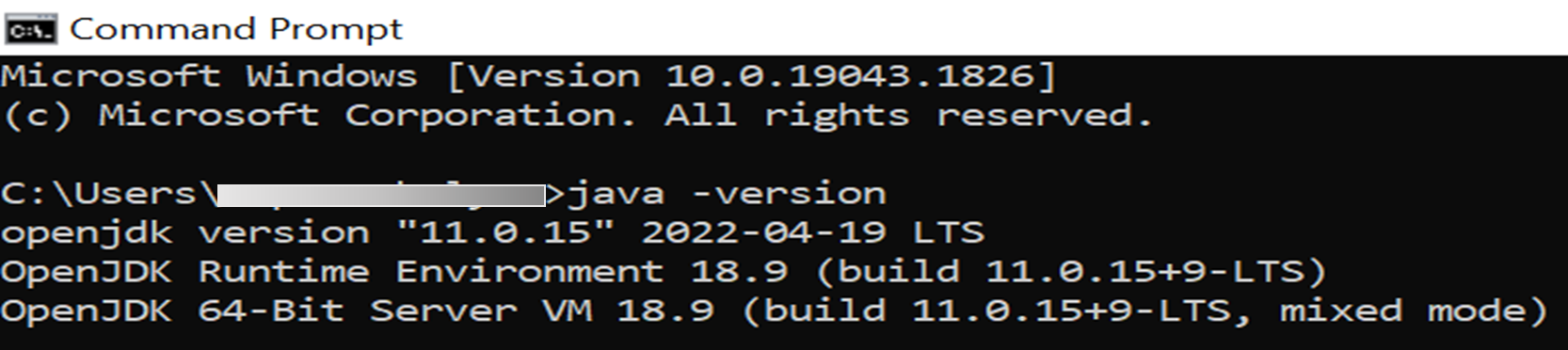
Verify the Java Installation.
-
Open the Command Prompt and give the command java –version. If it runs successfully, then Java is successfully installed.
-
Check the Java version updated in the Maven.

Upgrading to JDK 11
You must perform the below changes in Infinity or Business microservices to build and run them successfully in JDK 11 runtime environment.
 Removing UseCGroupMemoryLimitForHeap flag in values.yaml
To set the RAM percentage for the heaplimit in Java 8, you must unlock the ‘Experimental Options’ flag and set the UseCGroupMemoryLimitForHeap flag.
After upgrading Java 8 to JDK 11, you can set the RAM percentage directly, as shown in the command below, and UseCGroupMemoryLimitForHeap is no longer supported.
heaplimit: ‘-XX:MaxRAMPercentage=80.0’
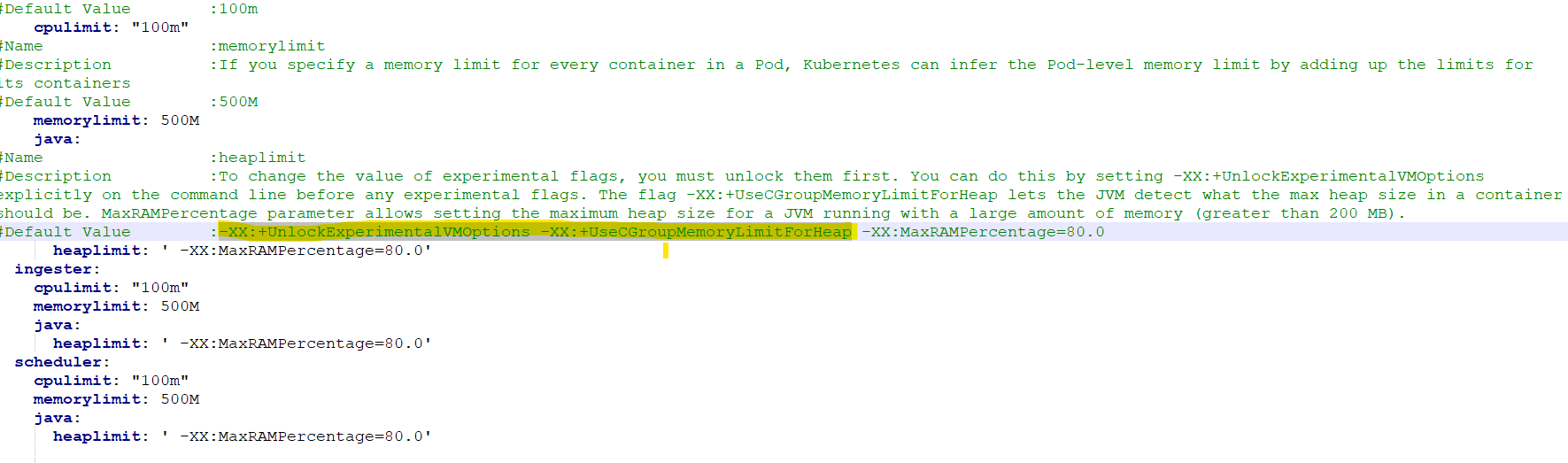
The values.yaml file contains the Experimental Options and UseCGroupMemoryLimitForHeap flags. Ensure to remove these flags and add the above command for setting the RAM in all microservices.
For GenericConfig microservice, the values.yaml file is available in ms-preconfigured-package\ms-genericconfig-package-docker\src\docker\k8\on-premise\svc\values.yaml, which is shown in the below screenshot.
For JDK 11 migration, the flags (highlighted) are removed, and the command to set the RAM percentage is added.
Error
If you deploy microservices by setting the path to JDK 11 without removing the UseCGroupMemoryLimitForHeap property, the following error is thrown.
Unrecognized VM option UseCGroupMemoryLimitForHeap
Error: Could not create the Java Virtual Machine.
Error: A fatal exception has occurred. Program will exit.
Solution
Java Virtual Machine (JVM) does not recognize the memory or CPU limits set by the container in Java 8. Using the UseCGroupMemoryLimitForHeap flag, JVM can check the control group memory limit and calculate the maximum heap size to control the memory with MaxRAMPercentage.
In the later Java 8 versions, the JVM automatically detects the control group memory limit with the UseContainerSupport option that is activated by default. You can remove the JVM option, UseCGroupMemoryLimitForHeap, in ms-gentrification-packager-genericconfig-package-docker\src\docker\k8\on-premise\svc\values.yaml
Setting FUNCTIONS_EXTENSION_VERSION to ~4
For Azure deployment, it is essential to add the environment variable, FUNCTIONS_EXTENSION_VERSION, and set it to ~4 in the Install-Azure.sh and the Install-Azure.sh files.
To set the FUNCTIONS_EXTENSION_VERSION to ~4 in the Install-Azure.sh and Install-Azure.bat files,
-
Add SET FUNCTIONS_EXTENSION_VERSION=”~4” in the environment variable settings.
SET FUNCTIONS_EXTENSION_VERSION=”~4”
-
Add the FUNCTIONS_EXTENSION_VERSION=”~4” command at the end of the ‘call az functionapp’ statements.
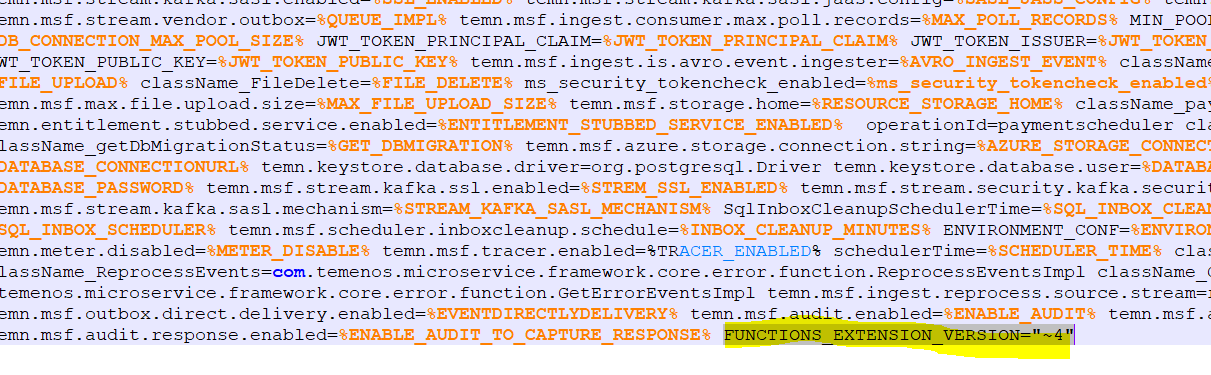
If you miss setting FUNCTIONS_EXTENSION_VERSION to ~4 in the above-mentioned files, the system defaults FUNCTIONS_EXTENSION_VERSION as ~2, which is not supported by JDK 11 and results in a build failure.
Changing host.json
In each microservice, change the version of the extensionBundle flag in the host.json file available in the Azure package directory - ms-paymentorder-package\ms-paymentorder-package-azure\src\azure.
{
    "version": "2.0",
    "extensionBundle": {
        "id": "Microsoft.Azure.Functions.ExtensionBundle",
        "version": "[4.0.0, 5.0.0)"
    }
}
Changes in .Env File
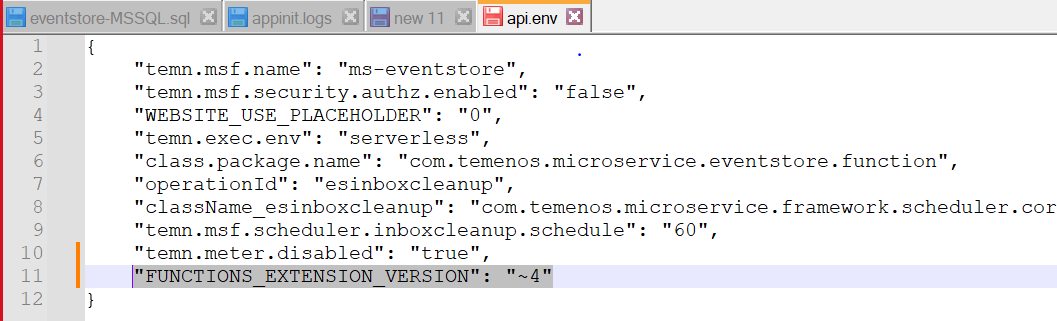
You can change all .env files that are available in the C:\MSF\src\eventstore\ms-eventstore-model\src\main\resources\env path to include the FUNCTIONS_EXTENSION_VERSION variable. The system adds this variable to FunctionApps created based on the package.json. FunctionApps contains all the required Java classes in Azure deployment. If this variable is not added to FunctionApps, then the version is considered as ~2 by default, which is not supported by JDK 11.
Changing ‘java8.a12’ to ‘java11’ in Install Scripts
You can change the Java runtime version to java11 in all aws lambda create-function statements in the install-aws.bat/install-aws.sh command.

Test Evidences
The following are the test evidences for the migration of microservices to JDK 11.
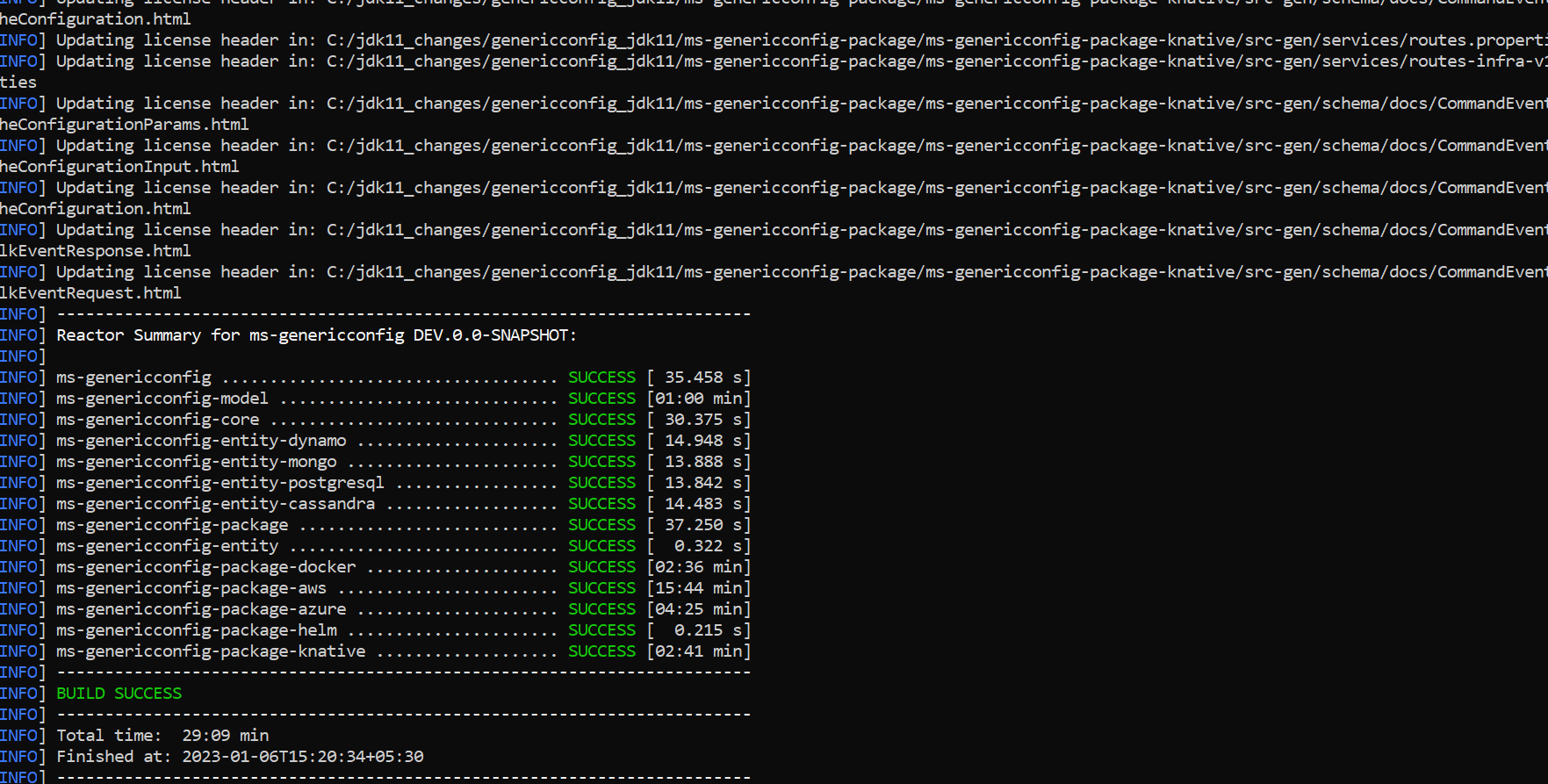
Genericconfig Build
After upgrading from Java 8 to JDK 11, the build has run successfully, as shown in the screenshot below.
Regression and API Testing for genericconfig
After upgrading from Java 8 to JDK 11, the regression and API testing is complete, and the build has run successfully, as shown in the screenshot below.
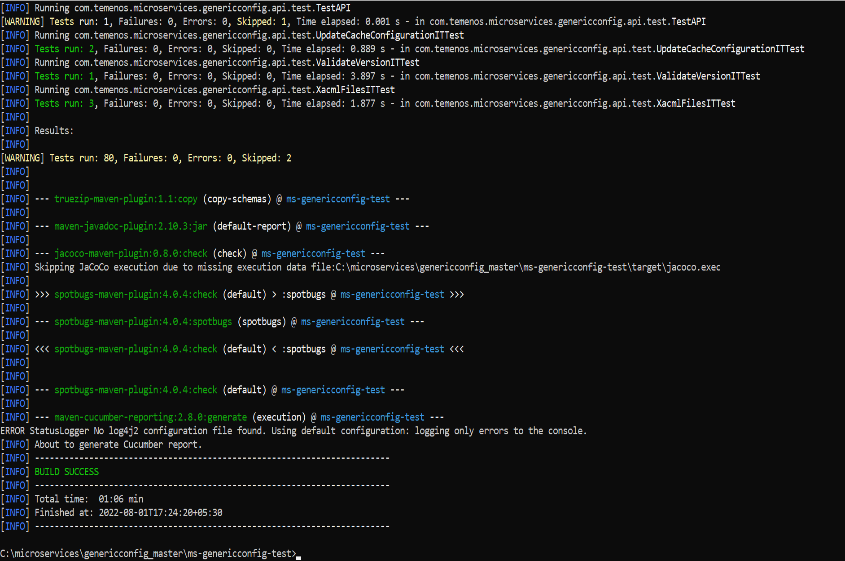
You can see the message '200 OK' in the below screenshot, which confirms that the API testing in Postman is a success.

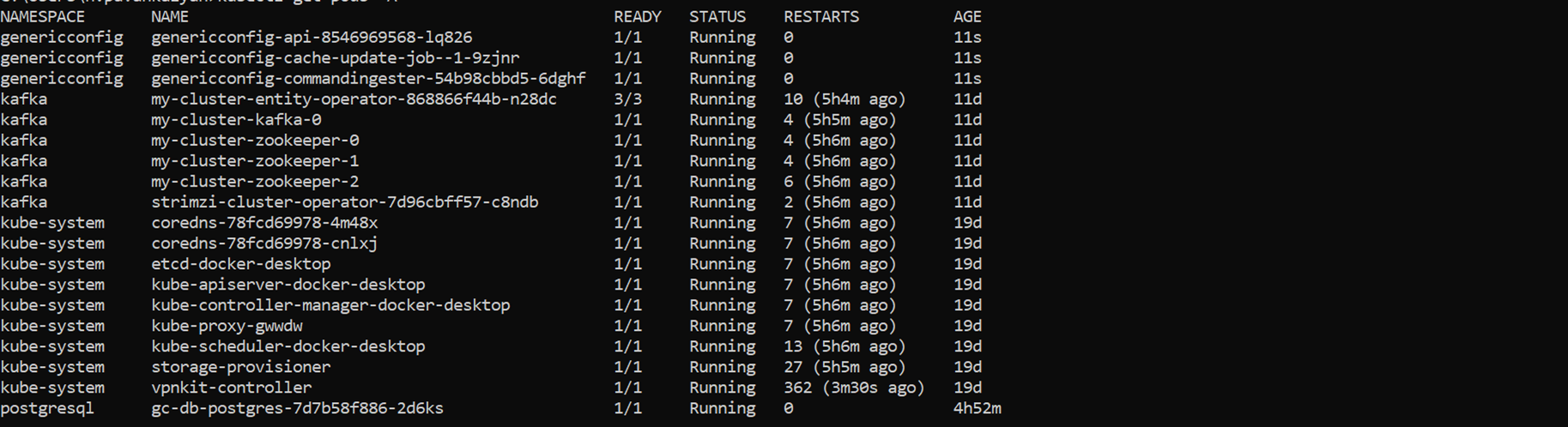
After Helm and Kubernetes deployment, Kubernetes pods are up and running, as shown in the screenshot below. This confirms the JDK 11 changes did not affect the running of pods.

Azure Sanity test
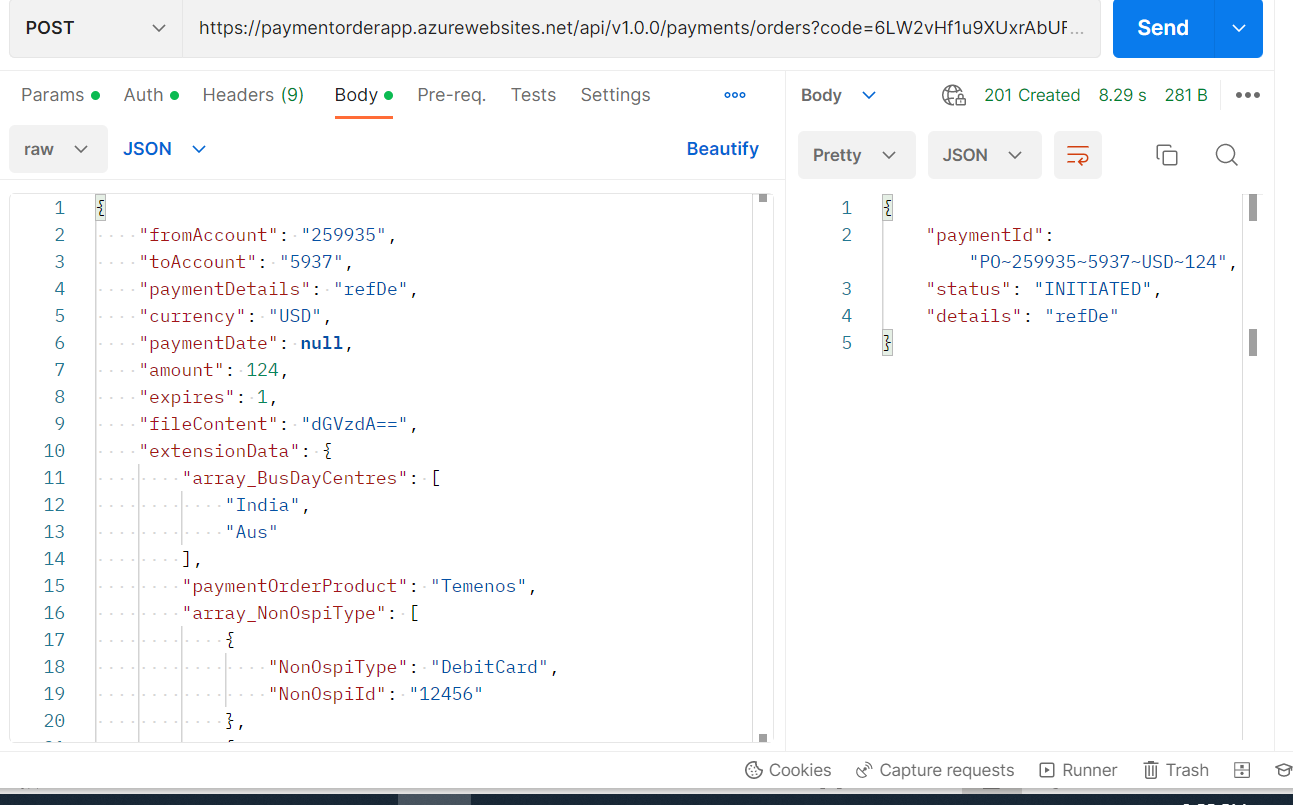
The screenshot below shows that the overall checking of the containers after the upgrade is a success.
In this topic