SDLC with Git
Temenos Workbench aims to ease the configuration of Temenos products and embed the packaging of the configuration through a modern and standard Software Development Life Cycle (SDLC).
Temenos Workbench can now optionally:
- Store the configuration records within package definitions in a Global Information Tracker (Git) repository (for example, a Transact enquiry to list customers in a package customer-config).
- Build deployable configuration packages from Git and publish them to a maven repository through semantic versioning (corresponding to a CI pipeline that you can also build on your own, based on Maven to build the packages and curl to deploy them)
- Out-of-the box Git trunk-based development strategy support. Read trunk based development for more information.
The deployable packages built with (or without) Workbench can be deployed consistently across all your environments (SIT, UAT, and PROD) through API calls. All this process promotes the concept of business configuration as code to:
- Manage business configuration with the same SDLC as you would do with code (dev, build, test)
- Empower ownership for developers
- Enable parallel development
- Improve quality
Differentiating Git and Non-Git Mode
The usage of Git mode is optional. It can be enabled through the workbench profile during the installation.
Set the value of PROFILE_REPO as given below in the appjs.properties file to switch between the modes.
-
PROFILE_REPO="git" for Git mode
-
PROFILE_REPO="dsfrepo" for Non-Git mode
The table below defines the features of Git and Non-Git modes.
| Options or Features | Git Mode | Non Git Mode |
|---|---|---|
| PROFILE_REPO property in appjs.properties | git | dsfrepo |
| Branch Selector | Yes | No |
| Package Selector | Yes | Yes |
| Display package list with / without versions | Without | With |
| Packager selector – Refresh option | No | Yes |
| Package Manager | No | No |
| Create Package allows single/multi | Single and Multi | Single |
| Requires Keycloak user to login | Yes | Optional |
| Add record to package | Adds to SCM local working area | Adds to dsf repo |
| User roles | Applicable | Not applicable |
| Package Selector |
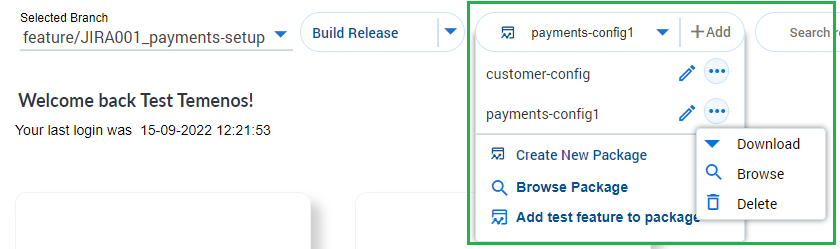
|
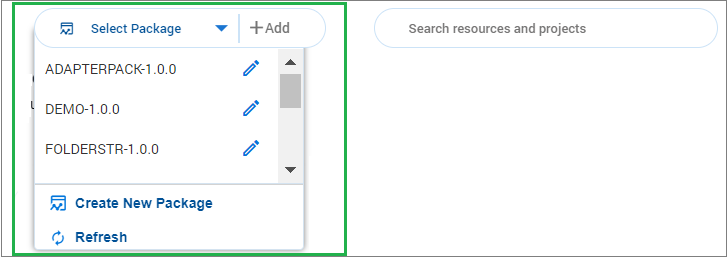
|
| App bar |

|

|
SDLC Process
The following can be performed by Workbench:
- Configure
- Store configuration
- Write tests
- Create and publish deployable and versioned release packages
 Example
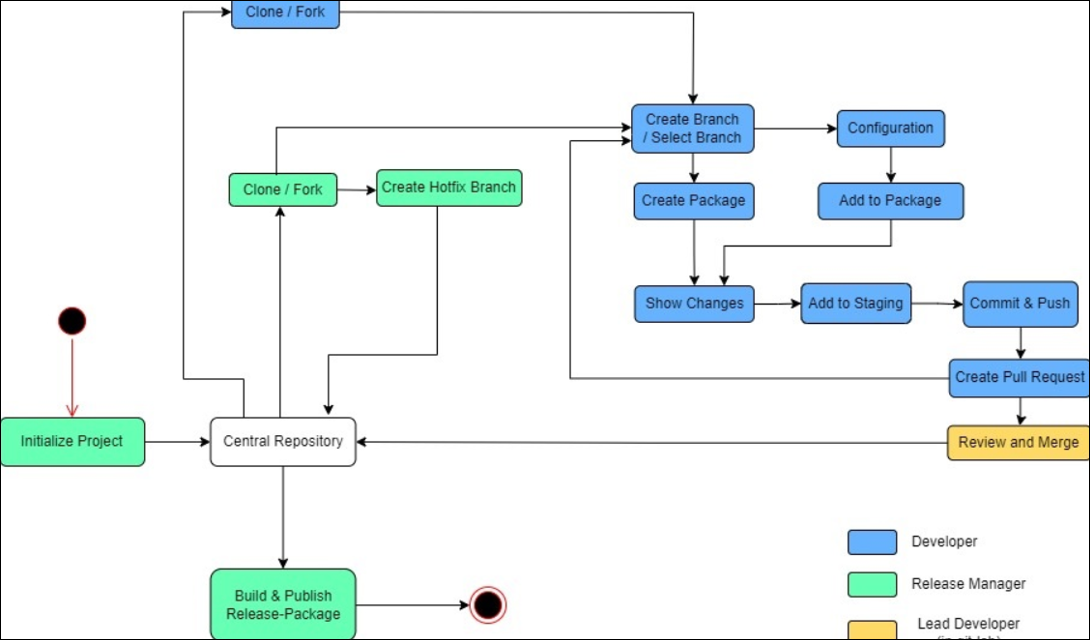
In the diagram below, there are different roles like developer, lead developer, and release manager.
The following actions are performed by each role to complete the process.
- Release Manager
- Initialize projects, which creates a base or central repository for all the developers to work
- Creates a hotfix branch on the central repository
- Creates and publishes release packages
- Developer
- Create branch
- Do changes
- Add to package
- Commit & push
- Pull request
- Lead Developer
- Review and merge a pull request (This is performed through “gitlab” server).
DevOps strategies
Release Managers can create projects in Git with two-level structures (business area, project name). The project is turned into a deployable package during the build time. The project can be built, published, and released using Workbench or the Continuous Integration (CI) tool.
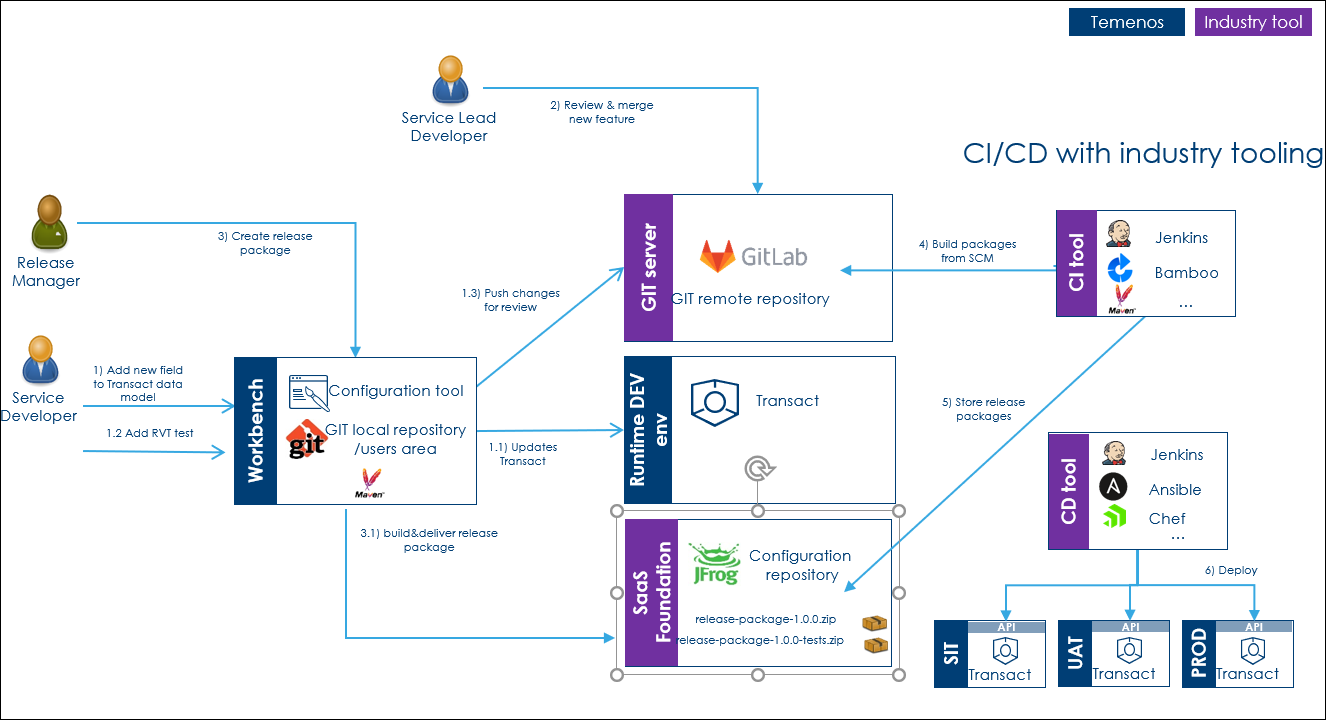
You can use Workbench to create Release Validation Tests (RVT) through the Karate test framework (https://github.com/karatelabs/karate) to promote the idea that any change requires a test. All tests are included in the corresponding release-package-x.y.z-test.zip.
Trunk Based Development
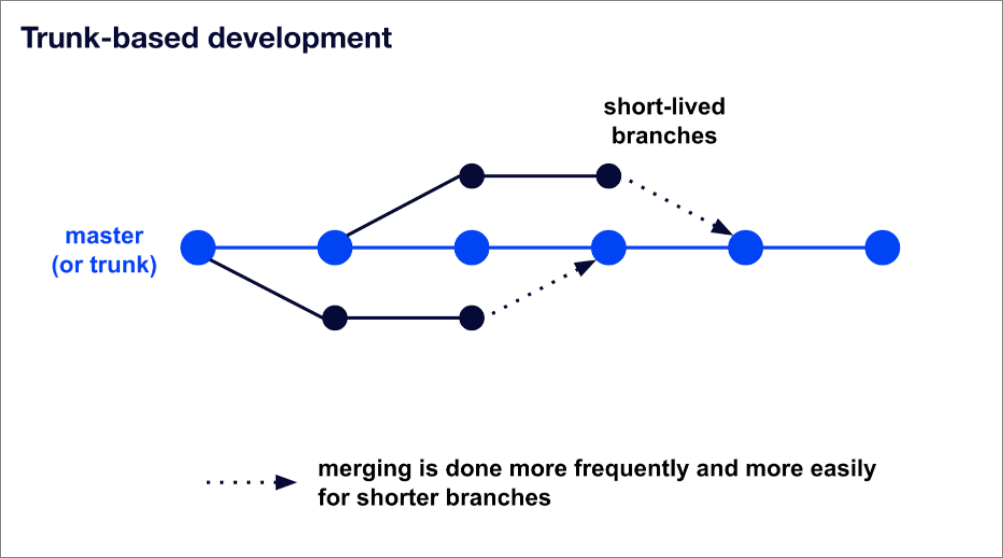
Trunk-based development (TBD) is a source-control branching model where developers collaborate on code in a single branch called trunk. The key benefit is to avoid drift in development branches and the resulting merge complications.
TBD is a key enabler of CI and continuous delivery. When individuals on a team commit their changes to the trunk multiple times a day, it becomes easy to satisfy the core requirement of CI (all the team members commit their changes to trunk at least once every 24 hours). It ensures the codebase is always releasable on demand and helps to make continuous delivery a reality.
TBD is a software development strategy where the engineers merge minor changes more frequently into the main codebase and work off the trunk copy rather than work on long-lived feature branches. The dev team shares a branch called trunk, and each developer creates a short-lived feature branch, where the developer can commit the changes to the trunk (master) and not to the release branches. With the trunk-based approach, we will also have a pre-integration step of running the build first (which must pass).
Release versus Hotfix
Branching Model
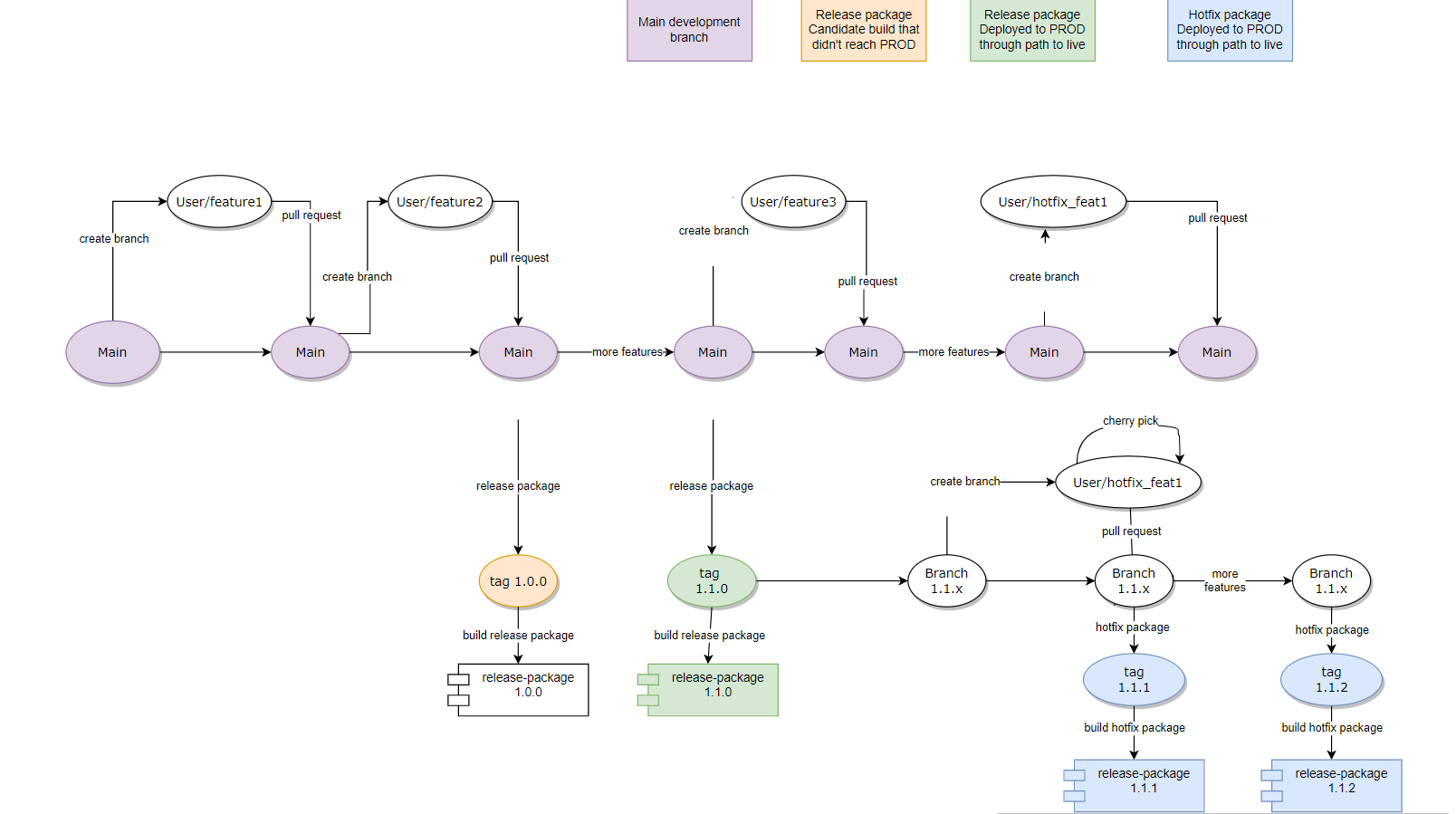
Developers usually work on the DEV branch unless there is a hotfix for which they need to select the correct branch. The following are explained in the screenshot below.
- Timeline in source control
- Committing in the master branch
- Clone by user1
- Creating a feature branch
- Implementing a change
- Commit
- Push
- Raising pull request
- Review and merge
Standard Release Package Management
The release admin can create release packages through Workbench to have a candidate package for production deployment with all the latest changes.
The following process is performed in release package management.
- The release package version is auto-incremented (can also be manually controlled) at every build.
- A new Git tag is created corresponding to the release package version once the release package is created and published.
- The release package is pushed to an Artifactory repository, and a Kafka event is sent to notify the external system of the task completion.
In Temenos Banking Cloud solutions, once a new release package is published, the client can decide on when the package goes Live (typically, DEV > SIT > UAT > PRE-PROD > PROD). The promotion consists of release package deployment and executions of release package tests through the Automated Test Framework. If a release package is deployed and tested successfully, the operator can decide to deploy it to the next environment in the path to live.
To prepare the release package:
- Developers work on the short-lived feature branches and create pull requests that can be reviewed and merged by a lead developer.
- Release admin triggers a release package build.
Hotfix Release Package Management
To prepare the release package in hotfix:
- Release admin prepares a hotfix branch that is used by the developer to include their fixes. The Workbench proposes to create the hotfix branch based on a tag in Git.
- Developers work on the hotfix branch with short-lived feature branches and create pull requests that can be reviewed and merged by a lead developer.
- Developers include their fixes in the master branch as well.
- Release Admin triggers a hotfix release package build by selecting the appropriate hotfix branch.
Git Conflict ManagementFollow any one operation to resolve the conflict.
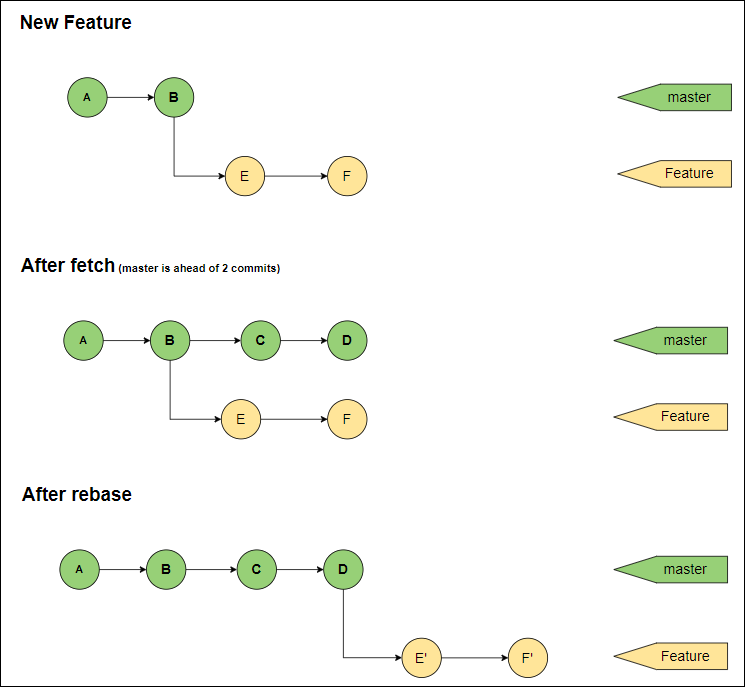
- Fetch – Updates the local repository to the state of a remote.
-
Rebase - Apply the feature branch commits sequentially to the selected base branch.
-
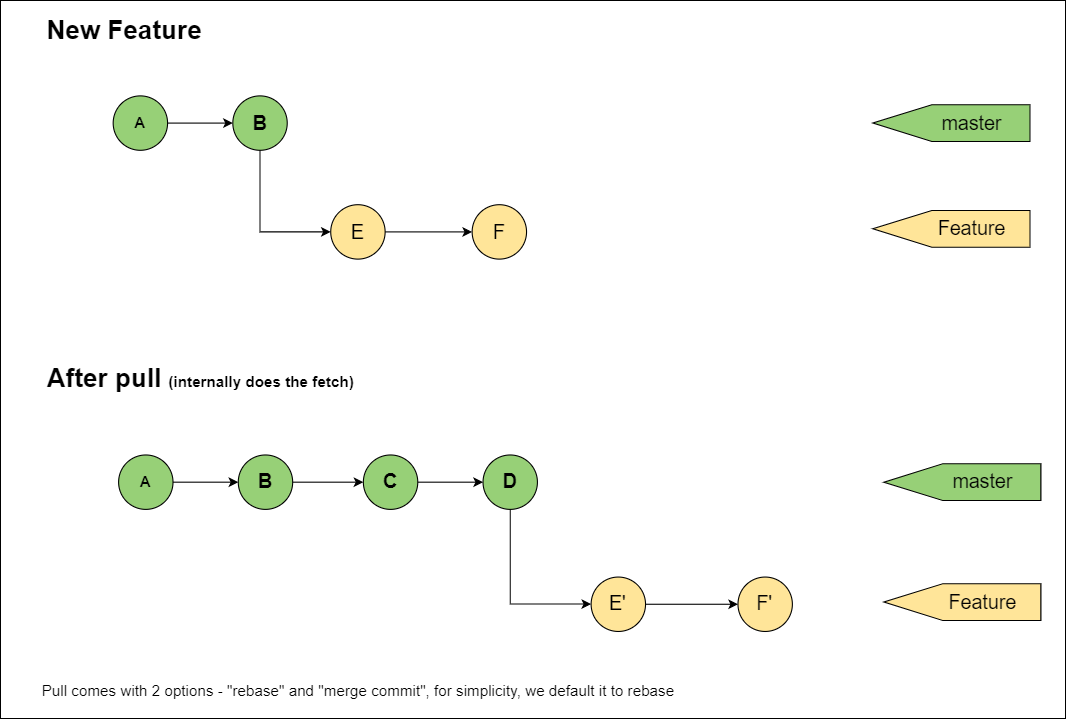
Pull - Single action to perform both fetch and rebase
Resolving Merge Conflicts Manually
Git can handle most merges on its own with automatic merging features. A conflict arises when two separate branches edit the same line in a file. In real-time, consider two developers updating the same file in parallel, in which one of their changes is committed successfully, and the second is under conflict. In such cases, perform a fetch and rebase from Workbench.
Fetch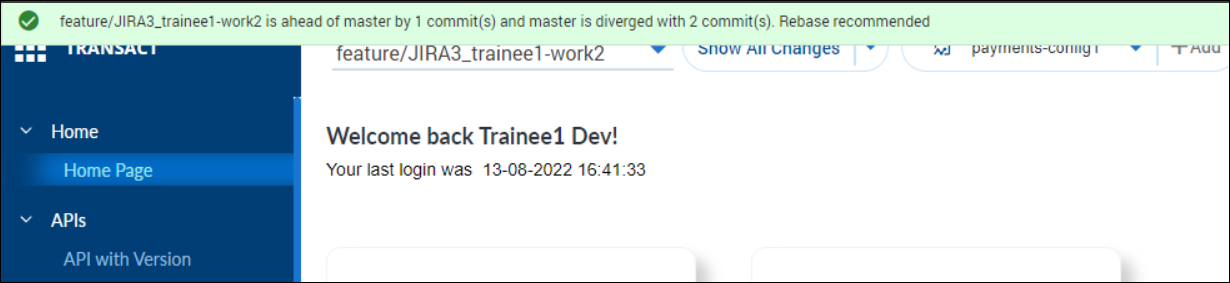
Rebase
The following are the two options to resolve the conflicts manually.
Resolving by Editing the File from Workbench
To resolve the conflict,
- Browse the package from the app bar.
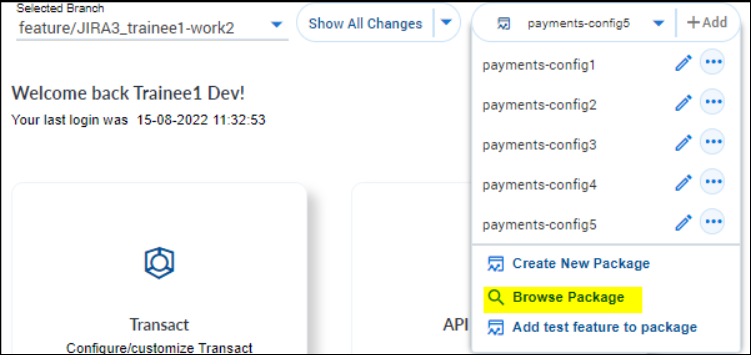
-
Navigate to the conflict file and manually edit.
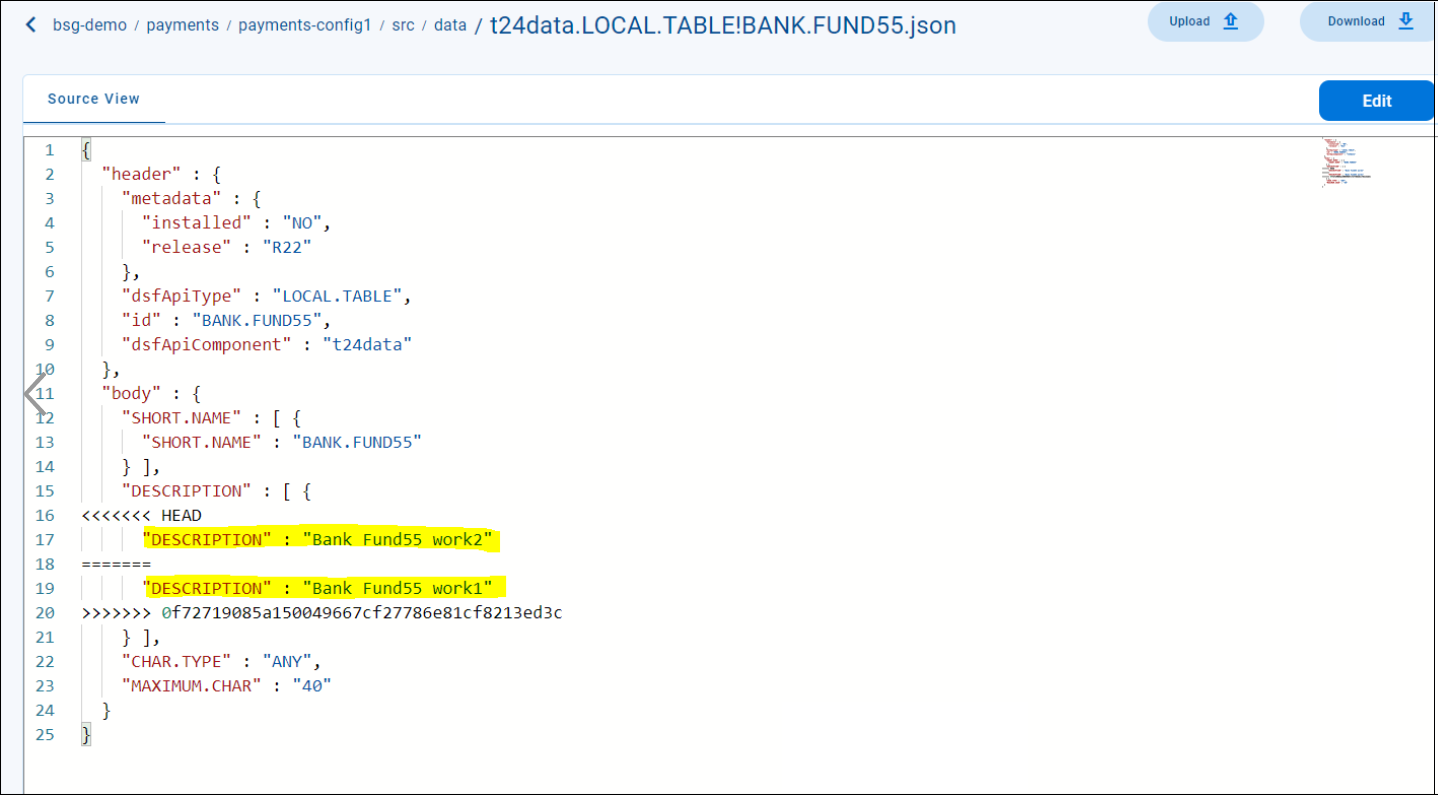
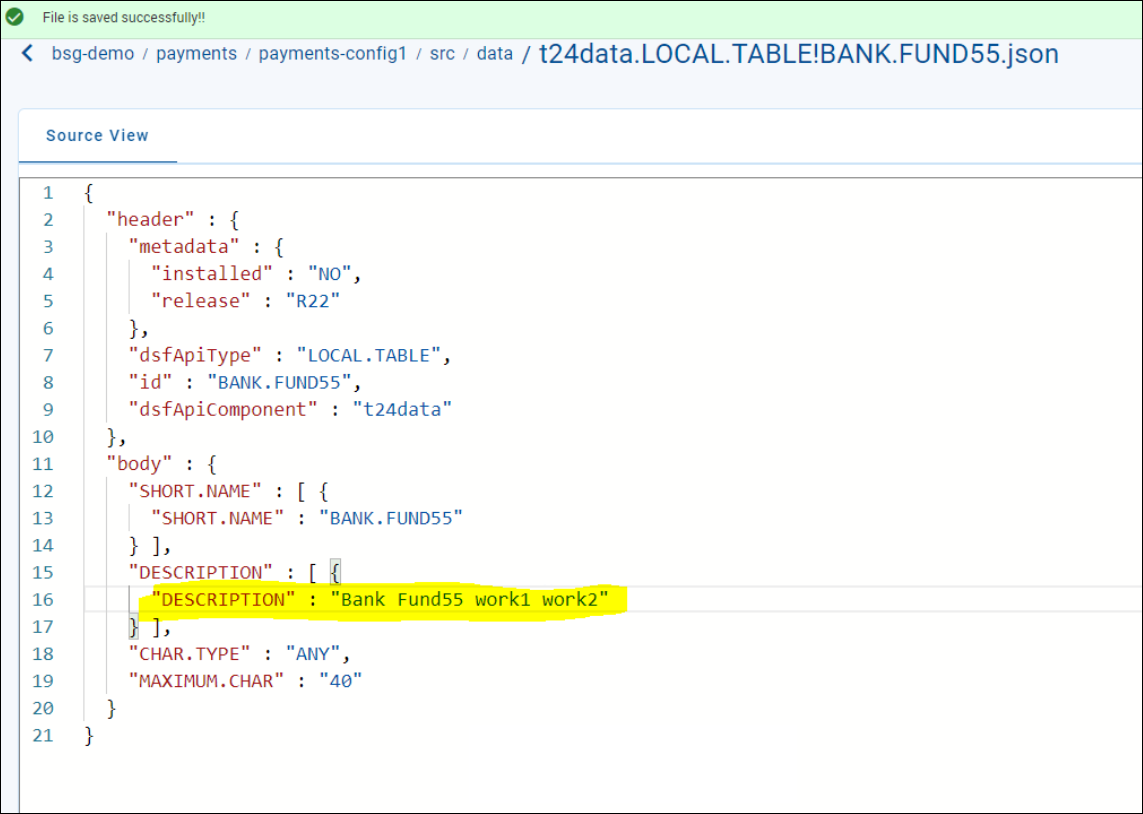
- Review the change.
- Add to Staging.
- Commit and push.
- Refresh the Pull Request URL (in GitLab).
Read Show All Changes for more information on staging, commit and push.
The conflict is resolved successfully.
Resolving by Downloading the Working Area
To resolve the conflict,
- Browse package.
- Choose Downlaod.
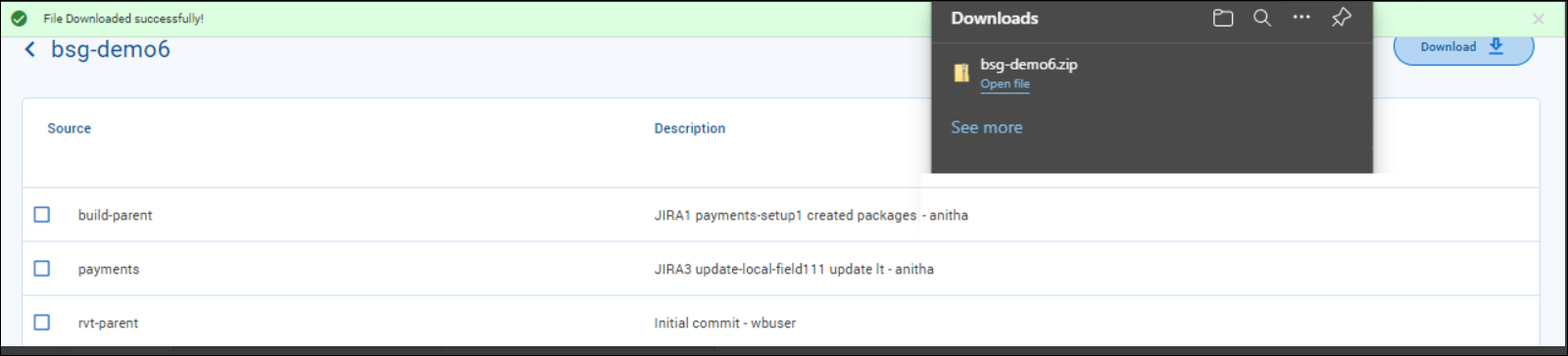
- Navigate to the file location that has a merge conflict, resolve, and save.
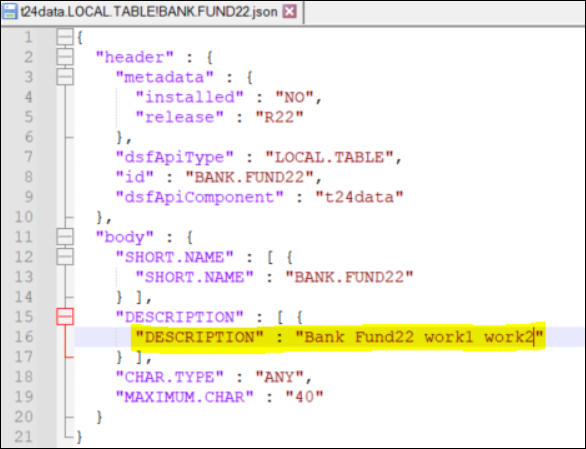
- Create a zip file with the updated changes.
- Click Browse Packages in Workbench.
- Click Upload to upload the git working area.
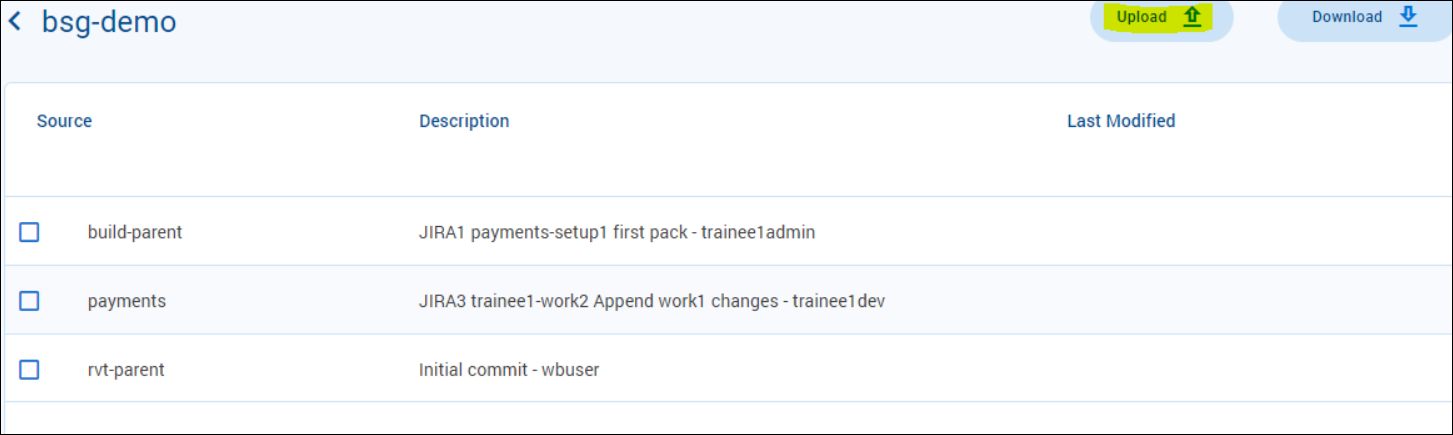
- Click Show All changes.
- Add the changes to Staging.
- Commit and push.
- Refresh the Pull Request URL (in GitLab).
Read Show All Changes for more information on staging, commit and push.
The conflict is resolved successfully.
In this topic