Configuring Temenos Workbench
This section provides details about the configuration of Transact area and Keycloak Authentication Service.
When downloading a new release of Temenos Workbench you need to,
- Modify the global variables in the …\workbench-cli-202010.0.2\appJs.properties file according to the system requirements .
- Run the deploy.cmd file after placing the new dsfworkbench-202010.0.2.zip file in …\workbench-cli-202010.0.2.
If you open Temenos Packager or Rules Manager in Temenos Workbench using Chrome and get an application error, you need to change the default behaviour of cookies in Chrome.
DSF’s Package Manager and Rule Manager are embedded in the DSF workbench, and requests are made cross-site (DSF workbench to DSF), which is by default not supported by Chrome.
To enable the cross-site support in Chrome, you need to,
- Update appJs.properties with AppServer.host.url=workbench:9089
- Execute C:\Temenos\WorkbenchDev\workbench-cli-DEV.0.0-SNAPSHOT\deploy.cmd
- Clean up Chrome cache (chrome://settings/clearBrowserData?search=cache)
During the installation process, you need to create two users, one each for,
- Quantum server console on which Temenos Workbench is deployed and
- Temenos Workbench login
Configuring Transact Area
This section explains all the configurations or installations required to setup Transact in Workbench.
Temenos Packager
Refer the Temenos Workbench Installation guide for the configuration of Temenos Packager.
Transact Explorer Application
For the Transact Explorer screens to run in Temenos Workbench, you need to deploy tb-server.war file (delivered with Temenos Workbench) in the application server (JBoss, WebSphere and so on).
Linking Application Server and Database with Quantum On-Prem Fabric
You need to link Quantum Fabric with an application server (JBoss, Tomcat and so on) and database (Maria DB, MySQL and so on) based on the requirements.
To link the application server and database,
- Install the Quantum Fabric in the Windows machine. Refer Quantum Fabric Install Guide for Windows to install Quantum Fabric V9.
- Login to the Fabric console using valid credentials. For example, sample URL for console is http://<host>:<port>/mfoconsole.
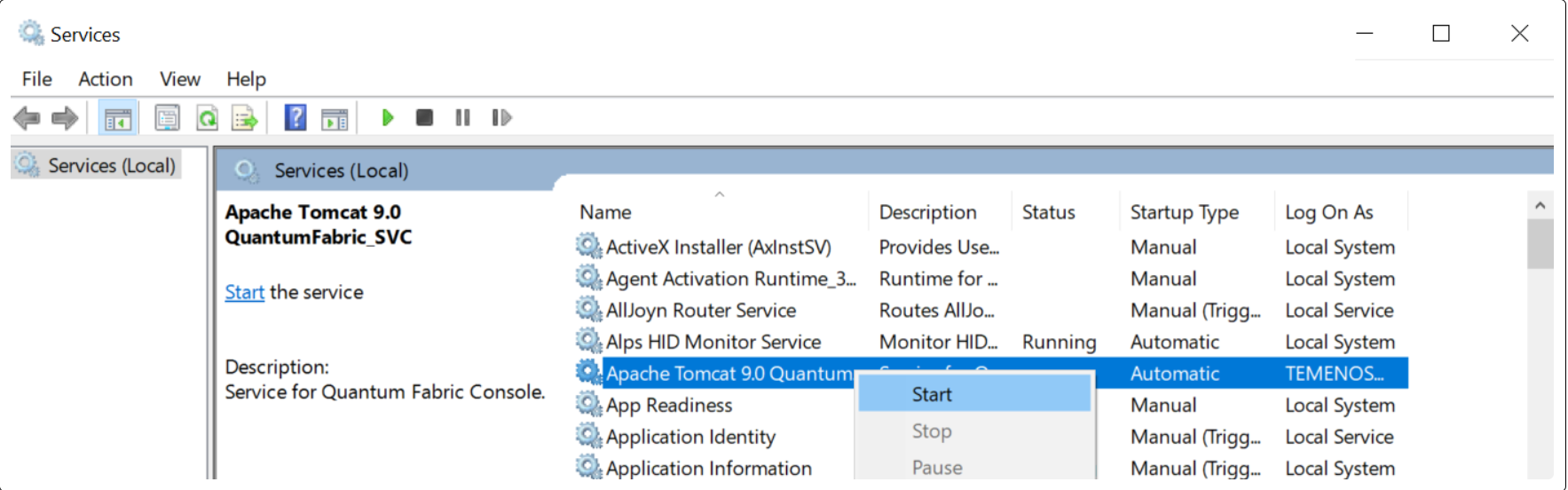
- Start the application server and database that needs to be associated with the fabric.
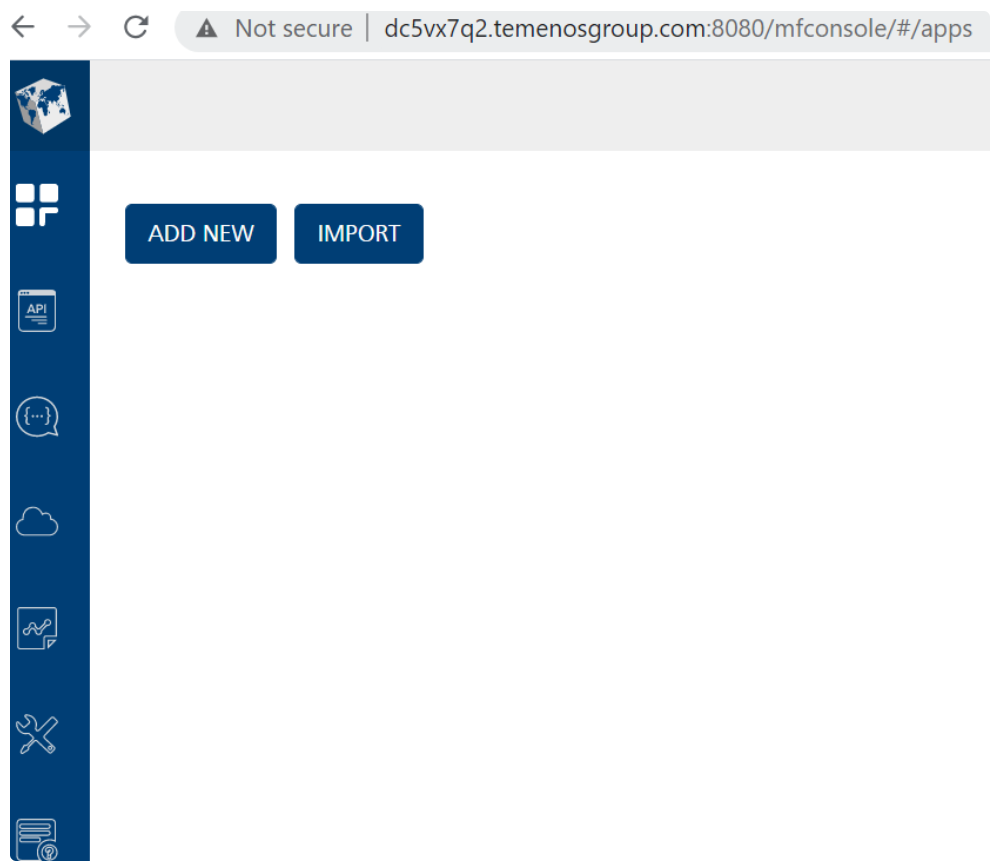
- Click ADD NEW from the console dashboard.
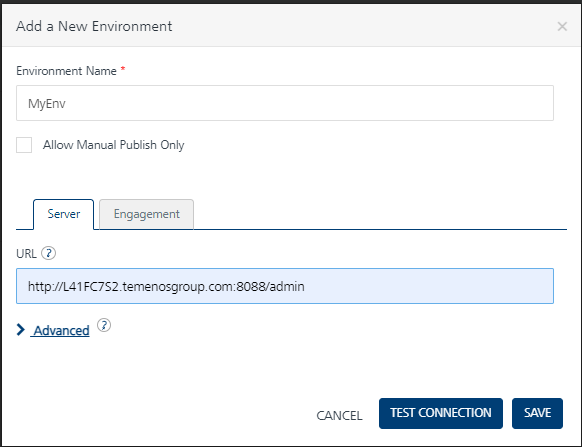
- Enter the Environment Name (for example, MyEnv) and http://<host>:<port> in URL.
- Click TEST CONNECTION to verify the added server.
- Click SAVE to save the configurations.
In this topic