Creating New Rule
This section shows you the steps required to create a new rule.
Step 1: Creating a Rule
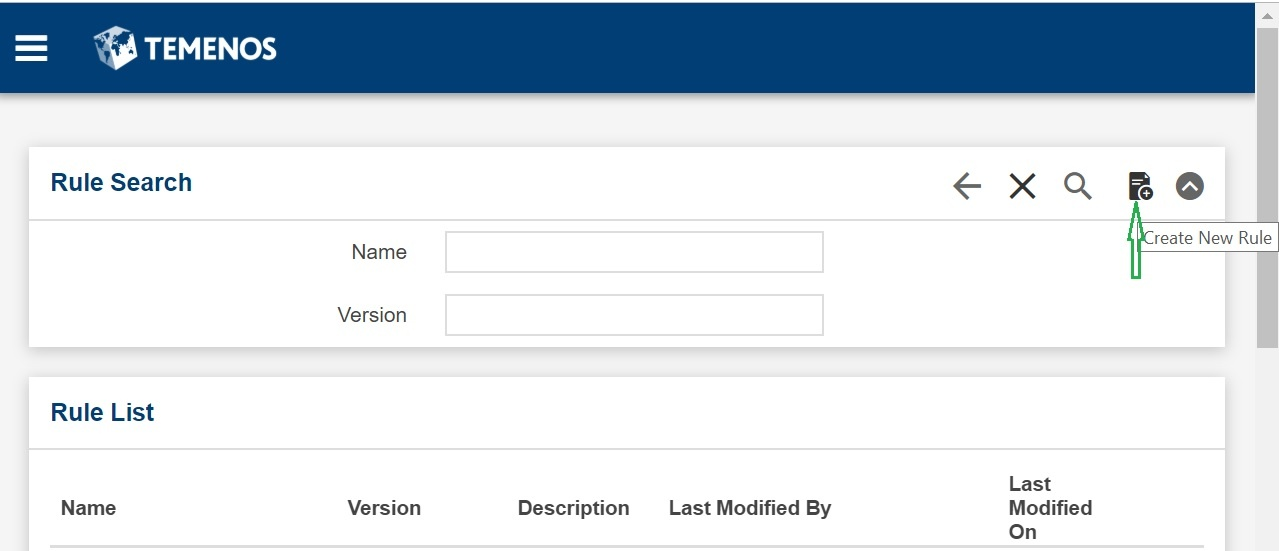
- Navigate to the Rules Search screen and click the Create New Rule icon.
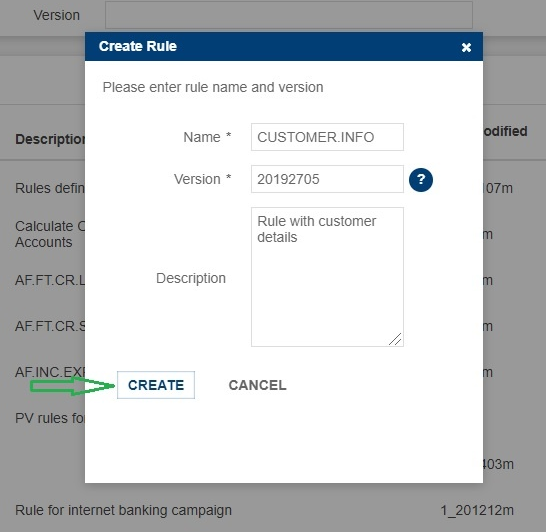
The Create Rule pop-up dialog window opens.
- Enter the rule Name and Version, which are mandatory. Enter the optional Description and click CREATE.
A rule editor screen opens. You can view the name of the rule in the upper left area of the screen with version marked by a *
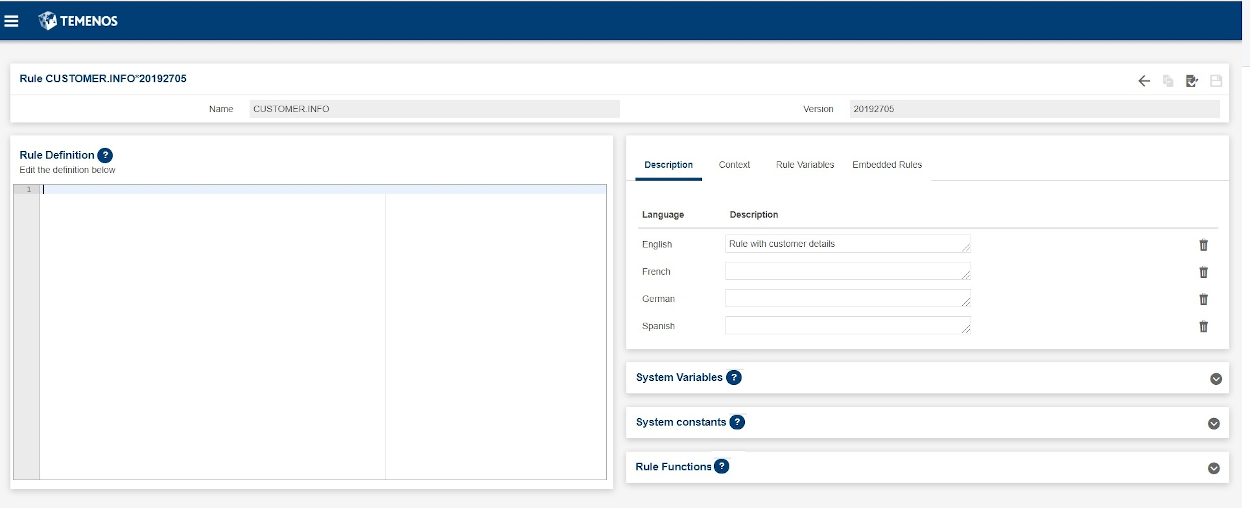
In the Rule Definition section, you can define a rule definition using other rule attributes like Context, Rule Variables, System Variables, System Constants and Rule Functions.
Step 2: Adding a Rule Description
This is a language specific field with a support for languages such as English, French, German and Spanish. English is the default language. You can add more than one description. You can also delete a description.
Navigate to the Description tab and add the rule description in the given language field.
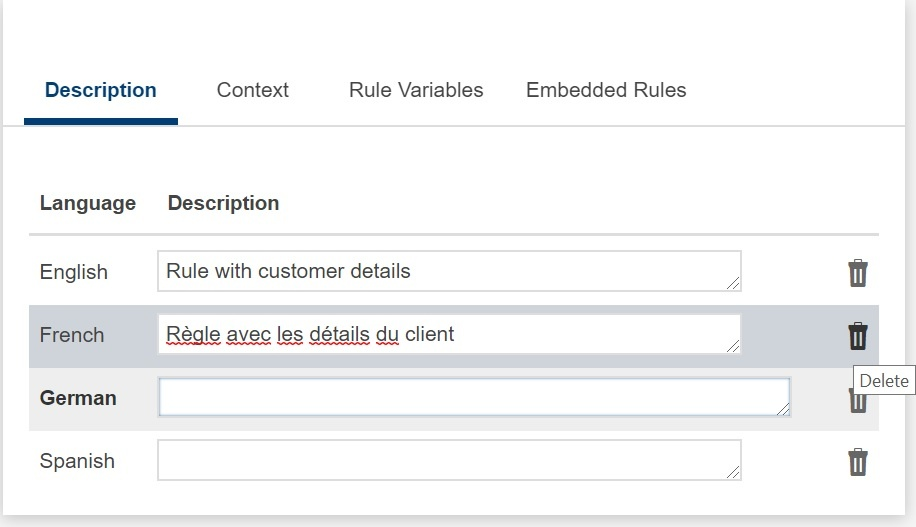
To delete a description, click the recycle bin icon ( ) that is displayed in each row.
Step 3: Adding a Rule Context
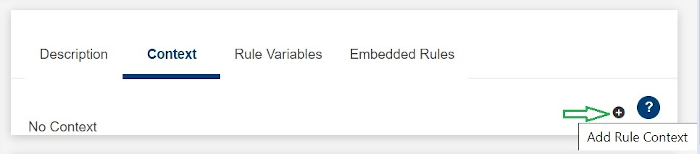
- Navigate to the Context tab of a rule and click + to add a new context.
The Add Rule Context pop-up dialog window opens with Primary table and Name fields.
Enter Primary Table to filter the name values in the drop-down list accordingly.
- Select a name from the Name drop-down list. The list of available fields for the chosen application is loaded.
- Use the search criteria to filter the field names by entering a value into the Name field. The filtered list is displayed.
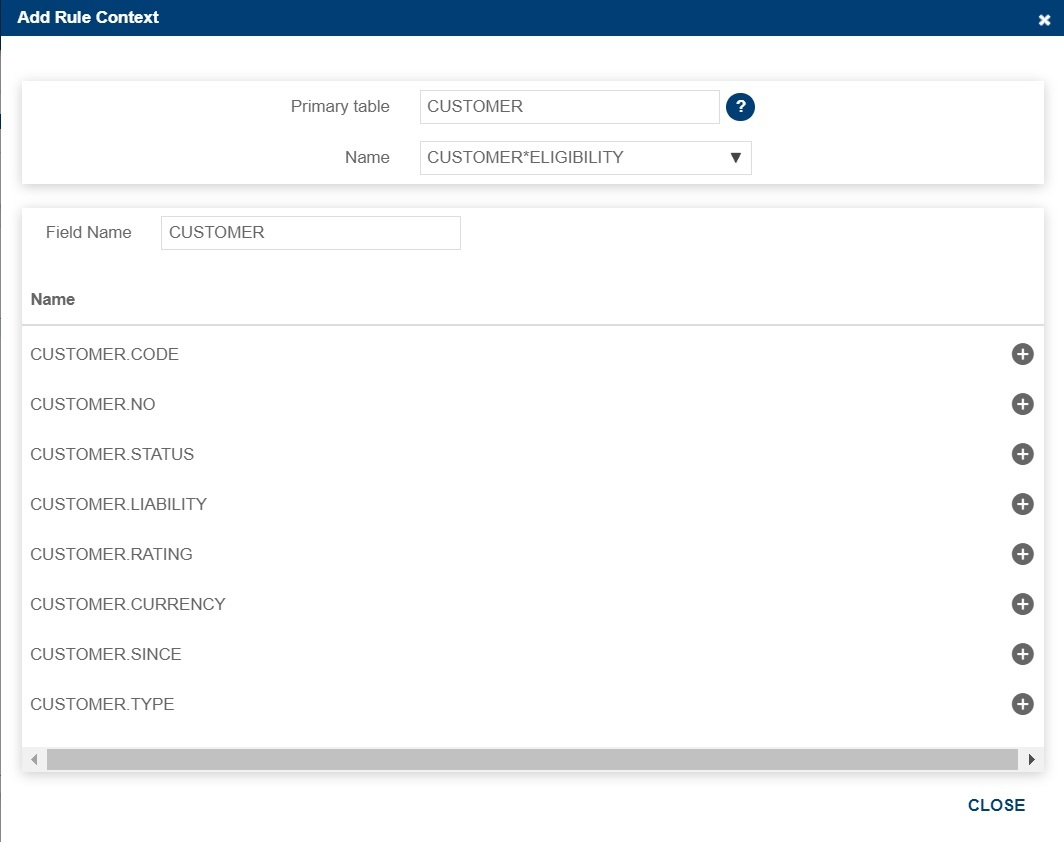
- To add any fields into the context, select a name form the Context List and click
 ADD.
ADD. - After you add all the fields, click CLOSE. This will add the context in the Context tab.
- Click the Insert in script icon (
 ) to insert the chosen context into the rule definition or script.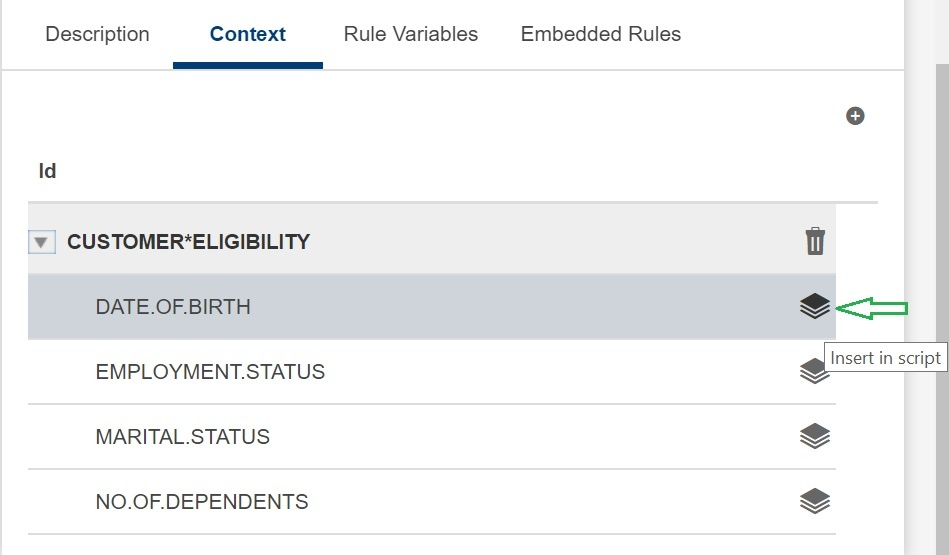
To delete a context, click the recycle bin icon (
) that is displayed in each context.
Step 4: Adding a Rule Variable
- Navigate to the Rule Variables tab and click the Add Rule Variable icon to add a new rule variable.
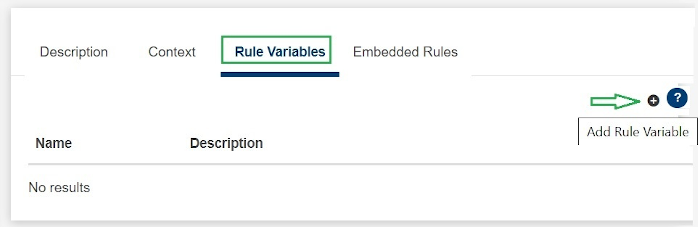
- Enter the rule name and description and click ADD.
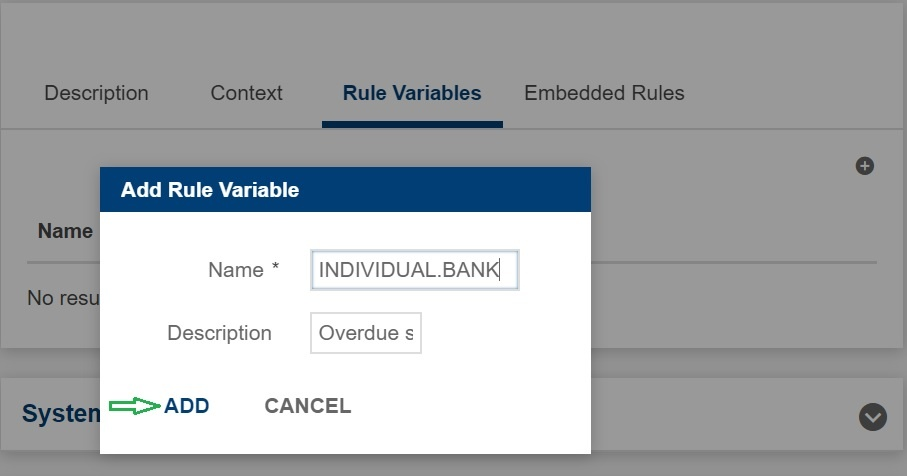
The rule variable is added into the Rule Variables tab as shown below.
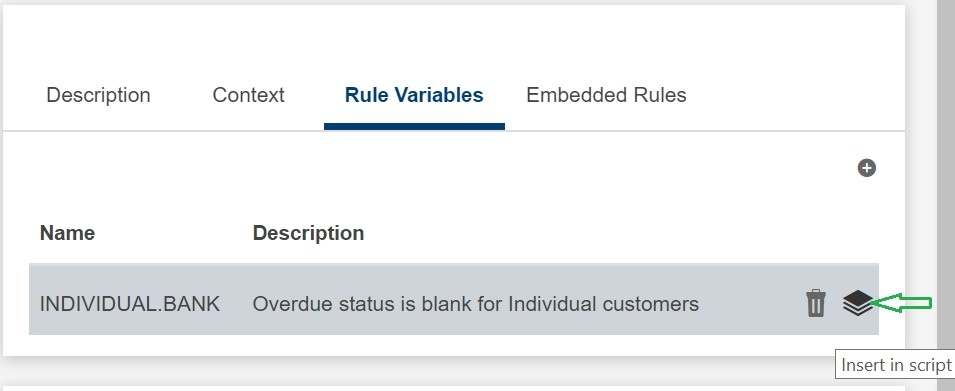
- Click the Insert in script icon to insert this rule variable into the rule definition or script.
To delete a variable, click the recycle bin icon (
) that is displayed in each variable.
Step 5: Saving a Rule
Click the Save icon available on the upper right corner of the rule editor screen.

In this topic