Sanity Check for Data Packaging and Rules using URL
This section explains the testing that must be performed in DSF Packager and Rules Designer using web browser.
Launching DSF Packager
Temenos Packager supports packaging of multiple products (software) through single user interface that offers a consistent and best in class packaging experience. This below steps guide you to check the DSF packager by launching it.
- Run the following URL to launch the DSF Packager and Rules Designer, which are deployed in an application server running locally with port 9089:
http://localhost:9089/dsf-uxp/
The screen displays the Package Manager and Rules Manager.
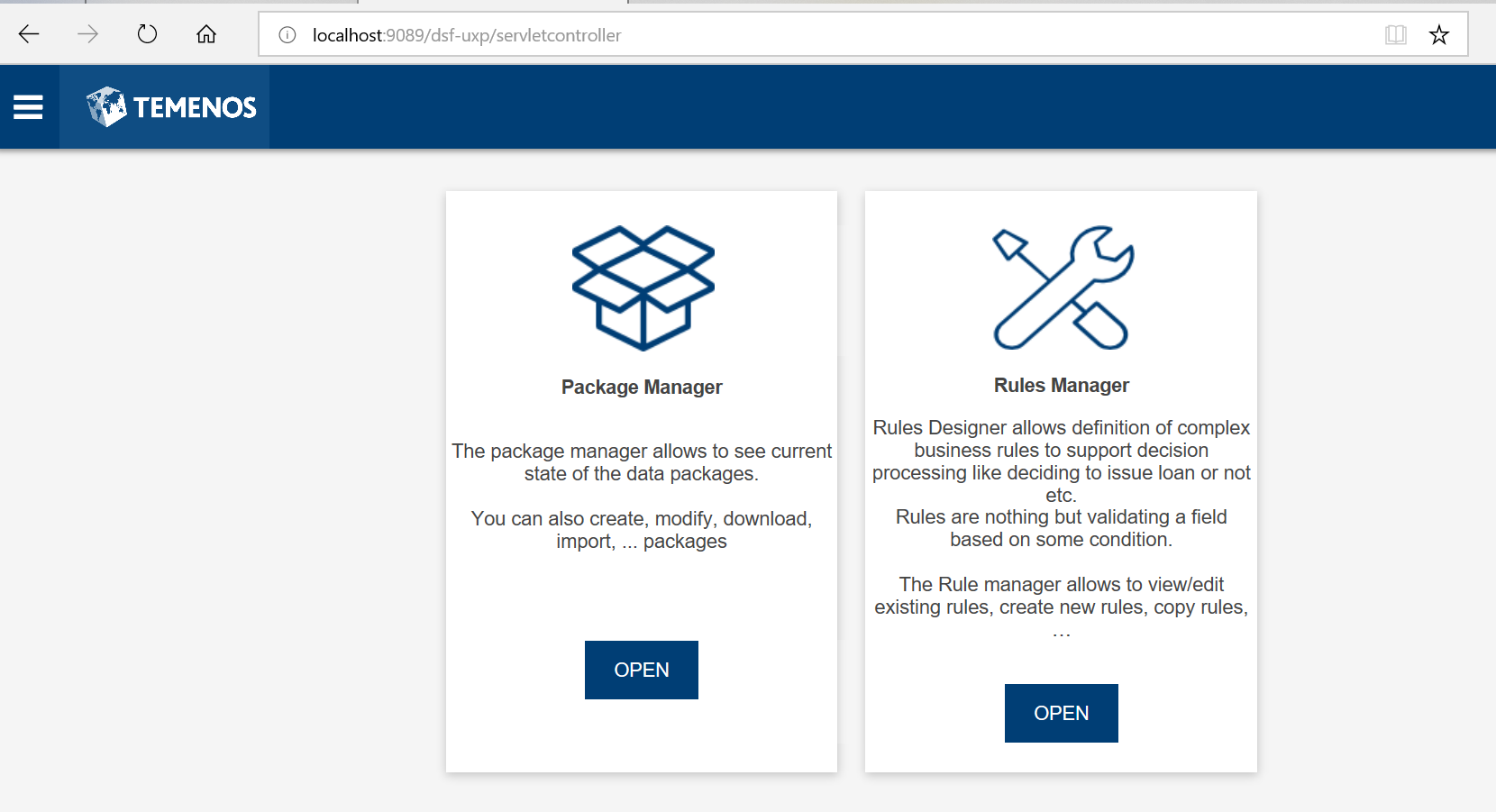
- Click OPEN in Package Manager to package data records. The following screen appears.
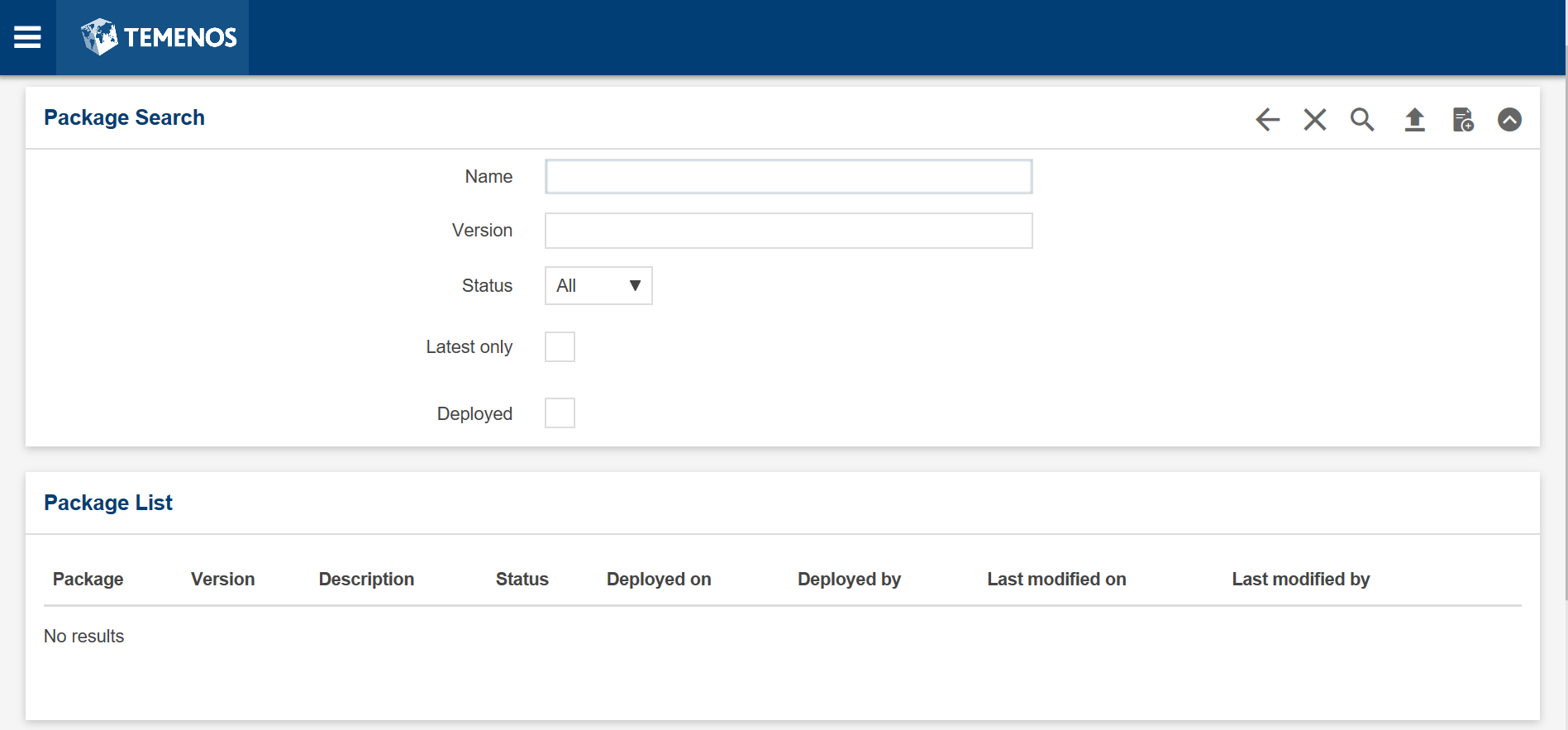
In this screen, you can create a new package, search for an existing package from the Temenos Transact database.
Creating a New Package
You must create a sample package to validate the package manager. Follow the steps below to create a new package.
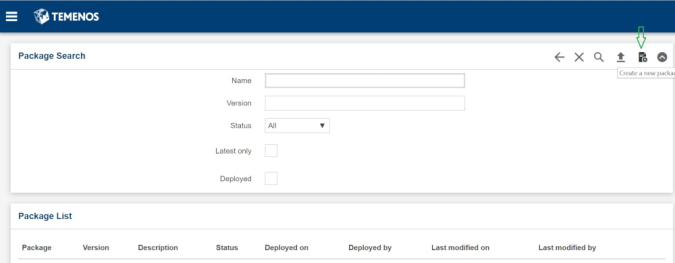
- Click the Create a new package icon as shown below.
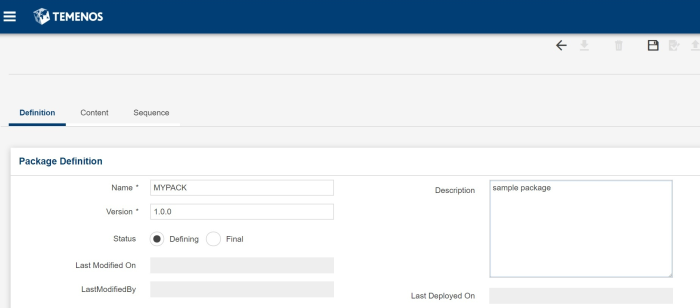
- In the Definition tab, enter the following:
- Package Name as MYPACK.
- Default Version can be 1.0.0.
- Description about the package such as sample package.
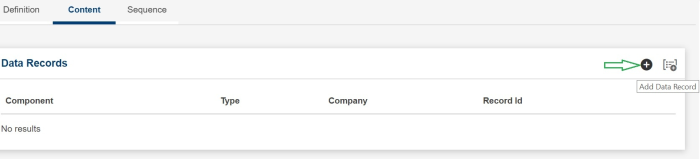
- Go to the Content tab, and click the Add Data Record icon to import a single data record.
Data Record dialog box for adding a data record appears. It has the following fields:
- Component – Select a component. For example: Transact Configuration.
- Data Structure – Select a data structure. For example: Transact Version.
- Type – Enter a valid application name. For example: CURRENCY.
Company – Select GB0010001 or the master company code.
ID – Enter the record ID for the application selected. For example: USD.
- Folder – Enter the name of a folder to store the record.
- Phase – Select the required phase. Options available are pre, main and post.
- Action – Select the required action. For example, Delete.
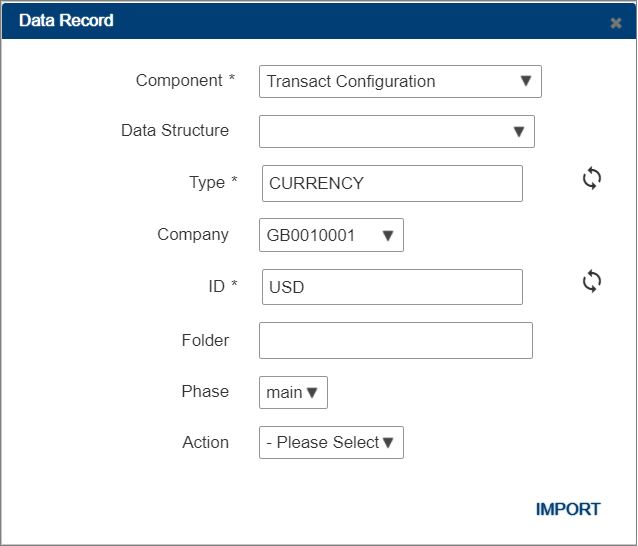
- Click IMPORT.
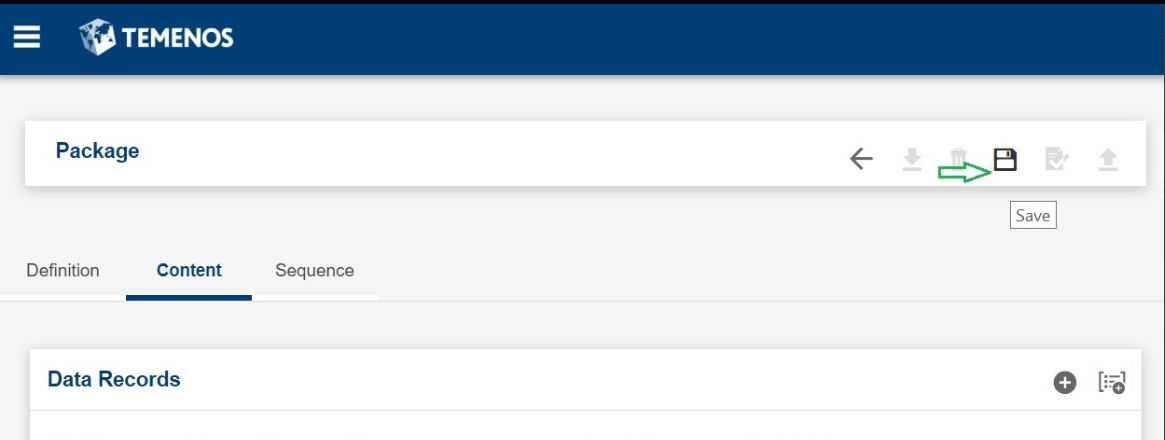
- After importing the application, close the dialog box and click the Save icon.
- Click the Validate icon to validate the package against Temenos Transact validations.
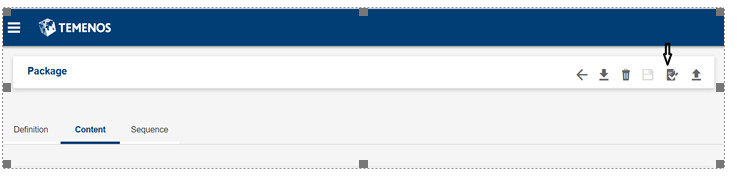
If there are no errors, then the package is valid and you can download it.
- Click the Download icon to download the package.

Downloaded package appears as shown below.

Launching Rules Designer
Rules designer is a replacement of toolbox that allows to design, modify, validate and publish Temenos Transact rules. Follow the steps below to launch Rules Designer.
- Run the following URL to launch the DSF Packager and Rules Designer, which are deployed in an application server running locally with port 9089:
http://localhost:9089/dsf-uxp/
The screen displays the Package Manager and Rules Manager.
-
Click OPEN in Rules Manager to design or edit Temenos Transact rules. The following screen appears.
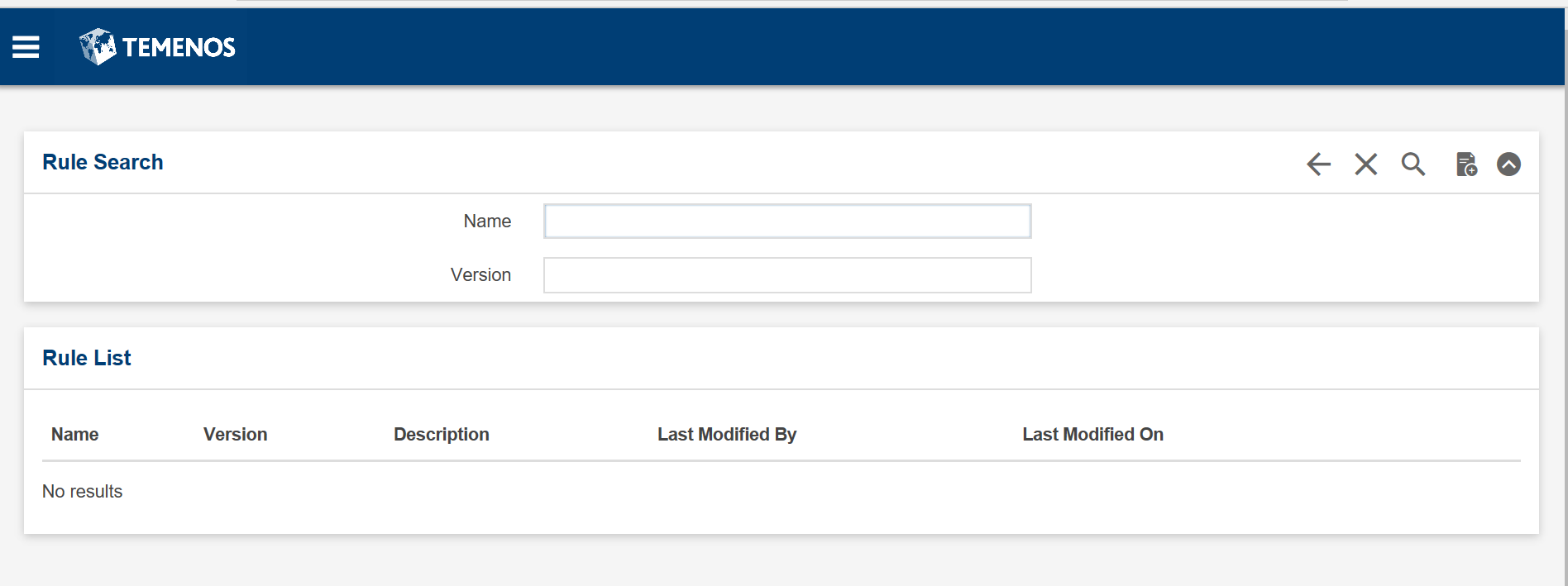
You can search the rules available in Temenos Transact by clicking the search icon.
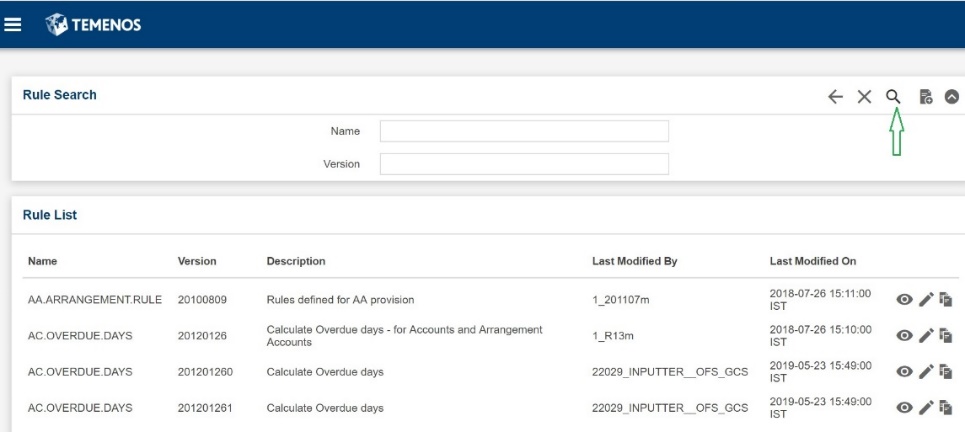
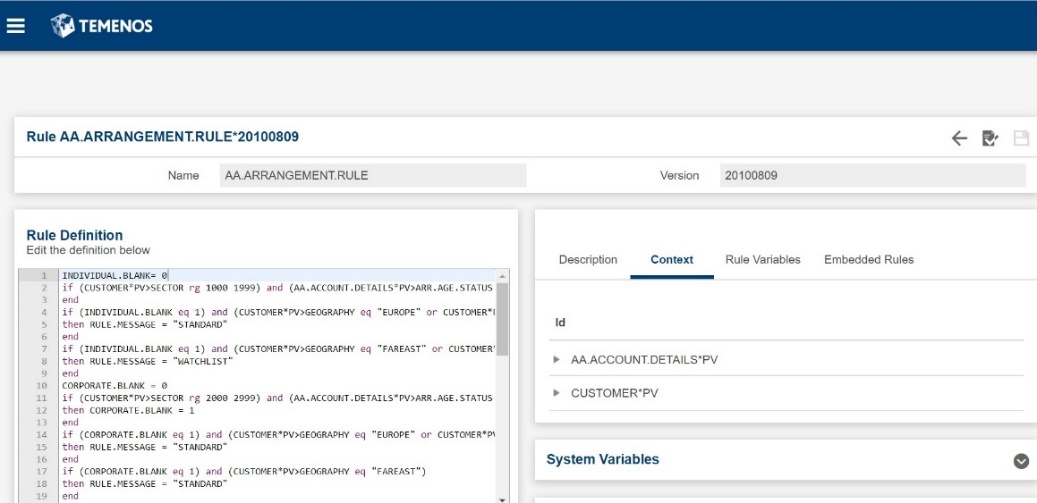
Under Rule List, view action icon is available for each rule. The following screen shows the rule editor in read-only mode after clicking the view icon.
In this topic