Pre and Post Deployment Actions
The goal is to automate most of the actions performed during pre and post deployment of data records.
The supported actions are:
- D: Deletes a Temenos Transact data record.
- R: Reverses application or version data records via OFS message.
- H: Restores History File.
- HLD: Put a record in IHLD status.
- Proof and Publish of AA products using OFS with post data records in a given order.
List of Applications with Proof and Publish
|
Temenos Transact application |
Description |
Applicable Action |
|
AA.PRODUCT.MANAGER |
AA Product |
PROOF & PUBLISH |
|
AA.MARKETING.CATALOGUE.DESIGNER |
Publishes to create a no file enquiry based on definition in this table. |
PUBLISH |
|
NA.PRODUCT.FIT.DEFINITION |
Publishes definition rules to validate product suitability for customer. |
PUBLISH |
|
AA.DEFINITION.MANAGER |
Creates class (form, needs, evidence, decision) types on PUBLISH action. |
PUBLISH |
|
OA.APPLICATION.DEFINITION |
Helps to generate application forms on PUBLISH action. |
PUBLISH |
|
OA.APPLICATION.STAGES.DEFINITION |
Helps to enable different stages for a given purpose on PUBLISH action. |
PUBLISH |
|
OA.DECISION.BODY |
Defines power to act for a given loan application - Users level authority. |
PUBLISH |
|
OA.DECISION.MATRIX |
Defines power to act for a given loan application - Matrix definition. |
PUBLISH |
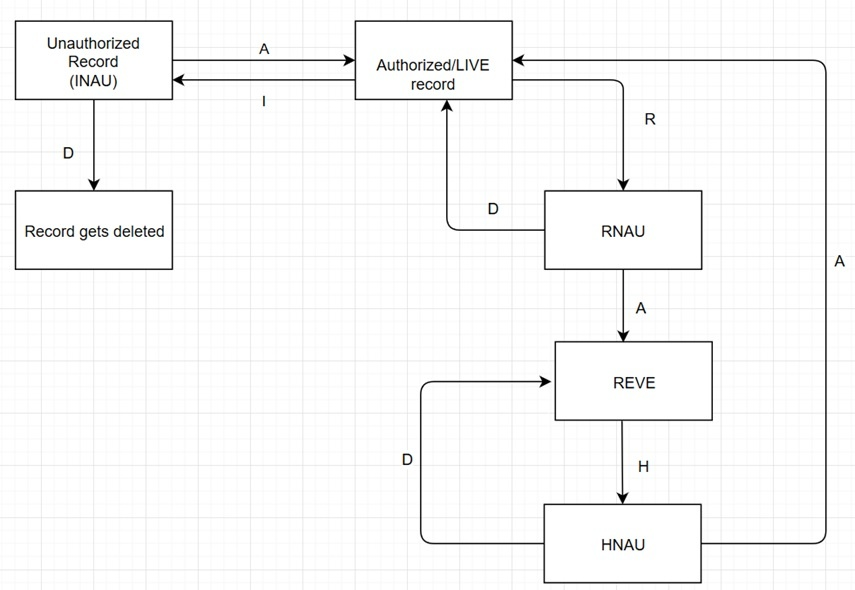
Flow of Records in Temenos Transact with Actions - D, R, H
|
Action |
Description |
|
D |
Delete |
|
A |
Authorize |
|
I |
Input |
|
R |
Reverse |
|
H |
History restore |
|
INAU |
Input not authorized |
|
RNAU |
Reverse not authorized |
|
HNAU |
History not authorized |
|
REVE |
Reverse |
Adding Data Record with pre and post
The below steps guide you to add data record with pre and post.
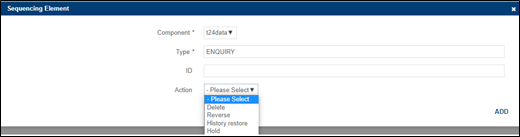
- To add a data record with pre-post, in the Content tab, click the Add Data Record icon.
A dialog pop-up window for adding data records opens.
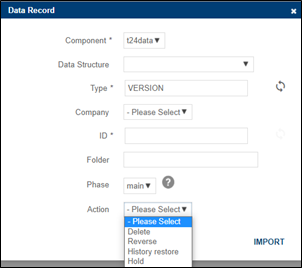
The Phase combo box field shows the list of phases: pre, main and post. By default, the Phase field is set to main.
The Action combo box shows the list of available actions such as Delete, Reverse, History restore, Hold, proof, publish, proof & publish. By default, the value will be empty in Action field.
Action values are configured depending on the value chosen in the Type field. For more information, see the dependency table in Component, Type and Action Dependency.
- Click Import. The data record is added to the Content tab. Two new columns Phase and Action are added and shown as below:
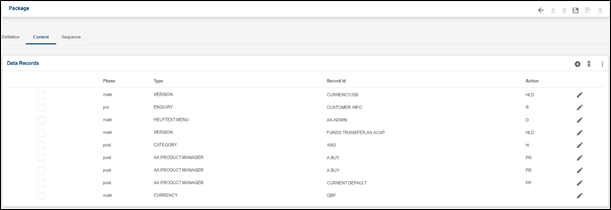
Mnemonics are used to display Action values in Content tab.
Action
Mnemonic
Delete
D
History restore
H
Proof
PR
Proof & Publish
PP
Publish
PB
Reverse
R
Hold
HLD
Component, Type and Action Dependency
|
Component |
Type |
Action |
|
t24data |
* |
Delete, reverse, history restore |
|
t24data |
AA.PRODUCT.MANAGER |
Proof, publish, proof & publish |
|
t24data |
AA.MARKETING.CATALOGUE.DESIGNER NA.PRODUCT.FIT.DEFINITION AA.DEFINITION.MANAGER OA.APPLICATION.DEFINITION OA.APPLICATION.STAGES.DEFINITION OA.DECISION.BODY OA.DECISION.MATRIX |
Publish |
Data Record Sequence
Once the data record sequence is added to the Sequence tab, the action values are displayed such as D, R, H, HLD, PR, PB, and PP.
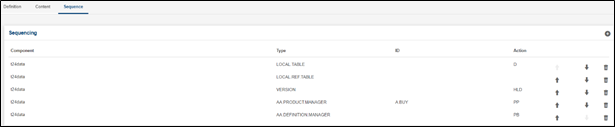
In the Add Sequence element pop-up window, a combo box field Action with values Delete, History restore, Reverse, Hold, Proof, Publish, Proof & Publish is shown depending on the type selected.
Folder Structure with pre and post Actions
Adding a data record with pre phase with an action will be saved in the src/pre folder. Similarly, post phase data records will be saved in the src/post folder and for main phase, data records will be saved in the default src/data folder.
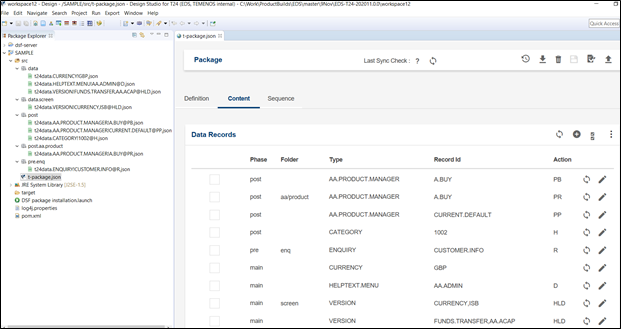
Data record JSON file format will have the action appended with the @ separator. For example t24data.ENQUIRY!CUSTOMER.INFO@R.json, t24data.AA.PRODUCT.MANAGER!A.BUY@PR.json, etc.
When you add a data record with a phase defined and also the folder structure defined, you should store the JSON file in the defined phase by creating a folder inside your workspace.
Sample JSON file Content with an Action
Sample JSON file content with the Reverse Action
{
 "header" : {
 "id" : "CUSTOMER.INFO",
 "dsfApiComponent" : "t24data",
 "dsfApiType" : "ENQUIRY",
 "dsfApiPhase" : "pre",
 "dsfApiAction" : "Reverse"
  }
}
Sample JSON file content with the Proof Action
{
 "header" : {
 "id" : "A.BUY",
 "dsfApiComponent" : "t24data",
 "dsfApiType" : "AA.PRODUCT.MANAGER",
 "dsfApiPhase" : "post",
 "dsfApiAction" : "Proof"
    },
 "body" : {
 "AVAILABLE.DATE" : "20190320",
 "DESCRIPTION" : [ {
 "DESCRIPTION" : "Product Lifecycle Management"
    } ],
 "PROCESS.METHOD" : "ONLINE"
    }
}
Sample JSON file content with Hold Action
{
"header" : {
  "dsfApiComponent" : "t24data",
  "dsfApiType" : "VERSION",
  "id" : "FUNDS.TRANSFER,AA.ACAP",
  "dsfApiPhase" : "main",
  "dsfApiAction" : "Hold",
  "metadata" : {
     "installed" : "NO",
     "release" : "T24202010"
   }
},
"body" : {
  "LANGUAGE.CODE" : [ {
    "LANGUAGE.CODE" : "1"
  } ],
  "ATTRIBUTES" : [ {
    "ATTRIBUTES" : "NO.HEADER.TAB"
  } ],
  "FIELDS.PER.LINE" : "MULTI",
  "AUTOM.FIELD.NO" : [ {
    "AUTOM.FIELD.NO" : "DEBIT.ACCT.NO",
    "AUT.NEW.CONTENT" : "!CURRENT.ACCOUNT"
  }, {
    "AUTOM.FIELD.NO" : "TRANSACTION.TYPE",
    "AUT.NEW.CONTENT" : "ACAP"
  } ],
  "FIELD.NO" : [ {
    "FIELD.NO" : "DEBIT.ACCT.NO",
    "COLUMN" : "1",
    "ENRICHM.CHAR" : "7",
    "TEXT" : [ {
      "TEXT" : "Arrangement Id"
    } ],
    "TEXT.CHAR.MAX" : "17"
  }, {
  "FIELD.NO" : "DEBIT.VALUE.DATE",
    "COLUMN" : "70",
    "TEXT" : [ {
      "TEXT" : "Debit Value Date"
    } ],
    "TEXT.CHAR.MAX" : "17"
  } ],
     "ASSOC.VERSION" : [ {
       "ASSOC.VERSION" : "FUNDS.TRANSFER,AUDIT"
     } ],
     "REPORT.LOCKS" : "YES",
     "DESCRIPTION" : [ {
       "DESCRIPTION" : "Agent Commission - Payout"
     } ],
     "NOINPUT.FIELD" : [ {
       "NOINPUT.FIELD" : "13"
     }, {
       "NOINPUT.FIELD" : "14"
     } ],
     "NO.OF.AUTH" : "1",
     "RECORDS.PER.PAGE" : "1"
  }
}
Package Compare with pre and post
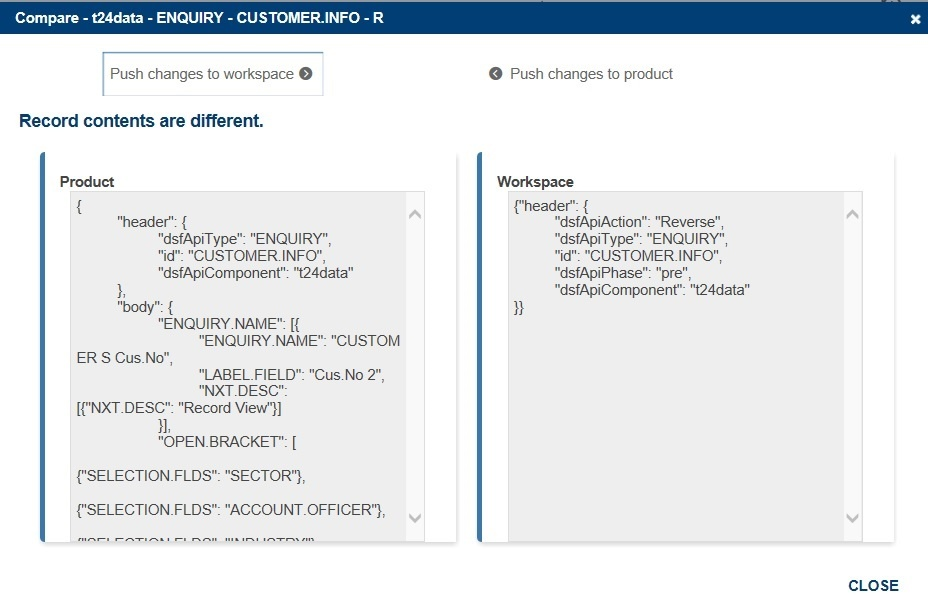
As an IDE user, you can compare and sync pre and post actions.
If you specify an action, for example delete, the following action will take place:
- After you have clicked Push changes to workspace, file contents in your workspace are replaced with database record content, in other words, a JSON file is deleted from the workspace.
- After you have clicked Push changes to product, the data record is deleted from the Temenos Transact database (provided the record status is in INAU, HNAU or RNAU).
Adding Data Records with pre and post Actions to a Package Through a CSV File
The below steps guide you to add data record with pre and post actions to a package through CSV file.
Create a CSV file in this format: Component,Type,Record ID,Company,Folder,Data Structure(Y/N),Custom Data Structure,Phase,Action.
Two new columns are added as part of pre-post: Column H: Phase and Column I: Action.
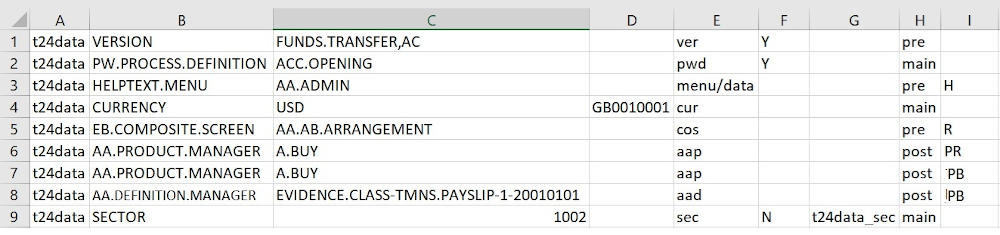
When data structures and custom data structures are enabled, the Action column should be empty.
For AA type of applications, the Action column will only have values PR (Proof), PB (Publish) and PP (Proof & Publish).
Validation and Deployment of Data Records in pre, main and post Phases
During validation, you perform the steps in the following sequence:.
- Validate data records that are in pre.
- Apply the sequence.
- Apply the sequence (main)
- Apply the same sequence (post)
Any failures will be retried within its own sequence. You can apply the same sequence in all the three phases.
Deployment of data records can be both a single transaction or no transaction and can be applied to the pre, main and post phases.
For deployment in single transaction, you must first deploy data records that are in pre, then in the main, and then in post. You must apply the same sequence in all the three phases.
For deployment in No Transaction, you must first deploy data records that are in pre by applying a sequence, then you can do the main by applying sequence, and then in post by applying sequence. If any data records fail, the deployment will be re-tried for the failed records with a different sequence.
In this topic