Performing Field Level Packaging
As part of advanced automation, Field Level Packaging supports complex update scenarios and helps to update sensitive Temenos Transact tables.
Field Level Packaging
You now have the ability to deploy field level updates. Using Field Level Packaging, you can set or remove simple attributes, add MV or SV, remove MV or SV, and replace MV or SV.
DSF package is re-entrant not only with full data records but also with field level update records. Once a DSF package has been deployed successfully, if you try to deploy the same package again and again, there is no change in Temenos Transact.
Adding a Data Record with Field Level Packaging
The following steps guide you to add a data record with field level packaging:
- To add a field level update, on the Content tab, click the
 (Add Field Level Update) icon.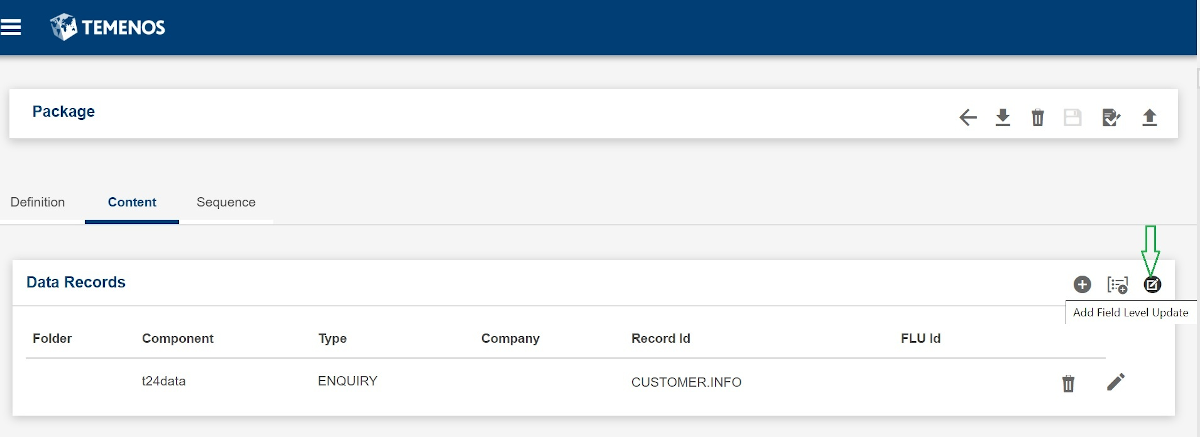
The Field Level Update dialog window opens up, with three tabs: FIELD, SELECTOR and OPERATION.
In the FIELD tab, in addition to the existing fields of the Add Data Record pop-up window, there is a new mandatory field: Field Level Update ID. This field takes upper case and dot. ID must be unique in the package.
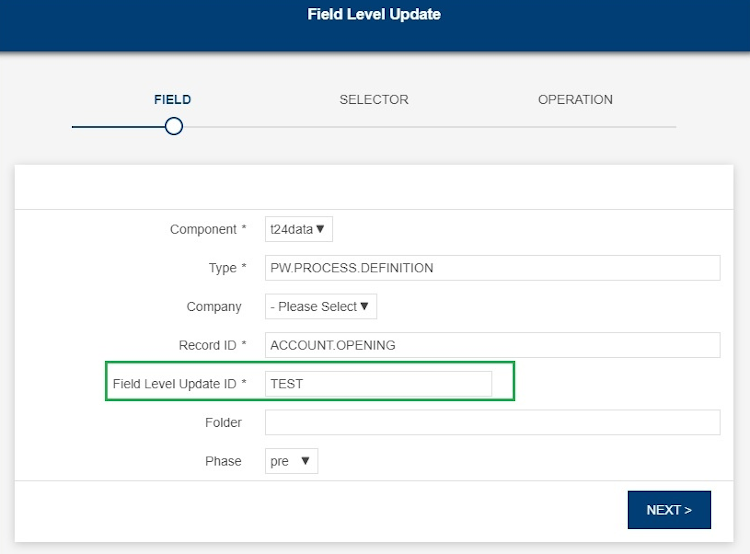
- From the Phase drop-down list, select the phase. The available values are pre, main (default) and post.
- Click Next to navigate to the SELECTOR tab.
- Specify the values for the UI controls on this page.
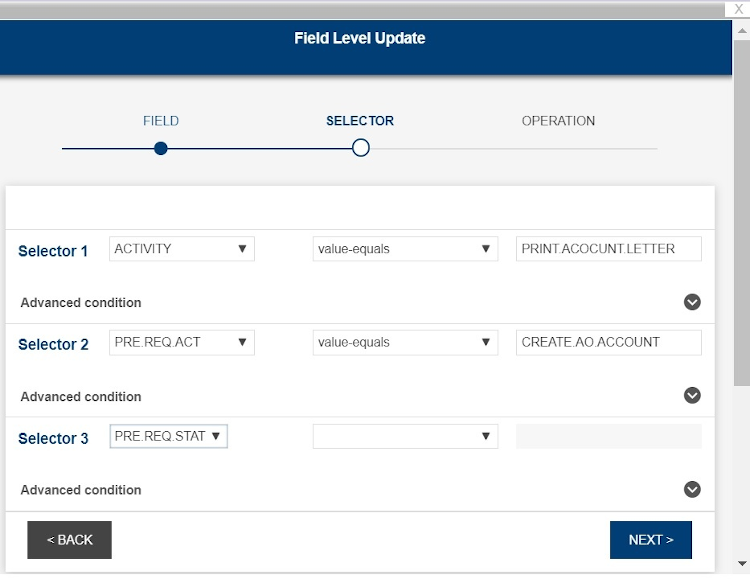
For more information about the UI controls, see The SELECTOR Tab.
- Click on NEXT to navigate to OPERATION tab.
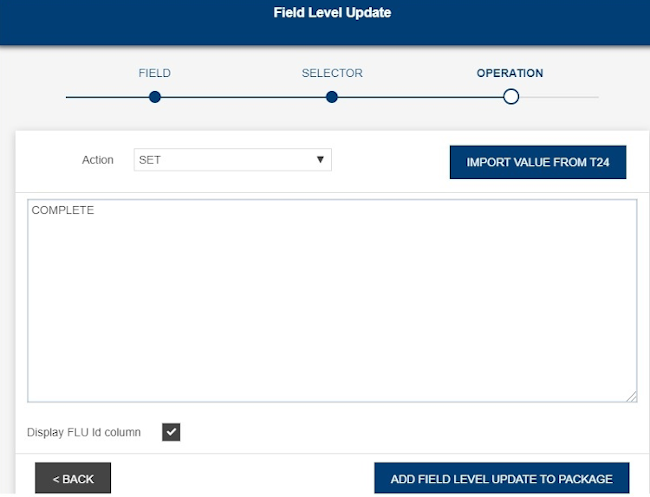
There are some restrictions on operations in the Action drop-down list. For more information, see Restrictions on Operations.
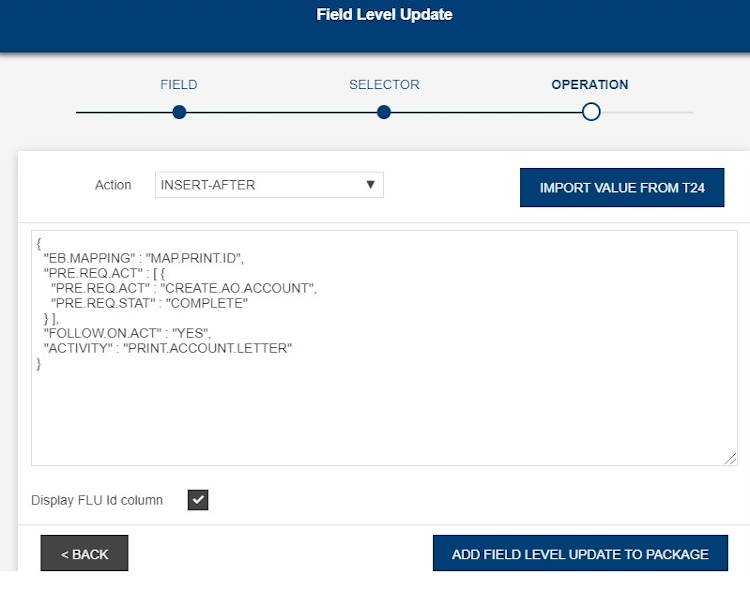
- Select the action from the Action drop-down list.
- Optional: Click the IMPORT VALUE FROM T24 button to import the value from Temenos Transact in the Value text box. The result can be a simple value for a simple attribute or a JSON structure for an MV or SV group. You can then modify or update them.
- Optional: Leave the Display FLU Id column selected (default) to enable the FLU Id column.
- Click ADD FIELD LEVEL UPDATE TO PACKAGE. The data record with Field Level Update (FLU) is added to the Content tab as shown below:
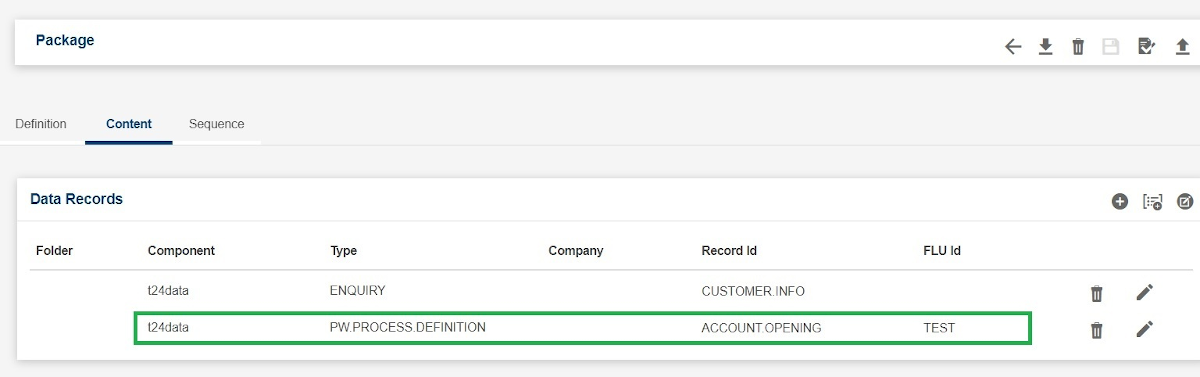
You can edit or delete the data record. In Edit mode, you can open the data record with all the data pre-populated in the Field Level Update dialog box.
Field level update is not supported when importing data record using a CSV file.
The SELECTOR tab has three levels of each selector displayed with the Advanced condition section for each of the selectors.
Each selector level has three fields: two combo boxes and a text field.
- Selector 1
The first combo box under Selector 1 is the field combo box. It can be a top attribute or an MV group. The combo box contents are linked to the application that you selected.
The operator combo box can be empty. value-equals and position-equals are selectors one and two. The operator combo box can be <empty>, value-equals for selector three.
When the value of operator combo box is empty, the value text field is disabled. If the value of the second combo box is value-equals, then the value field is enabled and can accept any value (even empty). If the value of the second combo box is position-equals, then the value text field is enabled and must contain a valid number.
The third UI control is the value field which can either be empty, can have a value or a position depending on what is chosen in the middle combo box.
- Selector 2
Selector 2 can either be an MV attribute or an SV group and is enabled only when selector 1 is filled. If selector 1 is a top attribute, then selector 2 will always be disabled.
- Selector 3
Selector 3 defines an SV attribute and the combo box has only the value-equals and <empty> values. You can enable this only when selector 2 is filled. If selector 2 is a MV attribute, then selector 3 will always be disabled.
- Advanced condition
This control collapses after you click it. This section of the UI is used to uniquely identify a field when you have multiple fields with the same value.
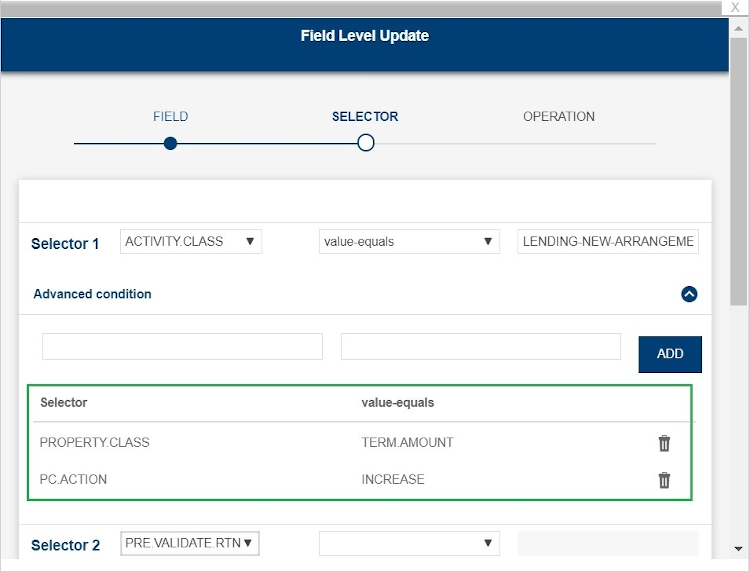
The BACK button navigates back to the FIELD tab and NEXT button navigates to the OPERATION tab.
Restrictions on Operations
The available operations in the Action drop-down list depend on the last non-empty selector.
|
|
Top attribute |
MV/SV group |
MV/SV attribute |
|
SET |
YES |
NO |
YES |
|
REPLACE |
NO |
YES |
NO |
|
INSERT-* |
NO |
YES |
NO |
|
DELETE |
YES |
YES |
YES |
- When the last selector represents a top attribute, only SET and DELETE are available.
- When the last selector represents an MV or SV group , only INSERT-*, DELETE and REPLACE are available.
- When the last selector represents an MV or SV attribute, only SET and DELETE are available.
- When the DELETE operation is selected, the Value text box will be disabled.
Field Level Update data records management in IDE
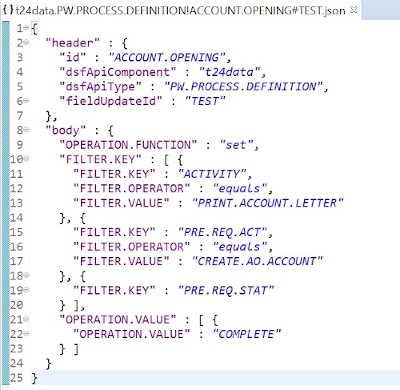
When a data record with Field Level Update (FLU) is added through an IDE and saved, those data records are stored in the package explorer in the following format:
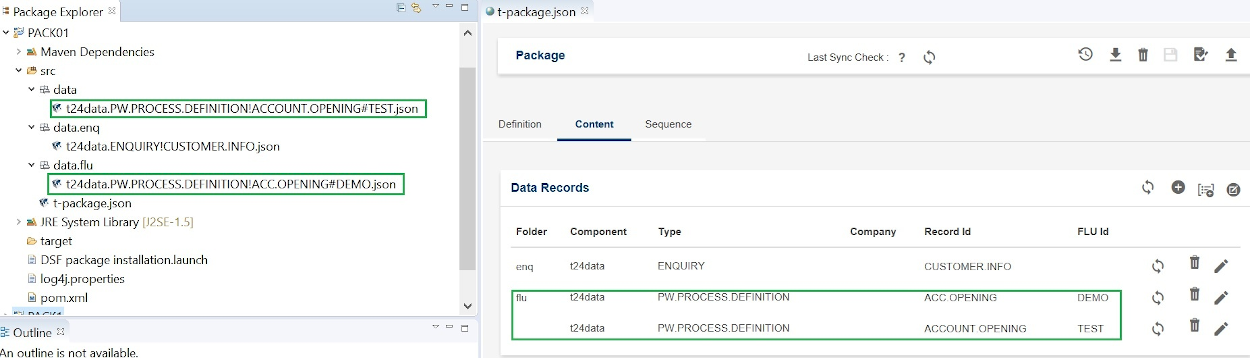
The following is a sample JSON structure of t24data.PW.PROCESS.DEFINITION!ACCOUNT.OPENING#TEST.json, where TEST is the Field Level Update ID:
As an IDE user, you can compare packages for data records with Field Level Updates. Package compare for Field Level Update checks if the Field Level Update in workspace has been applied to Temenos Transact. Synchronization should apply the Field Level Update as well.
In this topic