Regular Expression
Regular Expression functionality helps to validate IRIS API payload. It loads all the values from the config microservices and place it in the cache before invoking the Transact API request.
This section explains how to create a new Regular Expression validation, search and edit an existing Regex.
Refer Regex Validation of Version Fields to know more about configuration of Rule Engine, Microservice generic config and IRIS setup.
Creating and Editing Regular Expression
This section details about creating and editing Regular Expression.
Creating Regular Expression
To create a Regular Expression,
- Navigate to APIs > Regular Expression, on the left pane of the dashboard.
- Click Add Extension button on the Search page.
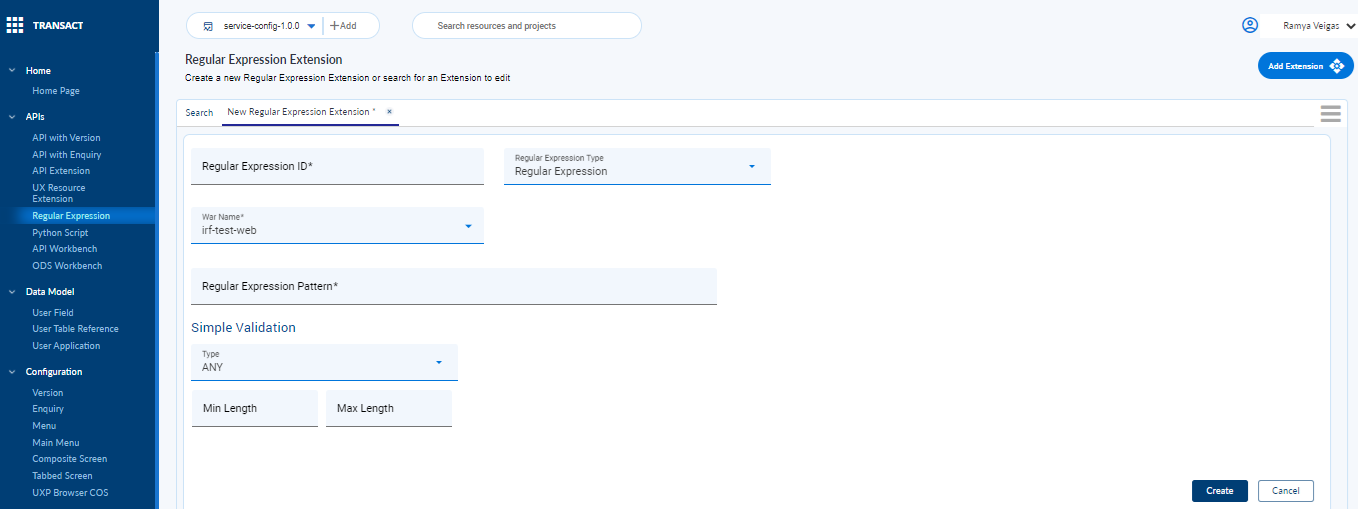
- Enter the following details in the New API Extension screen.
| Field | Action |
|---|---|
| Regular Expression ID | This is a mandatory field. Enter a unique regex ID. |
| War Name | Select the relevant war name in which the Transact API is bundled. |
| Regular Expression Type |
Select type of regex validation you are trying to do on an API field. There are 3 types of Regex Validation are:
Based on type selected, rest of the fields given in the table are displayed. |
| Date Format | Validates the date. This field is displayed when Regex type is Date Format. |
| Regular Expression Pattern | Enter regular expression pattern to be matched. This field is displayed when Regex type is Regular Expression. |
| Simple Validation |
It is an alternative for regex or can be combined with regex for more detailed configuration. This section is displayed when Regex type is Regular Expression or Simple Validation. |
| Type |
Select one of the following from the dropdown:
|
| Min Length | Enter the minimum API payload field length |
| Max Length | Enter the maximum API payload field length |
| Min Limit | Enter the minimum API field limit |
| Max Limit | Enter the maximum API field limit |
- Enter the mandatory fields and any one of the Regular Expression Type validations, that is, Regular Expression, Date Format or Simple Validation.
- Click the Create button to create and store the Regular Expression rule in Generic Configuration Microservice.
Editing Regular Expression
To edit an existing Regular Expression,
- Navigate to APIs > Regular Expression, on the left pane of the dashboard.
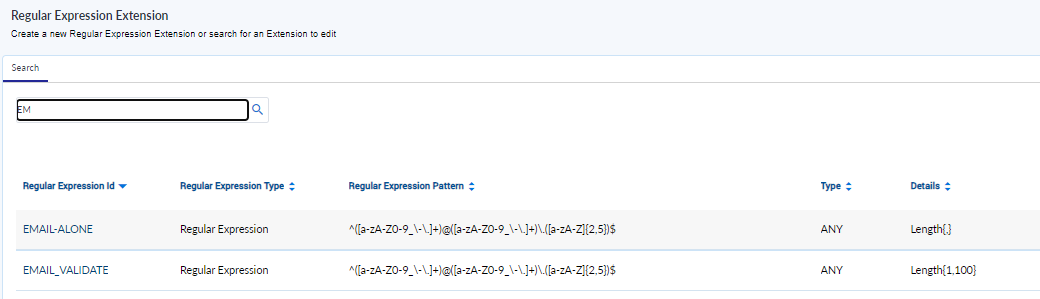
- Search for the Regex ID to edit the validation configurations.
In this topic