Guarantees and Standby LC - Claims Received
The Web Channel user with access to Trade Finance has capabilities to view the Guarantees and Stand by LC Claims received dashboard. The dashboard displays the list of claims received. If no claims are available, the system throws an appropriate message to the user. Do any of the following in the Guarantees and standby LC claims received section.
- View the list of claims received.
- Search or filter for a claim.
- View list of claims for a single record.
- View and respond to the messages from the bank.
- Submit a claim for approval.
- Download the list of available claims received.
- Download or print individual claims received.
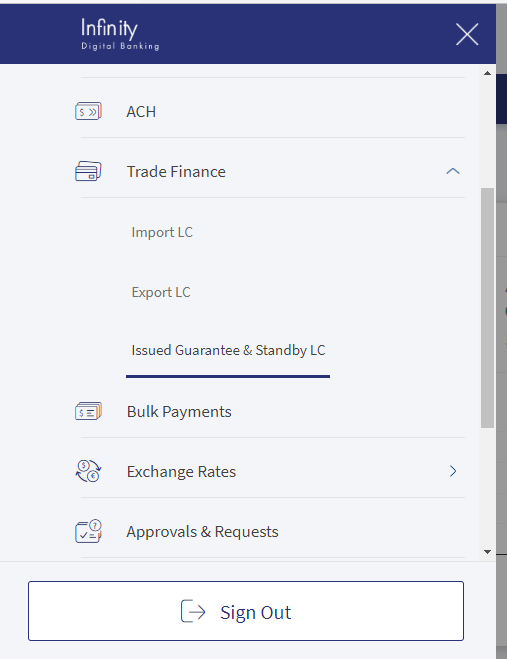
Navigation path: Web Channel > Side Menu > Trade Finance > Issued Guarantees & Standby LC > Claims.
UX Overview
Guarantees and Standby LC - Claims Received
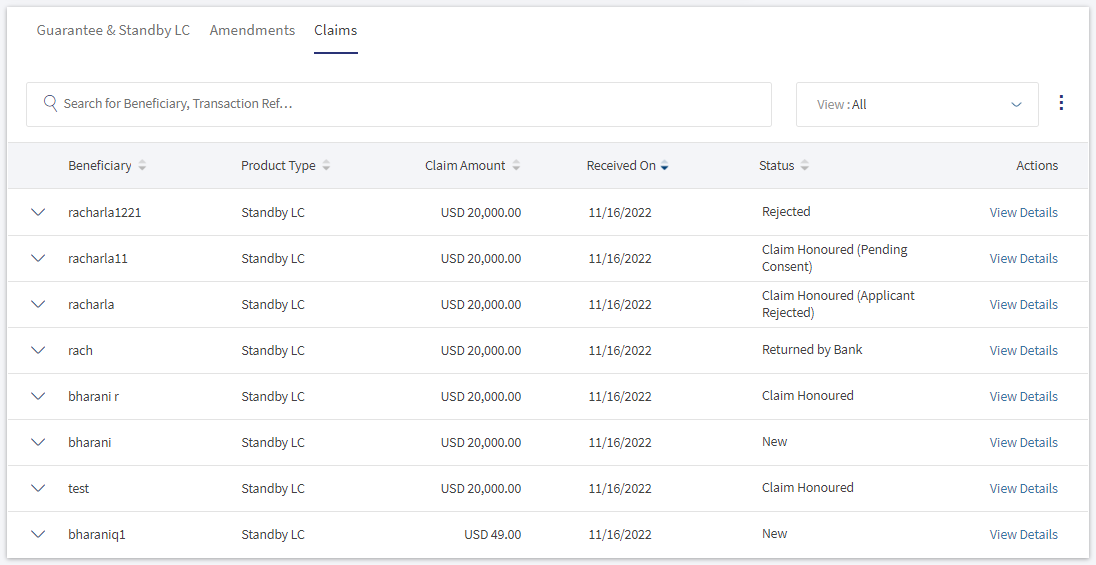
This section summarizes of all the claims received in Guarantees and Standby LC. The user has options to view the overview in desired currency and see only Guarantees or Standby LC or combine them all. Use the drop-down options to filter accordingly.
- Search: Use the keywords like Beneficiary, Transaction Reference, and Product Type.
- Filtering: Use the values displayed in the filter to narrow down the search.
 Filtering Options
- Product Type
- Guarantee
- Standby LC
- Guarantee and SBLC Type
- Performance: To secure the applicants satisfactory fulfillment of its contractual performance obligations.
- Bid: This supports the issuers bid for a contract.
- Advance: To ensure the repayment of an advance payment made earlier for the contract.
- Shipping: To ensure the damages repayment during the products shipping.
- Status
- New: The record is created by the bank user.
- Submitted to Bank: The record is submitted to the bank.
- Processing by Bank: The record is processing with the bank.
- Rejected by Bank: The record is declined by the bank.
- Rejected: The record is rejected by the corporate user. The bank user agrees to the corporate user decision.
- Claim Extended: The record expiry date is extended. That is the validity of the claim is extended.
- Claim Honoured (Applicant Rejected): The user rejected the claim after it is submitted.
- Claim Honoured (Consent Pending): The applicant honored the claim but needs to approve the consent.
- Claim Honoured: The applicant honored the claim.
- Time Period
- Today: Considers the records created on the same day.
- Last One Month: Considers the records created from the last 30 days.
- Last Six Months: Considers the records created from the last 180 days.
- Last One Year: Considers the records created from the last 365 days.
- YTD: Considers the records created from start day of the calendar year.
- Product Type
- Beneficiary: Specifies the name of the beneficiary.
- Product Type: Specifies the type of record Guarantee or Standby LC.
- Claim Amount: Specifies the value of the claim with currency.
- Received On: Specifies the date of claim received.
- Status: Current status of the record.
- Actions: Available actions for the user. View Details as per the record level and Print and Download when the record is expanded.
Guarantees and Standby LC Claims - Record Expanded
The Guarantees and Standby LC claims - record expanded displays the additional details for the particular record.

- Transaction Reference: Specifies the transaction reference number.
- GT & SBLC Type: Specifies the type of Guarantee or SBLC type.Click here to find information on GT & SBLC types.
- Performance: To secure the applicants satisfactory fulfillment of its contractual performance obligations.
- Bid: This supports the issuers bid for a contract.
- Advance: To ensure the repayment of an advance payment made earlier for the contract.
- Shipping: To ensure the damages repayment for during the products shipping.
- Expiry Date: Specifies the expiry date of the claim.
- Claim Type: Specifies the type of claim. Either Demand or Presentation.
- Demand Type: Specifies the demand type of claim.
- Advising Bank: Specifies the name of the advising bank.
- Download and Print options help the user to download or print the LC.
Guarantee and Standby LC - View Details
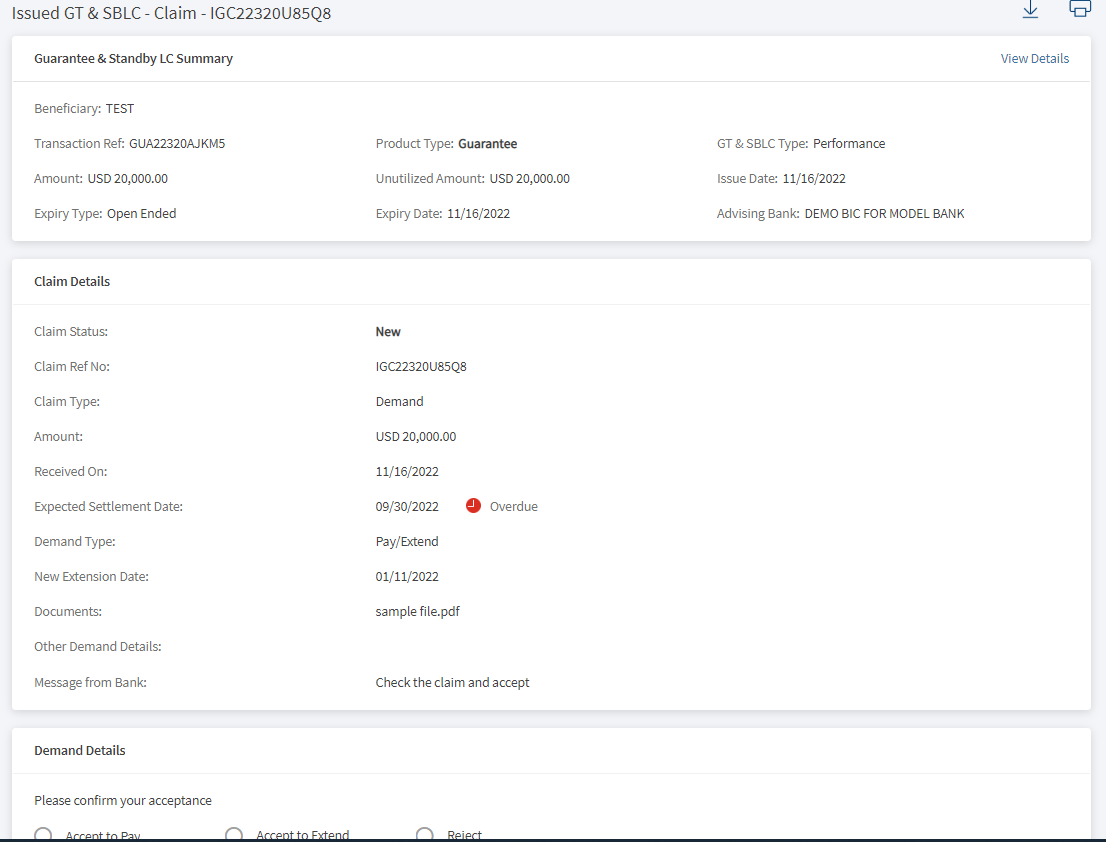
The claim details pages have three sections. The user also has the option to print or download the claim details of the viewing LC. The following are the sections displayed in the claims received view details: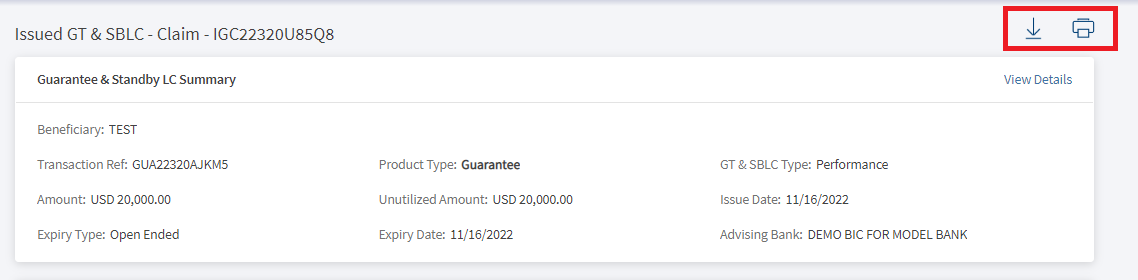
-
Guarantee & Standby LC Summary

- Beneficiary: Specifies the name of the beneficiary.
- Product Type: Specifies the type of product Guarantee or Standby LC.
- GT & SBLC type: The type of the GT & SBLC. Performance, Bid, Advance, or Shipping.
- Amount: The total value of the GT & SBLC.
- Unutilized Amount: The total money which is available as per LC value.
- Issue Date: The date of GT & SBLC issuance.
- Expiry Type: The type of expiry. Open ended, date, or conditions.
- Advising Bank: The name of the bank advising the LC.
-
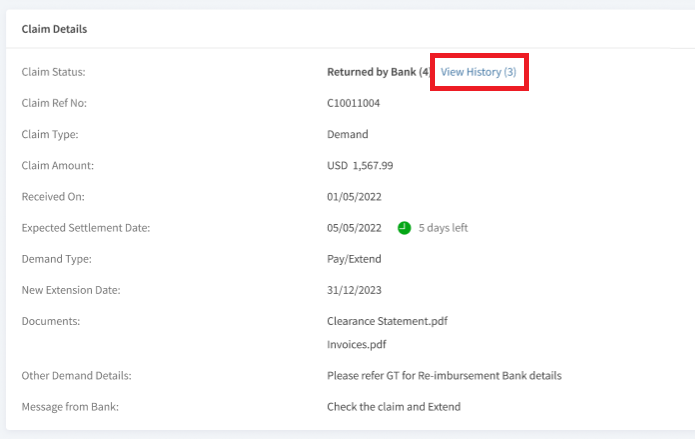
Claim Details
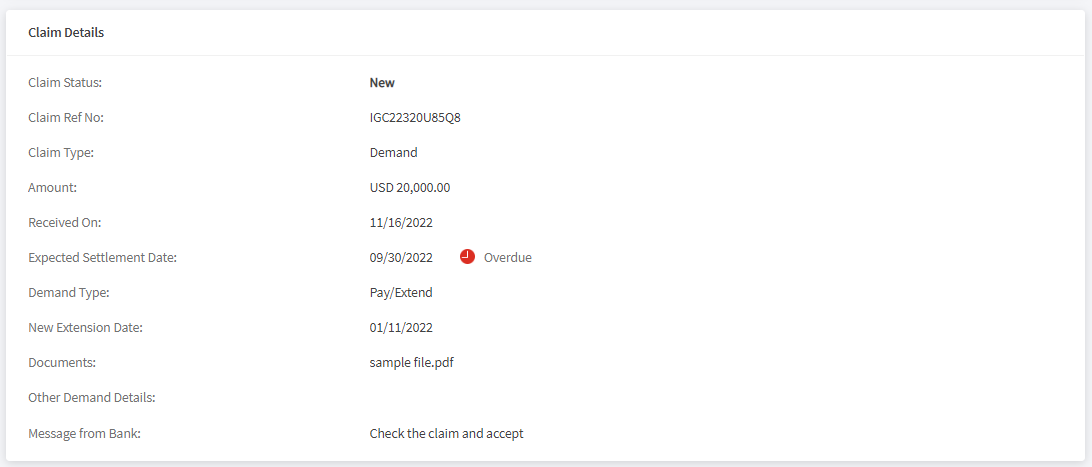
- Claim Status: The current status of the claim.
- Claim Reference Number: The unique reference number for the claim.
- Claim Type: The type of claim. For example, Demand.
- Amount: The total value of the claim.
- Received on: The date on which the claim is received.
- Expected Settlement Date: The estimated date for the claim to be settled.
- The time icon displays the remaining days for the settlement date.
- The icon is green if the settlement date exceeds the current date and also displays the days remaining for claim settlement.
- The icon is red if the current date exceeds the settlement date and also displays Overdue text along with the icon.
- Demand Type: The type of demand. For example, Pay/ Extend.
- New Extension date: The new date to complete the settlement.
- Documents: The List of documents attached for the current claim.
- Other Demand Details: Specifies the additional details for the current claim.
- Message from Bank: This specifies the messages sent by bank for the current claim.
- The user either sees Demand details or Presentation Details.
- Demand Details
The details in this section changes as per the claim status. The following are the case scenarios and details displayed.
- Claim Status: New and Returned by Bank
- Accept to Pay
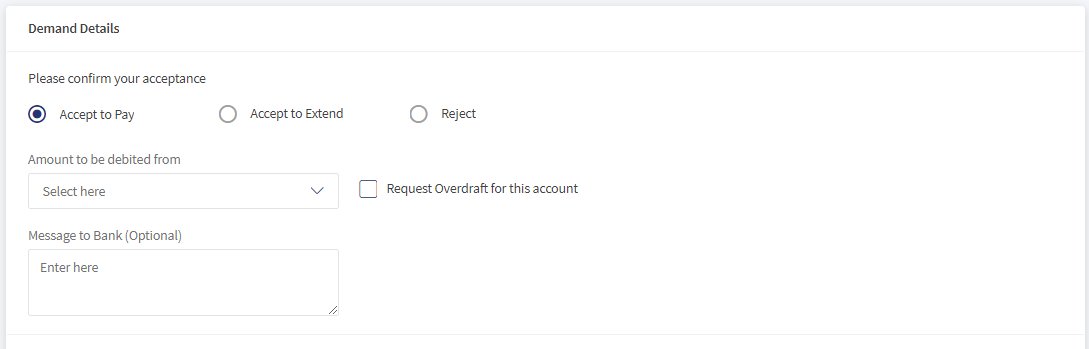
- Amount to debited from: Select the amount from the drop-down list.
- Message to Bank: Enter the message.
- Accept to Extend
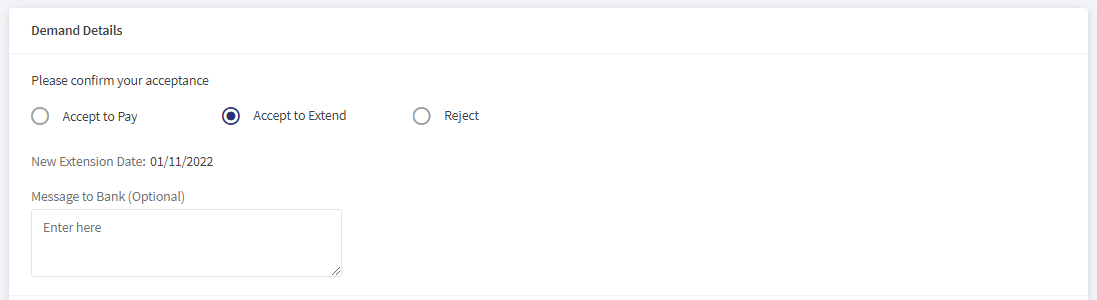
- New Extension date: The requested extension date is populated automatically.
- Message to Bank: Enter the message.
- Reject
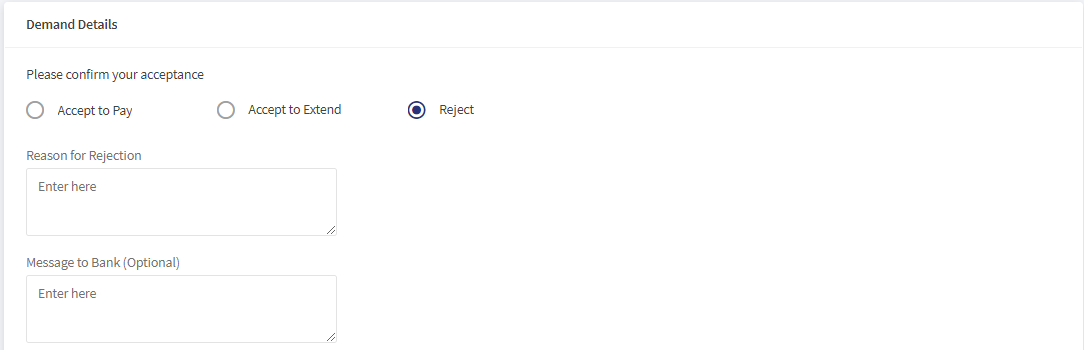
- Reason for Rejection: Enter the reason for rejection. This field is mandatory.
- Message to Bank: Enter the message.
- Claim Status: Claim Honored,
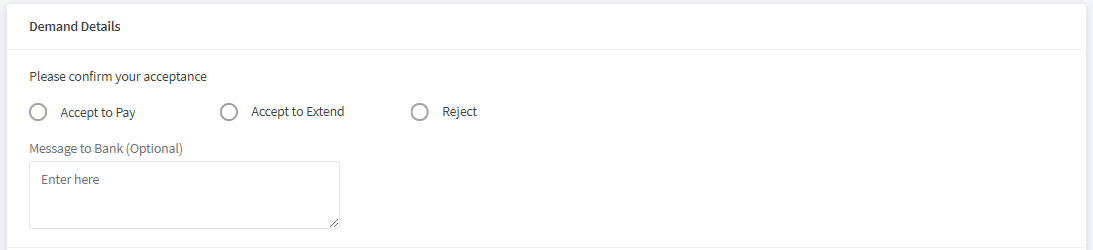
- Demand Details
- Message to Bank: Enter the message.
- Payment Details
- Payment Status: Specifies the current payment status.
- Settled Date: The date on which the payment is settled.
- Total Amount to be paid: Specifies the total amount to be paid for the claim.
- Claim Debit Account: Specifies the debit account details for the claim.
- Demand Details
- Claim Status: Rejected
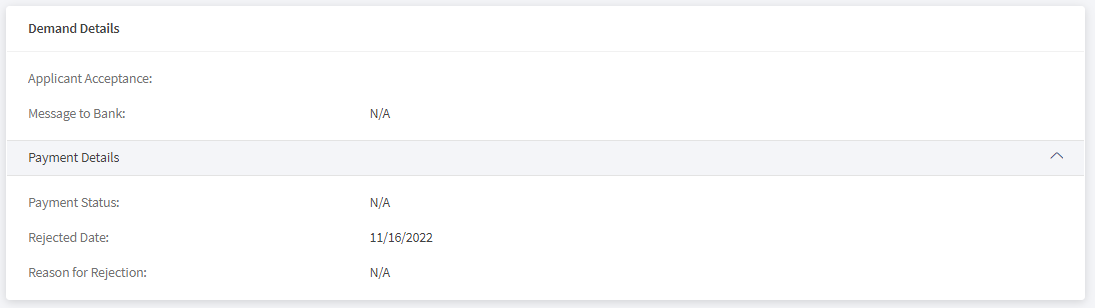
- Applicant Acceptance: specifies the application
- Message to Bank: Enter the message.
- Presentation Details
The details in this section changes as per document status. The following are the case scenarios and details displayed.
- Document Status: Clean
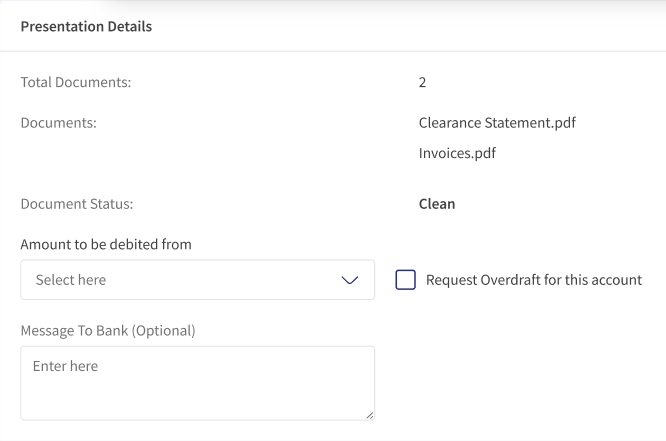
- Total documents: The total number of documents attached for the presentation.
- Documents: Displays the name of the documents for the presentation.
- Document Status: The current status of the documents. Clean or Discrepant.
- Amount to debited from: Select the amount from the drop-down list.
- Request overdraft for this account: Check the box if an overdraft is required for the selected account.
- Message to Bank: Enter the message
- Document Status: Discrepant
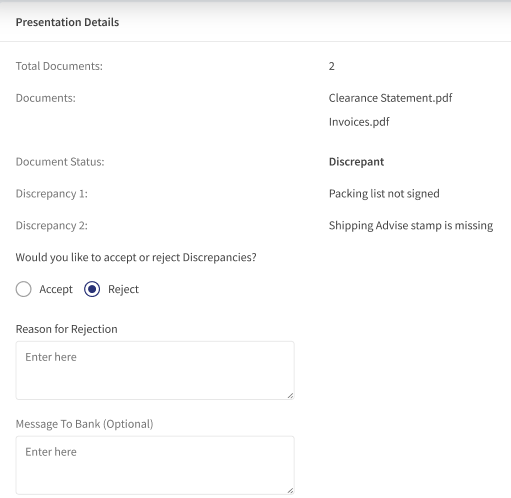
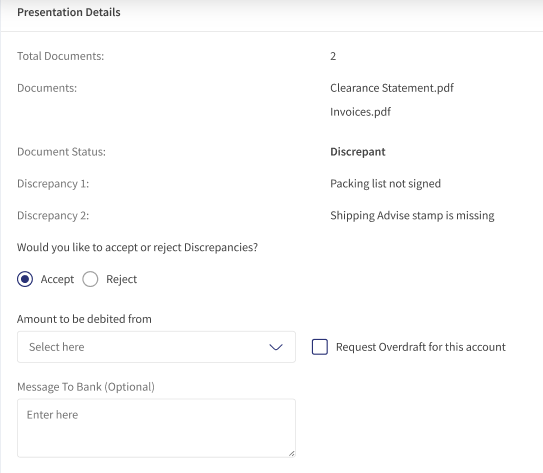
- Total documents: The total number of documents attached for the presentation.
- Documents: Displays the names of the documents for the presentation.
- Document Status: The current status of the documents. Clean or Discrepant.
- Discrepancy 1(Details): The details of the discrepancy.
- Would you like to accept or reject the discrepancy:
- If the user selects Accept, the following details are displayed.
- Amount to debited from: Select the amount from the drop-down list.
- Request overdraft for this account: Check the box if an overdraft is required for the selected account.
- Message to Bank: Enter the message
- If the user selects Reject, the following details are displayed.
- Reason for Rejection: Enter the reason for rejection.
- Message to Bank: Enter the message
- If the user selects Accept, the following details are displayed.
View the Claims Details
In the Claims dashboard, the user has an option to view the summary of the claim and see a detailed view of the claim.
Summary View of the Claim
Following are the steps to view the summary of the claim.
- Navigate to the claim dashboard.
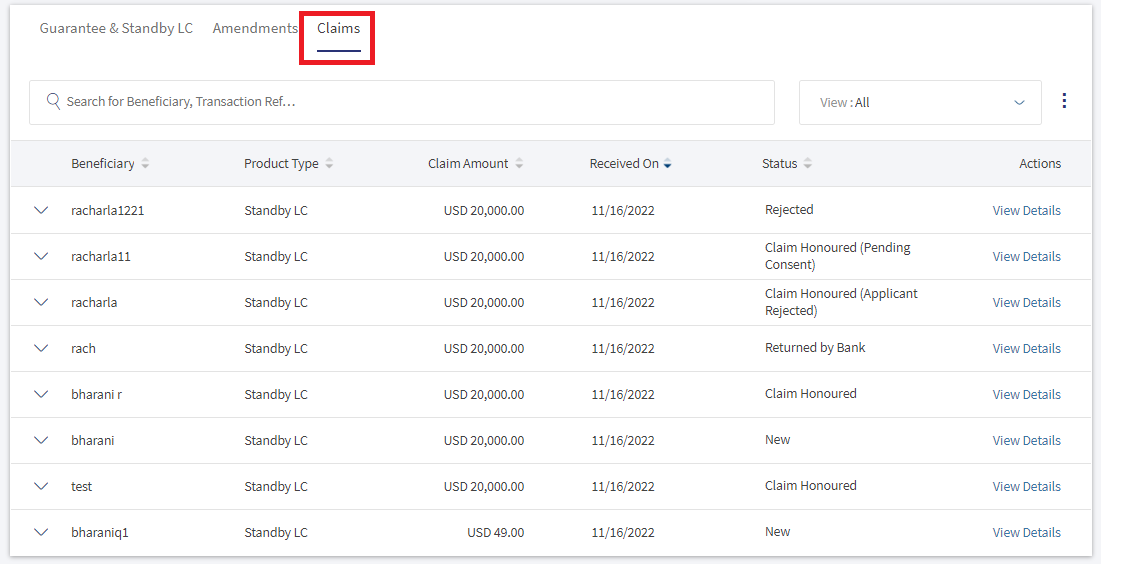
- Click the down arrow for the record to see the summary.

Detailed View of the Claim
Following are the steps to view the summary of the claim.
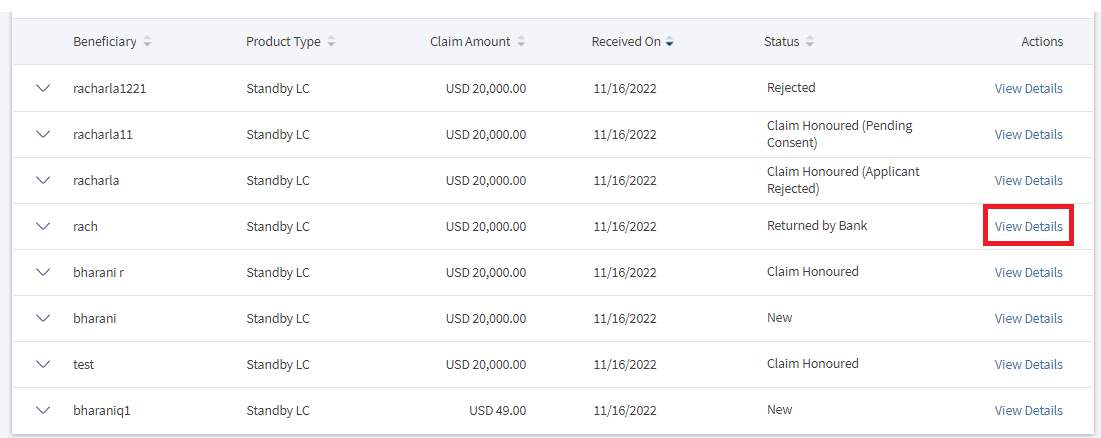
- Navigate to the claim dashboard.
- Click View Details to see detailed view of desired record.
Submit Claims for Approvals
The bank user submits the claim for approval. The submit option is available for claim status New and Returned by Bank. The displayed options differ as per claim type Presentation and Demand.
Submit claims for Approvals - Claim Type Demand
The following are the steps to submit a claim for Demand claim type.
- In the claims dashboard, click View Details for the record to submit the claim.
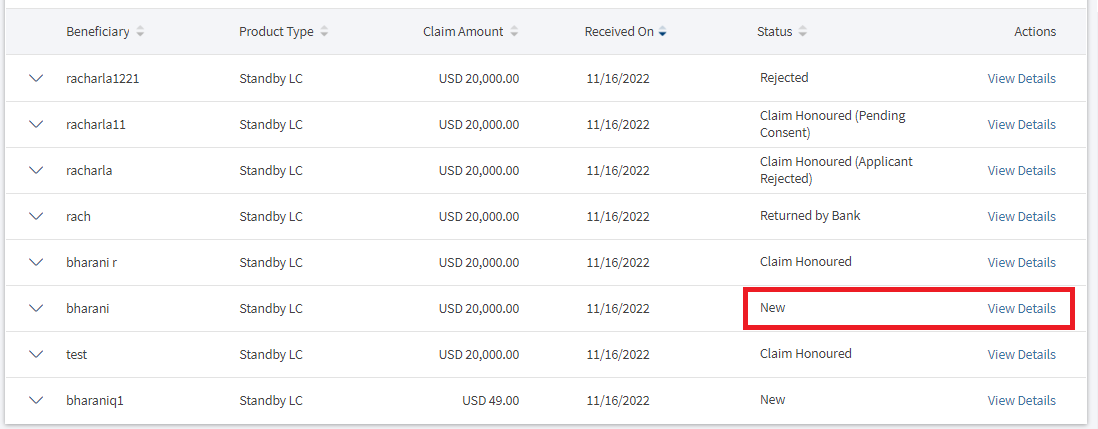
- Verify the summary details of GT & SBLC and Claim Details.
- In Demand Details,
- Select Accept to Pay, if the user is ready to accept.
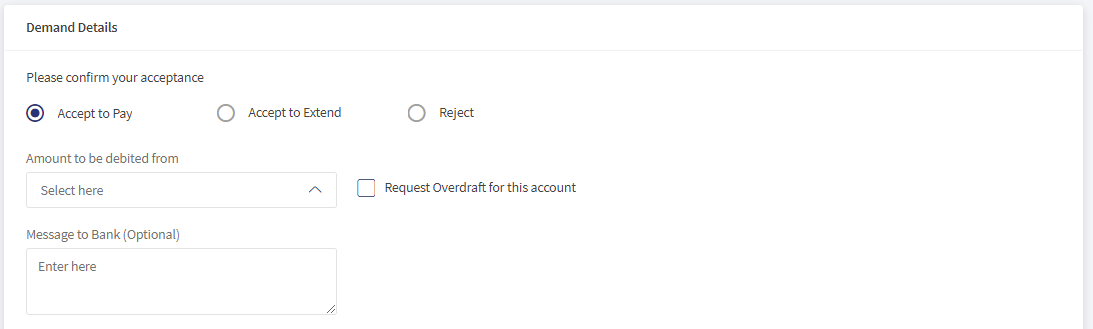
- Select the account details from the drop-down list.
- Check the box, if the user requires an overdraft for the selected account.

- Enter message to bank. This is an optional field.
- Click Review & Submit. The navigates to the review and submit page.
- Select Accept to Extend, if the user accepts the new extension date.
- Enter message to bank. This is an optional field.
- Click Review & Submit. The navigates to the review and submit page.
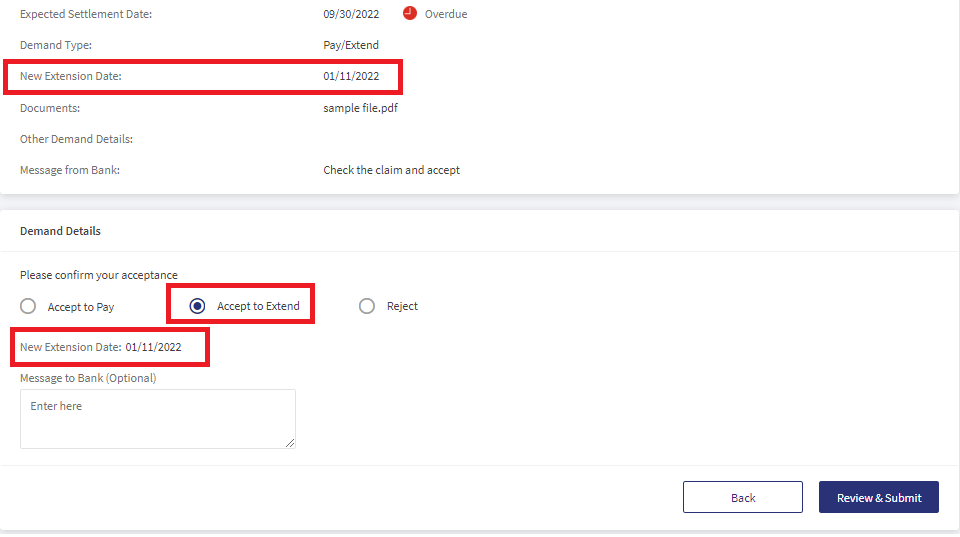
- Select Reject, if the user rejects the claim.
- Enter the Reason for Rejection. This is a mandatory field.
- Enter message to bank. This is an optional field.
- Click Review & Submit. The navigates to the review and submit page.
- Select Accept to Pay, if the user is ready to accept.
- Verify the details and click Submit.
Submit claims for Approvals - Claim Type Presentation
The following are the steps to submit a claim for the Presentation claim type.
- In the claims dashboard, click View Details for the record to submit the claim.
- Verify the summary details of GT & SBLC and Claim Details.
- In Presentation Details, the option changes as per the Document status.
- If the Document Status is Clean.
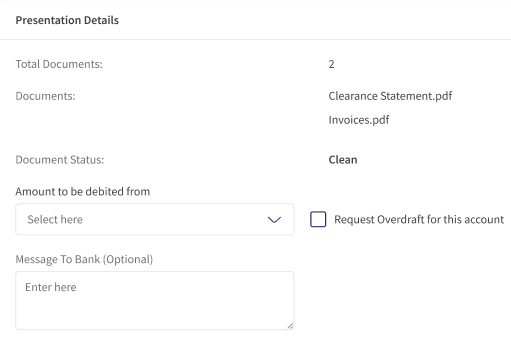
- Select the account details from the drop-down list.
- Check the box, if the user requires an overdraft for the selected account.
- Enter message to bank. This is an optional field.
- Click Review & Submit. The navigates to the review and submit page.
- Select the account details from the drop-down list.
- If the Document Status is Discrepant.
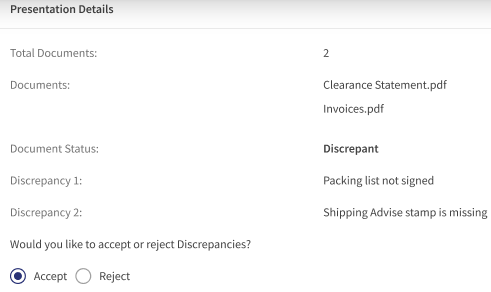
- If the bank user accepts the discrepancy in documents and pays the claim amount.
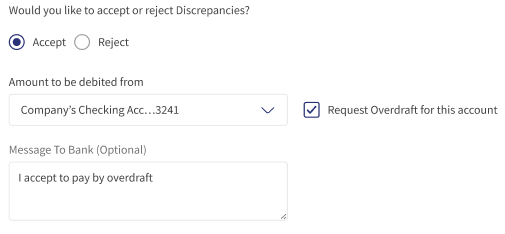
- Select the account details from the drop-down list.
- Check the box, if the user requires an overdraft for the selected account.
- Enter message to bank. This is an optional field.
- Click Review & Submit. The navigates to the review and submit page.
- Select the account details from the drop-down list.
- If the bank user rejects the discrepancies.
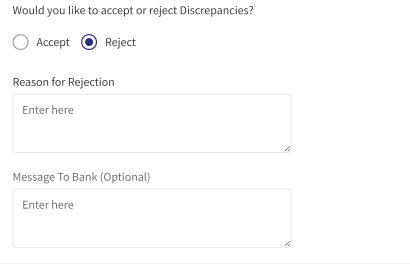
- Enter the Reason for Rejection. This is a mandatory field.
- Enter message to bank. This is an optional field.
- Click Review & Submit. The navigates to the review and submit page.
- Enter the Reason for Rejection. This is a mandatory field.
- If the bank user accepts the discrepancy in documents and pays the claim amount.
- If the Document Status is Clean.
- Verify the details and click Submit.
Returned By Bank Claims Received
The user with required permissions can view the record with status Returned By Bank. The bank user can review and resubmit the record, view the history and number of times the record is returned.
Review And Resubmit - Returned By Bank Record
The following is the procedure to review and resubmit the record.
- In the Claims Received dashboard, search or filter the record with status Returned By Bank and click View Details. This navigates to Issued GT & SBLC claim details page.
- Read the Claim Details section to understand the reason for return.
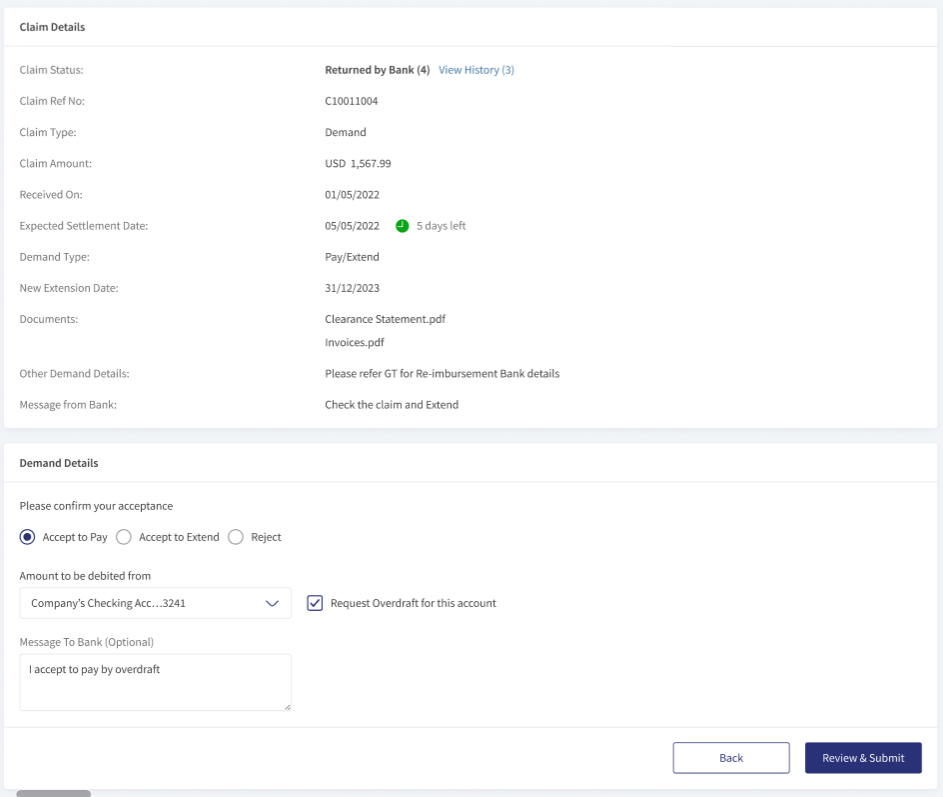
- In Demand Details,
- Select Accept to Pay, if the user is ready to accept.
- Select the account details from the drop-down list.
- Check the box, if the user requires an overdraft for the selected account.
- Enter message to bank. This is an optional field.
- Click Review & Submit. The navigates to the review and submit page.
- Select Accept to Extend, if the user accepts the new extension date.
- Enter message to bank. This is an optional field.
- Click Review & Submit. The navigates to the review and submit page.
- Select Reject, if the user rejects the claim.
- Enter the Reason for Rejection. This is a mandatory field.
- Enter message to bank. This is an optional field.
- Click Review & Submit. The navigates to the review and submit page.
- Select Accept to Pay, if the user is ready to accept.
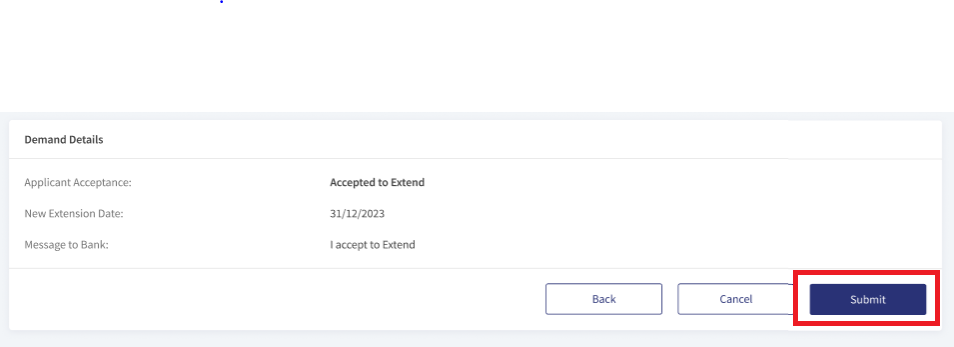
- Review the details and click Submit. This submits the record to bank.
View history - Returned By Bank Record
The bank user can see the history of the record with status - Returned By Bank. This helps the bank to see the number of times the record is back to bank with additional details like reason for returned, return message to bank, and corporate user name. The following is the procedure to see history of the record.
- In the Claims Received dashboard, search or filter the record with status Returned By Bank and click View Details. This navigates to Issued GT & SBLC claim details page.
- Click View History.
A pop-up box is displayed with history of returned to bank messages. Latest message is displayed at the top of the box.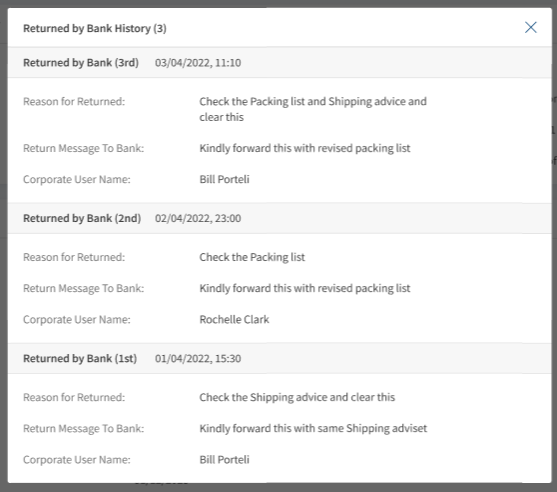
Download or Print Claims Received
The user has two options to download Claims Received. Either download the complete list displayed on the Claim Received dashboard page and download or print individual Claims.
Download Claim Received list
Following are the steps to download Claim Received list into excel (.xlsx).
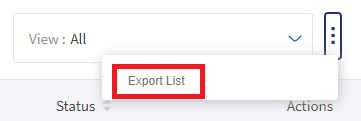
- Click the Ellipses.

- Select the option Export List. This downloads the list of Claim Received records into an excel file.
Download or Print individual Claims Received
Following are the steps to download or print individual Claim Received.
- Click the arrow to see the summary of the Claim Received record.
- Click Download or Print to download or print the claim.
The download options downloads Claim Received in a PDF format. The print option opens a dialogue box to print the Claim Received details.
SWIFT MT 700
SWIFT is an acronym for Society for Worldwide Interbank Financial Telecommunication. SWIFT provides a secure, highly encrypted, and reliable messaging service to all financial institutions.
This is an additional feature provided to the Trade Finance Micro App to implement the SWIFT MT700 codes to the fields available in LCs. If there is no SWIFT code, then NA will display adjacent to the field. The same SWIFT MT700 codes will also display in the download and print LCs.
Enable the Spotlight configurations to display the SWIFT tags. Individual configurations are available for Web Channel, download, and print LCs.
Web Channel SWIFT MT700 codes: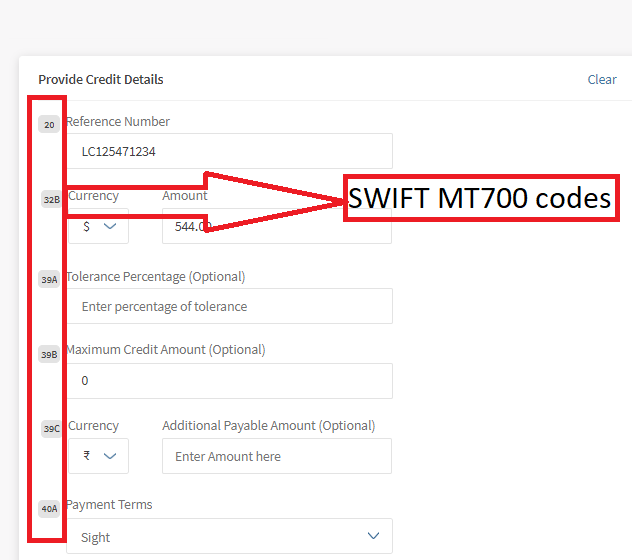
Download and Print SWIFT MT700 codes: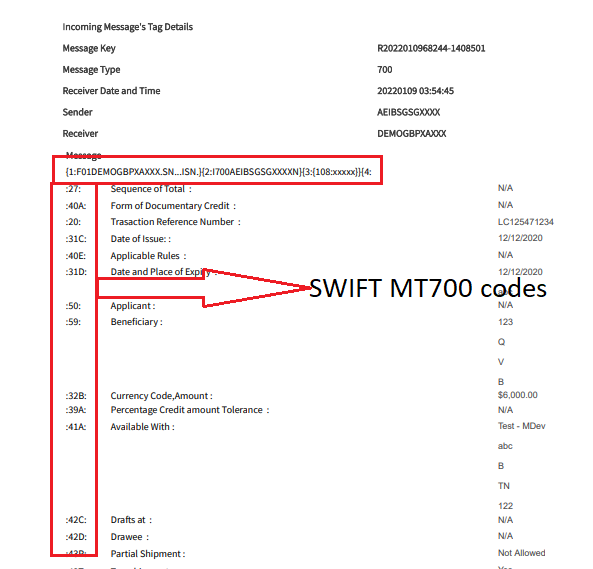
Swift and Advices
The bank user with required permissions can see the Swift MT messages and Payment Advices for a particular record. The following is the procedure to view Swift and Advices for a particular record.
- In the dashboard, search or filter for the record.
- Click View Details on the record to view Swift and Advices. The navigates to the detailed page view.
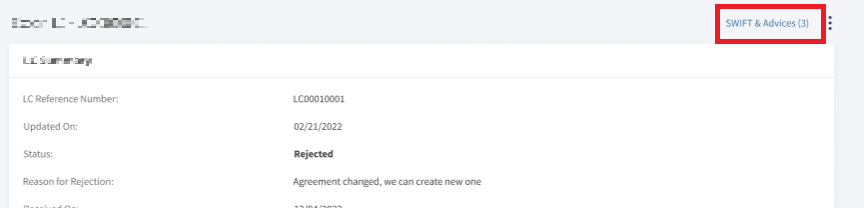
- Click SWIFT & Advices.
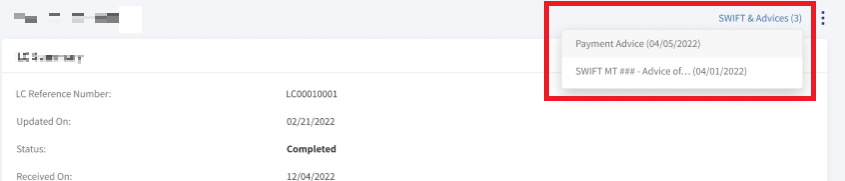
- In the pop-up,
- Select Payment Advices to view payment advices for a particular record.
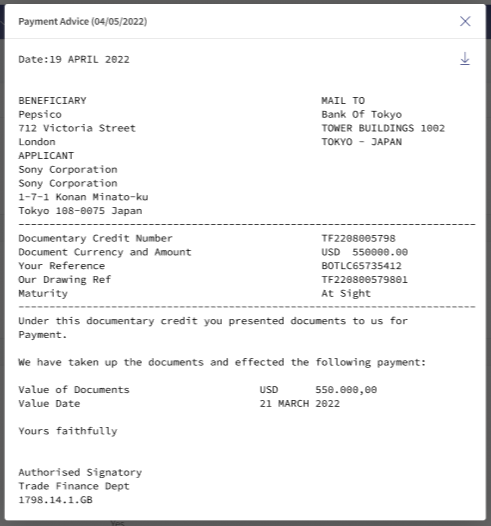
- Select SWIFT MT to view in advices in SWIFT MT mode.
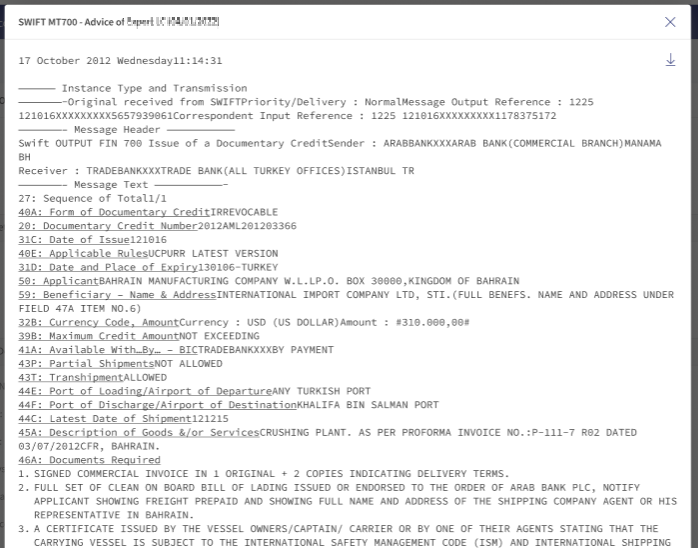
- Select Payment Advices to view payment advices for a particular record.
SRMS Configuration
The SRMS configurations are shipped as a part of this feature. For more information, see SRMS Configurations.
Experience API
Following are the APIs for Guarantees and Standby LC.
| Name | Description | Introduced In |
|---|---|---|
| createClaim | This API is a mock service to create received guarantee claims. | 2022.10 |
| getClaims | This API retrieves received guarantee claims for particular customer. | 2022.10 |
| getClaimById | This API retrieves Received Guarantee Claims By Id. | 2022.10 |
| updateClaim | This API updates Received Guarantee Claims. | 2022.10 |
| updateClaimByBank | This API is a mock service to update the Received Guarantee Claims from bank. | 2022.10 |
| Object Data Model | This Object Data Model describes the parameter name and other attribute details for Trade Finance. |
In this topic