Export Letter of Credits - Drawings
The Web Channel user with access to Trade Finance has capabilities to view the Export Drawings LC dashboard. The dashboard displays the list of Drawing LCs available.
UX Overview
Export Letter of Credits - Drawings
This section displays all the Drawings Export LC details available for the user.
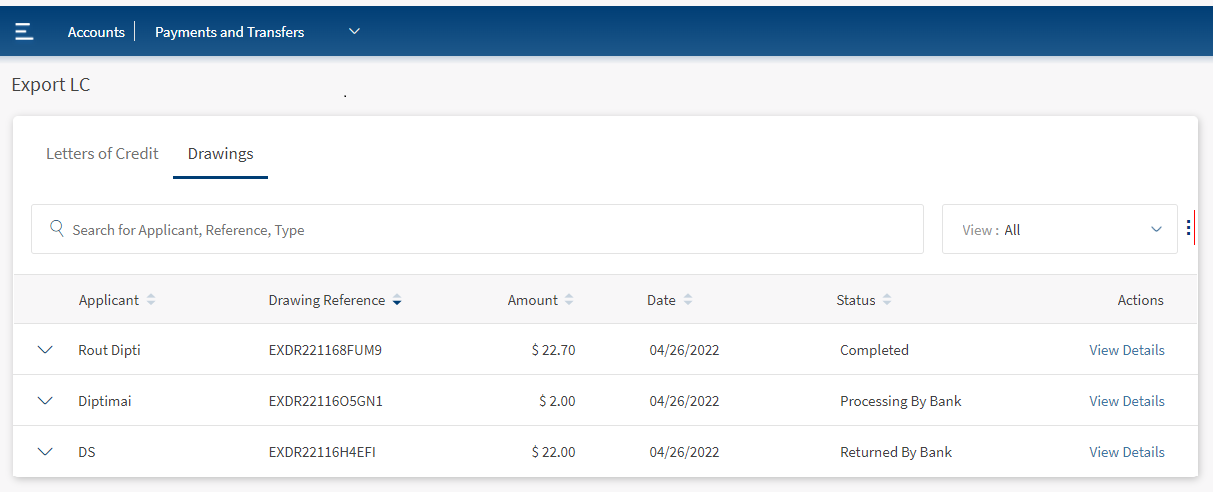
- Search for Key Words: Helps the user find the records using the keywords.
- View: This is a filtering option that allows the user to filter further the search based on the criteria.
 Click here to find information on all available filtering options.
- LC Type
- Select All: Selects all types of LCs.
- Sight: LC is payable immediately.
- Acceptance: LC that is paid by a time draft authorizing payment on or after a specific date, if the terms of the letter of credit have been complied with.
- Deferred: LC in which the bank takes a conditional undertaking to pay the seller on behalf of the buyer on a specified future date after completion of the transaction.
- Negotiation Sight: Negotiation means the purchase by the nominated bank of drafts (drawn on a bank other than the nominated bank) and or documents under a complying presentation, by advancing or agreeing to advance funds to the beneficiary on or before the banking day on which reimbursement is due to the nominated bank.
- Negotiation Acceptance: Regarding LC, when the documents are presented and reviewed by the bank, the process is referred to as negotiation of the documents. In accordance with UCP 600, a bank authorized to negotiate documents or drafts is authorized to give value for the draft(s) and or document(s), which means the LC can stipulate that payment be made by the advising, issuing or confirming bank.
- Status
- Draft: The record is work in progress and not submitted by the user.
- Submitted to Bank: The record is submitted to the bank.
- Processing by Bank: The record is processing by the bank.
- Returned by Bank: The record is returned by the bank.
- Rejected: The record is rejected by bank.
- Approved: The record is approved by bank.
- Settled: The LC record is settled.
- Time Period
- Today: Considers only the record created on the same day.
- Last one Month: Considers the record created in the last 30 days.
- Last Six Months: Considers only the record created in the last 180 days.
- Last one Year: Considers the record created in the last 365 days.
- YTD: Considers the record from first day of the calendar year to current date.
- LC Type
- Applicant: Name of the Applicant.
- Drawing Reference: Specifies the drawing reference ID.
- Amount: Specifies the amount for the current Drawing.
- Date: Specifies the date on which the record is created.
- Status: Specifies the current status of Drawing Export LC.Click here to find information on available status.
- Status
- Draft: The record is work in progress and not submitted by the user.
- Submitted to Bank: The record is submitted to the bank.
- Processing by Bank: The record is processing by the bank.
- Returned by Bank: The record is returned by the bank.
- Rejected: The record is rejected by bank.
- Approved: The record is approved by bank.
- Settled: The LC record is settled.
- Status
Export Letter of Credits - Record Expanded
This section displays all LC details.

- Advising LC Ref No: Specifies the advising LC reference number for Export Drawing.
- LC Type: Specifies the type of LC.
- LC Type
- Sight: LC is payable immediately.
- Deferred: LC in which a conditional undertaking is taken by the bank to pay the seller on behalf of the buyer on a specified future date after completion of the transaction.
- Acceptance: LC that is paid by a time draft authorizing payment on or after a specific date, if the terms of the letter of credit have been complied with.
- Negotiation Sight: Negotiation means the purchase by the nominated bank of drafts (drawn on a bank other than the nominated bank) and or documents under a complying presentation, by advancing or agreeing to advance funds to the beneficiary on or before the banking day on which reimbursement is due to the nominated bank.
- Negotiation Acceptance: Regarding LC, when the documents are presented and reviewed by the bank, the process is referred to as negotiation of the documents. In accordance with UCP 600, a bank authorized to negotiate documents or drafts is authorized to give value for the draft(s) and or document(s), which means the LC can stipulate that payment be made by advising, issuing or confirming bank.
- Doc Status: Specifies the current status of uploaded documents.
- Currency: Specifies the currency for current transactions.
- Message to Bank: Describes the message to the bank.
Click here to find information about different LC Types.
Create a new Export Drawings request
The following are thesteps to create an Export Drawing request for the existing Export LC record:
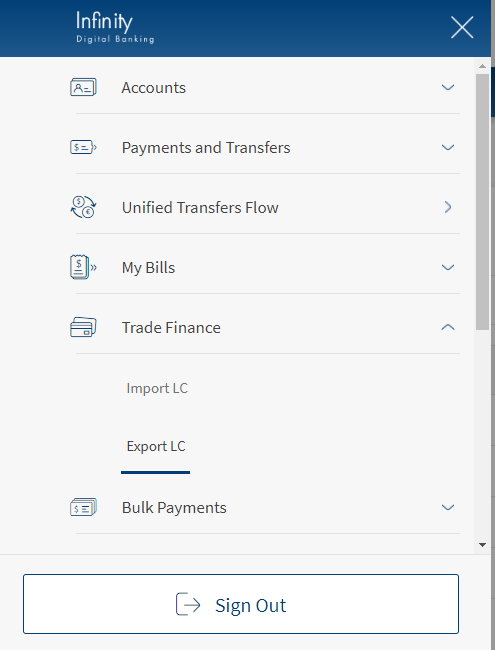
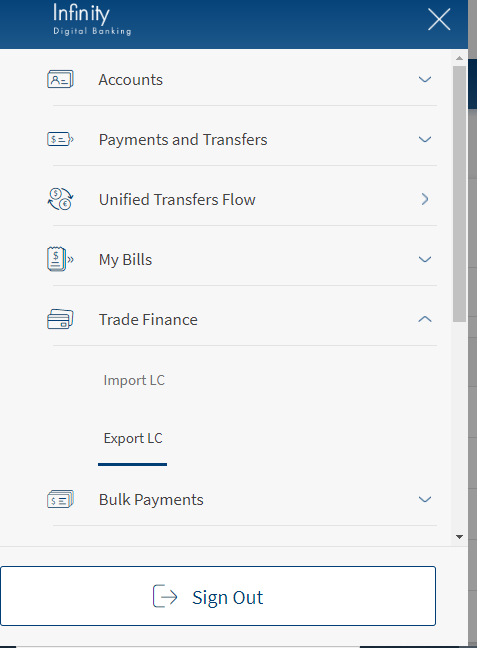
- Navigate to Web Channel > Trade Finance > Export LC. This opens the Export Letters of Credit summary page.
- Expand the record and click Create New Drawing. This navigates to Export LC - Create New Drawing.

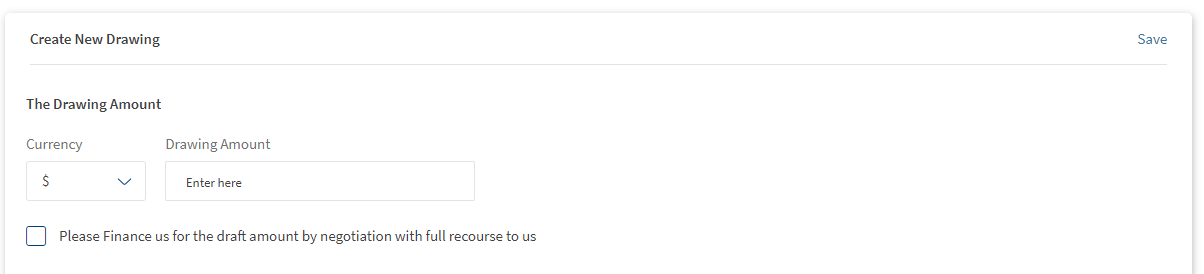
- In Create New Drawing section, Enter Currency and The Drawing Amount.
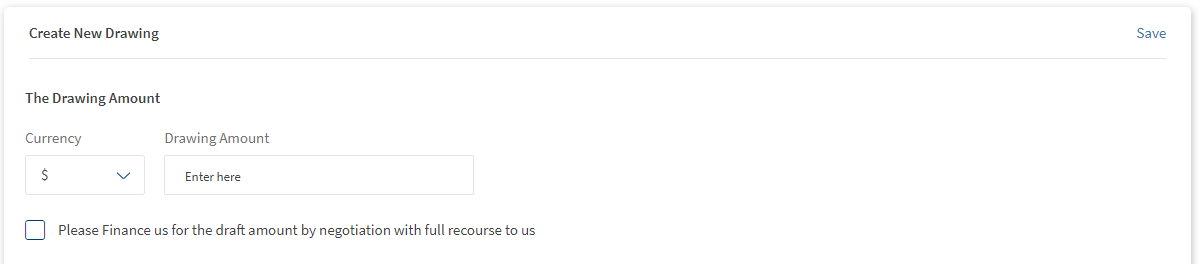
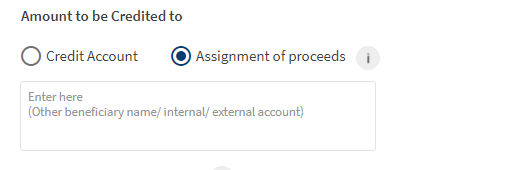
Depending on the requirement user can check the "Please Finance us for the draft amount by negotiation with full recourse to us". - Enter the Amount to be credited to.
If the user selects Credit Account, then also select the Credit account number from drop-down list.
If the user selects Assignment of Proceeds, enter the Beneficiary name and other details in the text box.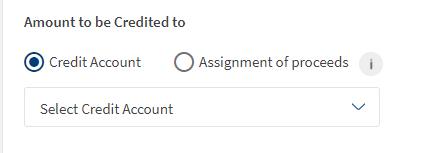
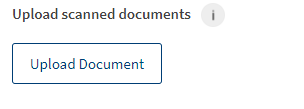
- In the Upload Scanned Documents section, click on Upload Documents for uploading the soft copies.
Note: Only selected files are allowed to upload, and the file size is not more than 20 MB.- Click Upload Documents.
- Navigate and select the file to upload.
- Click upload to upload the files.
- Click Upload Documents.
- In Physical Document Title, Original and Copies Count will Submit to the bank section, add the details Title and the total number of copies accordingly.
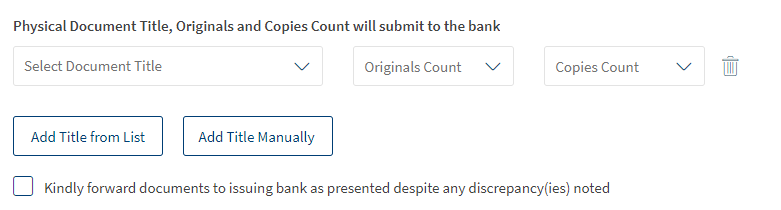
- To add the title available from the list, select Add Title From List.
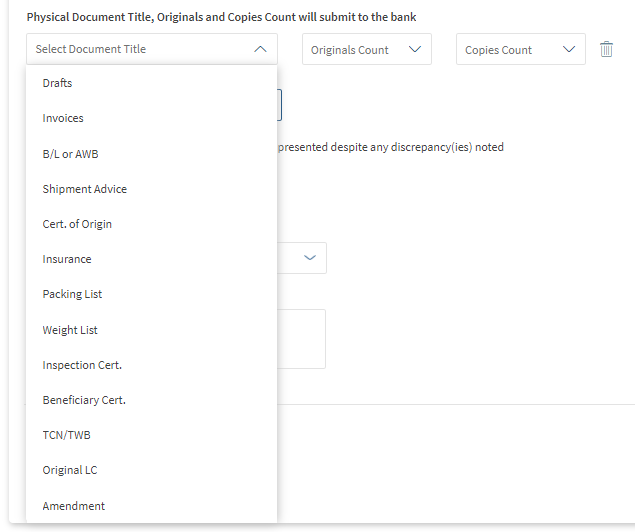
- To enter the title which is not available in the list, select Add Title Manually.
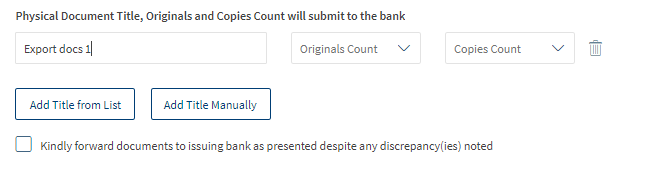
- To delete any added titles use Trash icon at the right side of the record.
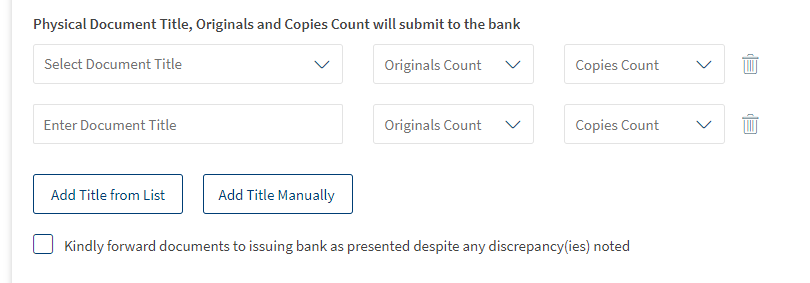
- User can check "Kindly forwards documents to issuing bank as presented despite any discrepancy(ies) notes" based on his decision.
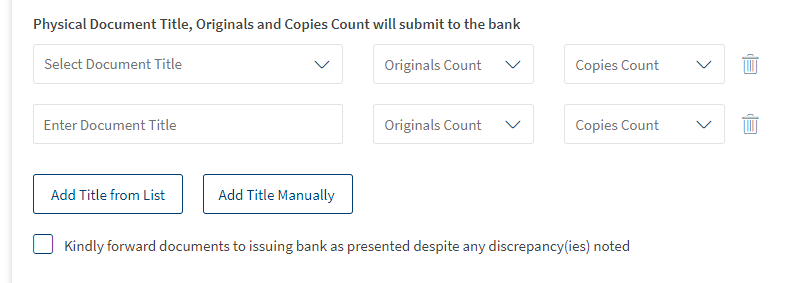
- To add the title available from the list, select Add Title From List.
- In the Charges Account and Message to Bank section, Select the Charges Debit Account from drop-down list.
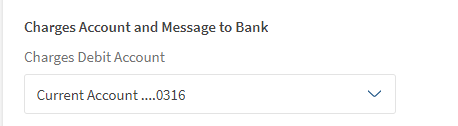
- Enter the Message to Bank.
This is an optional field and the user can send any message to the current Export Drawing request.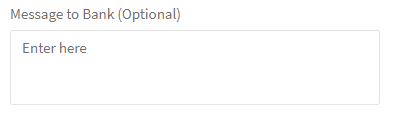
- Click Save & Continue. This navigates to Review & Submit page.
The user can use this Close to save this record without submitting to the bank for approval. (In the dialogue box select Save as Draft & Close ).
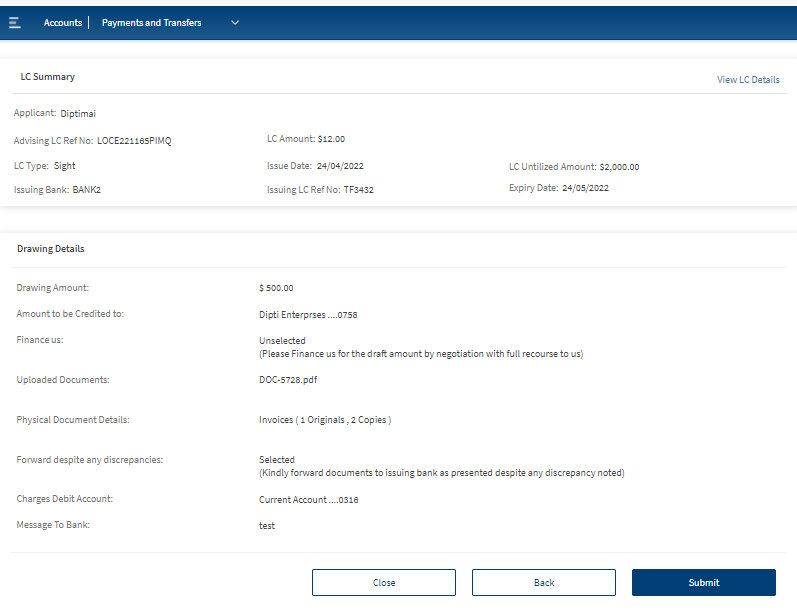
- Review the record and click Submit. This submits the record to the bank for approval.
View Export Drawings LC
Users can either view the single Export Drawings record or view all the Export Drawings created for the single Export LC record. There is also an option to view Details for the status "Processing by Bank" and "Completed" status.
View Export Drawings LC - Single
The following are thesteps to View Export Drawing LC:
- Navigate to Web Channel > Trade Finance > Export LC. This opens the Export Letters of Credit summary page.
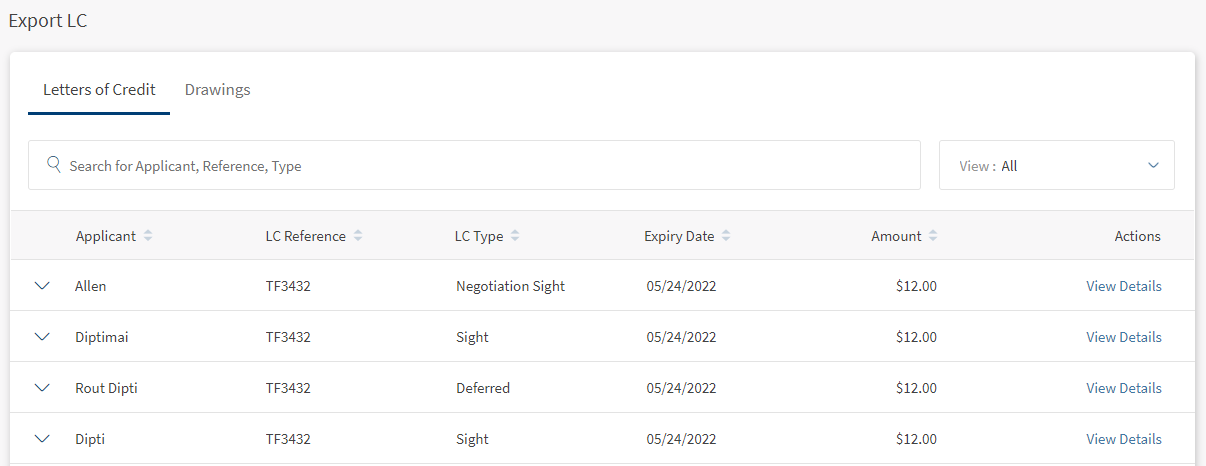
- Go to Drawings dashboard. This displays the available list of Export Drawings.
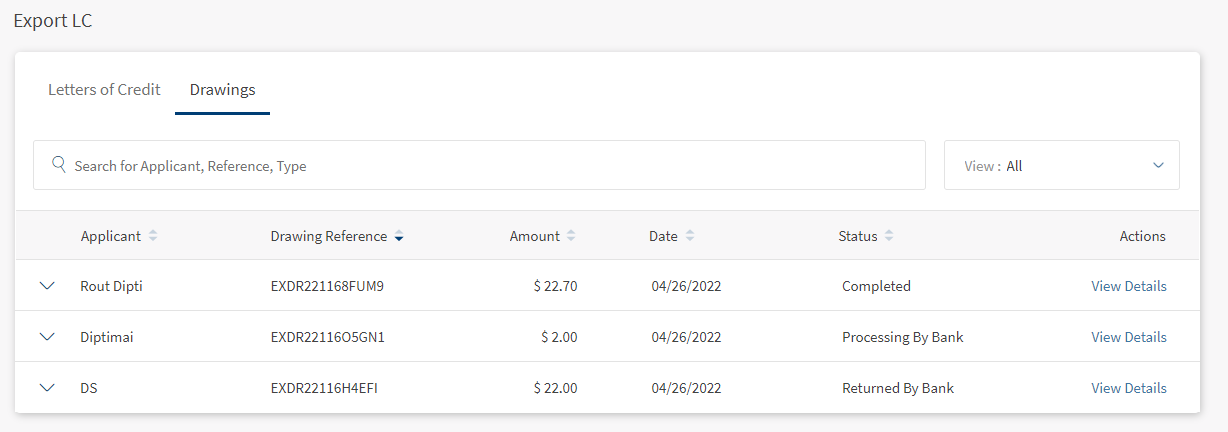
- In the Search bar, search for the Export Drawing by using, Applicant name, Drawing Reference, and for further filter user can also use View option.
- On the desired Export Drawing record, click View Details. This will navigate to Export Drawing LC records page viewing the details.

View Export Drawings LC - List of Drawings for single Export LC
The following are thesteps to view the list of Export Drawings LC for a single Export LC:
- Navigate to Web Channel > Trade Finance > Export LC. This opens the Export Letters of Credit summary page.
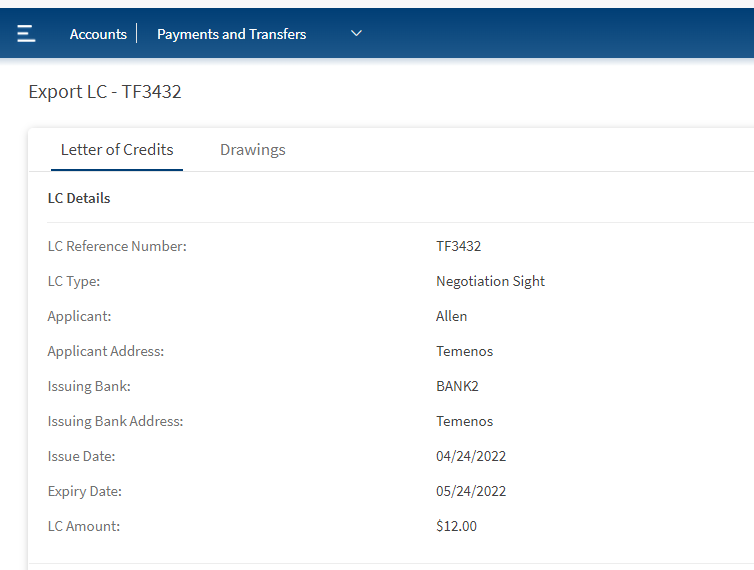
- Click View Details. This navigates to the Export LC details page.

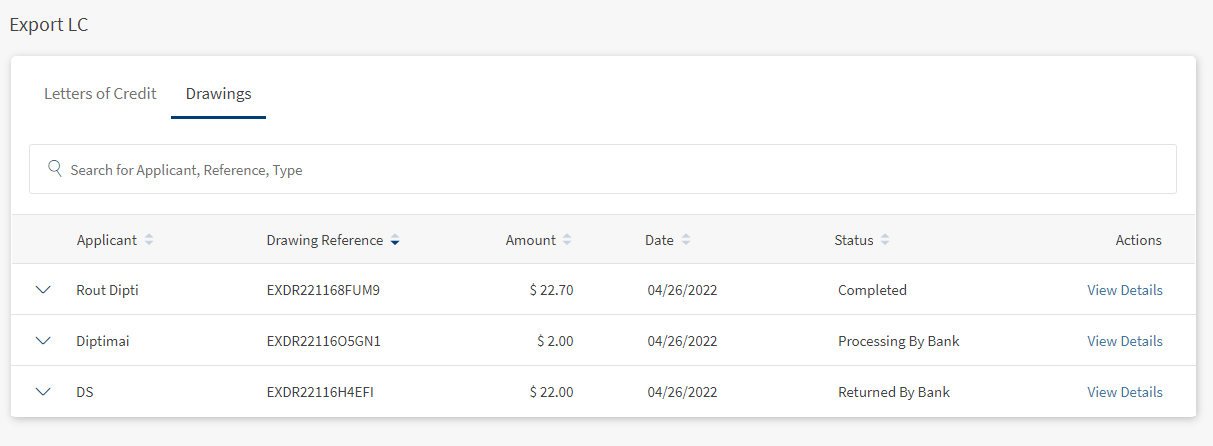
- Click on Tab Drawings, This navigates to LC Drawings dashboard page displaying the list of Export Drawings for selected Export LC.
View Export Drawings LC - Processing by Bank Export Drawing LC
The bank user sees the Export Drawing detail for the status Processing by Bank. This page is similar to view Export Details LC.

View Export Drawings LC - Completed Export Drawing LC
The bank user sees the Export Drawing details for the status Completed. In addition to the View Export Details, the bank user can see Document status and Payment Details. The Payment Advice section is visible when the payment status is Settled. 
View Export Drawings LC - Returned by Bank
The bank user sees the Export Drawing details for the status Returned by Bank. In addition to the View Export Details, the bank user can see Discrepancies Returned by Bank and Response to the Discrepancies. The bank user needs to enter comments based on the Discrepancies and submit the Export Drawing by clicking Continue to Revise Drawing. 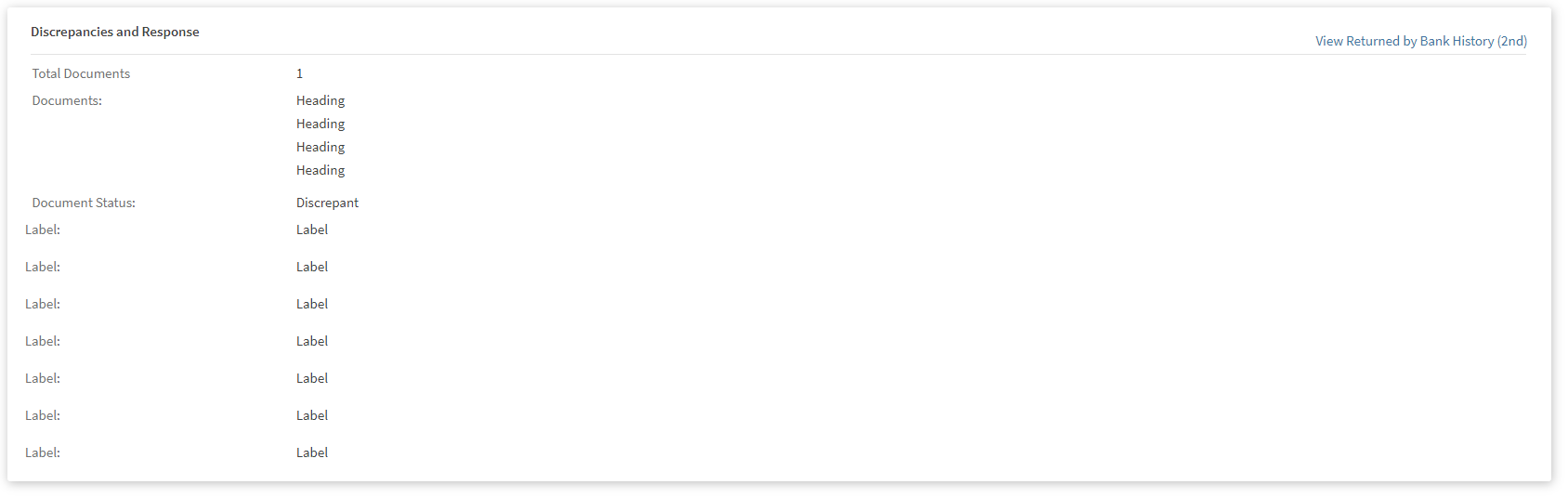

View Export Drawings LC - Returned by Bank History
The bank user sees the Export Drawing details for the status Returned by Bank. In addition to the View Export Details, the bank user can see Discrepancies Returned by Bank and Response to the Discrepancies. At the right side of the Discrepancies Returned by Bank user can see View Returned by Bank History, by clicking this user can see the history of discrepancies for the current Export LC.

Save Export Drawings LC
The user can save the Export Drawing LC without submitting to the bank for approval. This helps to create and save the record for his self-review or save his work at any time. The following are thesteps to save Export Drawing LC:
- Create a New Export Drawing LC. Refer Create a new Export Drawings request.
- In the Export LC- Create New record page, Click Close at the bottom of the page.
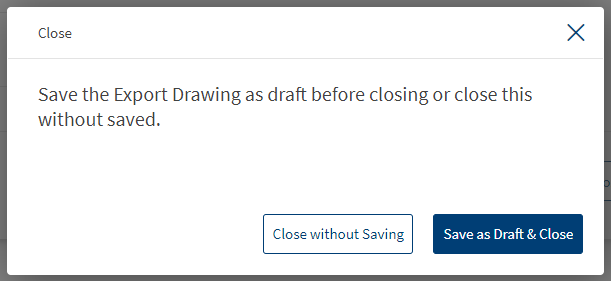
- In the pop-up box select Save as Draft & Close. This saves the record.
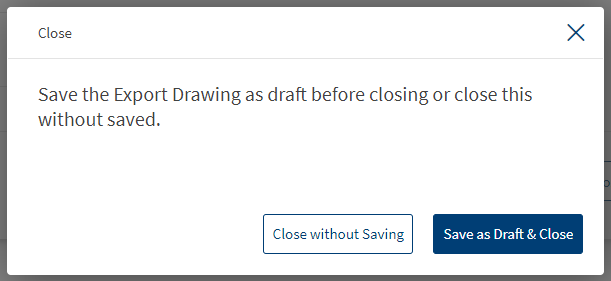
or
- The user can click on Saveshown in the following image
Edit Export Drawings LC
The user can only edit a record with Draft as Status. The following are the steps to edit Export Drawing LC.
- Navigate to Web Channel > Trade Finance > Export LC > Drawings. This opens the Export Drawing LC summary page.
- Select Continue Editing to edit the Export Drawing record.
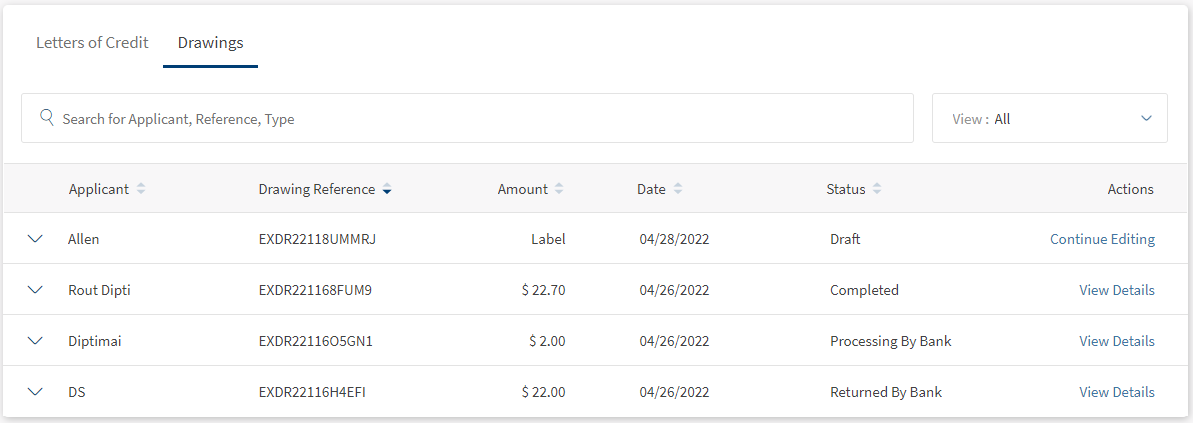
- To save the record again
- Click Close at the bottom of the page.
- In the pop-up box select Save as Draft & Close. This saves the record.
- Click Close at the bottom of the page.
- To submit the record
- Click Save & Continue. This navigates to Review & Submit page.
- Review the record and click Submit. This submits the record to the bank for approval.
Delete Export Drawings LC
The user can only delete the records which are in the draft stage or create a new Export Drawing LC record.
Delete the Saved Export Drawings LC
The following are thesteps to delete the record :
- Navigate to Web Channel > Trade Finance > Export LC > Drawings. This opens the Export Drawing LC summary page.
- Select Continue Editing to edit the Export Drawing record.
- To delete the record
- Click Close at the bottom of the page.
- In the pop-up box select Delete Permanently. This deletes the record.
- Click Close at the bottom of the page.
Delete the record while creating Export Drawings LC
The following are thesteps to delete the record :
- Create a New Export Drawing LC. Refer Create a new Export Drawings request.
- In the Export LC- Create New record page, Click Close at the bottom of the page.
- In the pop up box select Delete Permanently. This deletes the record.
Download or Print Drawing LC
The user has two options to download Export Drawing LC records. Either they can download the complete list displayed on the Drawing LC dashboard page and download or print individual LCs.
Download Export Drawing LC list
The following are thesteps to download Export Drawing list into excel (.xlsx).
- Click the Ellipses.
- Select the option Export List. This downloads the list of Export Drawing records into an excel file.

Download or Print individual Export Drawing LC
The following are thesteps to download or print individual LCs.
- Click the arrow to see the summary of the Import Drawing record.
- Click Download or Print to download or print LC.
The download options downloads LC in a PDF format. The print option opens a print dialogue box for printing the Export Drawing Details.
SWIFT MT 700
SWIFT is an acronym for Society for Worldwide Interbank Financial Telecommunication. SWIFT provides a secure, highly encrypted, and reliable messaging service to all financial institutions.
This is an additional feature provided to the Trade Finance Micro App to implement the SWIFT MT700 codes to the fields available in LCs. If there is no SWIFT code, then NA will display adjacent to the field. The same SWIFT MT700 codes will also display in the download and print LCs.
Enable the Spotlight configurations to display the SWIFT tags. Individual configurations are available for Web Channel, download, and print LCs.
Web Channel SWIFT MT700 codes: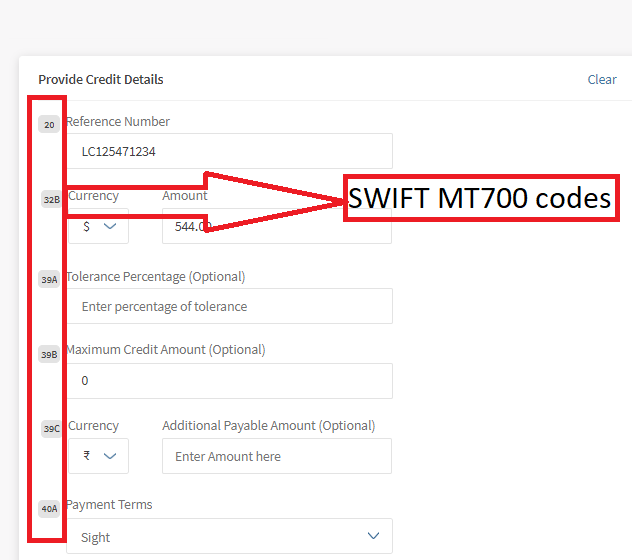
Download and Print SWIFT MT700 codes: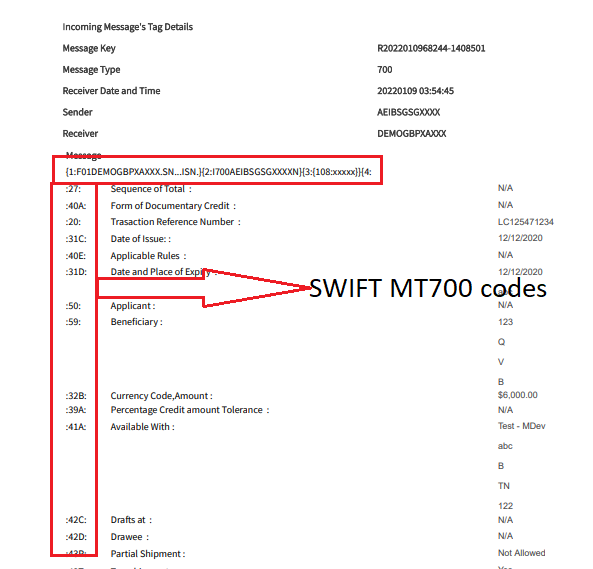
Swift and Advices
The bank user with required permissions can see the Swift MT messages and Payment Advices for a particular record. The following is the procedure to view Swift and Advices for a particular record.
- In the dashboard, search or filter for the record.
- Click View Details on the record to view Swift and Advices. The navigates to the detailed page view.
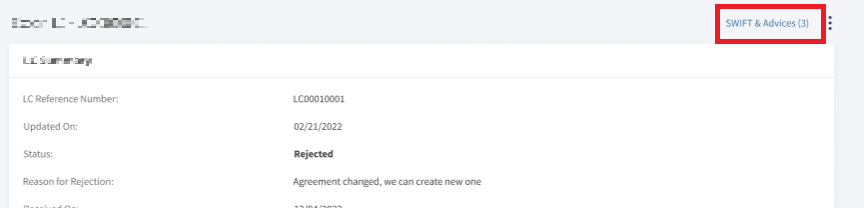
- Click SWIFT & Advices.
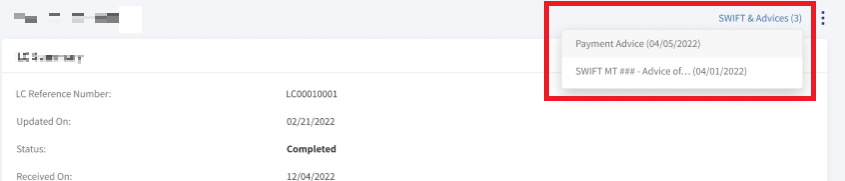
- In the pop-up,
- Select Payment Advices to view payment advices for a particular record.
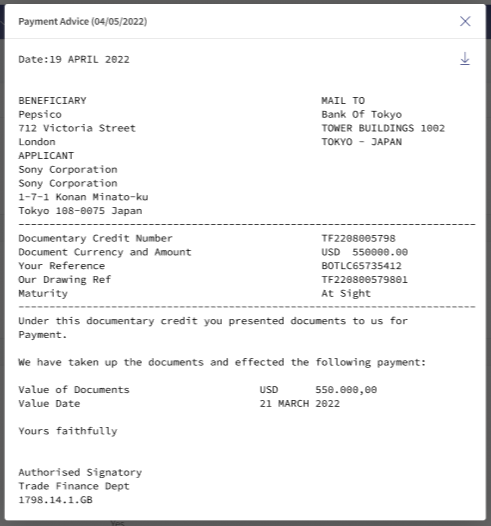
- Select SWIFT MT to view in advices in SWIFT MT mode.
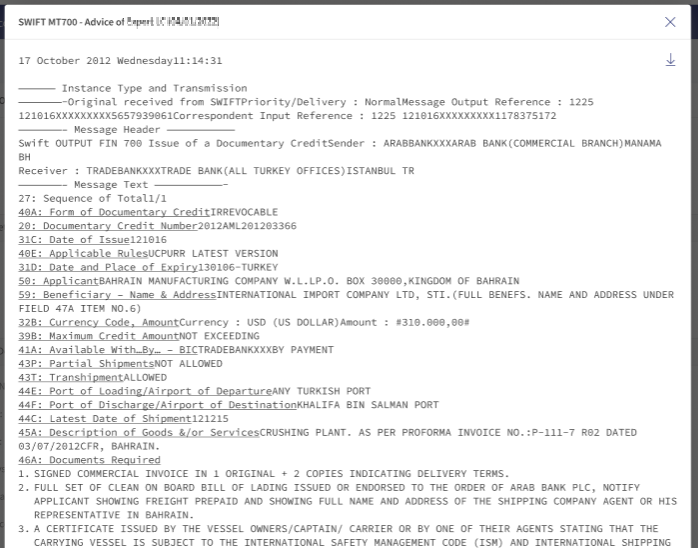
- Select Payment Advices to view payment advices for a particular record.
SRMS Configuration
The SRMS configurations are shipped as a part of this feature. For more information, see SRMS Configurations.
Experience APIs
The following are the experience APIs for Export Drawing LCs.
| Name | Description | Introduced In |
|---|---|---|
| createExportLetterOfCreditDrawing | This API creates the Export LC Drawing record. | 2022.04 |
| updateExportLetterOfCreditDrawing | The API updates the Export LC Drawing record. | 2022.04 |
| deleteExportLetterOfCreditDrawing | This API deletes the Export LC Drawings. | 2022.04 |
| getExportLetterOfCreditDrawings | This API retrieves the list of Export LC Drawings. | 2022.04 |
| getExportLetterOfCreditDrawingById | This API retrieves the record of Export Letter of credits by ID. | 2022.04 |
| createPaymentAdvice | This API creates the Export Drawing payment Advice. | 2022.04 |
| getPaymentAdvice | The API retrieves list of Export Drawing payment advice. | 2022.04 |
| uploadDocument | This API uploads a document to Export Drawing LC | 2022.04 |
| retrieveDocuments | This API retrieves the uploaded documents for Export Drawing LC. | 2022.04 |
| deleteDocument | This API deletes the uploaded document with reference ID. | 2022.04 |
| updateDrawingByBank | This API updates the Export LC drawing from bank. | 2022.04 |
| generateExportLetterOfCreditDrawing | This API downloads the Export LC Drawing. | 2022.04 |
In this topic