QR Payments
QR (Quick Response) payments are electronic payments that allow users to make payments using a QR code . QR payments are only for Mobile Native application. The user scans the QR code with their smartphone using the Mobile Native app to process the payments. QR payments are convenient because they do not require users to enter their payment details manually. For first-time usage, the user has to configure QR payments.
The bank user with the required permission to Mobile Native application and QR Payments can process payments using this feature.
- To scan any QR code, the Infinity mobile native application does not use any third-party libraries.
Navigation path: Mobile Native > Footer Menu > QR Payments
First Time Accessing QR Payments
For the first-time, the user has to activate and configure the QR Payments in the Mobile Native application and for the subsequent login, it directly navigates to the QR payments transaction screen. Following are the steps to activate and configure the QR Payments.
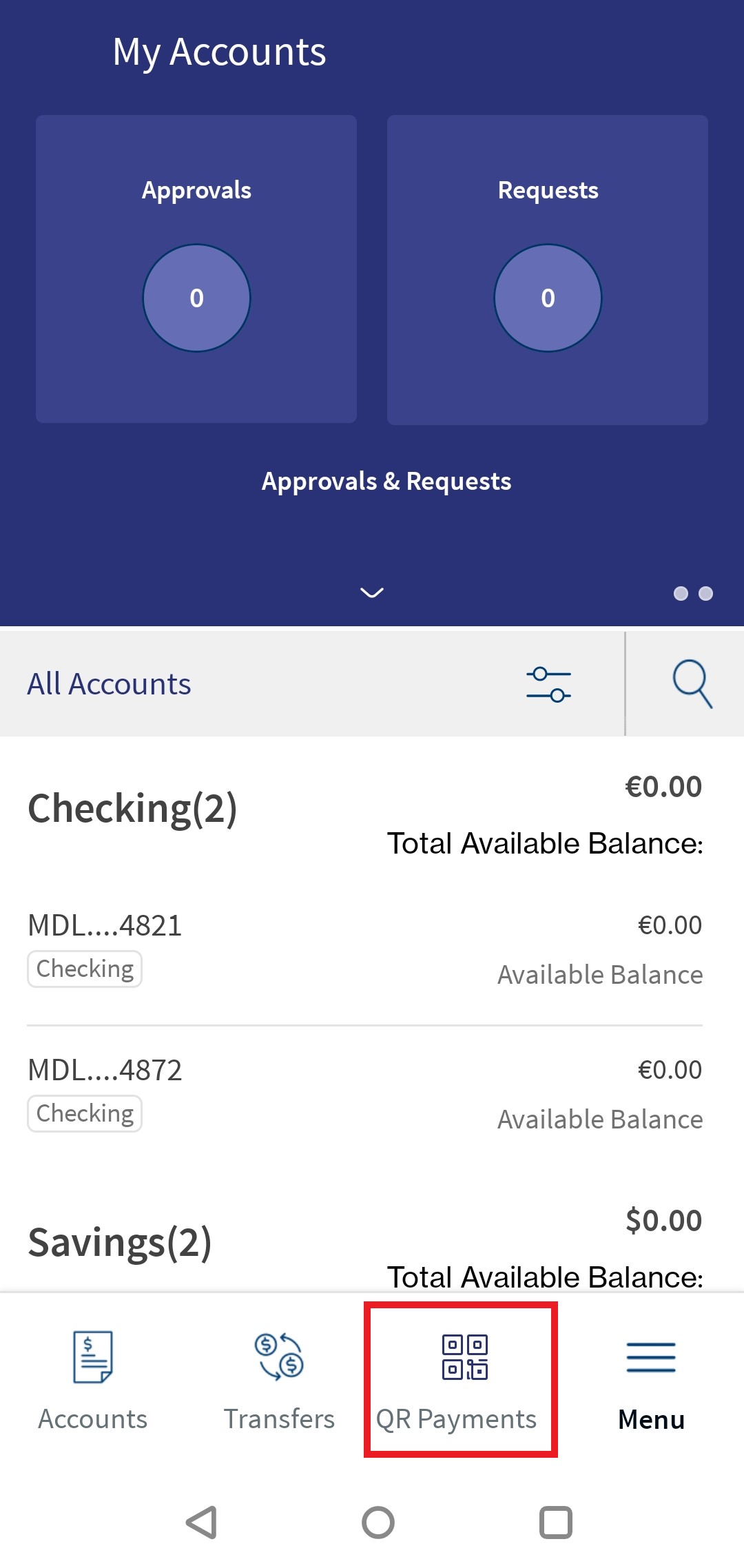
- Tap QR Payments in the footer menu. This navigates to the activation screen.
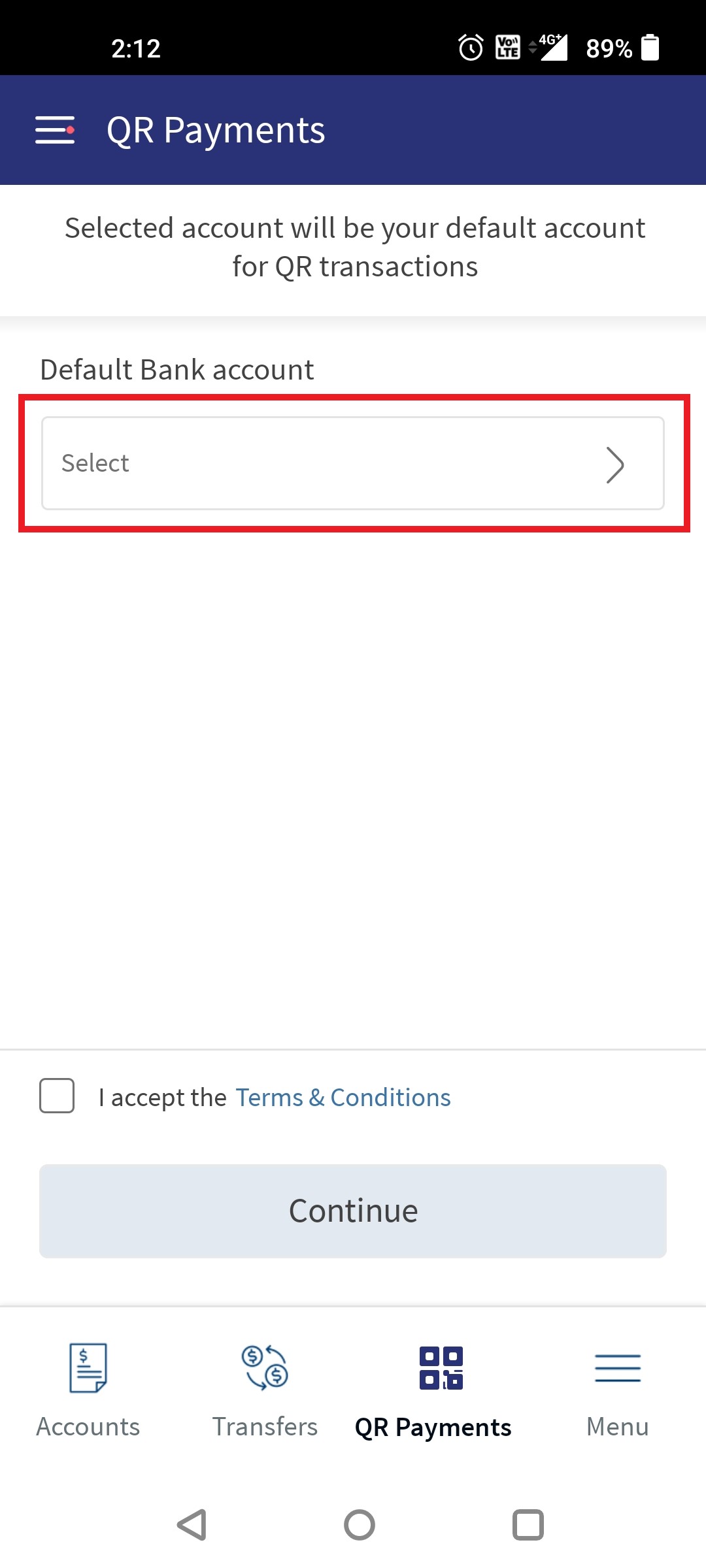
- Tap Default Bank Account. This navigates to Default account selection screen.
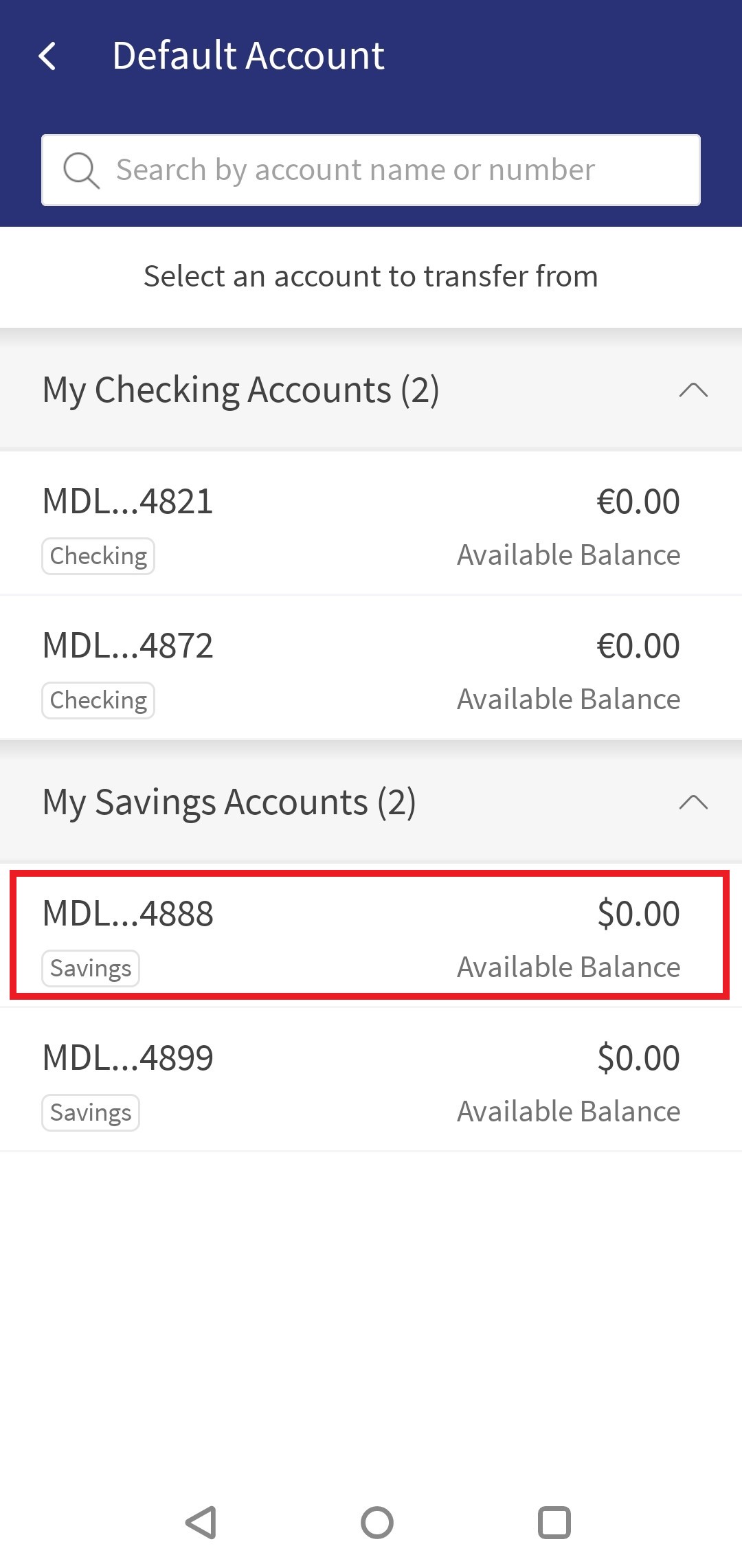
- Tap any of displayed accounts from the which money to be debited. This navigates back to Default Bank Account.
- Tap check box to accept the Terms and Conditions. To read terms and conditions tap on Terms and Conditions.
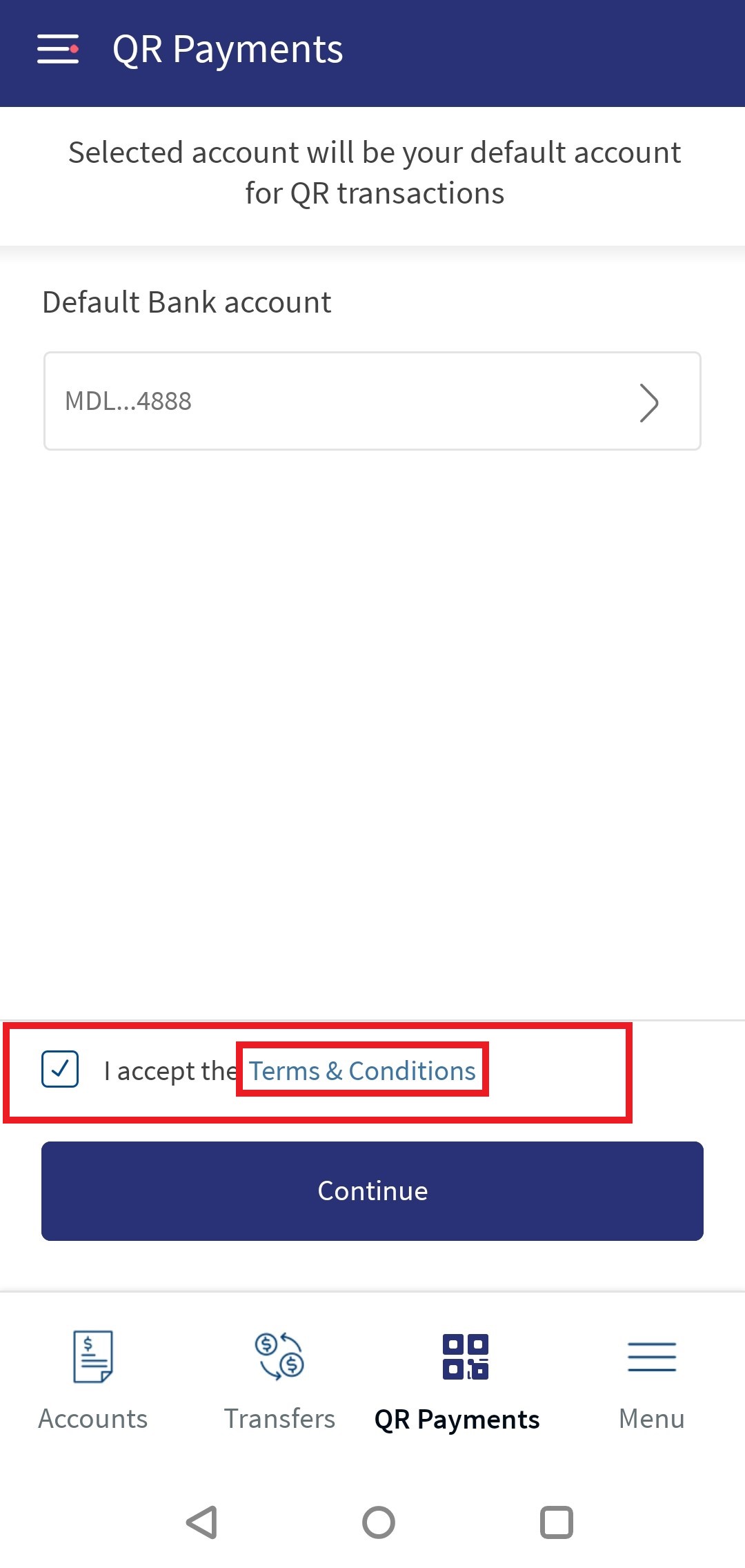
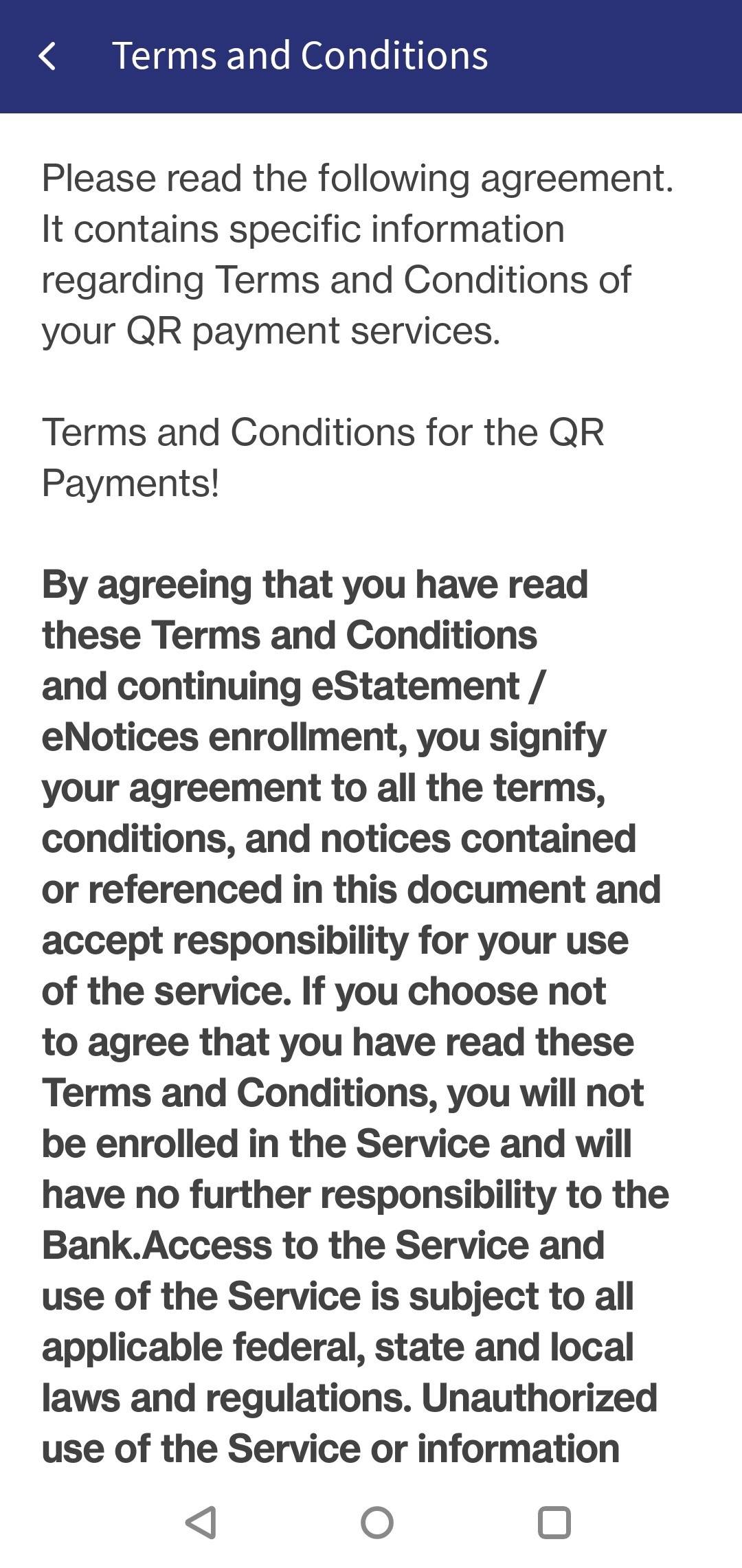
- Tap Continue. This activates and configures the QR Payments default bank account to debit money.
Updating Default Account for QR Payments
The bank user has an option to change the QR Payments default bank account for processing the QR Payments. Following are the steps:
- Navigate Hamburger Menu > Settings > Account Settings.
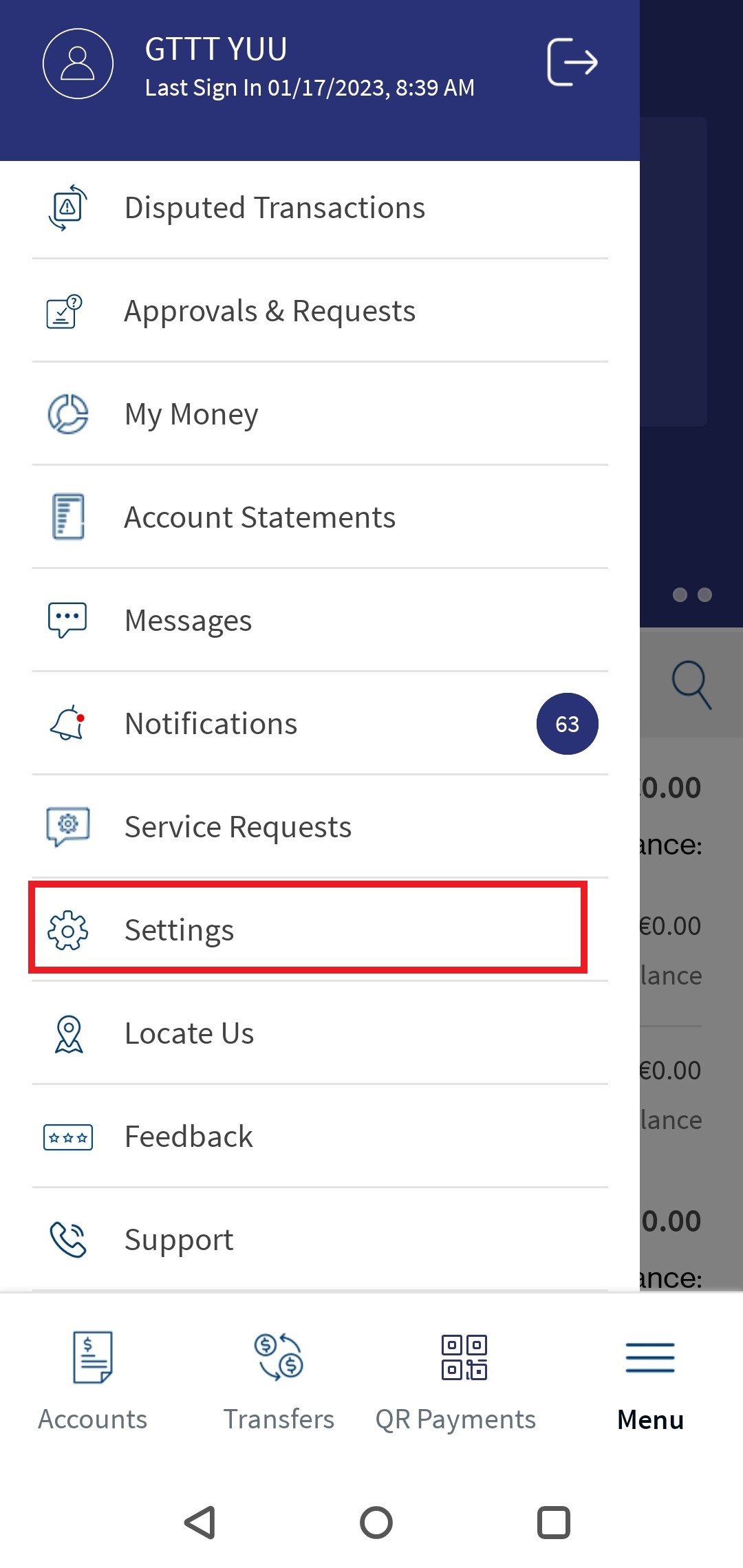
- Tap Set Default Account. This navigates to default account settings screen.
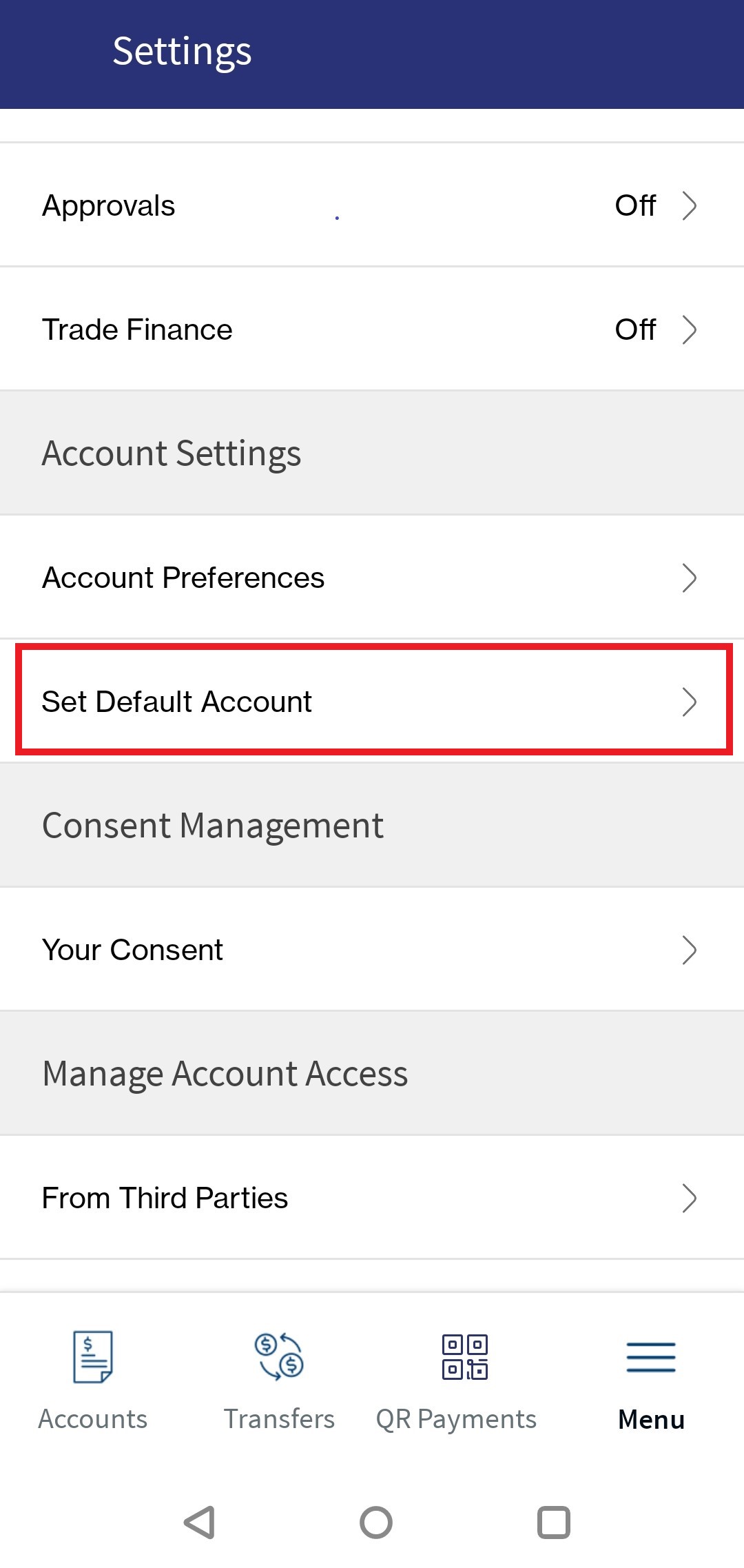
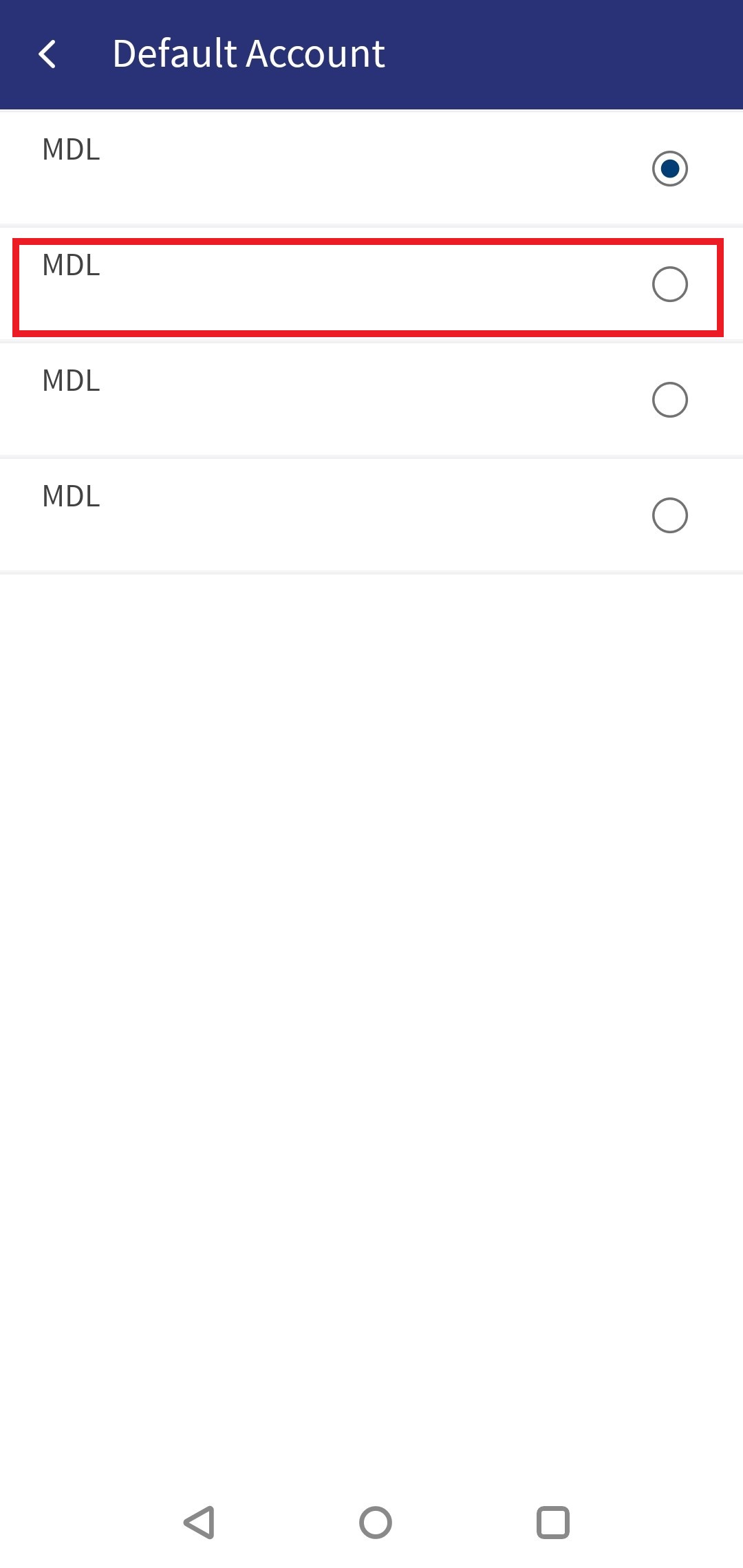
- Tap QR Payments. This navigates to Default Account screen displaying available account for the user.
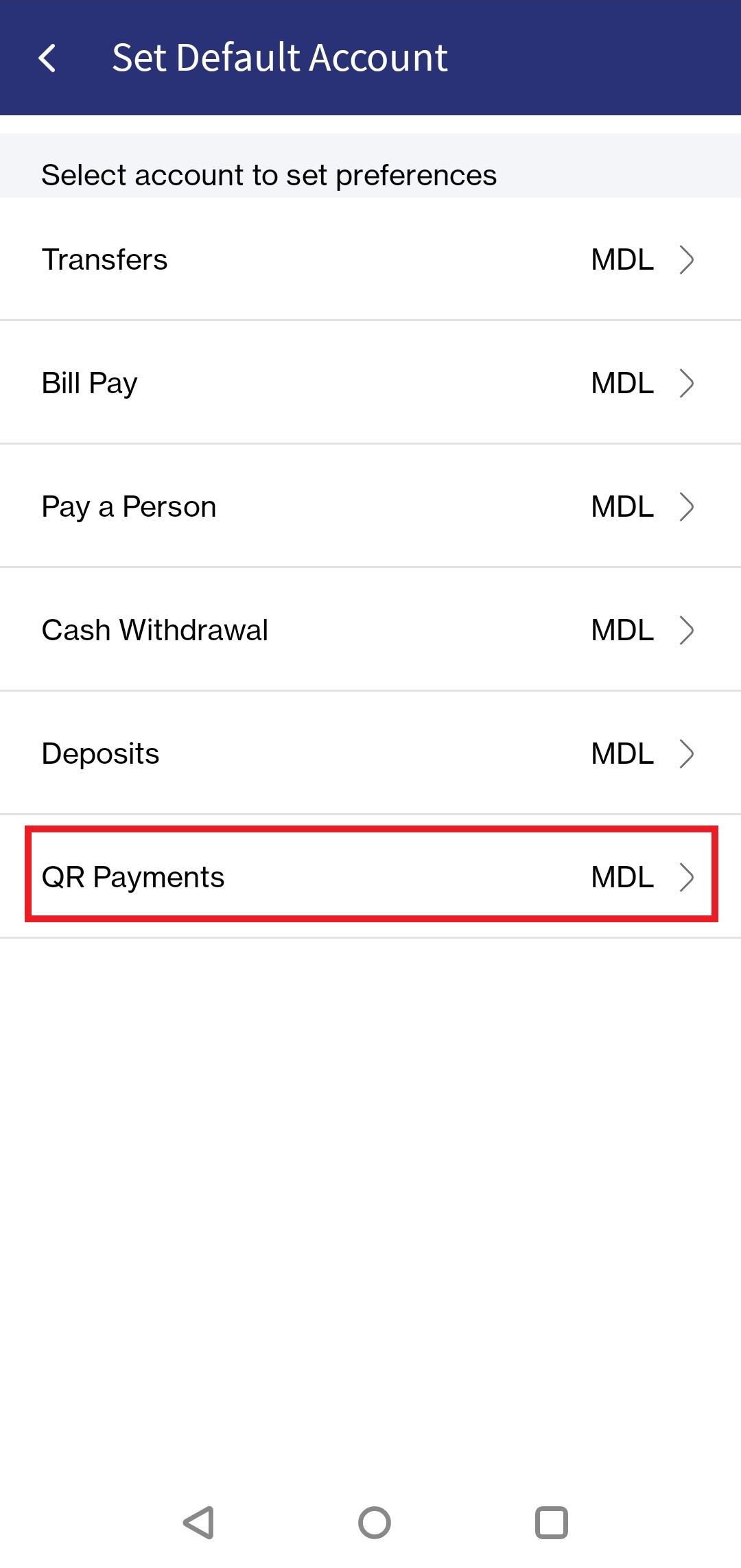
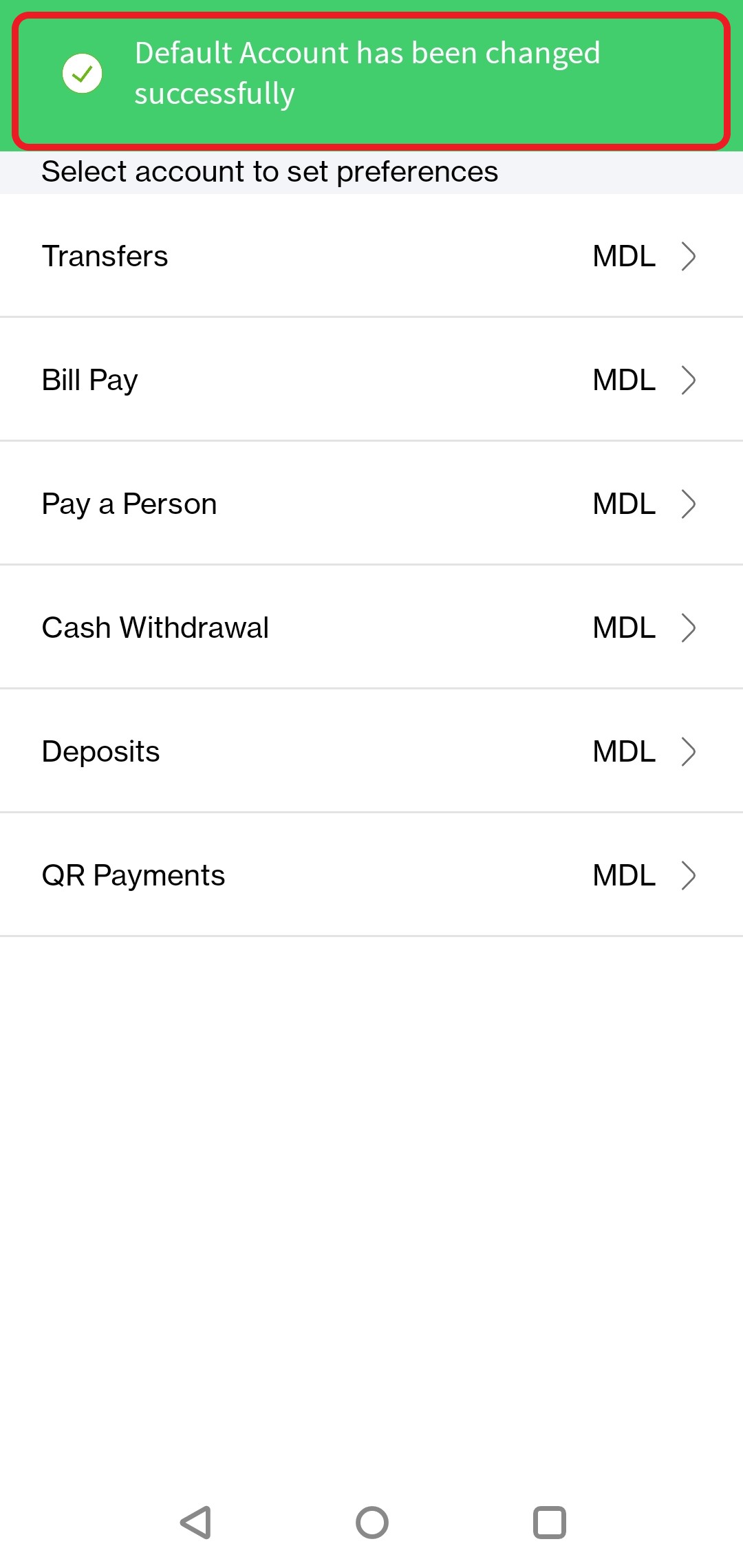
- Select new account. The app displays a success message.
Scan and Pay
The bank user with the required permissions can perform the scan and pay. Following are the steps:
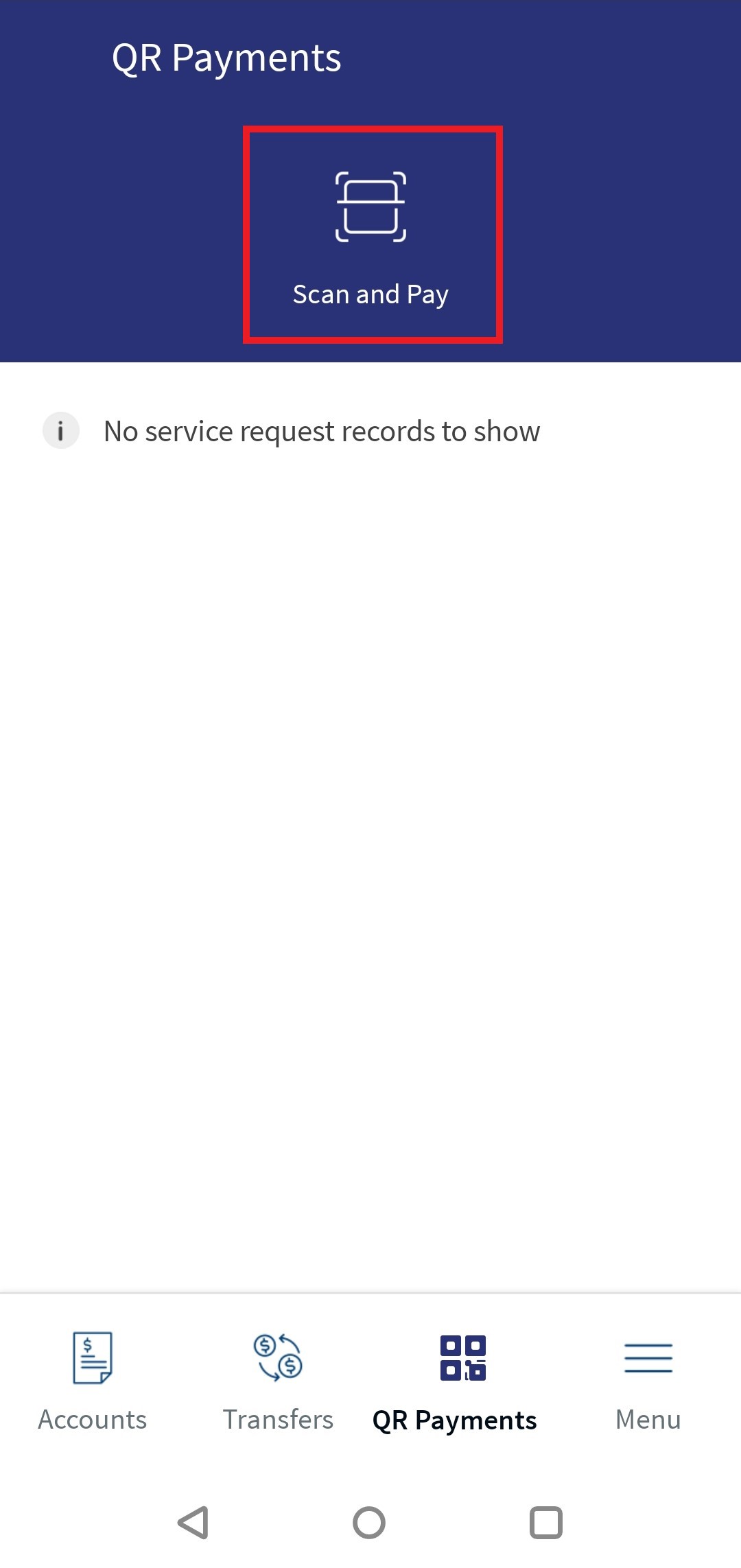
- Navigate Home Screen > Footer Menu > QR Payments.
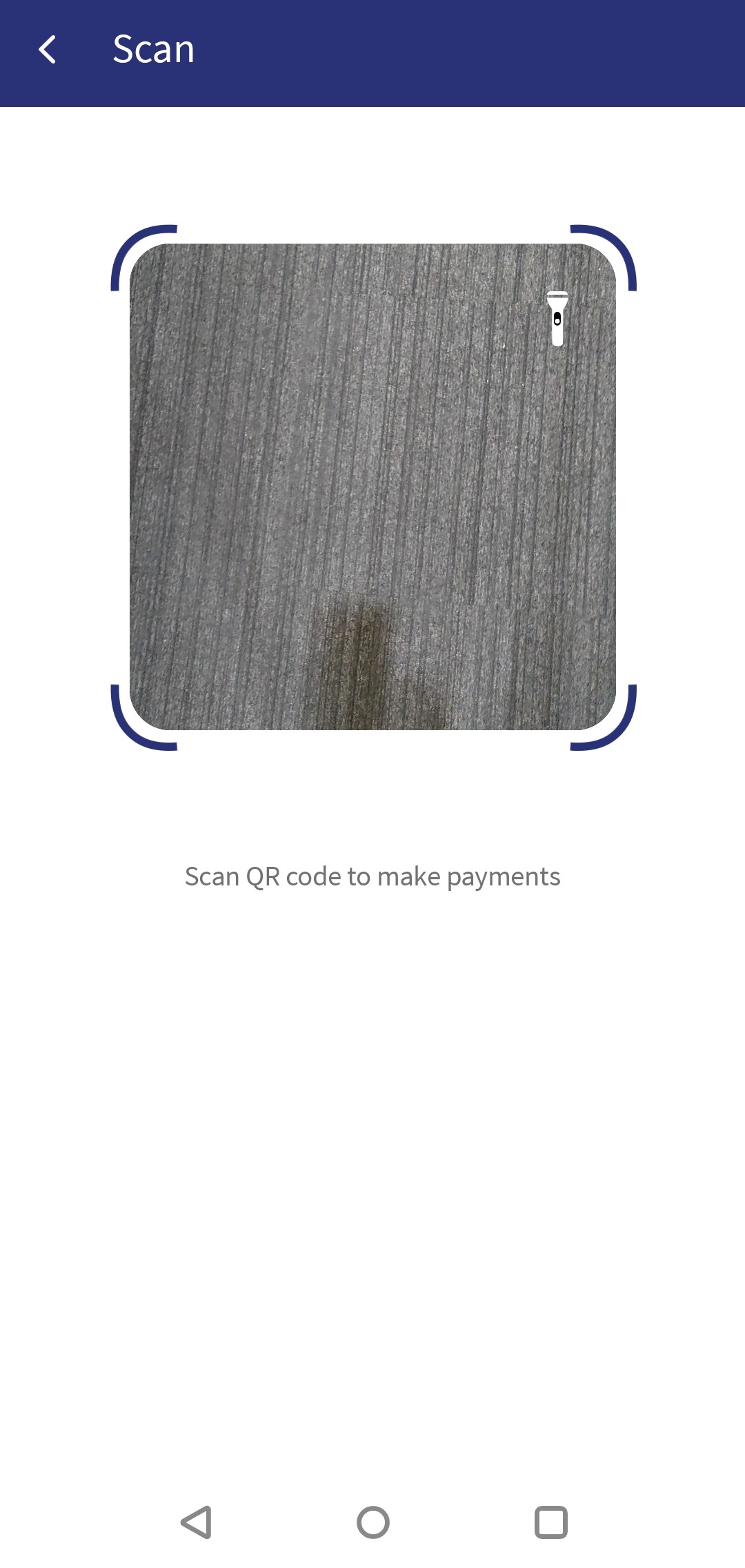
- Tap Scan and Pay. The navigates to Scan QR Code screen with camera turned on.
- Scan the QR code. This navigates to the Pay screen.
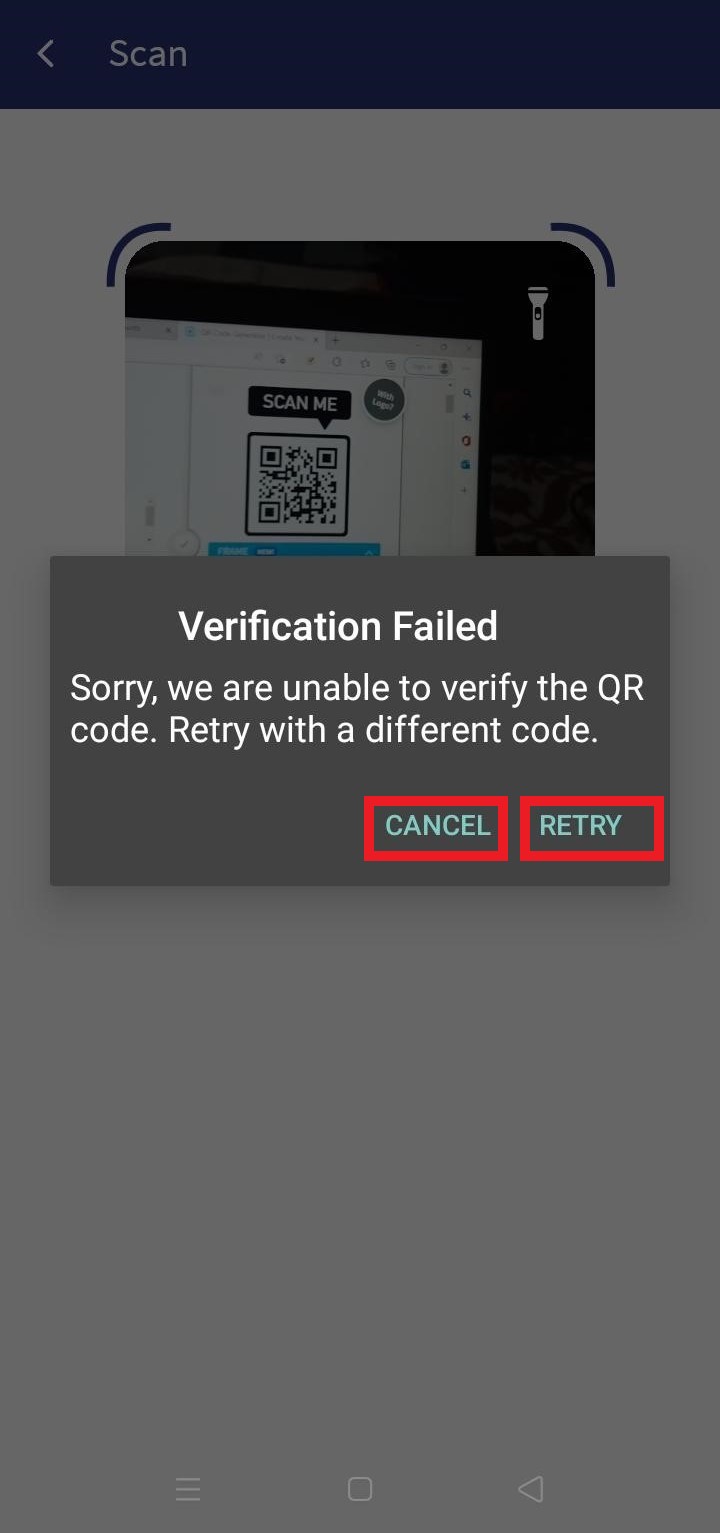
If the scanned QR code is incorrect, the app displays an appropriate message.
- Tap Retry to scan again.
- Tap Cancel to go back to the QR Payment screen.
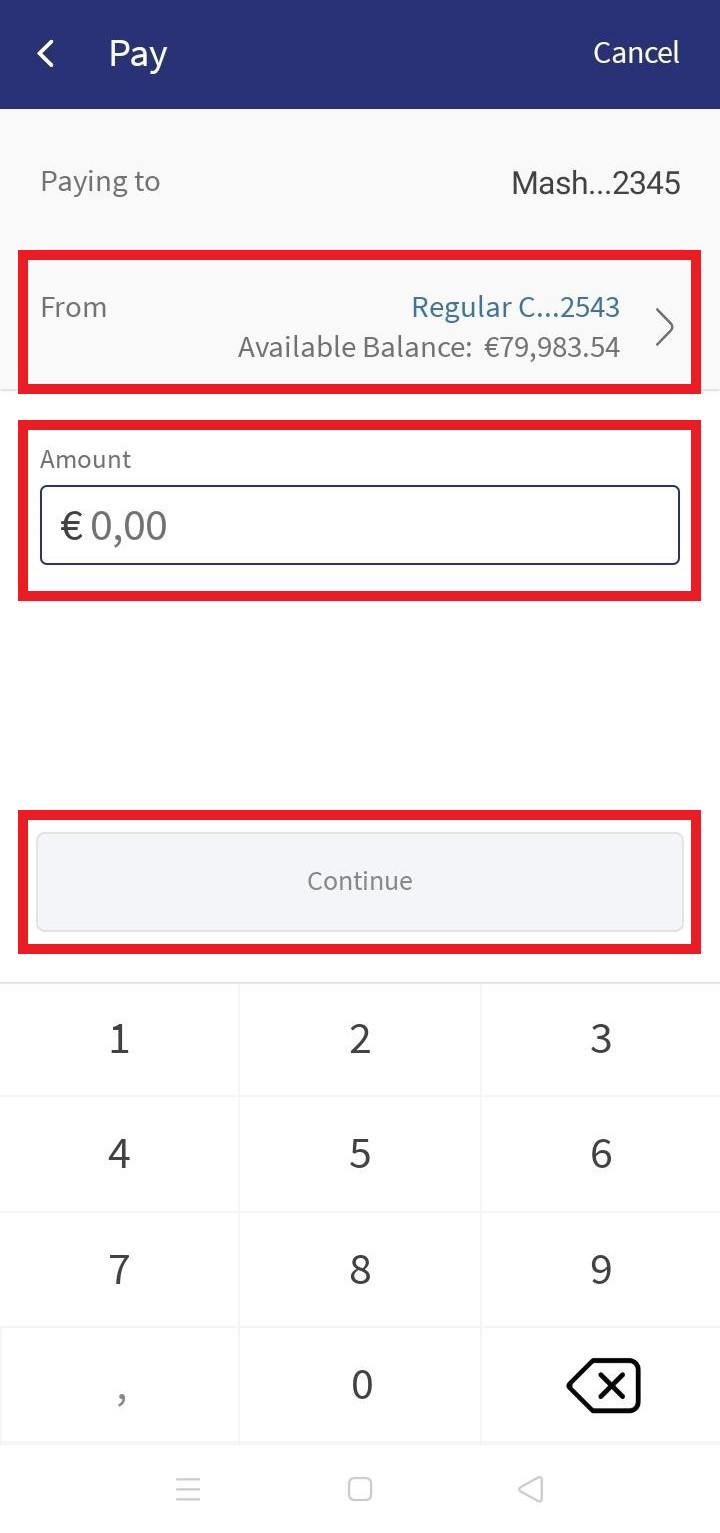
- Enter the Amount and Tap Continue. This navigates to Verify Details screen.
- The amount is updated automatically if the scanned QR code has the amount information.
- The user can tap From account to change account details for the current transaction.
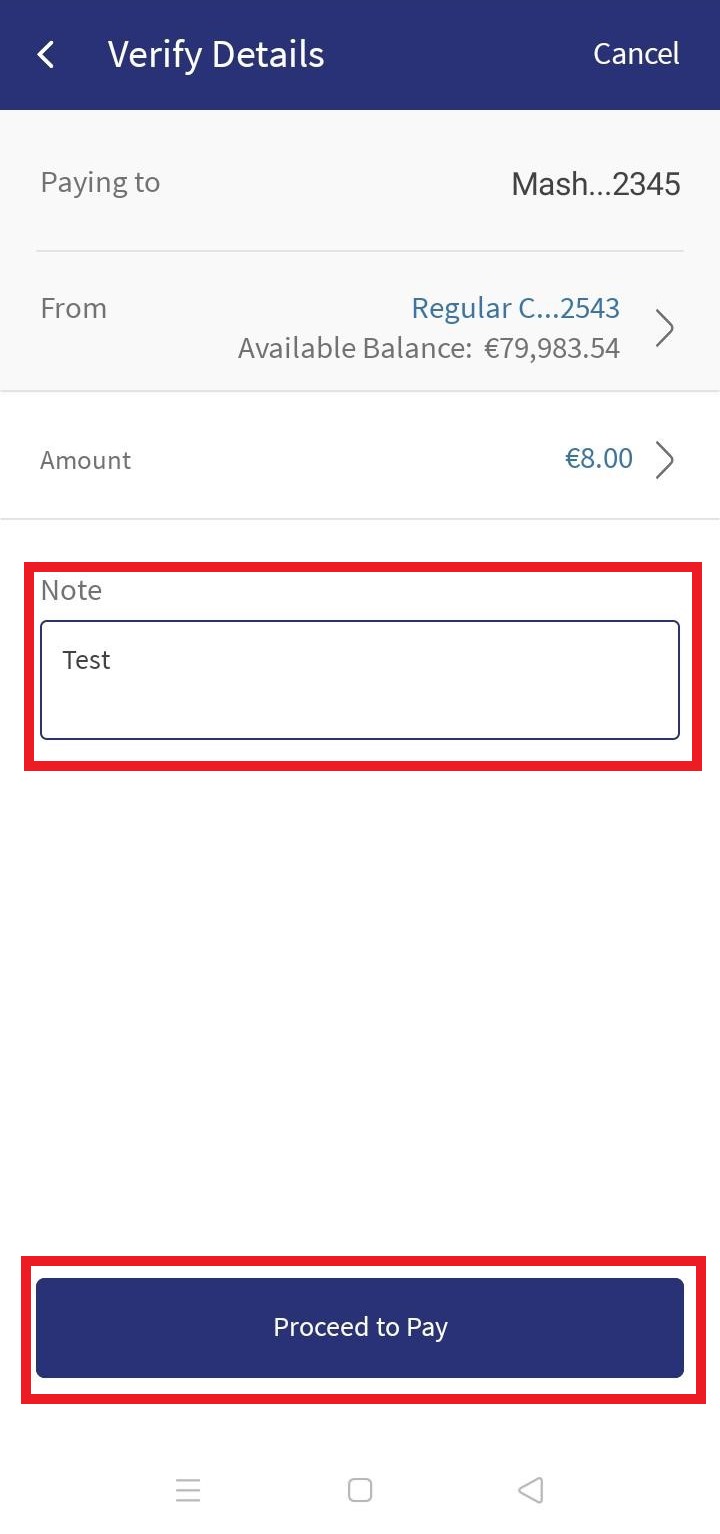
- Verify the details and tap Proceed to Pay. The user can enter Notes, this is not a mandatory field.
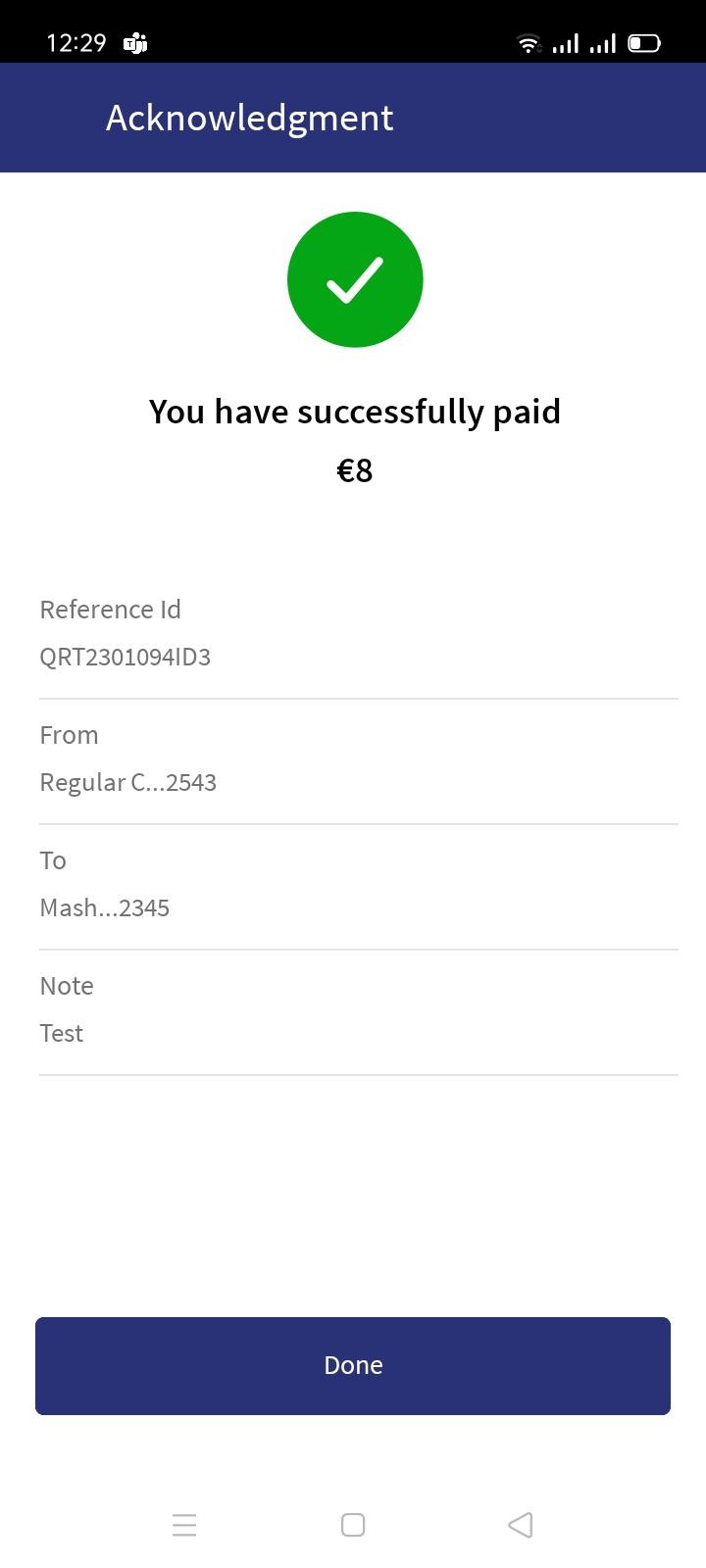
- A success message appears with reference ID details.
The user can see the successfully completed transaction in the Service Request dashboard.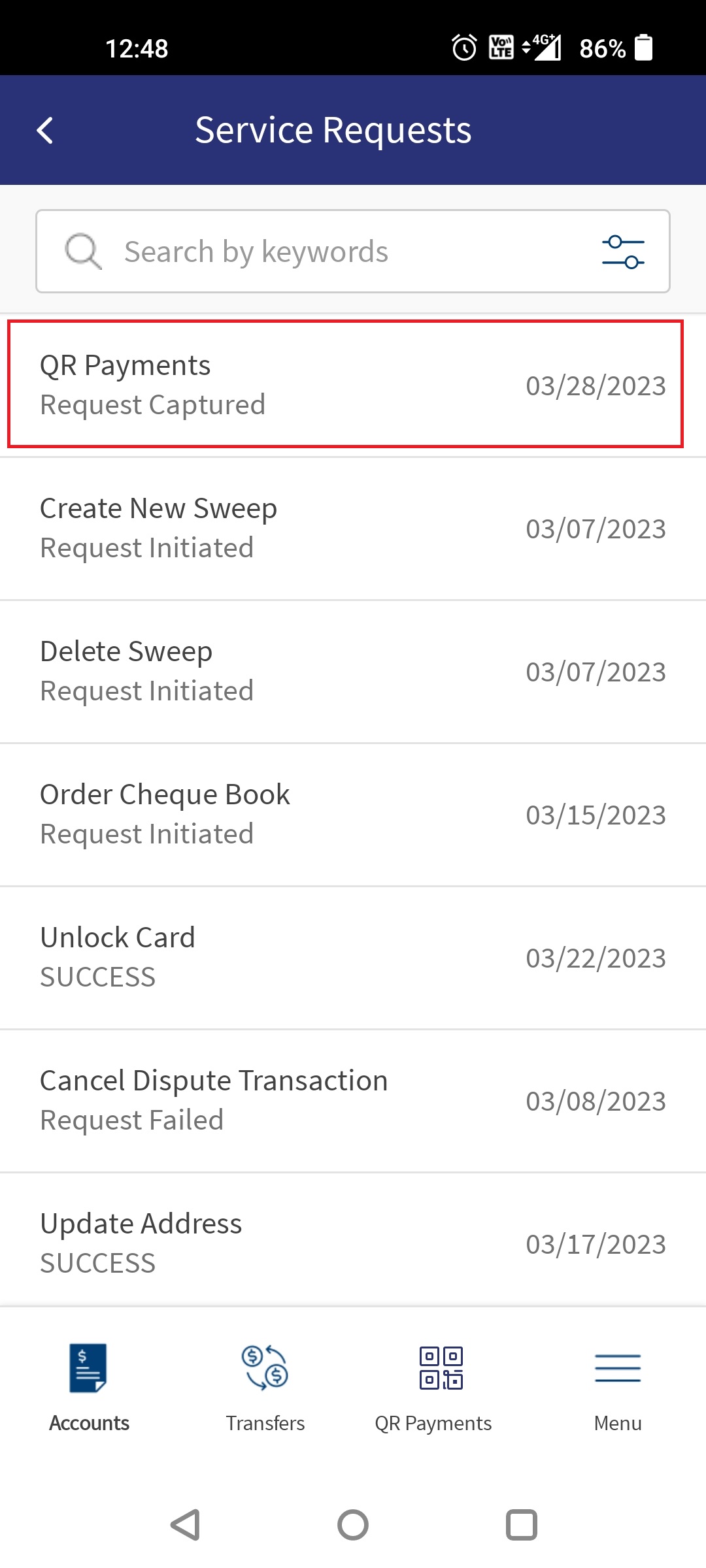
- In the Notes section under the payment details page, the user can enter up to 140 characters.
- Limitation for entering the amount
- The decimal values can be null, two, or three digits. This is configurable.
- The user can cancel the payment at any time by tapping Cancel.
- In case of a failed transaction, the acknowledgment page displays an appropriate message. Tap Close to navigate to the QR payments dashboard screen.
Configurations
See SRMS Configurations.
Experience API
Following are the Experience APIs for QR Payments.
| Name | Description | Introduced In |
|---|---|---|
| CreateQRPayment | This API creates the Transfer of QR payments. | 2023.01 |
| activateQRPayment | This API activates QR payment transfer. | 2023.01 |
| updateQRPaymentPreferredAccount | This API updates the preferred accounts for QR payment. | 2023.01 |
Following are the common Experience APIs using for QR Payments.
| Name | Description | Introduced In |
|---|---|---|
| getList | This API retrieves all the accounts that are associated with the customer, such as savings, deposit, and credit accounts from the associated microservice or Transact. The fetched accounts are displayed to the customer based on the account type. This API gets invoked immediately after a customer signs-in to the account. | 2020.04 |
| ExternalUsers | This API retrieves the external users. | 2021.10 |
In this topic