Account Sweep
The Account Sweeps feature facilitates sweep instructions set up by the user. The Sweep feature automatically transfers or sweeps balances from one account to another. The are multiple reasons to have Sweep rule. For example, move excess money to another account to attain high interest in money, maintains minimum balance, and many more. There can be only one Account Sweep rule per account. The same account is treated as the primary account for the Sweep rule. Account sweeps are set up only between same currency account. The user requests raised for Account Sweeps can be seen in SRMS dashboard.
The user can perform any of the following actions:
- Sweep instructions between two accounts.
- Set up maintenance, Surplus, and two-way sweep instructions.
- Edit and delete the sweep instructions.
UX Overview
The following fields are available in Account Sweep Dashboard. In this dashboard, the user can create, edit, and delete a Sweep. The Create New Sweep option is available at the top right side of the page. The edit and delete options are available at each record level.
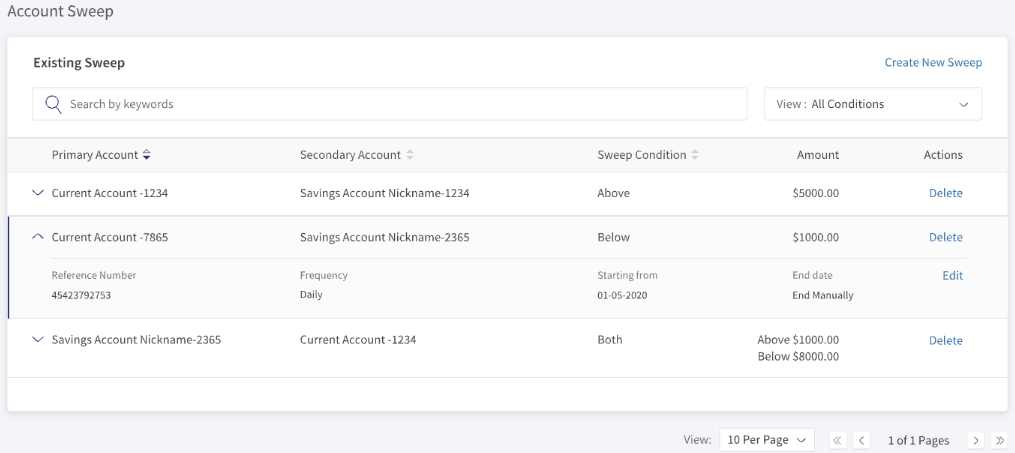
- Search - Use the keywords to search for particular record.
- Filter - Use this to filter the records.
- Primary Account - The primary account used for account sweep.
- Secondary Account - The secondary account used for account sweep.
- Sweep Condition - The sweep rule is set for the account. Above, Below and Both are the available conditions. See glossary for more information.
- Amount - The amount value set for sweep rule.
- Actions - The available actions are Delete and Edit.
The following fields are available when the record is expanded.

- Reference Number - The unique reference number for the sweep rule.
- Frequency - The frequency of time when the sweep rule applies.
- Starting From - The start date of the sweep rule.
- End Date - The end date of the sweep rule. The user needs to select the end manually or specific end date.
Create Sweep Instructions
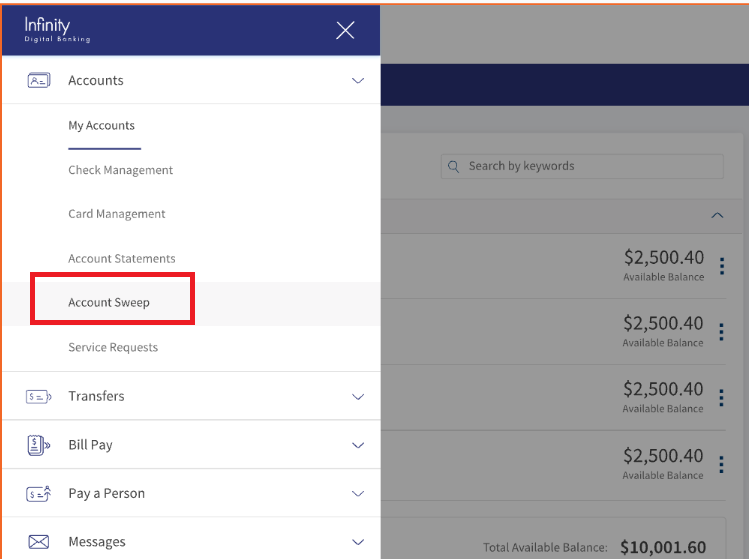
The user with required permissions can create Sweep in digital banking application. There are two ways to navigate to Sweep instructions.
Web Channel
- Login > Hamburger Menu > Account > Account Sweep.
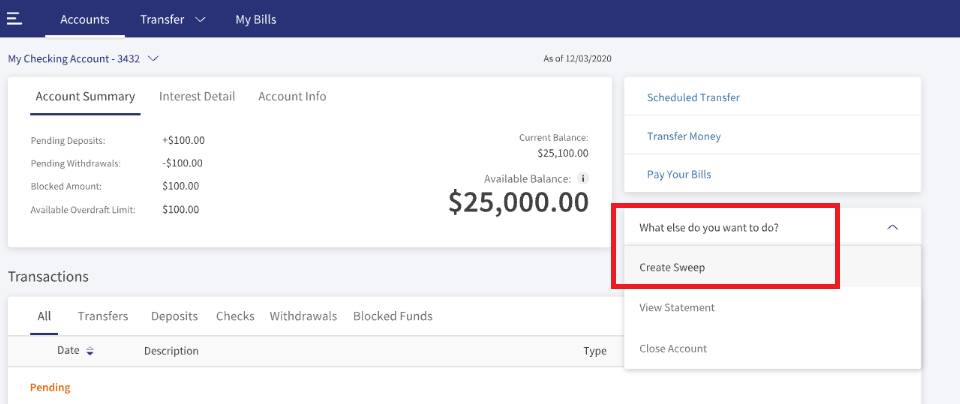
- Login > Home Page > Account Summary page > What Else do you want to do > Create/View Sweep.
Following are the steps to create Sweep:
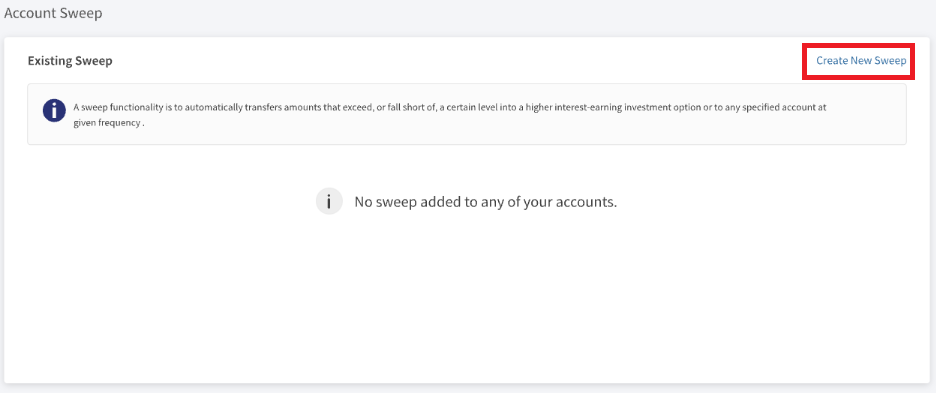
- In Account Sweep page, click Create New Sweep. This navigates to Create New Sweep page.
- Select the Primary Account from the drop-down list.
If the user navigates from the account summary page, the Primary account details are auto filled with the account information. - Select the Secondary Account from the drop-down list.
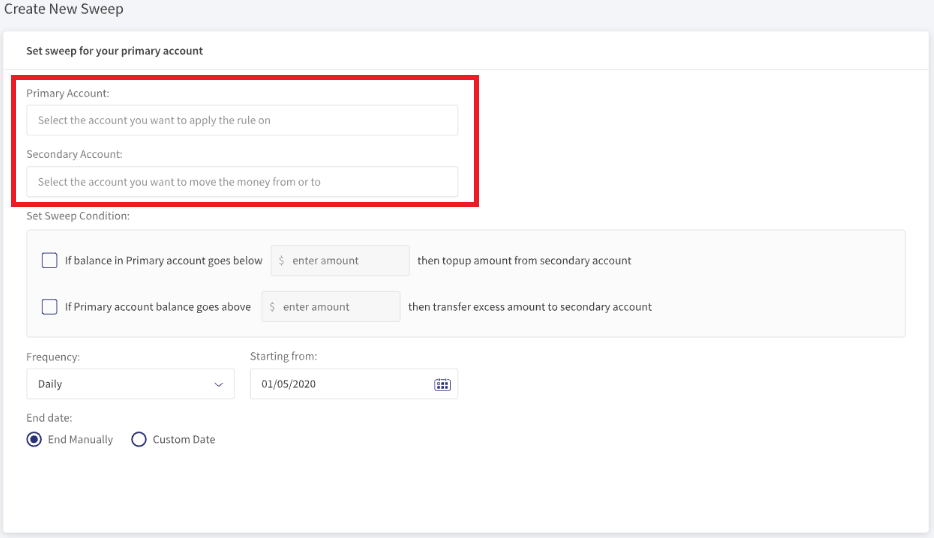
- Set the sweep condition. The user can select one or all the checkboxes.
See Glossary for more information.- For Below(Maintenance Sweep), select If balance in Primary goes below --- then topup amount from secondary account.
- For Above(SurplusSweep), select If balance in Primary goes above --- then topup amount from secondary account.
- For Both, select both options.
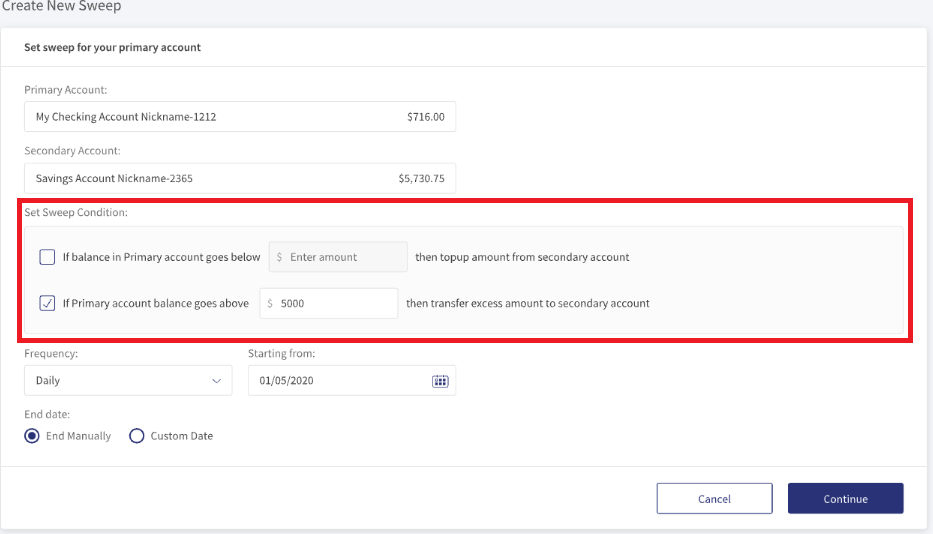
- Set the Frequency from drop-down list.
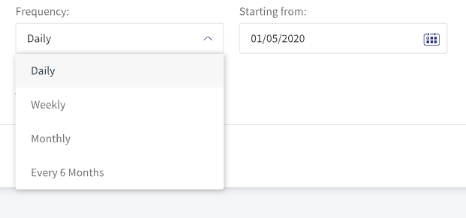
- Select Starting From using the date picker.
- Select the End Date.
- End Manually - If the user wants to delete the rule manually.
- Custom Date - If the user wants to stop the rule on specified date. Select the end date using date picker.
- Click Continue. This navigates to the Confirmation page.
- Verify the details and click Submit.
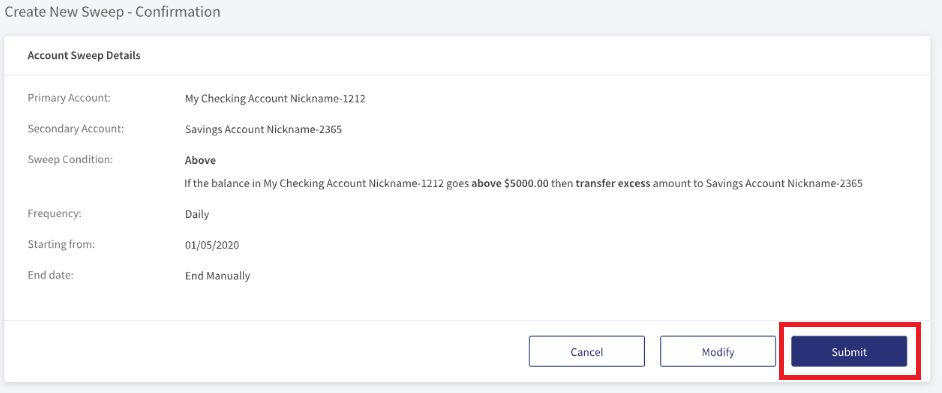
- An acknowledgment page appears with a success message.
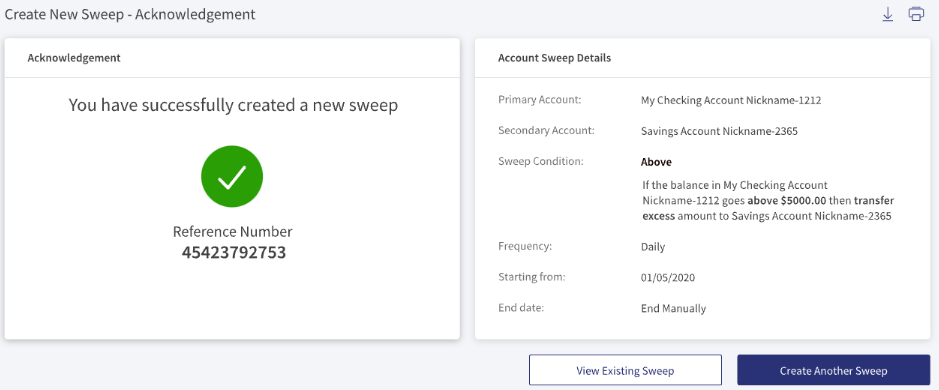
Edit Sweep Instructions
The user with required permissions can edit Sweep Instructions. The following are the steps to edit a Sweep Instruction:
- In the Account Sweep dashboard, search for the Sweep rules.
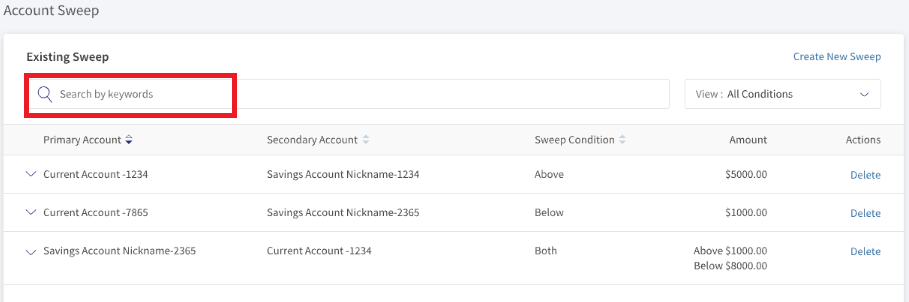
- Expand the record and click Edit.

- Edit the available fields. Secondary Account, Sweep Conditions, Frequency, Starting From, and End Date.
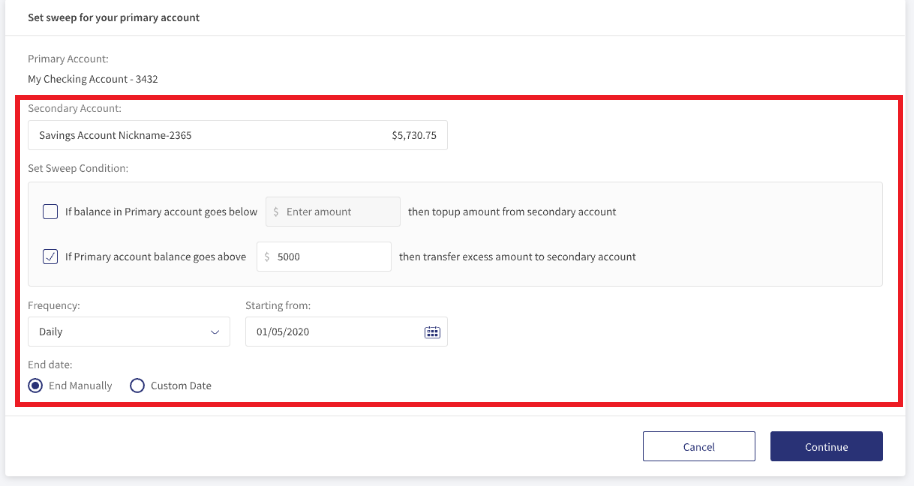
- Click Continue. This navigates to the Confirmation page.
- Verify the details and click Submit.
The user can click modify to go back Edit Sweep for further modifications.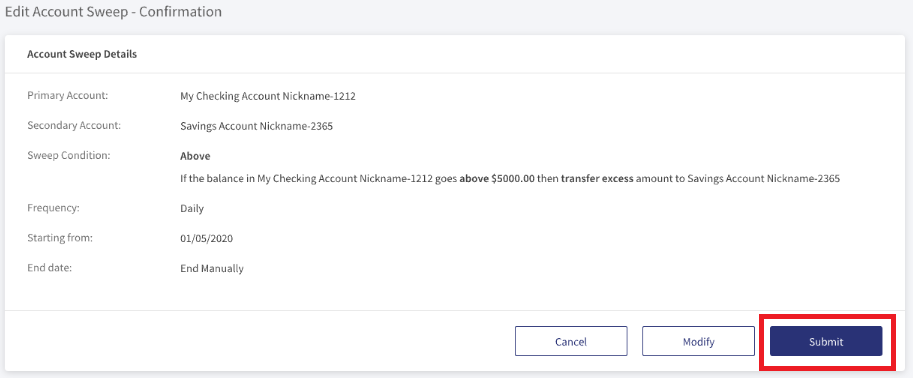
- An acknowledgment page appears with a success message.
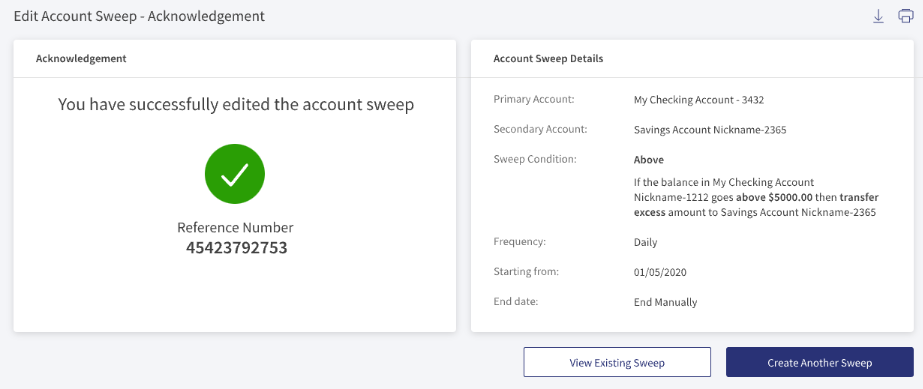
- If the application cannot update the Sweep condition, a failure message appears.
- The user can click Cancel to terminate the current process.
Delete Sweep Instructions
The user with required permissions can delete Sweep Instructions. The following are the steps to delete a Sweep Instructions:
- In the Account Sweep dashboard, search for the Sweep rules.
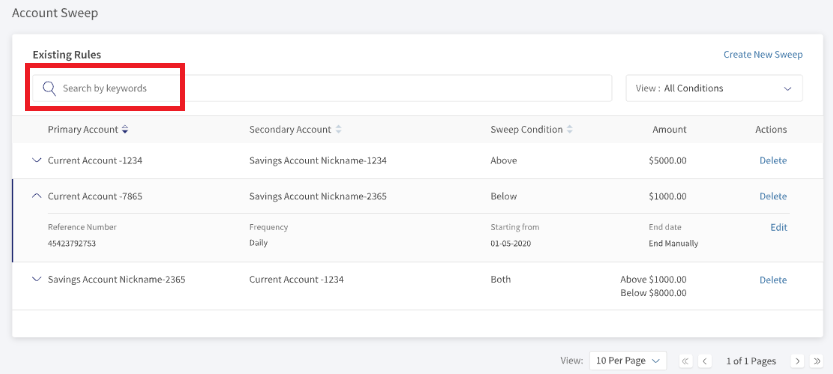
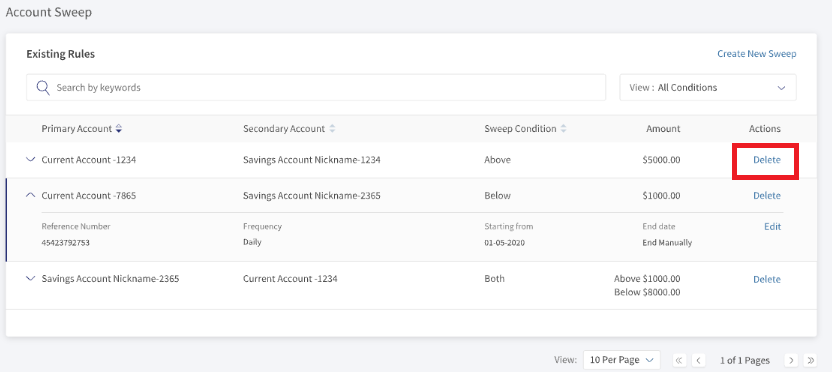
- Click Delete to permanently delete the Sweep rule.
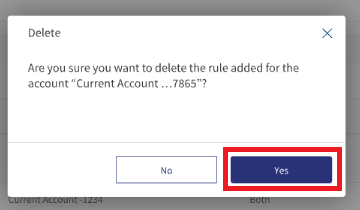
- In the pop-up box, Click Yes. This navigates to the Account Sweep dashboard.
- An acknowledgment page appears with success message.
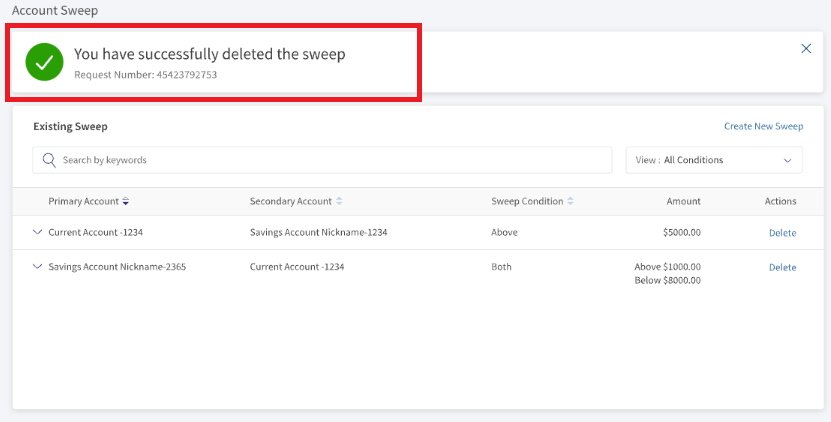
- If the application cannot delete the Sweep condition, a failure message appears.
- In the pop-up box, the user can click No. This will not delete the Sweep rule.
Configurations
- The account sweep feature has to be enabled in Spotlight.
- Feature and action names. See Feature and action names for the complete list of features and actions.
- SRMS configuration for Account Sweeps.
Glossary
| Terms | Description |
|---|---|
| Below (Maintenance) sweep | This sweep involves sweeping from the Secondary account to the Primary account when the Primary account falls below its minimum set amount. |
| Above (Surplus) sweep | This sweep involves the sweeping of funds from the Primary account to the Secondary account when the balance in the Primary account goes above the maximum set amount. |
| Both (Two-way) condition sweep | This style is simply a below sweep and an above sweep in one link. |
Experience API
Following are the APIs for Account Sweep.
| Name | Description | Introduced In |
|---|---|---|
| getAccountSweepById | This API retrieves account sweep details by ID. | 2023.01 |
| createAccountSweep | This API creates account sweep details by ID. | 2023.01 |
| getAccountSweeps | This API retrieves account sweep details. | 2023.01 |
| editAccountSweep | This API edits an account sweep. | 2023.01 |
| deleteAccountSweep | This API deletes an account sweep. | 2023.01 |
| initiateDownloadAccountSweeps | This API downloads account sweep details. | 2023.01 |
| Object Data Model | This Object Data Model describes the parameter name and other attribute details for Trade Finance. |
In this topic