Deploy Document Storage in K8 Container
The Document Storage microservice is provisioned for deployment in the K8 container. We have added Kubernetes support from 2021.04.0.1 version so that you can deploy the Document Storage Microservice both on-premise or in the cloud with K8 script.
Deployment Artefacts
Document Storage Microservices for docker deployment is available as a single release bundle ms-document-package-docker-<release_number>.zip.
The Kubernetes (k8) pack will be inside the src/docker directory.
Prerequisite
- Install Docker Engine in the deployment environment.
- Turn on Linux containers in docker.
Enabling Kubernetes
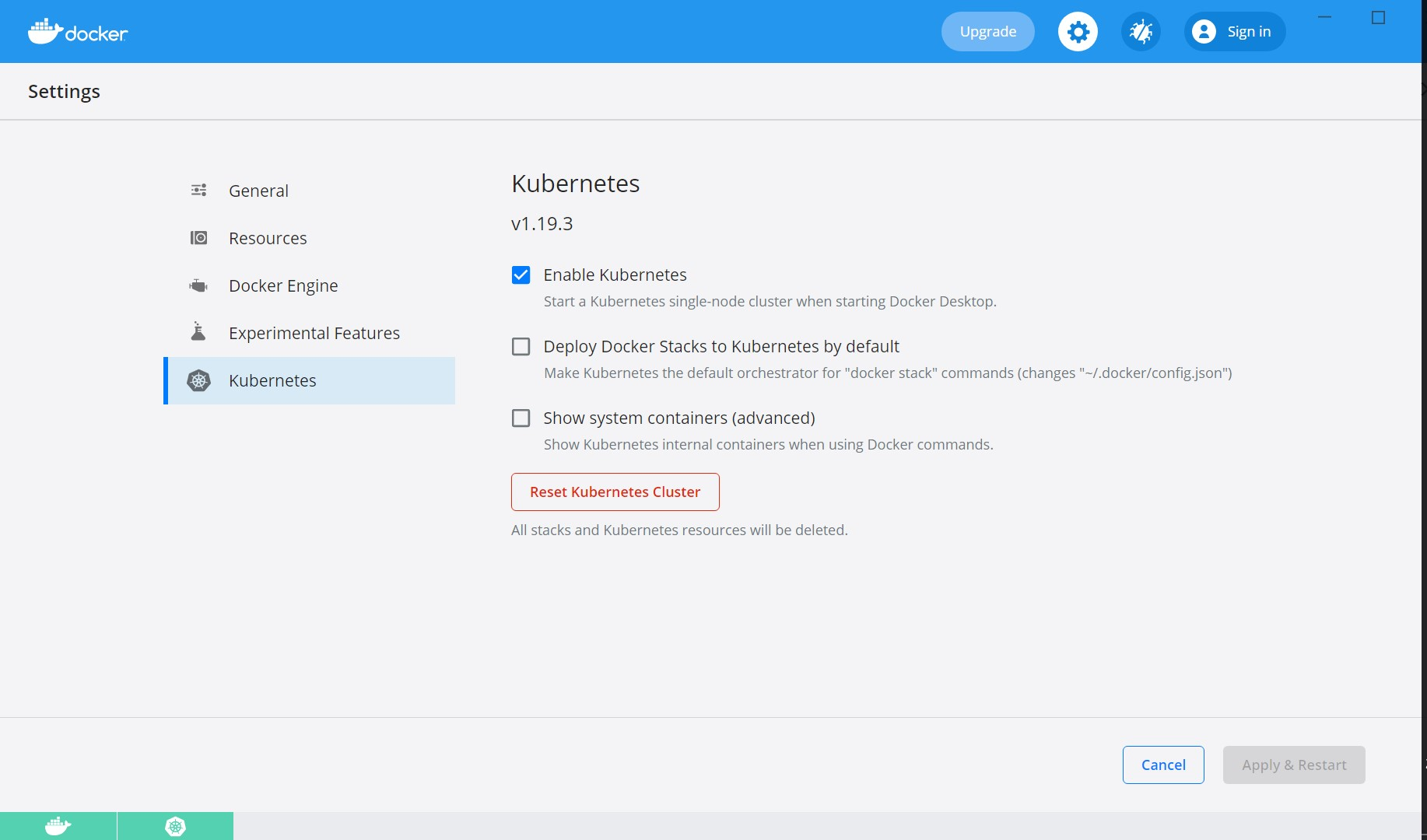
- After the docker is installed, enable Kubernetes in the Docker Desktop app.
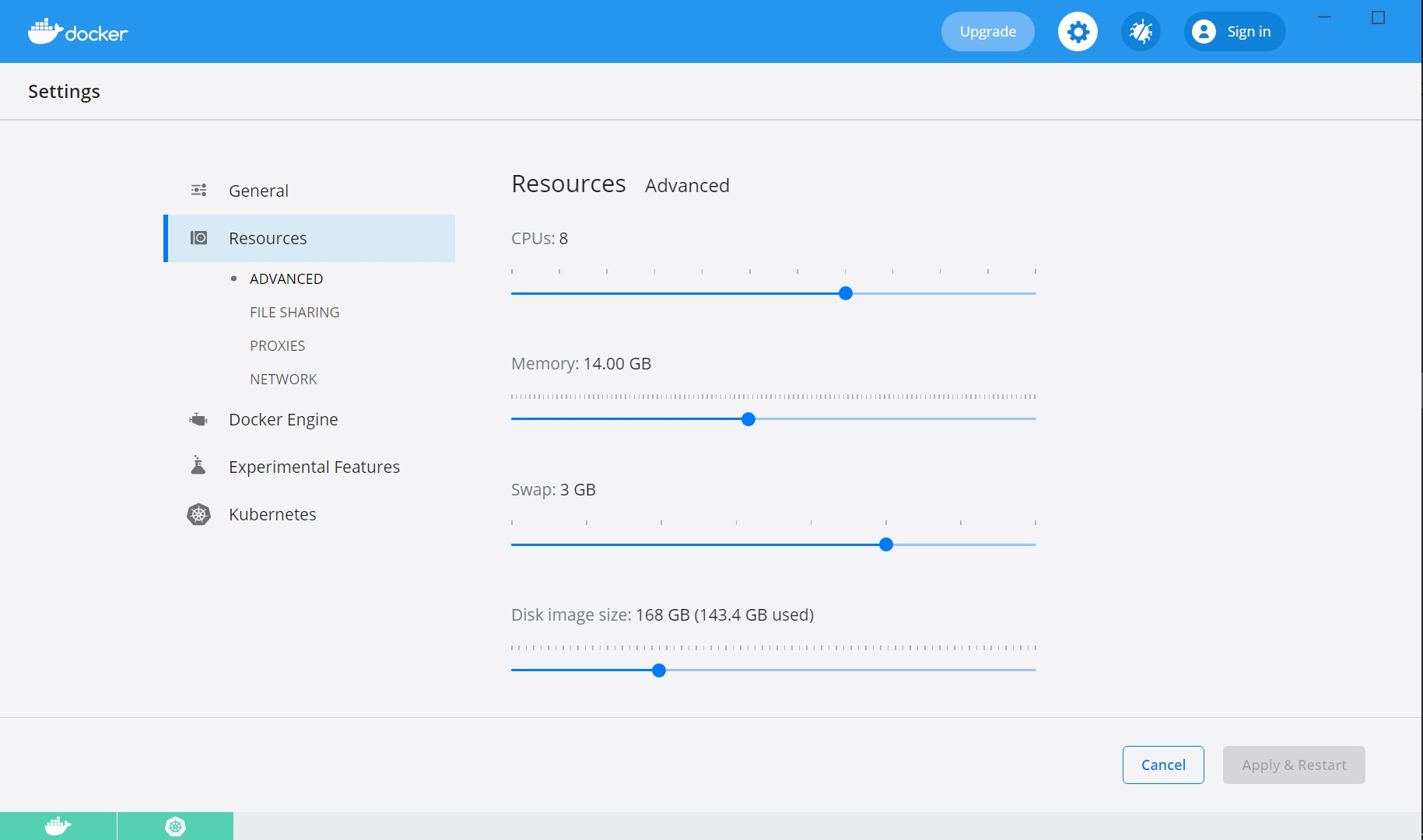
- Kubernetes requires a minimum of 6 CPUs to run smoothly. Navigate to Docker settings/Resources and increase the CPU and Memory as shown below.
- Install Helm and set helm path as an environment variable on the system.
K8 HELM Deployment
Prerequisites
- Install Docker, Kubernetes, Helm, and maven
- https://dotnet.microsoft.com/download/dotnet/thank-you/sdk-5.0.302-windows-x64-installer
- .NET 5.0 Download:
- Execute the below cmd command to install helm:
- If helm is not getting downloaded, then execute the below two commands in windows Powershell in ADMIN mode:
- Set-ExecutionPolicy Bypass -Scope Process -Force; [System.Net.ServicePointManager]::SecurityProtocol = [System.Net.ServicePointManager]::SecurityProtocol -bor 3072; iex ((New-Object System.Net.WebClient).DownloadString('https://chocolatey.org/install.ps1'))
- choco install kubernetes-helm
https://dotnet.microsoft.com/download
choco install kubernetes-helm
Download and extract the following packages as shown below.
ms- document-package-docker
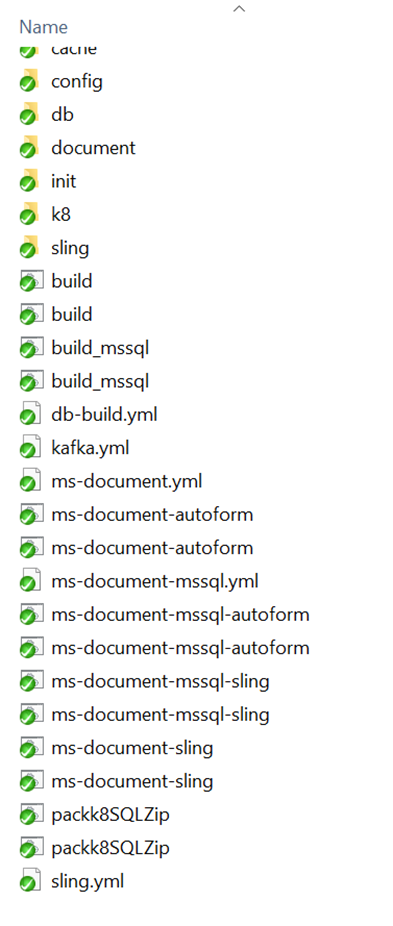
- Navigate to k8/on-premise/streams
Run the following file for Kafka using bash with command sh strimzi-install.sh
strimzi-install.sh
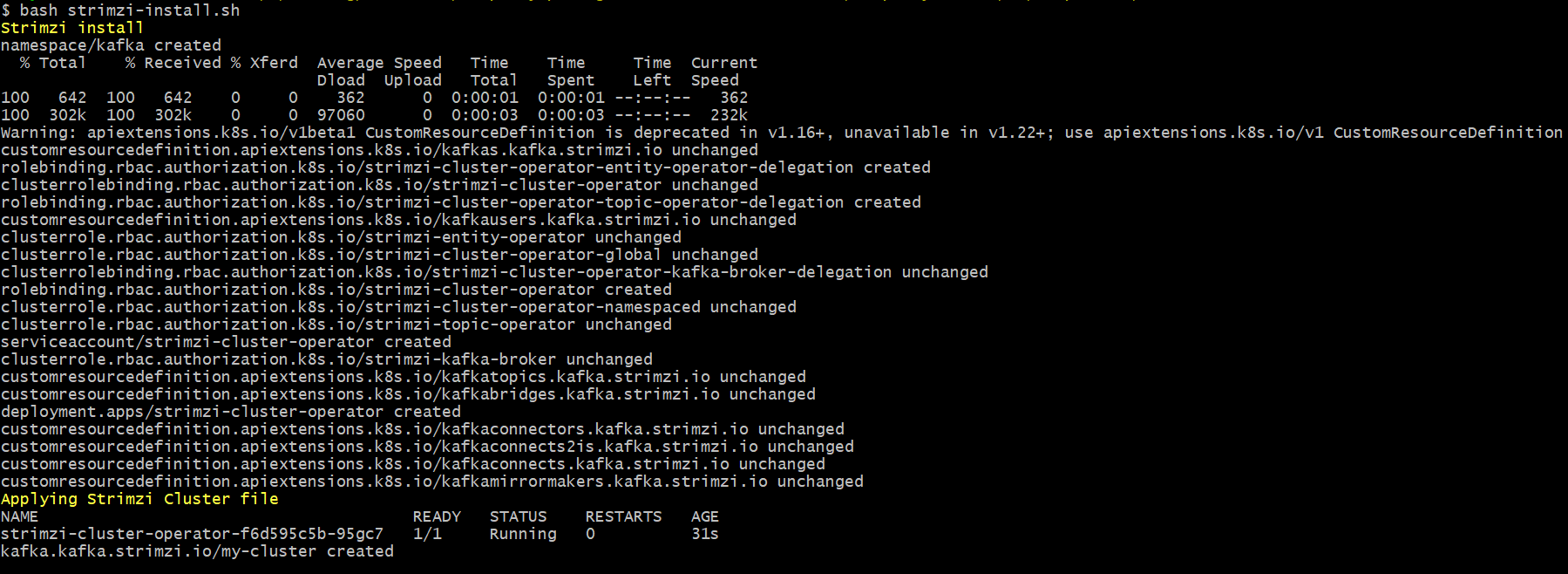
- Execute kubectl get pods -A command to check pods are up and running

- Navigate to ms-document-package-docker folder and run the following batch file packk8SQLZip.bat build
- Navigate to \ms-document-package\ms-document-package-docker and execute the command mvn -f sql-helm-pom.xml install , to get the zipped folder as:
ms-document-helm-sql-pack (extracted folder view)
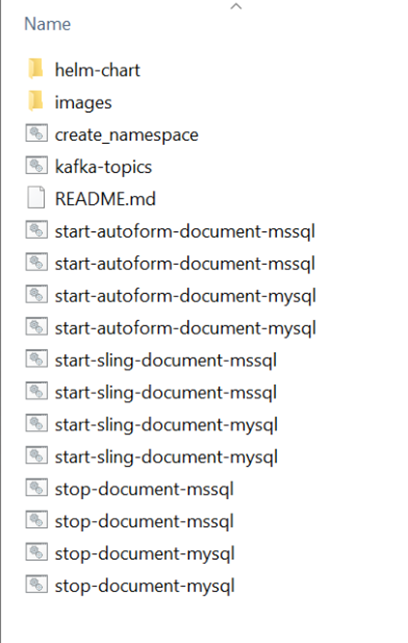
Execute the following commands to delete the namespaces created for the API and DB services (if any)
kubectl delete ns document
kubectl delete ns documentdbinit
kubectl delete ns clamav
kubectl delete ns document-sql
Sling Deployment
- Navigate to k8\on-premise (folder inside ms-document-package-docker pack) and execute the following command to build and load the DB image.
./start_sling document.sh
- Execute the following commands to delete the namespaces created for the API and DB services (if any)
kubectl delete ns document
kubectl delete ns documentdbinit
kubectl delete ns clamav
kubectl delete ns document-sql
- Navigate to ms-document -helm-sql-pack/images folder and execute the following commands to load the API and DB script related images
docker load --input <image name>
- Navigate to k8\on-premise\db (folder inside ms-document-package-docker pack) and execute the following command to start the DB service.
./start-sqldb-scripts.sh
- Navigate back to ms-document -helm-sql -pack folder and execute below command to start the API services.
./start-sling-document -mysql.sh
- Navigate to k8/on-premise/sling (folder inside ms-document -package-docker pack) and execute the following command
.start-clamav.sh
Execute the following commands to stop the DB and API services of the K8 helm pack
- Navigate to k8\on-premise\db (folder inside ms-document-package-docker pack) and execute the following command to stop the DB service.
./ stop-sqldb-scripts.sh
- Navigate back to ms- document -helm-postgresql-pack folder, execute below command to stop the API services.
./ stop-sling-document-mysql.sh
Execute the following commands to start the DB and API services of the K8 helm pack
Execute the following commands to start the DB and API services of the K8 helm pack
Autoform Deployment
Execute the following commands to start the DB and API services of the K8 helm pack
- Navigate to k8\on-premise (folder inside ms-document-package-docker pack) and execute the following command to build and load the DB image.
./start_autoform_document.sh
- Execute the following commands to delete the name spaces created for the API and DB services (if any)
kubectl delete ns document
kubectl delete ns documentdbinit
kubectl delete ns clamav
kubectl delete ns document-sql
- Navigate to ms-document -helm-sql-pack/images folder and execute the following commands to load the API and DB script related images
docker load --input <image name>
- Navigate to k8\on-premise\db (folder inside ms-document -package-docker pack) and execute the following command to start the DB service.
./start-sqldb-scripts.sh
- Navigate back to ms-document -helm-sql -pack folder and execute below command to start the API services.
./start-autoform -document -mysql.sh
- Navigate to k8\on-premise\db (folder inside ms- document -package-docker pack) and execute the following command to stop the DB service.
./ stop-sqldb-scripts.sh
- Navigate back to ms- document -helm-postgresql-pack folder, execute below command to stop the API services.
./ stop-autoform -document -mysql.sh
Execute the following commands to stop the DB and API services of the K8 helm pack
Helm Standalone Database Setup
- The DB container doesn't distribute during the Helm Deployment.
- The client should create the respective database (mysql/mssql/oracle) and a schema with the 'document' name.
- Execute the DDL file containing the schema in mysql(helm-chart/db/mysql/ddlscripts/ddl.sql) , mssql (helm-chart/db/mssql/setup.sql) , oracle (helm-chart/db/oracle/ddl.sql) folder.
- The database details should be updated in the startup script(as mentioned in the K8 configurations page) before starting the MS.
In this topic