Deploy Document Storage in Azure(AKS)
Azure Kubernetes Service (AKS) deployment is provided from 2021.10 release.
Azure Kubernetes Service (AKS) is a managed Kubernetes service that allows you to quickly deploy and manage the clusters. This section facilitates you to configure to deploy the Document MS inside the Azure AKS environment.
Prerequisite
Before proceeding with the deployment, ensure to install the following:
- An Azure account with an active subscription that contains Storage, Compute, Networking, and Container Service.
- Azure CLI, Cygwin, Helm.
- Kubernetes command-line tool kubectl
Deploying Document -Storage Microservice in Azure (AKS)
To deploy the Document-Storage microservice on Azure (AKS), follow these steps.
- Download the generated zip file from the target folder and then extract the ms-document-helm-sql-pack-XXX.zip file.
- The images for the other services will be available in ms-document-helm-sql-pack-XXX \images.
- Navigate to Azure-AKS folder and then select helm-chart folder. Run the AKS scripts to build the images that will be available with AKS-helm-install and AKS-helm-uninstall scripts inside the Azure-AKS folder.
- Setup folder contains all the necessary files that help in the creation of Resource Group AKS Cluster, ACR, Storage account, storage secret, event hub, event hub topics.
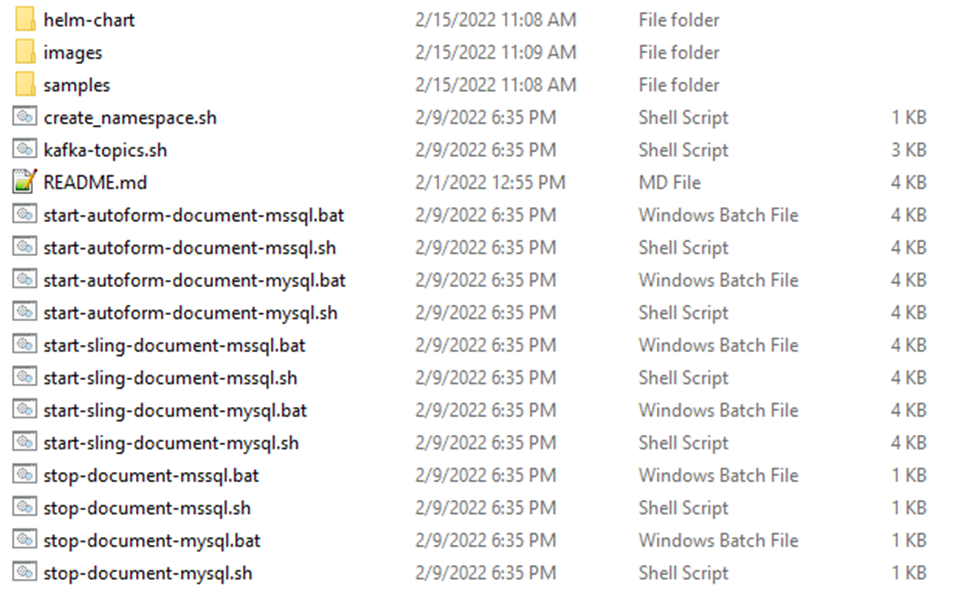


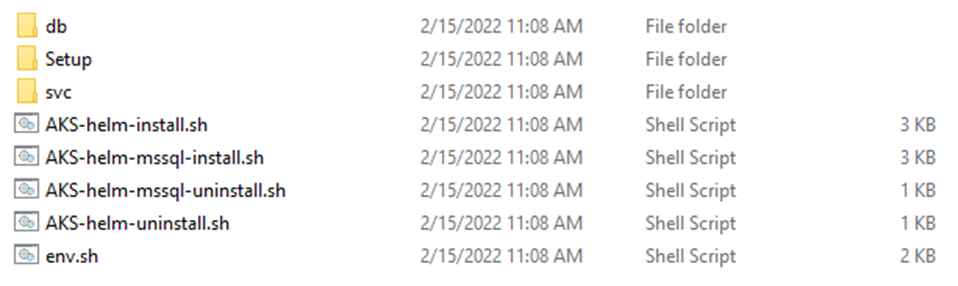
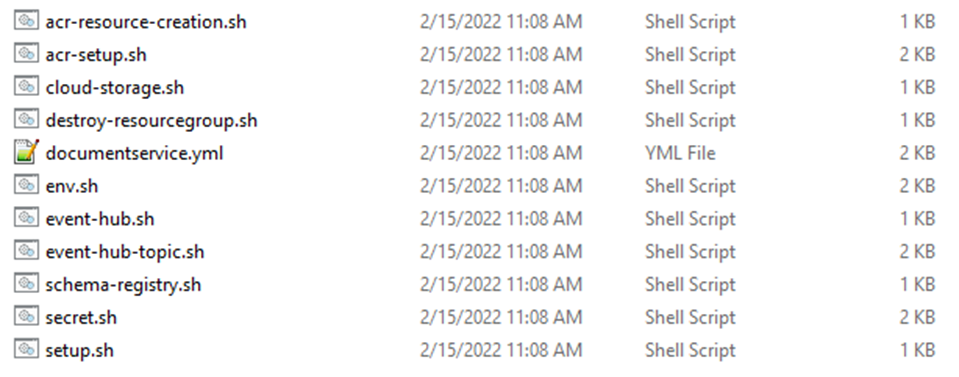
Execute the below steps to deploy the Document-Storage microservice on Azure (AKS):
- Download and unzip ms-document-helm-sql-pack-XXX.zip.
- Load the images from local to Docker container.
- Create a Resource Group for Your Azure Kubernetes Cluster.
- Configuring the AKS Cluster.
- Create an Azure Container Registry (ACR) instance, tag a container image for ACR, Upload the image to ACR, view images in your registry.
- Create an Event hub to maintain Kafka connection.
- Configure kubectl to connect to your AKS cluster.
- Deploy the Document MS inside Kubernetes.
Pre-Installation
This section briefs about the required steps to be followed before running the scripts for deploying the Document MS in Azure AKS.
- Load the Images
- Download and then unzip ms-document-helm-sql-pack- XXX.zip or from local build.
- The images for the other services are available in ms-document-helm-sql-pack-XXX \images images saved in .tar format and are obtained using docker save command (Number of tar files depend on the number of services required for the MS)
- These images should be pushed to the repository. Use the docker load command to get the images. For example; docker load --input ms-document-inboxoutbox-XXX.tar.
- Load all the images present inside the folder.

- Load DB Images inside Docker
- Download and unzip ms-document-package-docker-XXX.zip.
- In order to build only DB services in K8, navigate to ms-document-package-docker-XXX\ms-document-Docker\k8\on-premise\
- Open Cmd: run particular sql file to build DB services in k8.
Configurations
This section briefs about the required configuration changes for the Azure AKS deployment.
- Install sh file in the Setup Folder:
- Navigate to helm-chart\Azure-AKS\Setup to refer common variables in other sh files.
- By default, a resource group in Azure AKS is already available in the sh file.
- If you require to create a new resource group with a different name, then follow the below configuration changes .
Export Variable Change SUBSCRIPTION_ID By default, the Subscription id is available. If your user id is mapped in another subscription id with all the required access available, kindly update the id here. RESOURCE_GROUP_NAME By default, the resource group name is maintained as documentservice. A new name can be updated here from the default value. AKS_CLUSTER_NAME By default, the aks cluster name is maintained as documentakscluster. A new name can be updated here from the default value. AKS_NAME By default, the aks name is maintained as documentakscluster. A new name can be updated here from the default value. ACR_NAME By default, the acr name is maintained as documentacr. A new name can be updated here from the default value. SERVICE_PRINCIPAL_NAME By default, the service principal name is maintained as documentacr. A new name can be updated here from the default value. STORAGE_ACCOUNT_NAME By default, the storage name is maintained as adapterservice. A new name can be updated here from the default value. EVENT_HUB_NAME_SPACE By default, the event hub namespace is maintained as documentservice-Kafka. A new name can be updated here from the default value. - Install env.sh file from Azure-AKS Folder:
- Navigate to helm-chart\Azure-AKS and install helm to deploy the Document MS into Kubernetes.
- Run a normal git bash prompt or any shell prompt.
- Check the configuration before running the below script.
Export Variable Change ACR_NAME By default, the aks name is maintained as documentacr. A new name can be updated here from the default value. The ACR name should be the same name used in env.sh from the Setup folder. AKS_CLUSTER_NAME By default, the aks cluster name is maintained as documentakscluster. A new name can be updated here from the default value. The AKS cluster name should be the same name used in env.sh from the Setup folder. EVENT_HUB_NAME_SPACE By default, the event hub namespace is maintained as documentservice-Kafka. A new name can be updated here from the default value. The Event hub namespace name should be the same name used in env.sh from the Setup folder. MySql URL By default, the mysql URL is available. export db_connection_url="jdbc:mysql://document-db-service-np:3306/document" if any local/cloud database is connected, Kindly update the specific URL here Mssql URL (if required to connect Mssql Azure Db) By default, the sample Mssql URL is available. export db_connection_url="jdbc:sqlserver://document-db-service-np:1433;databaseName=document" if any local/cloud database is connected, Kindly update the specific URL here RESOURCE_GROUP_NAME By default, the resource group name is maintained as documentservice A new name can be updated here from the default value. The resource group name should be the same name used in env.sh from the Setup folder. RUNTIME_ENV should be AZURE by default SUBSCRIPTION_ID By default, the Subscription id is available. If your user id is mapped in another subscription id with all the required access available, kindly update the id here. tag By default, it is mentioned as DEV.0.0-SNAPSHOT export tag="DEV.0.0-SNAPSHOT" The required release version should be updated. - Use sh files from the Setup folder by navigating to helm-chart/Azure-AKS/Setup. The AKS scripts are available to use each file inside the sh folder.
| FILENAME | USES |
|---|---|
| acr-resource-creation.sh | This is used to create the resource group name in the AKS cluster. |
| This will be the storage location of your resource group metadata. | |
| This creates a Kubernetes cluster inside the resource group. | |
| This also creates a Container registry inside the resource group | |
| This will help to build, store, and manage container images and artifacts in a private registry for all types of container deployments | |
| secret.sh | This will create a service principal Name and Password which will help to authenticate to the container registry. |
| This will help to access images in ACR from AKS. | |
| acr-setup.sh | This will help to pull the images from local and pull them to the Azure container registry. |
| event-hub.sh (Optional) | This will help to create an event hub namespace for Kafka. |
| event-hub-topic.sh (Optional) | Event hub variables can be added based on the topics required. |
| This will help to create inbox, outbox, event listeners, and consumers. | |
| schema-registry.sh (Optional) | The Azure Schema Registry is a feature of Event Hubs, which provides a central repository for schema documents for event-driven and messaging-centric applications. |
| Cloud-storage.sh(Optional) | This script creates a storage volume in Azure and creates a file share, and the created file share can be used to mount to the path. |
| This script also creates a secret that is used to access the storage path in images built-in AKS. | |
| destroy-resourcegroup.sh | Used to destroy the resource group created. |
| setup.sh | This file is used to call all the shell scripts created in the .sh folder helm pack. |
| env.sh | This file will contain all the variable references which are used in the above files. |
- Use the configuration in AKS folder inside Azure.
- Navigate to helm-chart/Azure-AKS/svc/templates/svc

- yml should be configured to the local K8 images , which gets tagged and pushed to AKS.
- Image pull secret to be used the same name as the one created in secret script & azure storage secret and azure file share name to configured with the same name that we used in the creation of storage in cloud storage script.
- Configmap yml contains the additional configuration changes that need to be included for the MS to run in AKS.
Installation
To run the Document MS in the Azure Kubernetes package, follow the below steps:
- Cmd: az login
- Use destroy-resourcegroup.sh to remove the resource group, container service, and all the related resources. To create a new resource with a different name without deleting the existing one, then follow the above configuration changes.
- Run sh. file to call all the shell scripts.
- Cmd: ./setup.sh
- After the successful deployment, log in to portal.azure.com with a valid Azure login ID.
- Navigate to the Resource groups and then create a sample resource group as "documentservice"
- Check for the container registry, Kubernetes service, Storage account, EventHub Namespace.
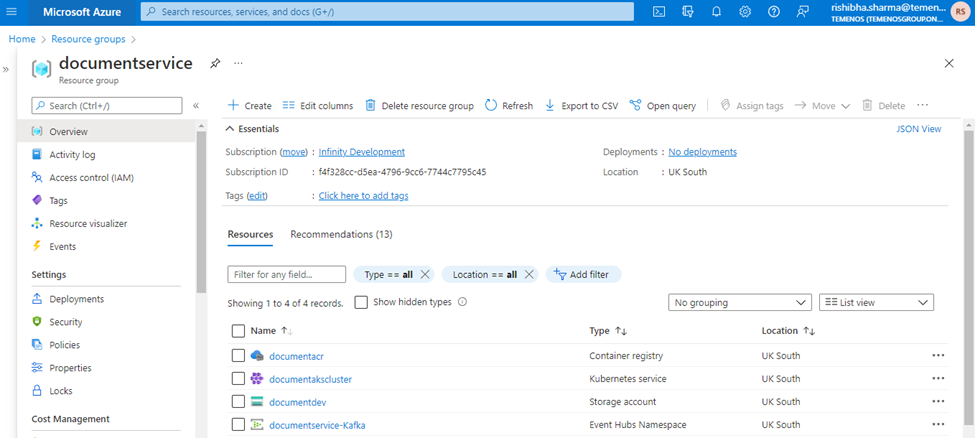
- Once created successfully, navigate to the Azure-AKS.
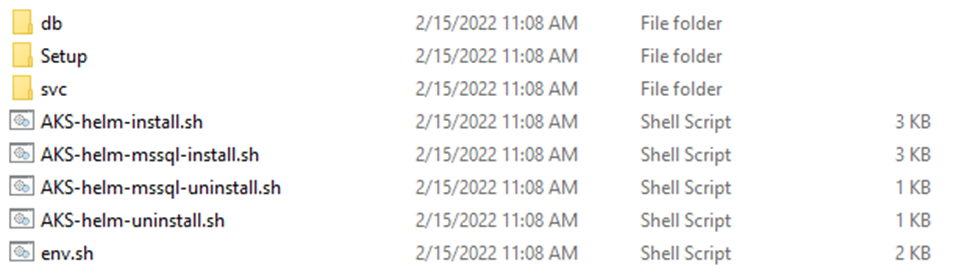
- The AKS folder has the AKS-helm-install.sh / AKS-helm-mssql-install.sh. Use a normal git bash prompt or any shell prompt to upload the scripts in Azure AKS.
- Document MS will be up and running in AKS.

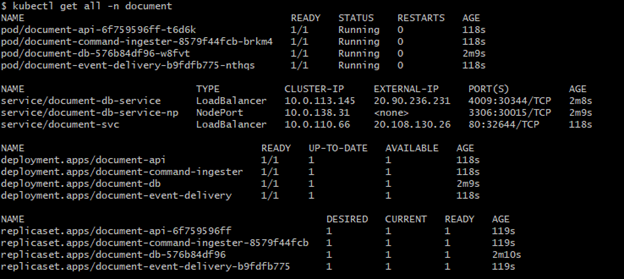
- The local IP address will be generated as External-IP in the document-svc pod.
- The EXTERNAL-IP output for the document-svc service will initially show as pending and consequently changes to actual public IP address as 108.130.26, and the port is 80.
- This should be used to hit Document MS from local.
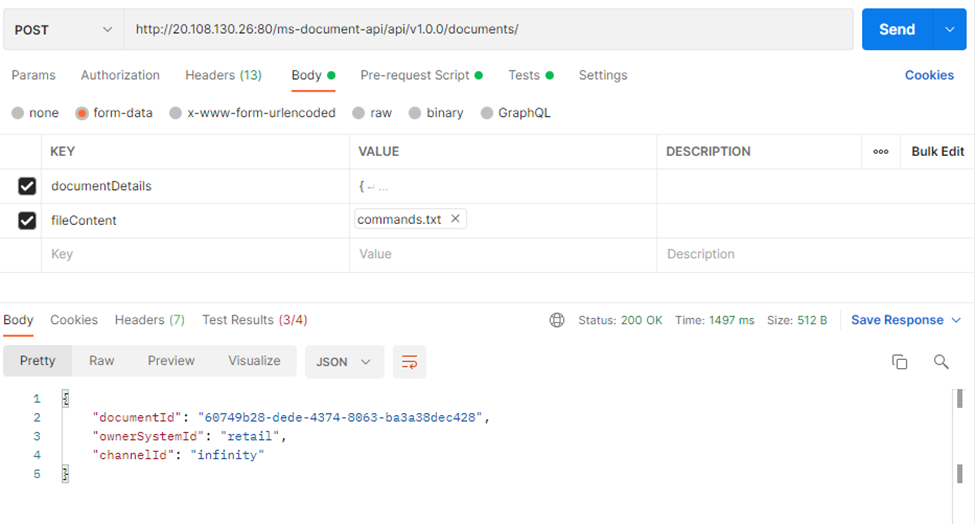
- To check whether the connection is up and running, run the sample service from the postman and then add the updated EXTERNAL-IP and PORT in the URL.
Validation
POST URL: http://20.108.130.26:80/ms-document-api/api/v1.0.0/documents/
In this topic