Deploying Savings Pot Microservice on Kubernetes (K8)
This section explains deploying procedures for Savings Pot Microservice on K8. To deploy, you must perform the following tasks:
Deployment of Savings Pot Microservice on K8 Runtime
The Savings Pot Microservice are supported to deploy in two environments. The individual environment supports K8 Helm Images. K8 supports MongoDB and PostgreSQL.
K8 Images
To deploy the Savings Pot docker helm package on K8, follow these steps.
MongoDB
Savings Pot Microservice for K8 deployment is available as single release bundle ms-savingspot-helm-pack-mongo-<release_number>.zip to load the docker images and then deploy the service in Kubernetes cluster for MongoDB. However, K8 Helm Images Generation helps you to understand on how to generate the K8 Helm Images.
- Unzip the ms-savingspot-helm-pack-mongo.zip file which contains the required images as the tar file.
- Navigate to the images folder where the service and database images are available.
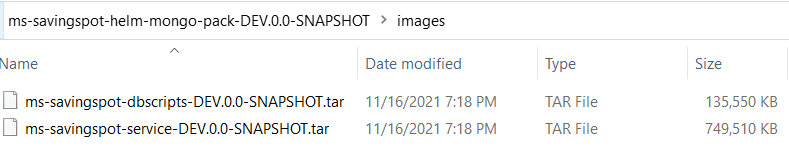
- Load the images on the docker using the command docker load --input <image_name>-<release_number>.tar .

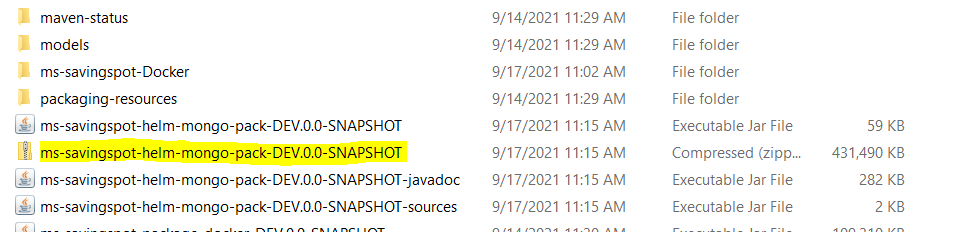
Ensure that the image loaded with the same tag as mentioned in the startup script (start-savingspot-mongo.sh). Before executing the start-savingspot script, make sure the database scripts are executed and the database is up and running.
- Install a standalone MongoDB server manually.

Start the Service
Follow these steps to start the service:
- Navigate to the extracted ms-savingspot-helm-pack-mongo-<release_number>.zip file and unzip the ms-savingspot-helm-pack-mongo-<release_number>\savingspot folder.
- Execute the command bash create_namespace.sh / create_namespace.bat for creating the respective Savings Pot Microservice namespace.
- Open the start-savingspot-mongo.bat / start-savingspot-mongo.sh by navigating to the folder where service startup scripts are available and configure DB connection parameters as per the setup done, which is a part of prerequisite step.
- Execute the following startup scripts:
- For Windows: start-savingspot-mongo.bat
- For Linux: start-savingspot-mongo.sh
-
Once the services are up and running, perform kubectl get all -n savingspot to see all the resources for the Savings Pot Microservice.
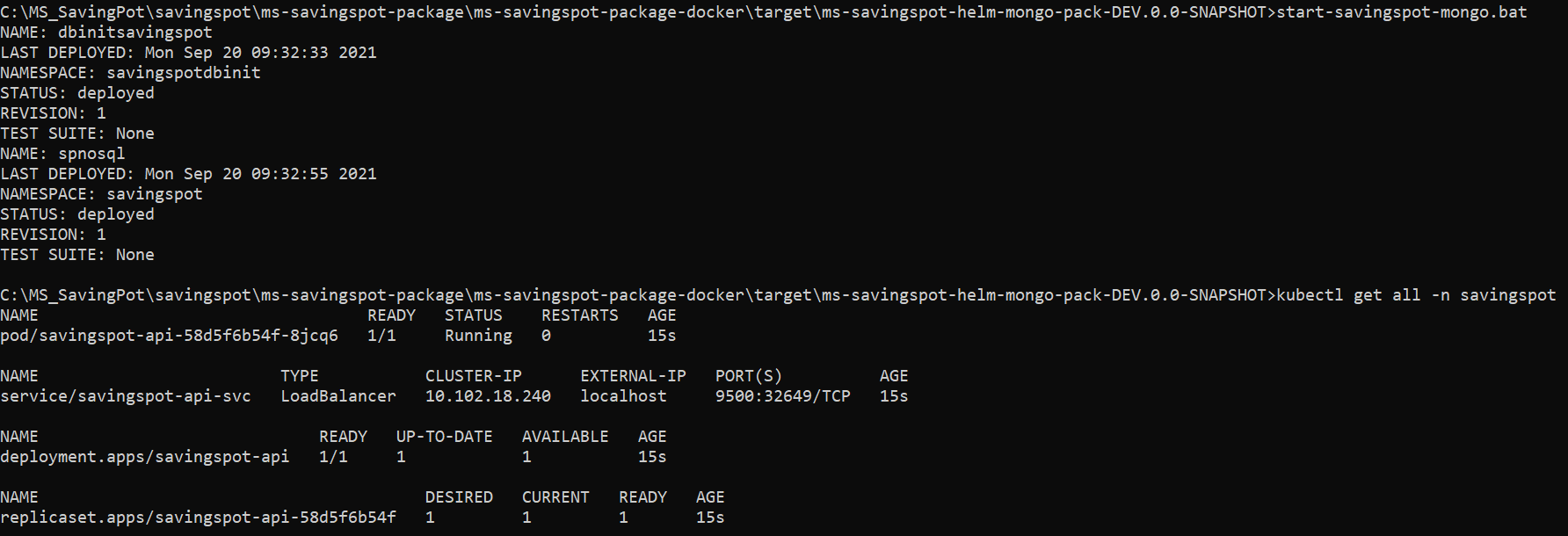
- Once the deployment is successful for all the services, the APIs can be tested.
Following is API's URL structure.
Base Path: http://<IP_ADDRESS>:<PORT>/<context-root>/api/<version>/ . For Example, http://localhost:9500/ms-savingspot-api/api/v1.0.0.
Resource path of the endpoint can be found in the swagger document of the respective APIs
A sample endpoint of Savings Pot can be http://localhost:9500/ms-savingspot-api/api/v1.0.0/reference?type=SavingsType.
Undeployment
- Execute the following scripts to stop the service:
- For Windows: stop-savingspot-mongo.bat
- For Linux: stop-savingspot-mongo.sh
Postgresql
Savings Pot Microservices for K8 deployment is available as single release bundle ms-savingspot-helm-pack-postgresql-<release_number>.zip to load the docker images and then deploy the service in Kubernetes cluster for PostgreSQL. However, K8 Helm Images Generation helps you to understand on how to generate the K8 Helm images.
- Unzip the ms-savingspot-helm-pack-postgresql.zip file which contains the required images as the tar file.
- Navigate to the images folder where the service and database images are available.
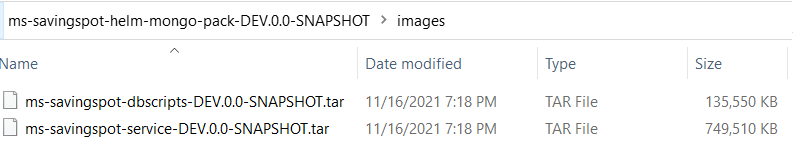
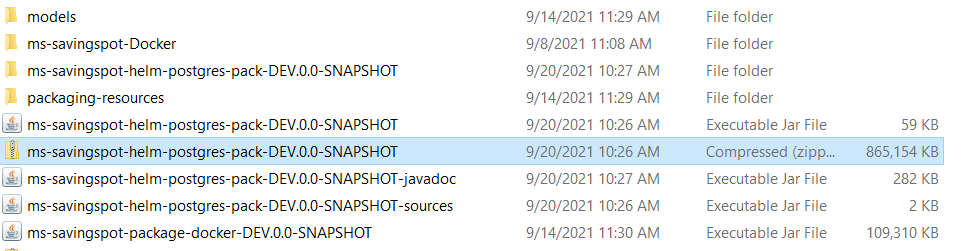
- Load the images on the docker using the command docker load --input ms-savingspot-<image_name>-<release_number>.tar For example, docker load --input ms-savingspot-dbscripts-DEV.0.0-SNAPSHOT.tar.

Ensure that the image loaded with the same tag as mentioned in the startup script (start-savingspot-postgresql.sh / start-savingspot-postgresql.bat). Before executing the start-savingspot script, make sure the database scripts are executed and the database is up and running.
- Install a standalone PostgreSQL server manually.
Start the Service
Follow these steps to start the service:
- Navigate to the extracted ms-savingspot-helm-pack-postgresql-<release_number>.zip file and unzip the ms-savingspot-helm-pack-postgresql-<release_number>\savingspot folder.
- Execute the command bash create_namespace.sh/ create_namespace.bat for creating the respective Savings Pot Microservice namespace.
- Open the start-savingspot-postgresql.bat/start-savingspot-postgresql.sh by navigating to the folder where service startup scripts are available and configure DB connection parameters as per the setup done, which is a part of prerequisite step.
- Execute the following startup scripts:
- For Windows: start-savingspot-postgresql.bat
- For Linux: start-savingspot-postgresql.sh
- Once the services are up and running, perform kubectl get all -n savingspot to see all the resources for the particular Savings Pot Microservice.
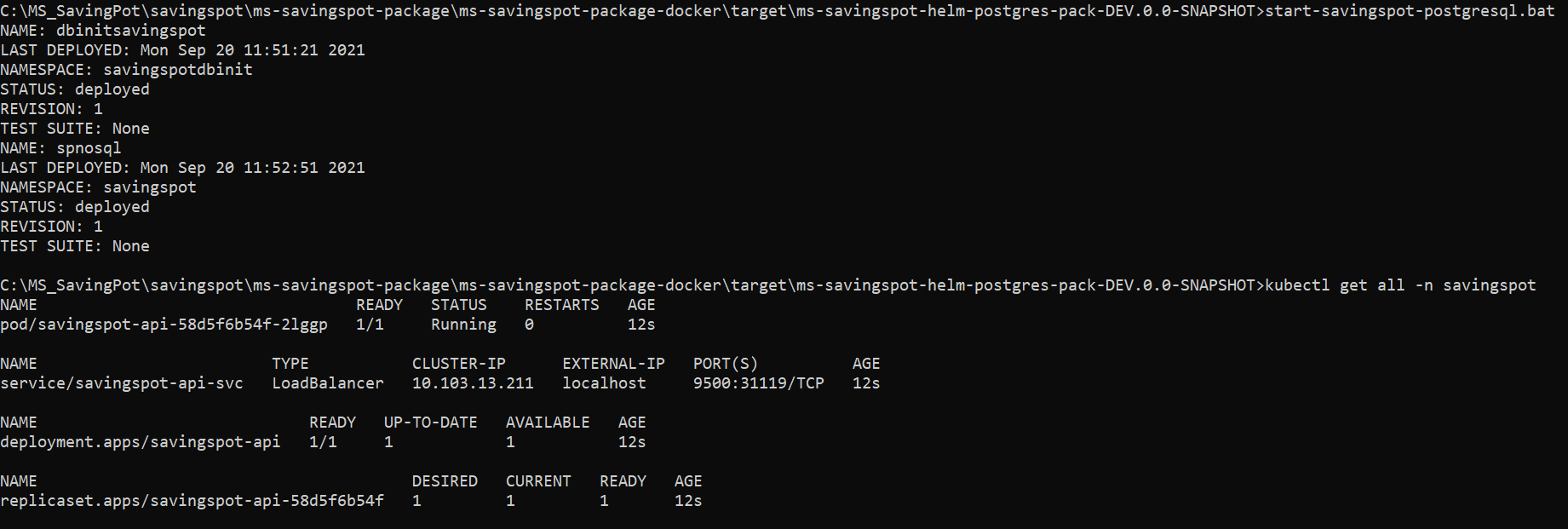
- Once the deployment is successful for all the services, the APIs can be tested.
Following is API's URL structure.
Base Path: http://<IP_ADDRESS>:<PORT>/<context-root>/api/<version>/ . For Example, http://localhost:9500/ms-savingspot-api/api/v1.0.0.
Resource path of the endpoint can be found in the swagger document of the respective APIs.
A sample endpoint of Savings Pot can be http://localhost:9500/ms-savingspot-api/api/v1.0.0/reference?type=SavingsType.
Undeployment
- Execute the following scripts to stop the service:
- For Windows: stop-savingspot-postgresql.bat
- For Linux: stop-savingspot-postgresql.sh
In this topic