Deploying Savings Pot Microservice on Azure
This section explains how to deploy the Savings Pot Microservice on the Azure cloud. To do so, you need to perform the following tasks:
Deploying Savings Pot Microservice in Azure
MongoDB
To deploy Savings Pot Microservice, following are steps:
- Obtain the generated zip file
ms-savingspot-package-azure-mongo-<release_number>.zip(from target folder) in the installation directory and unzip it. - In command prompt, navigate to the installation directory.
- Modify the Resource Group, location in the install-mongo.sh / install-mongo.bat script specific to the installation.
- For processing multiple deployment, provide unique value to DEPLOYMENT_ENVIRONMENT which creates unique Resource Group and app name.
- If DEPLOYMENT_ENVIRONMENT is not provided with any value then default value of Resource Group and app name will be considered.
- Similarly, modify the parameters MONGODB_CONNECTIONSTR, MONGOSHELL_CONNECTIONSTR, and MONGODB_DBNAME in the install-mongo.sh / install-mongo.bat and destroy-mongo.sh / destroy-mongo.bat accordingly.
- The default Azure function app name in the script can be changed. In the case of app name changes, the folder available (ms-savingspot-azure\target\azure-functions\<app folder>\) in the name of the app should also be renamed.
- To enable the in-house authentication in addition to the default option (using code parameter) in azure, perform the JWT Authentication in the installation scripts.
- Perform the XACML configurations in the installation scripts to enable security policies and access rights based authorization check for accessing the APIs.
- Execute install-mongo.sh / install-mongo.bat.
- Once the deployment is complete, Azure functions are created.
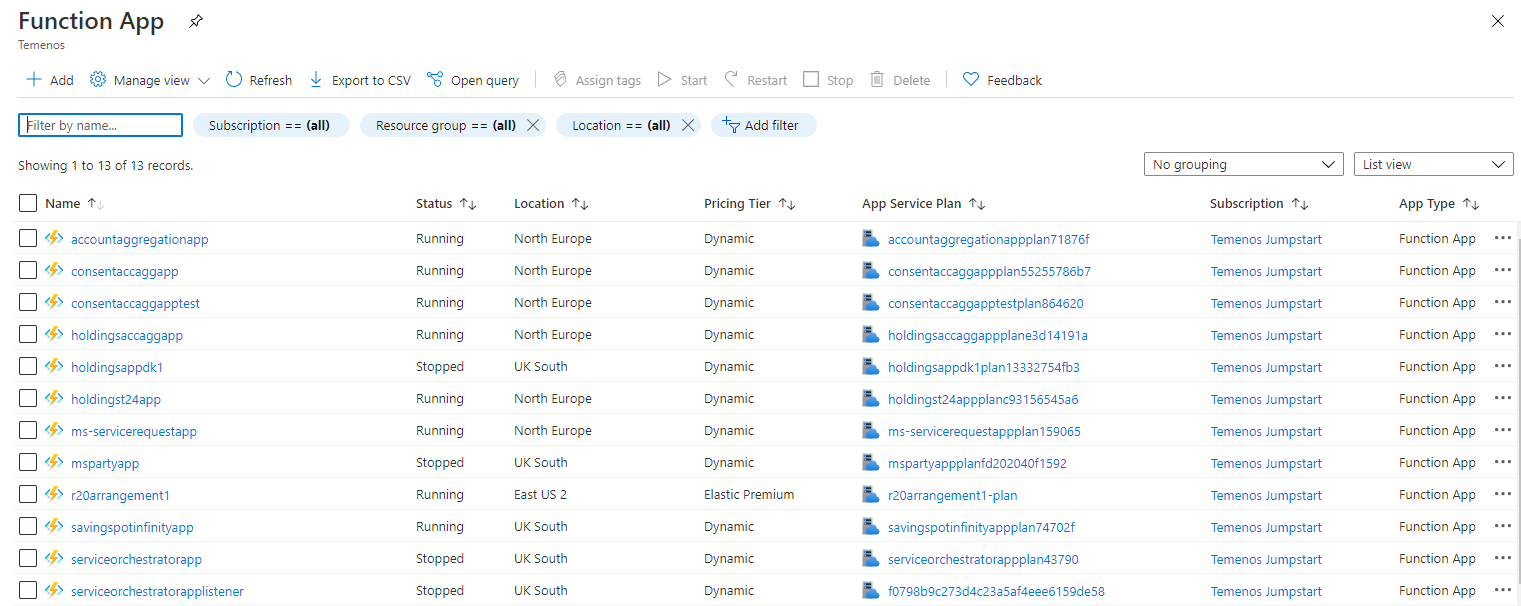
- Sign in to Azure portal and check if the Resource Group and Function app is created.
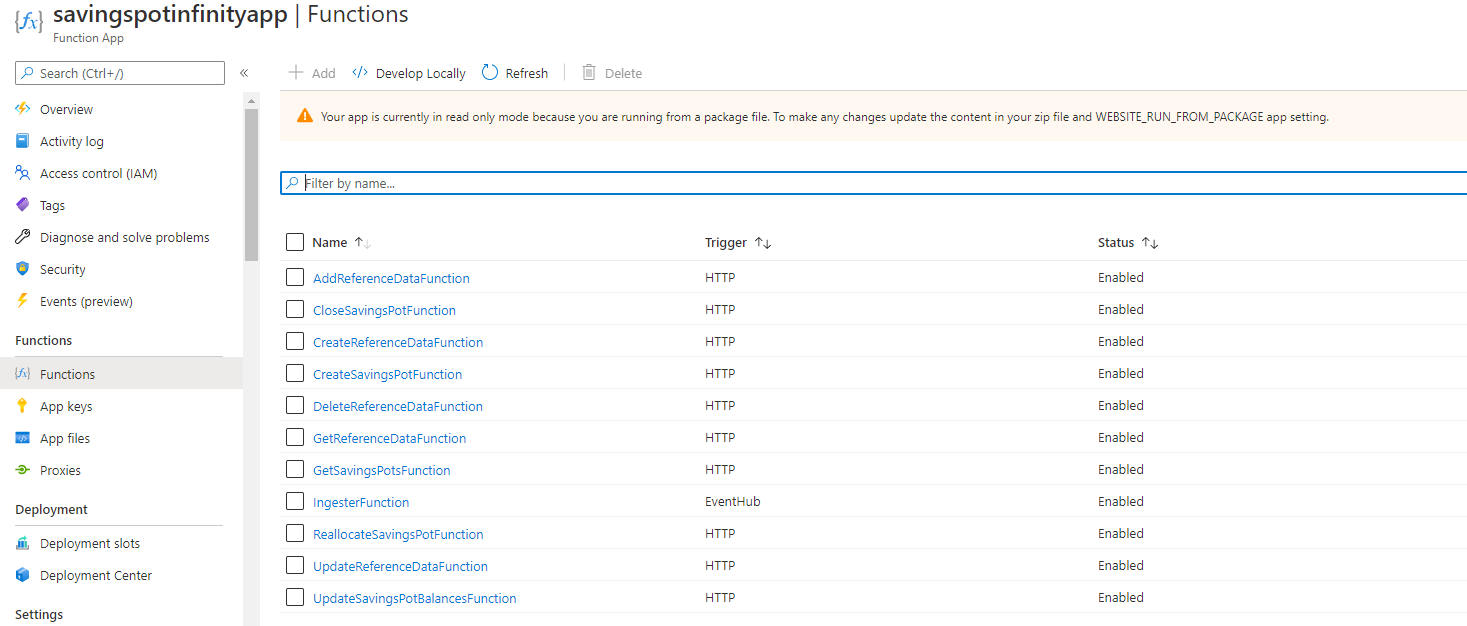
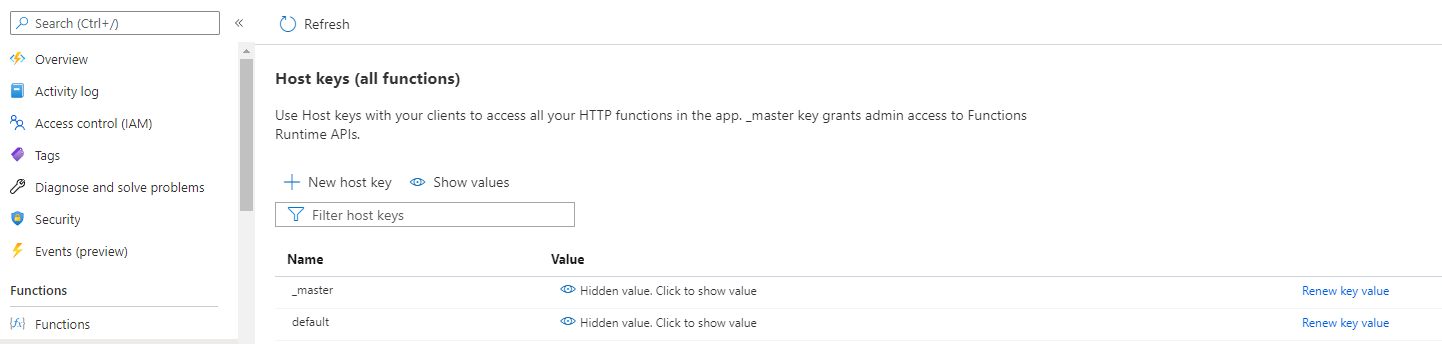
- The API key for each endpoint in the function app can be obtained using the command,
func azure functionapp list-functions <function-app-name> --show-keysAlternatively, it can be obtained from the Azure function GUI.
- The endpoints of the azure function app can be obtained from the Azure Function App. Following is the URL of sample function app.
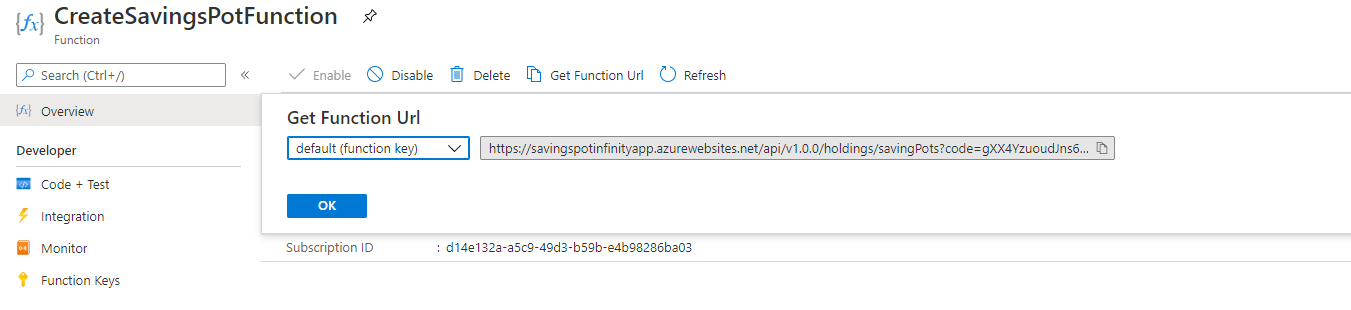
The Get Function URL will provide the complete URL with API key.
PostgreSQL
To deploy Savings Pot Microservice, following are the steps:
- Obtain the generated zip file
ms-savingspot-package-azure-mongo-<release_number>.zip(from target folder) in the installation directory and unzip it. - In command prompt, navigate to the installation directory.
- Modify the Resource Group, Location in the install-postgresql.sh / install-postgresql.bat script specific to the installation.
- For processing multiple deployment, provide unique value to DEPLOYMENT_ENVIRONMENT which creates unique Resource Group, app name, db name space, and PostgreSQL connection url .
- If DEPLOYMENT_ENVIRONMENT is not provided with any value then default value of Resource Group, app name, db name space, and PostgreSQL connection url will be considered.
- The default Azure function app name in the script can be changed. In case of app name changes, the folder available (ms-savingspot-azure\target\azure-functions\<app folder>\) in the name of the app should also be renamed.
- To enable the in-house authentication in addition to the default option (using code parameter) in azure, perform the JWT Authentication in the installation scripts.
- Perform the XACML configurations in the installation scripts to enable security policies and access rights based authorization check for accessing the APIs.
- Execute install-postgresql.sh / install-postgresql.bat.
Script
Description
install-postgresql.sh / install-postgresql.bat Deploy all the necessary components for a Savings Pot Microservice and run the Microservice independently with PostgreSQL as the backend. - Once the deployment is completed, Azure functions are created.
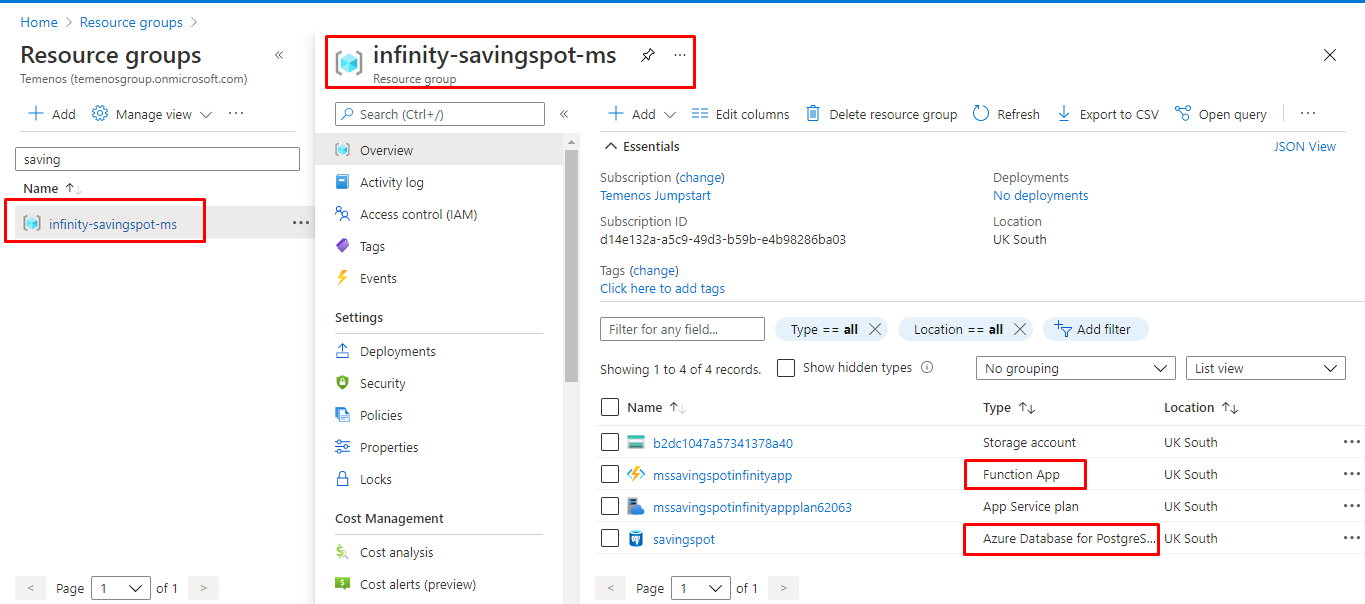
- Sign in to the Azure portal and check whether the Resource Group and Function app is created.
Resource Group and Function App
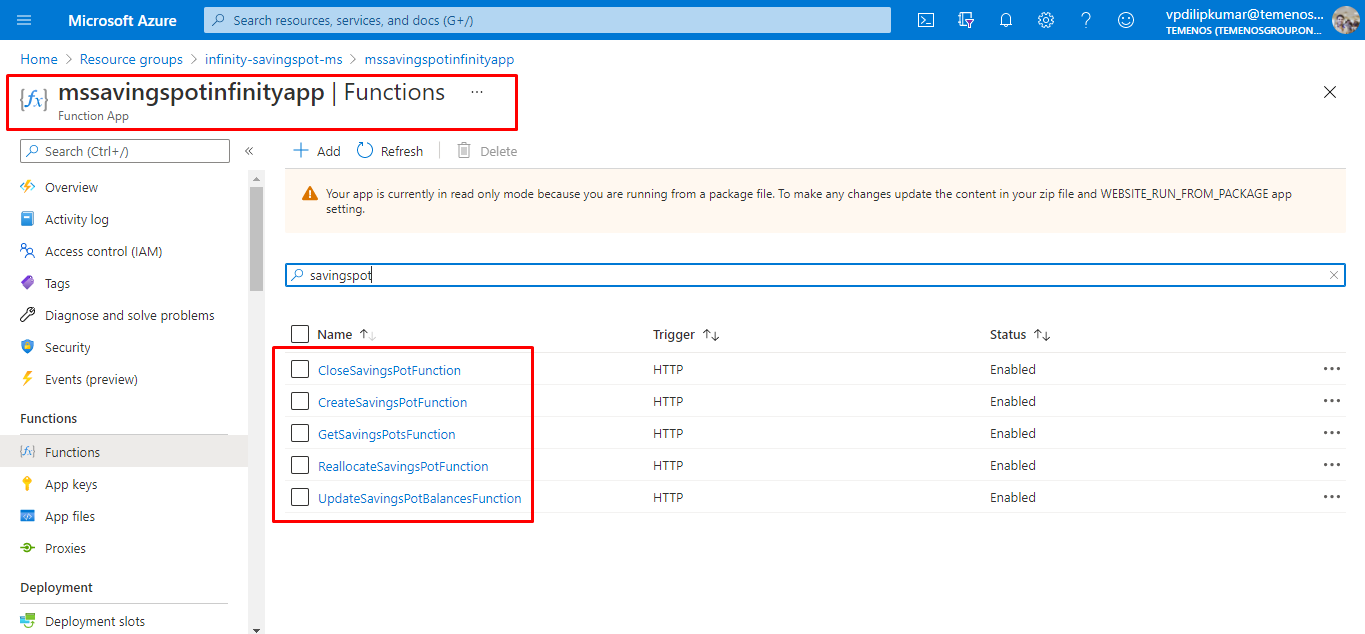
Savings Pot Functions
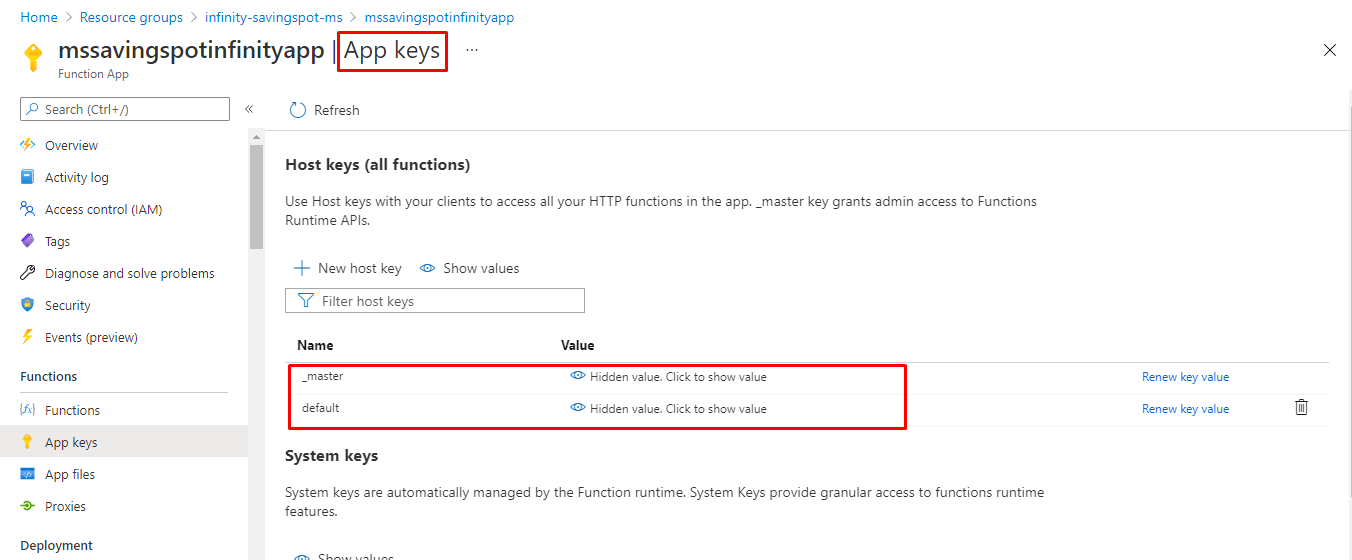
- The API key for each endpoint in the function app can be obtained using the command, or can be obtained alternatively, from the Azure function GUI.
func azure functionapp list-functions <function-app-name> --show-keys
- The endpoints of the azure function app can be obtained from the Azure Function App. Following is the URL of sample function app.
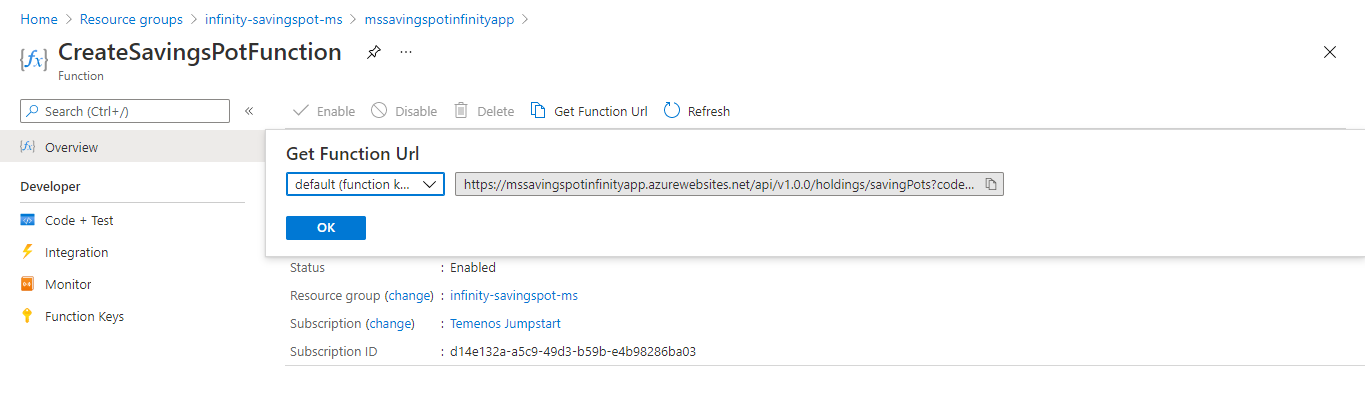
The "Get Function URL" will provide the complete URL with API key.
- After the successful deployment, database, collections and the reference data(master data) are loaded into the PostgreSQL server database for Savings Pot Microservice.
Undeployment
To undeploy the Savings Pot Microservice from Azure, follow these steps:
For MongoDB
- Modify the parameter MONGOSHELL_CONNECTIONSTR in the destroy-mongo.sh / destroy-mongo.bat as indicated above in the deployment steps.
- Provide value for DEPLOYMENT_ENVIRONMENT as mentioned in the deployment steps to match the resource group name while performing undeployment.
- During the deployment process, if the DEPLOYMENT_ENVIRONMENT is not provided with any value then do not provide the value during undeployment.
- Execute the destroy-mongo.sh / destroy-mongo.bat accordingly to release the resources created in azure cloud.
For PostgreSQL
- Provide value for DEPLOYMENT_ENVIRONMENT in
destroy-postgresql.sh / destroy-postgresql.batas mentioned during deployment steps to match the resource group name for which undeployment must be done. - If DEPLOYMENT_ENVIRONMENT is not provided with any value during deployment process then no need to provide any value during undeployment as well.
- Execute the
destroy-postgresql.sh /destroy-postgresql.bataccordingly to release the resources created in azure cloud.
The database user credentials must have the admin access.
In this topic