Authentication and Login
 INFORMATION
- Kony IDP is now at EOL and marked as deprecated. This will no longer be supported and used post 2021.04 for production as an identity provider.
- The authentication method explained here is only a sample, and in real-time implementation, customers will have their authentication system. The authentication-related configuration will change accordingly.
- See security and authentication for more information.
After you open the application, the application displays the Sign In screen. Use the feature to sign in to the application securely.
The Infinity Digital Banking application is a combination of retail banking and business banking modules available as a single code base. This is a common banking application (Responsive Web and Mobile channels) for Retail and Business Banking customers to perform their banking activities. The banking services are available within the application based on the type of customer signed in into the application. The combined application can also be deployed separately as standalone retail and business banking applications.
All valid users with active user credentials can sign in to the banking application. The eligibility to sign in to the application depends on the based on the access permissions assigned to the user.
Based on the contract architecture, a user can belong to the following categories.
- User having access to only one Customer ID which could be business or retail, can see all own accounts on the dashboard.
- User having access to own personal accounts and multiple Customer ID, can see own personal, business, and retail accounts distinctly on the dashboard.
- User having access to multiple Customer IDs, can see the accounts grouped by customer name/ID and whether they belong to retail or business IDs distinctly on the dashboard.
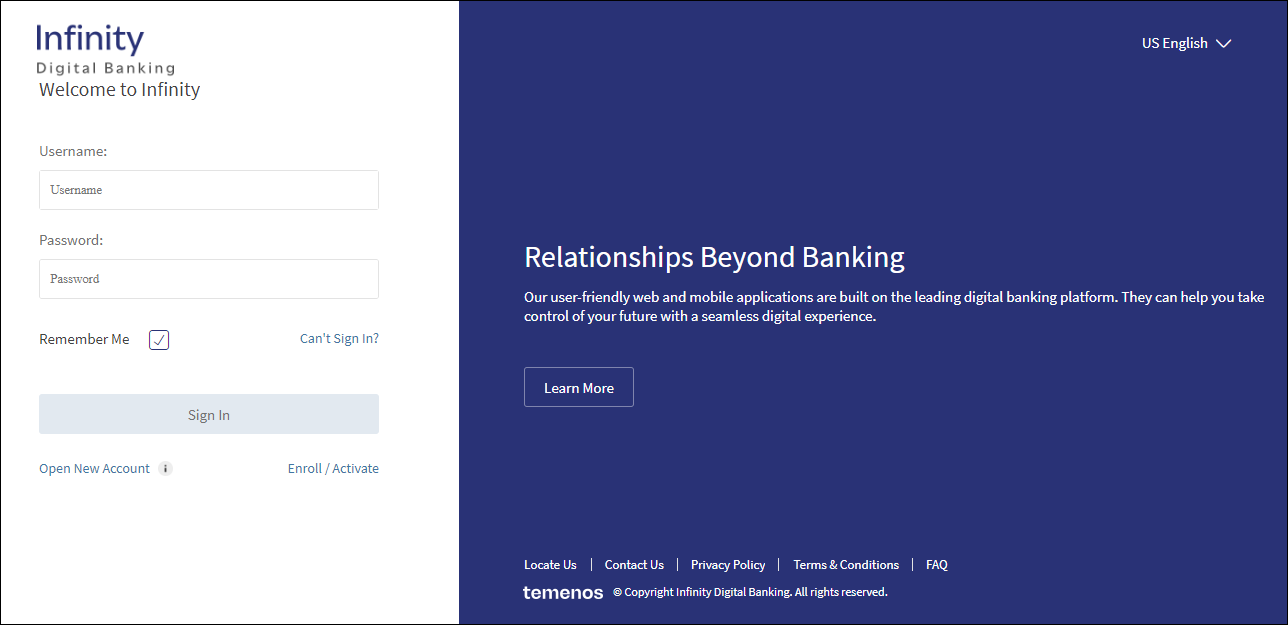
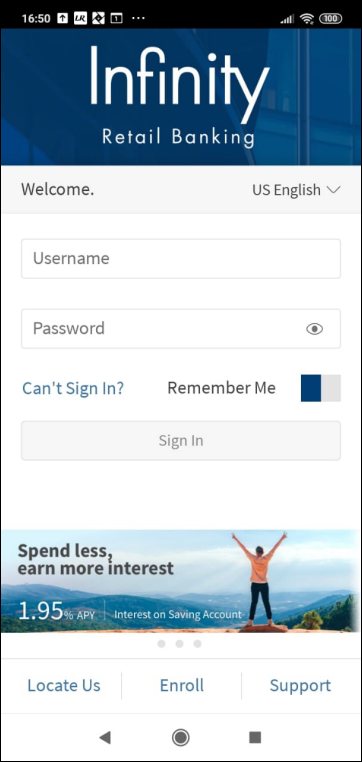
Enter the user name and password. The user credentials can be set up by the bank if you are a business user of the bank and want to opt for digital banking. If you are a user associated with business that has already signed up for digital banking, your user credentials and access to the application will be set up by the authorized person.
Username
The user name is a mandatory field. If the Username field is left blank, the Sign In button remains inactive. The field is case-insensitive; the application will convert the user name to uppercase before transmitting to the back-end for authentication. Note that the web browser's auto-suggest is disabled for this field.
Password
The password is a mandatory field. If the Password field is left blank, the Sign In button remains inactive. The field is case-sensitive and masked while entering, but you can view the password by selecting the eye icon. If the maximum allowed password length is 'n', the password entry field does not accept more than 'n' characters. The application displays an appropriate message in case a wrong password is entered. Note that the web browser's auto-save for passwords is disabled to prevent auto-fill of passwords.

Remember Me
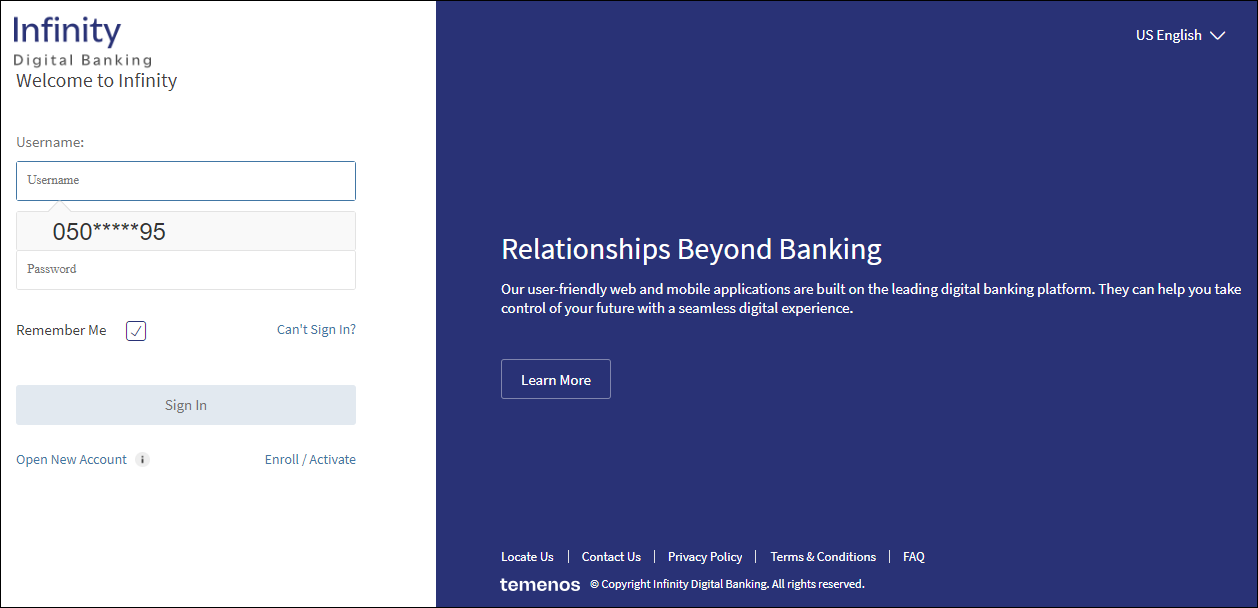
Select the Remember Me check box for the application to remember the user name and display during subsequent logins. In case more than one user name is saved, you can choose your user name for signing in. The application retains the user name on a previously used device, masks the user name, and displays as a non-editable field while displaying on the next login (for example, abcxxxxxxx). Multiple people can use the Remember Me feature on the same device/browser.
A user can choose a user name from the list of user names prompted by the browser. After the user name is selected, the user can enter the password for the account and sign in. A user can disable Remember Me for own account to remove it from the list.
Sign In
After entering the user name and password, Click Sign In.
When you sign in the first time, it is mandatory to agree to the terms and conditions of the bank. Select the I accept the Terms & Conditions check box and click Continue. The application displays the account summary dashboard screen.
- The account will be locked in case of multiple incorrect password entries. The default invalid attempts are set at five attempts. The application prompts the user about the number of attempts left - You have entered an incorrect password 3 times. Your account will be locked after 2 more incorrect attempts. The lock is applicable to all channels at a user level in case of multiple incorrect entries on any channel within a specified duration.
- In case a user account is locked, the application displays an appropriate message.
- The application displays an error message if the information provided is incorrect. In that case, click Can't Sign In? to retrieve the user name or reset the password in case you have forgotten.
- If the login password is about to expire, a pop-up appears immediately after you sign in to the application. The password expiry warning threshold is managed in the Spotlight application.
You can also do the following on the Sign In screen:
- Retrieve the username or reset the password (Can't Sign In) in case you have forgotten any of them.
- Locate a nearby ATM or branch based on your current location or call your banking service for any queries.
- View the privacy policy of the bank.
- View the terms and conditions to use the banking application.
- Access FAQs and Help pages to use the application features.
- Change the language of the application.
- If you are not an existing customer of the bank and want to get started, open a new retail account such as savings, check and more. The account opening flow is not available for business users in the current release.
- Enroll for digital banking.
Configuration
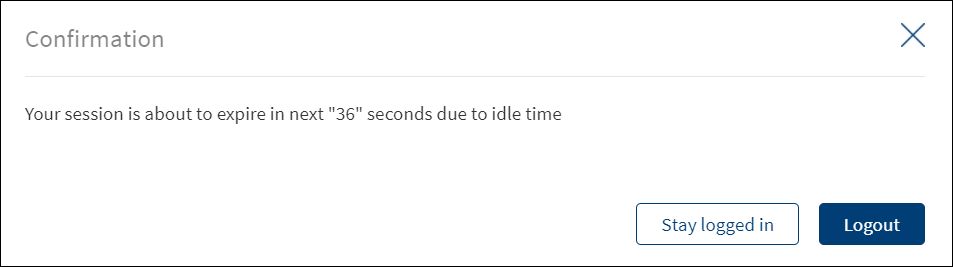
- The user sees a pop-up message warning that the session is about to expire before the application actually logs out. This is applicable to web channel and mobile native. The user can then choose to either sign out or extend the session.
- In the case of multiple unsuccessful login attempts, the user's account is locked. The account is unlocked after the predetermined time period or when the user resets the password.
- See security and authentication for more information.
- If the login password is about to expire, a pop-up appears immediately after you sign in to the application. The password expiry warning threshold is managed in the Spotlight application.
- Authentication in base and SCA integrated applications: Additional effort may be required while integrating with a third-party SCA provider.
APIs
For the complete list of APIs shipped as part of this feature, see Experience APIs documentation.
In this topic