Partial Mortgage Repayment
This section explains the mortgage partial repayment module that enables the users to have an early partial repayment for their mortgage loans issued by the bank to reduce the tenure or monthly installment.
Introduction
A partial mortgage repayment application is used to raise a request for early partial repayment. This application allows users to view their service requests, display a list of loans, and repay the mortgage loans partially. Users can see the options such as EMI, installment, and set of data points and navigate to next screen. Users can provide all the details on the acknowledgment page for payment initiation and can download them in PDF format. User can view the transaction details and current partial repayment status. User can view the request-id at the time of payment completion.
This feature applies to users and is implemented in the Responsive Web channel. The mortgage servicing module is integrated with Transact and Service Request Microservice, consent checks in Terms and Conditions is integrated with Consent Microservice, and documents upload is integrated with Document Microservice.
 Expectation and Business Rules
- The user has originated for a mortgage, and the bank has approved the mortgage.
- The user has activated the digital banking profile.
- The user has permission to view the mortgage facility accounts on the accounts dashboard.
- The user has the permissions for Partial Repayment.
- The user has to take Mortgage Loans under a particular facility.
View Mortgage Facilities on the Accounts Dashboard
After successfully signing into the banking application, the application displays the accounts dashboard screen and the list of active mortgage loans and can raise request for partial repayment taken by the user under the Mortgage Facilities group.
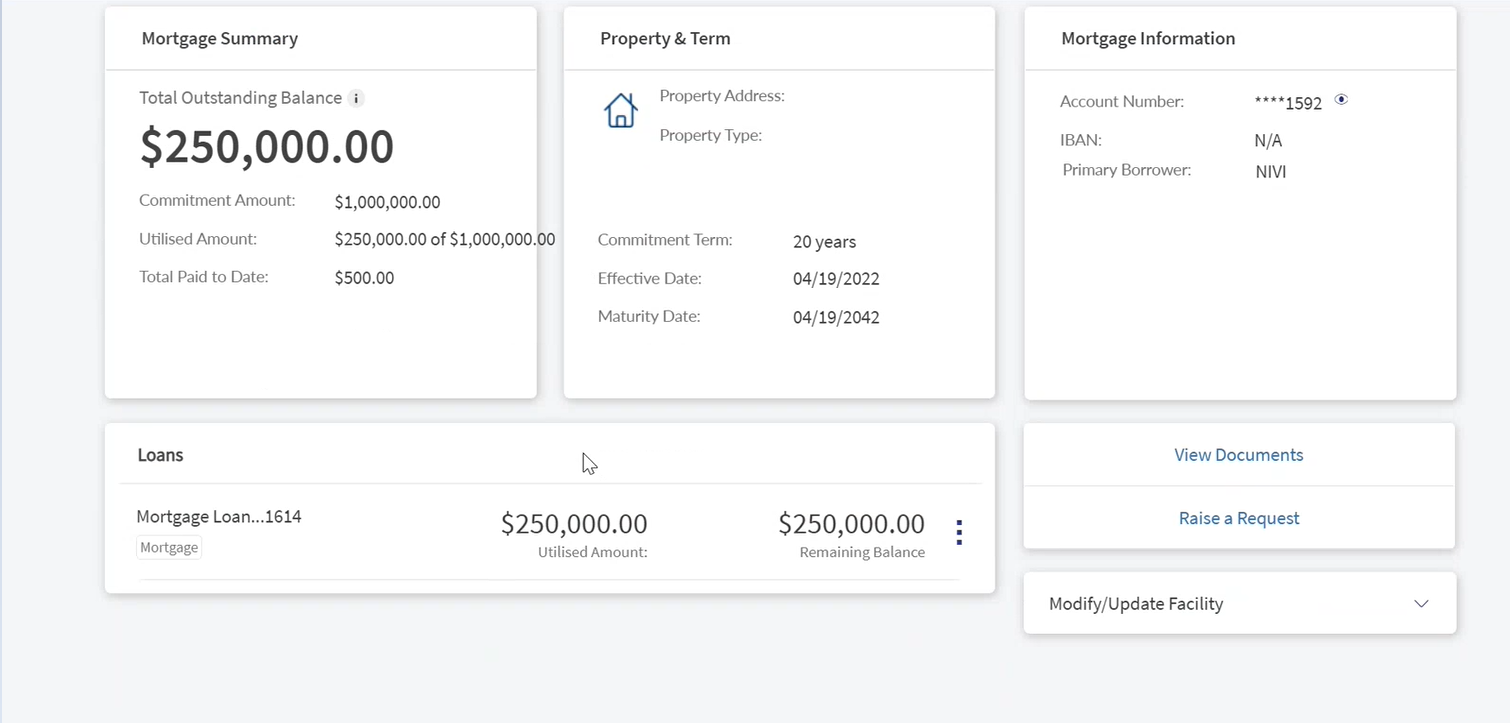
The application displays the list of approved mortgage facilities (represented as a row) to which the signed-in user has been given access. The accounts list is integrated with Transact to pull the list of accounts to which the user has access. The application displays the following:
- User can navigates to mortgage Terms and conditions page in the contextual menu.
- User need to enable the terms and conditions check box to click continue option.
- User with set of loans can navigate to partial repayment screen.
- User can select the individual radio button to repay the loan.
- User can access with multiple entry points for partial repayments.
Entry points for Partial Repayment
User can raise request for Partial Repayments from the following entry points:
- Mortgage Facility Dashboard
- When user select on Mortgage facility dashboard for Partial Repayment, application displays Terms and Conditions page.
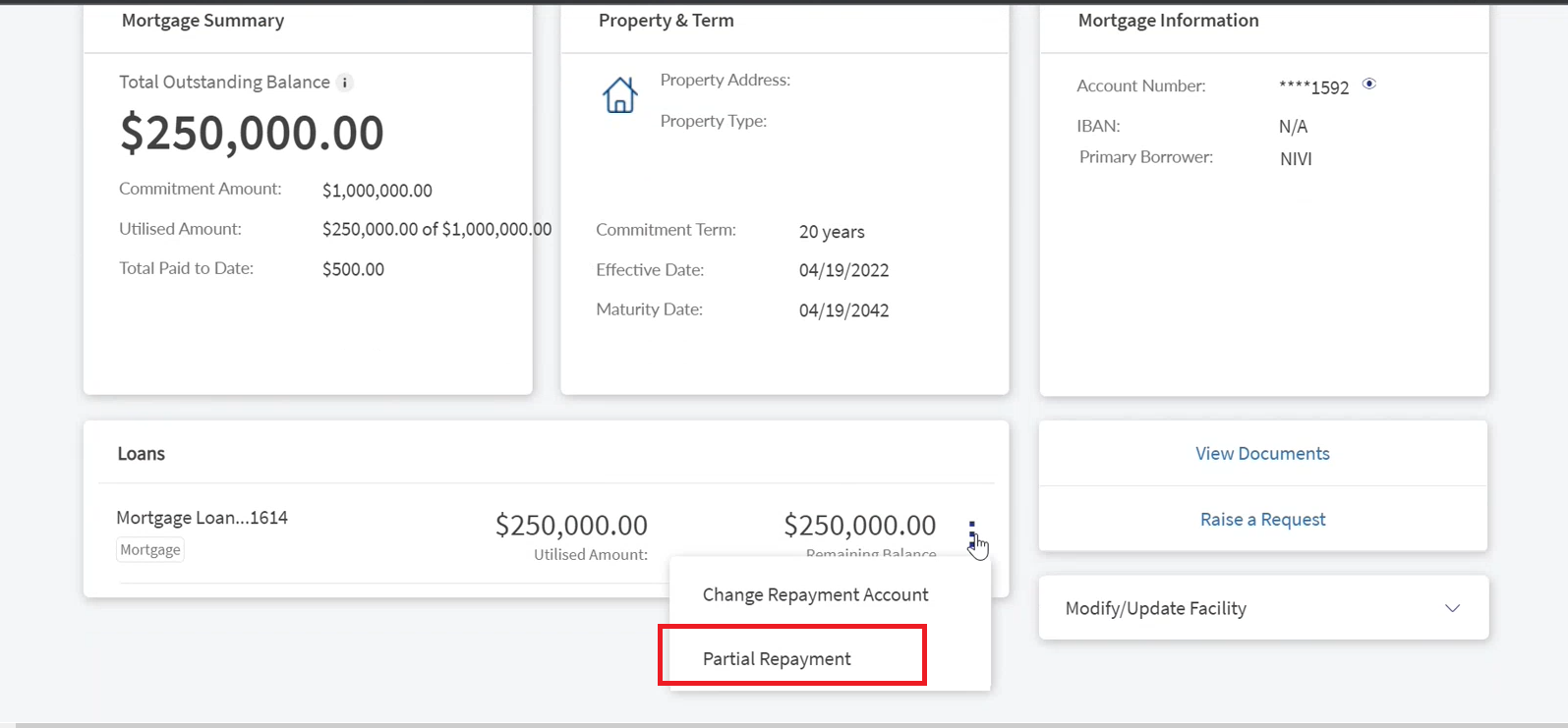
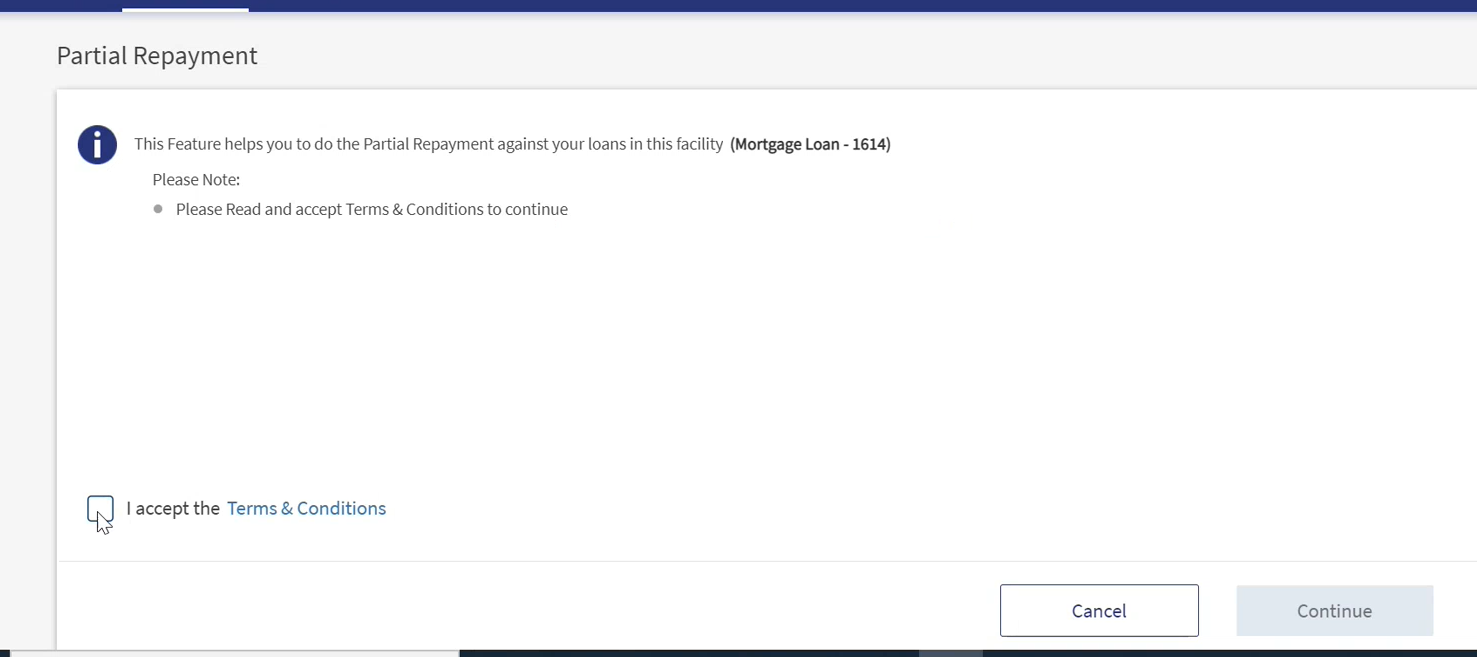
- Click on Terms and Conditions to view the page.
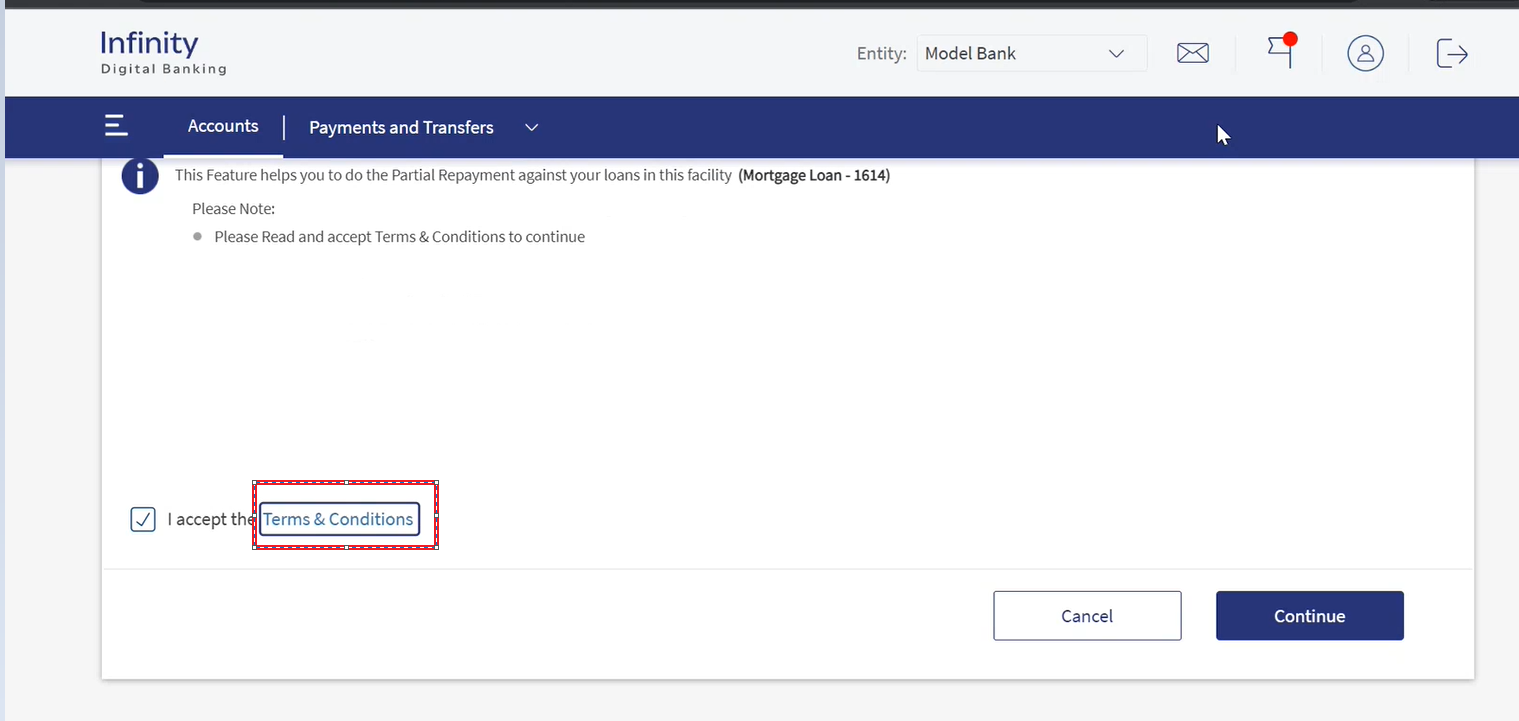
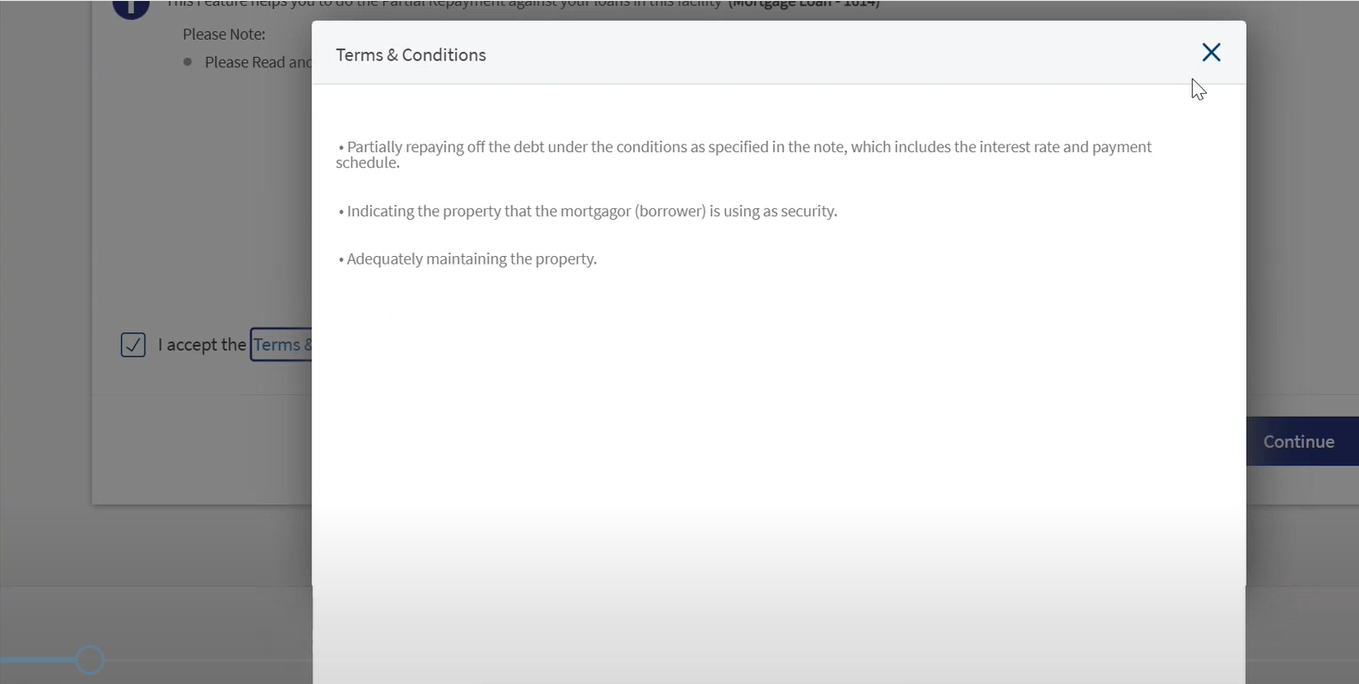
- User need to accept the Terms and conditions to enable the Continue button.
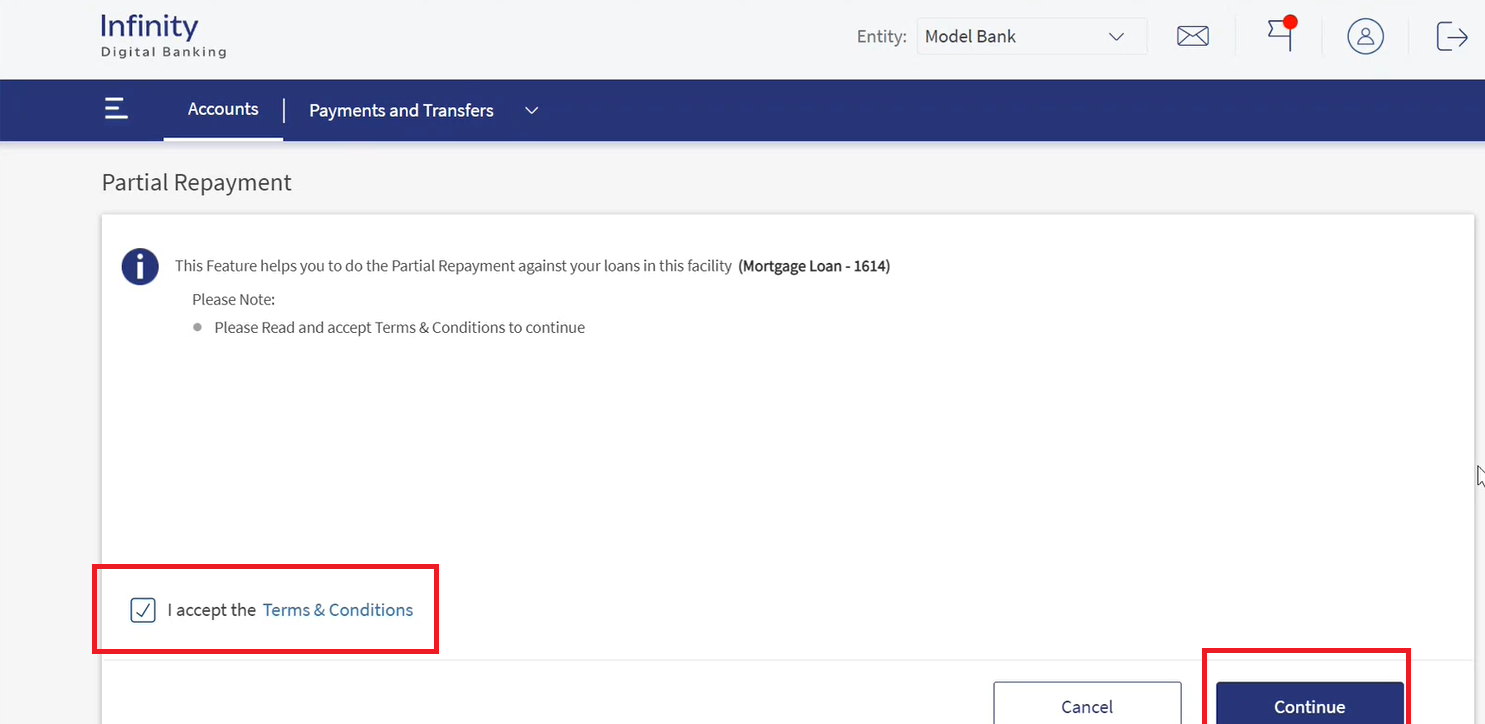
- Click continue to display simulation page.
- When user select on Mortgage facility dashboard for Partial Repayment, application displays Terms and Conditions page.
- Loan Overview
- When user click on Mortgage facility overview for Partial Repayment, application displays Terms and Conditions page.
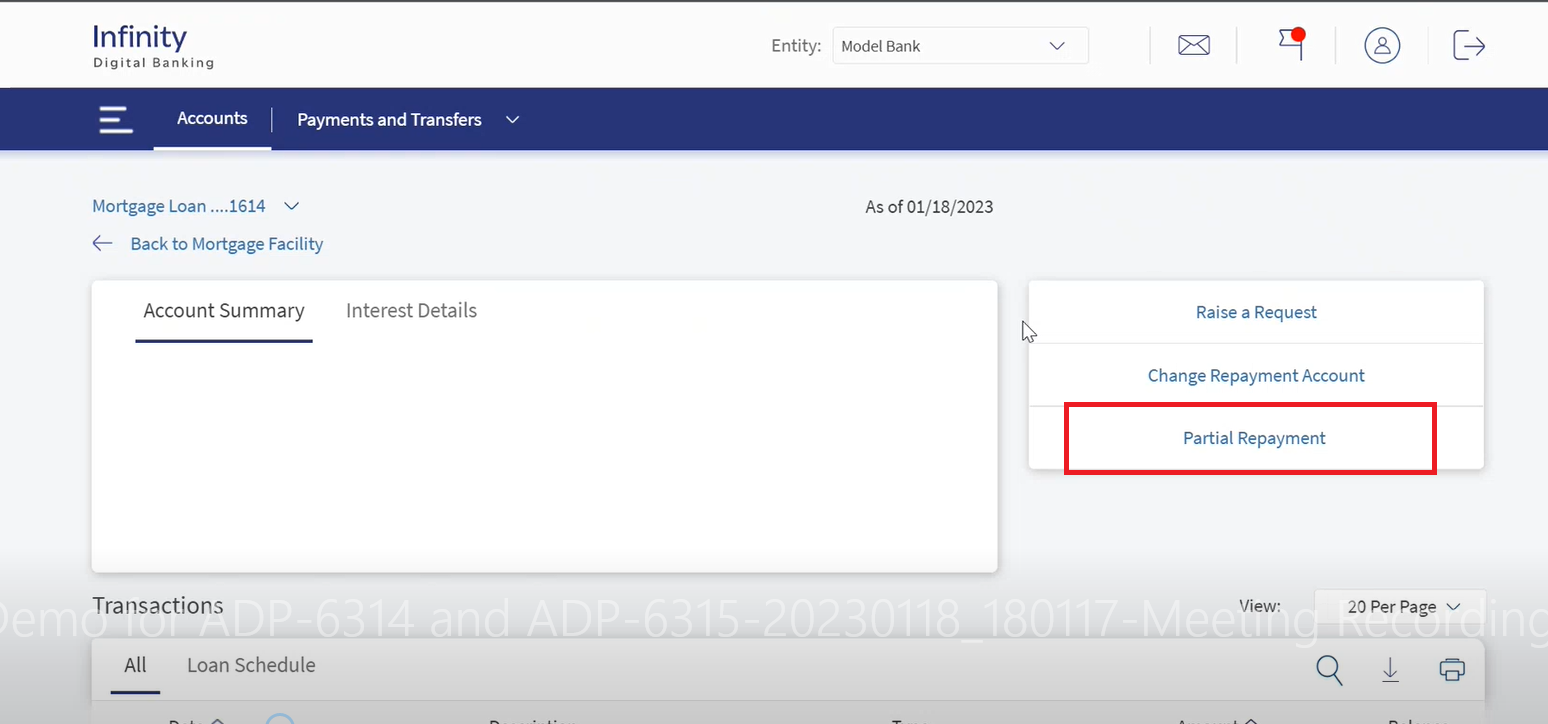
-
Click on Terms and Conditions to view the page.
- User need to accept the Terms and conditions to enable the Continue button.
- Application displays list of Mortgage loans.
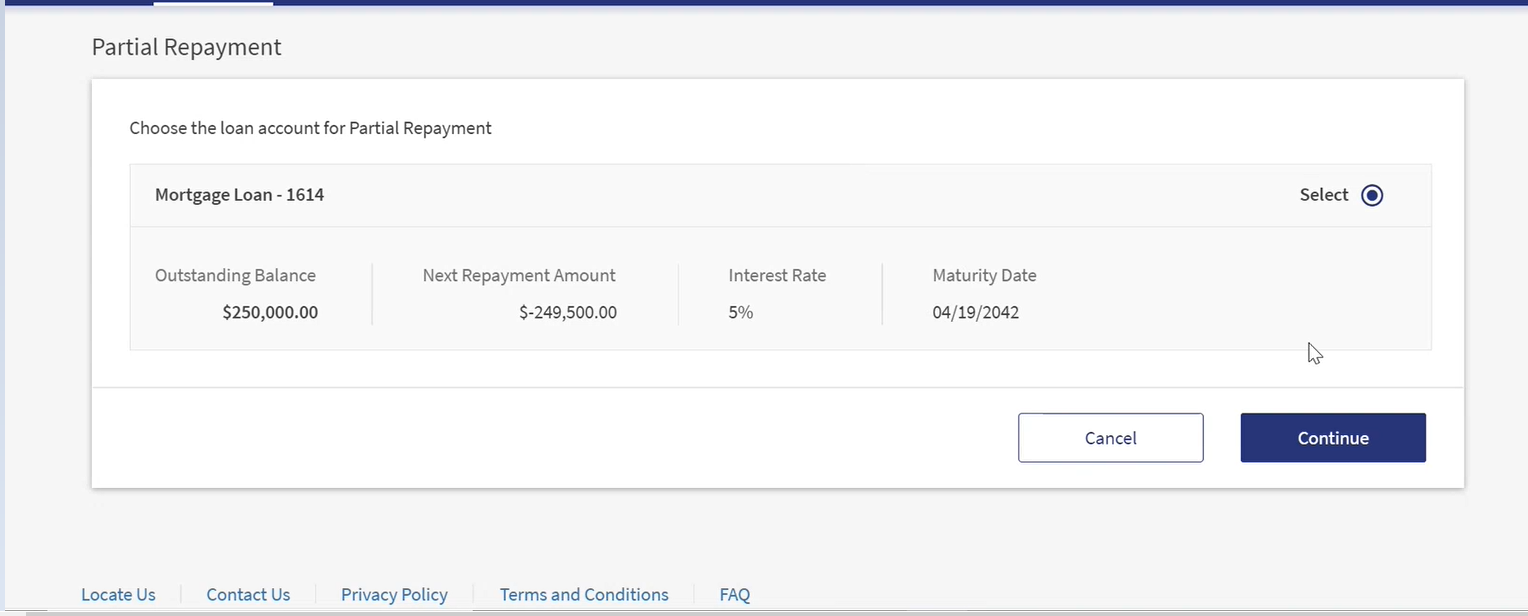
- Click on the radio button to select the account for Partial Repayment.
- Click continue to display simulation page.
- When user click on Mortgage facility overview for Partial Repayment, application displays Terms and Conditions page.
- Loan Overview Quick Action
- When user click on Loan Overview Quick Action for Partial Repayment, application displays Terms and Conditions page.
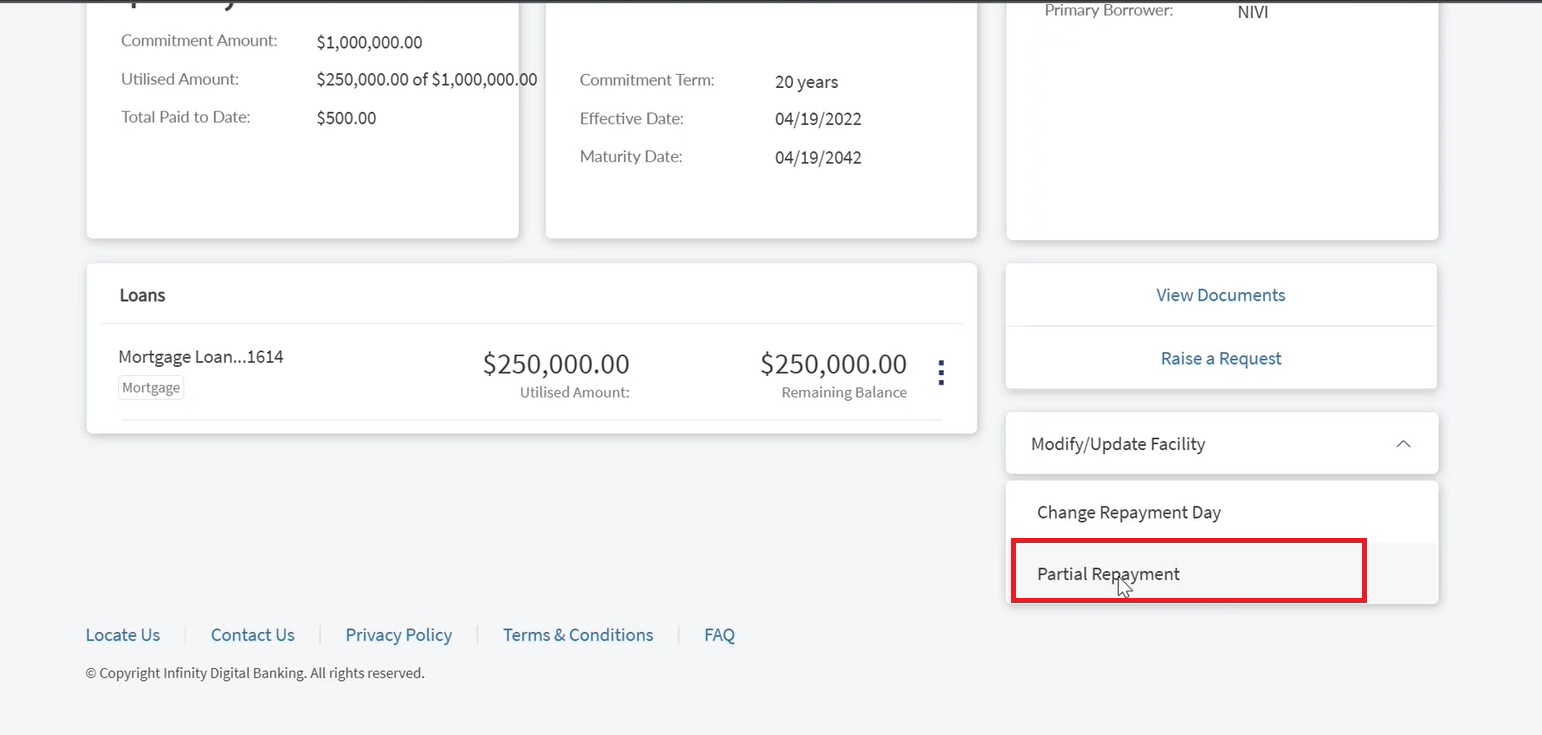
-
Click on Terms and conditions to view the page.
- User need to accept the Terms and conditions to enable the continue button.
- Application displays list of Mortgage loans.
- Click on the radio button to select the account for Partial Repayment.
- Click continue to display simulation page.
- When user click on Loan Overview Quick Action for Partial Repayment, application displays Terms and Conditions page.
Mortgage Repayment Simulation
Use this feature to view the list of new installment plans details as a simulation with the existing/Current Instalment Plan for all the Mortgage loans under one Mortgage Facility.
The application displays the list of installments (Paid and Overdue) with the following details.
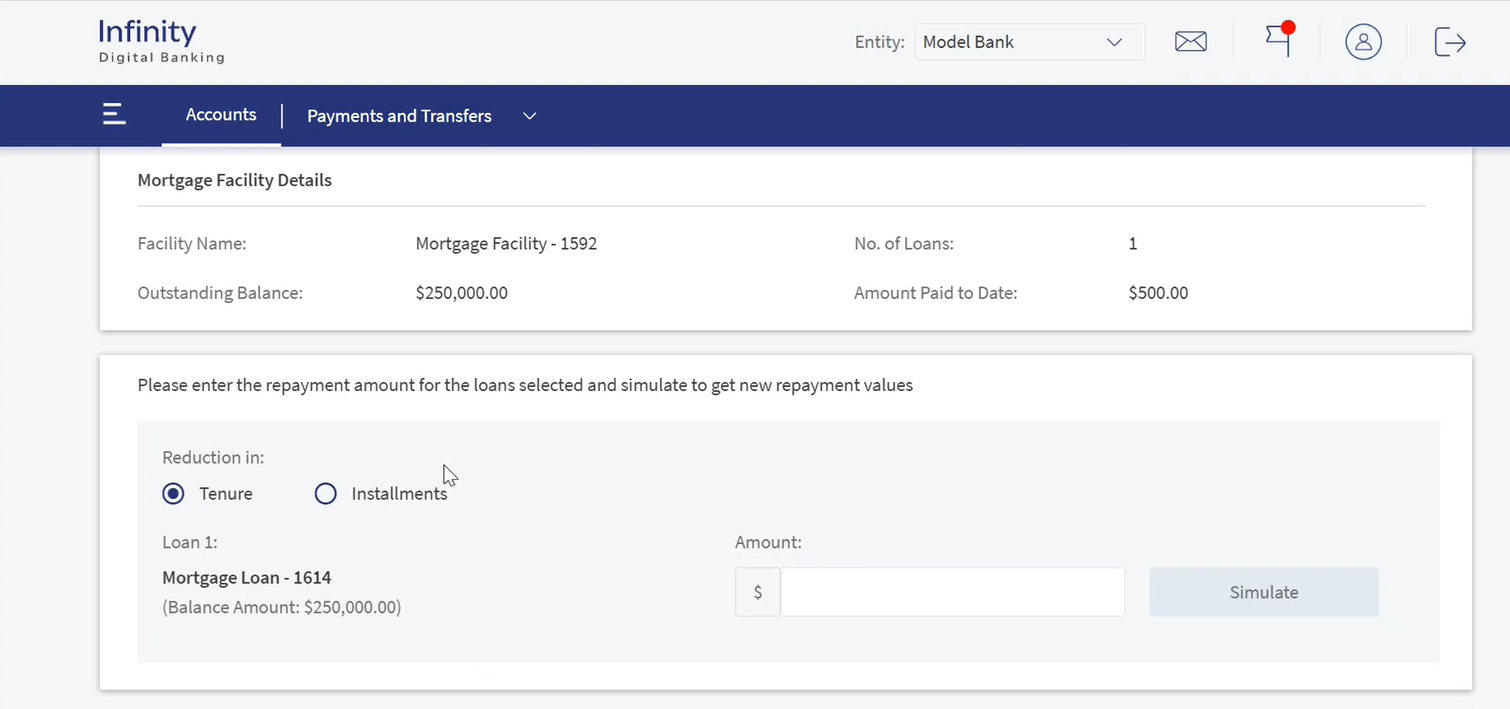
- Facility Name
- Number of loans
- Outstanding Balance
- Amount Paid to date
User can see the loan information in the following format:
- Loan Name followed by last four digits of Account Number.
- Balance Amount in brackets with currency.
User can enter the partial repayment amount in the text box with the following conditions.
- Minimum Amount Entered by the user (Should be greater than Zero).
- Maximum Amount Entered by the user (Amount Entered Cannot be greater than Outstanding Balance).
User can see two option to continue:
- Tenure (Integrated with Transact and Mock) : When the user selects this option for Partial Repayment, the user can see the changes in Maturity date.
- Installment (Integrated with Mock): When the user selects this option for Partial Repayment, the user can see the changes in simulation value.
User can select any option and can click on Simulate.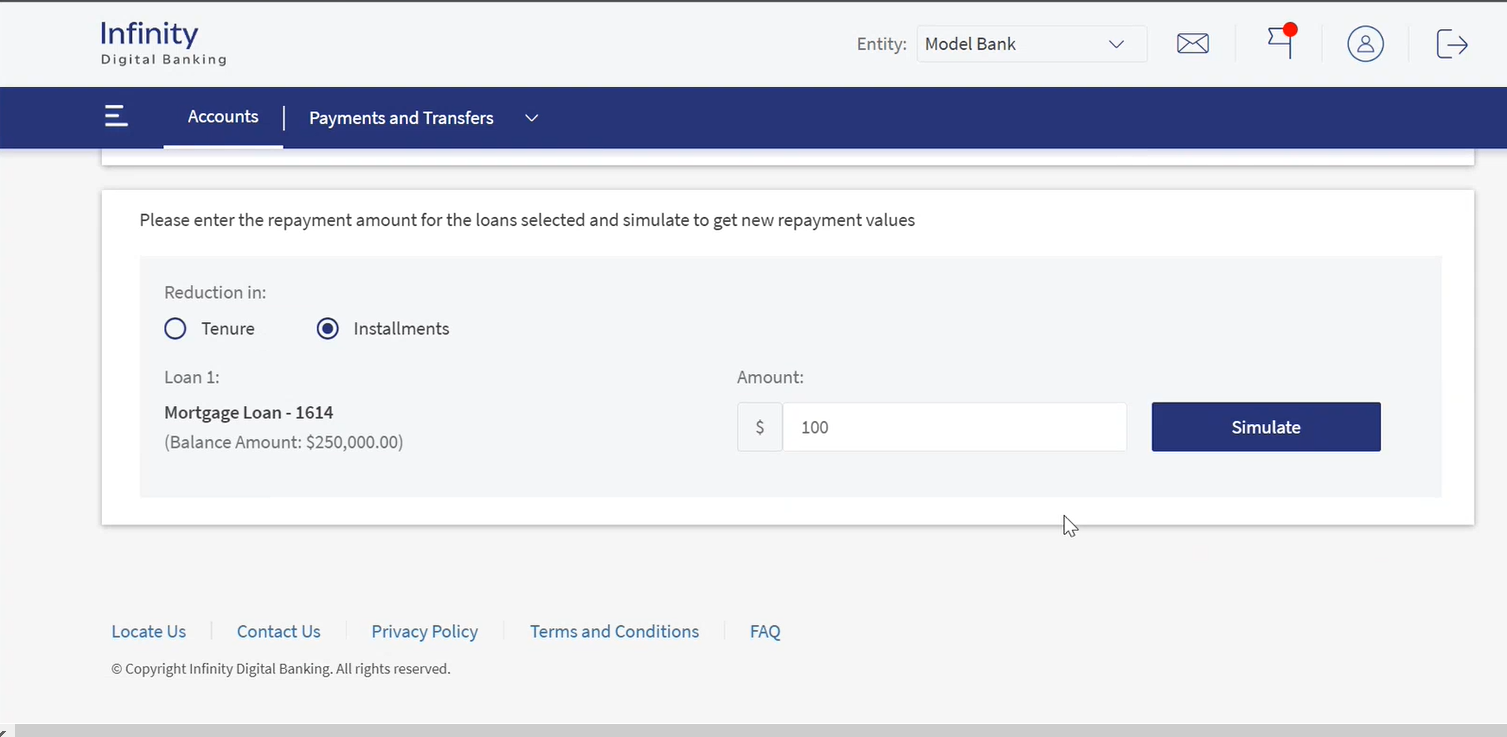
User can see the following details with simulation Terms and Conditions and click Continue.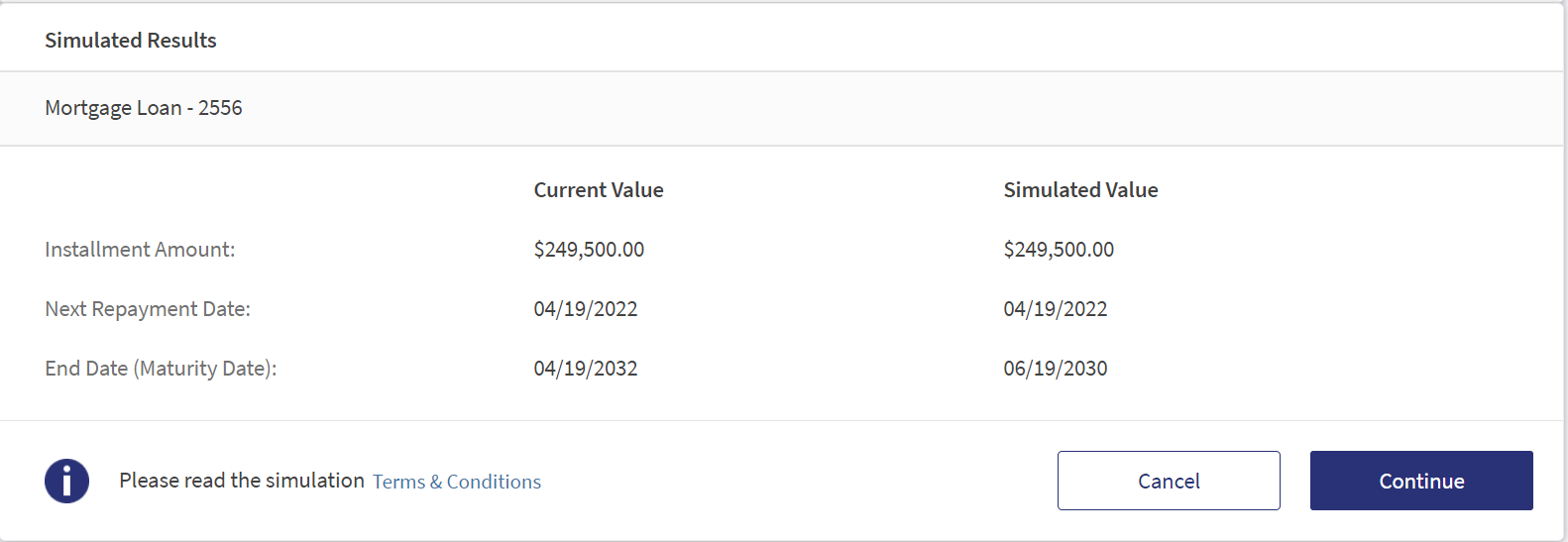
- Next Repayment Date
- End Date (Maturity Date)
- Installation amount
User will have a option to download the simulation form.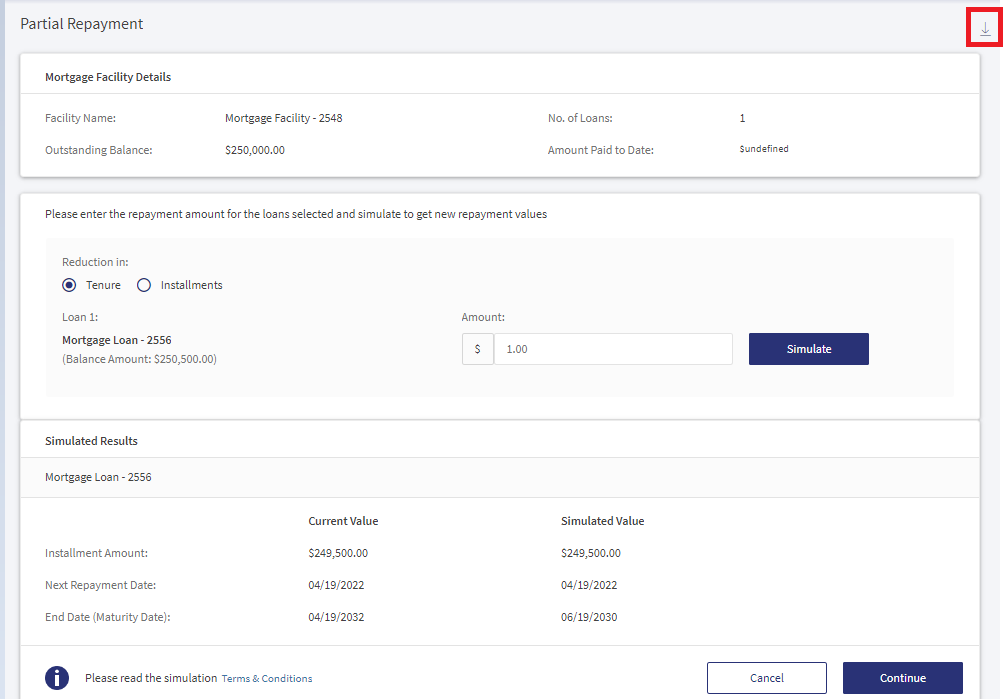
Required Details for Payment Initiation
Use the feature for initiating the Partial Repayment.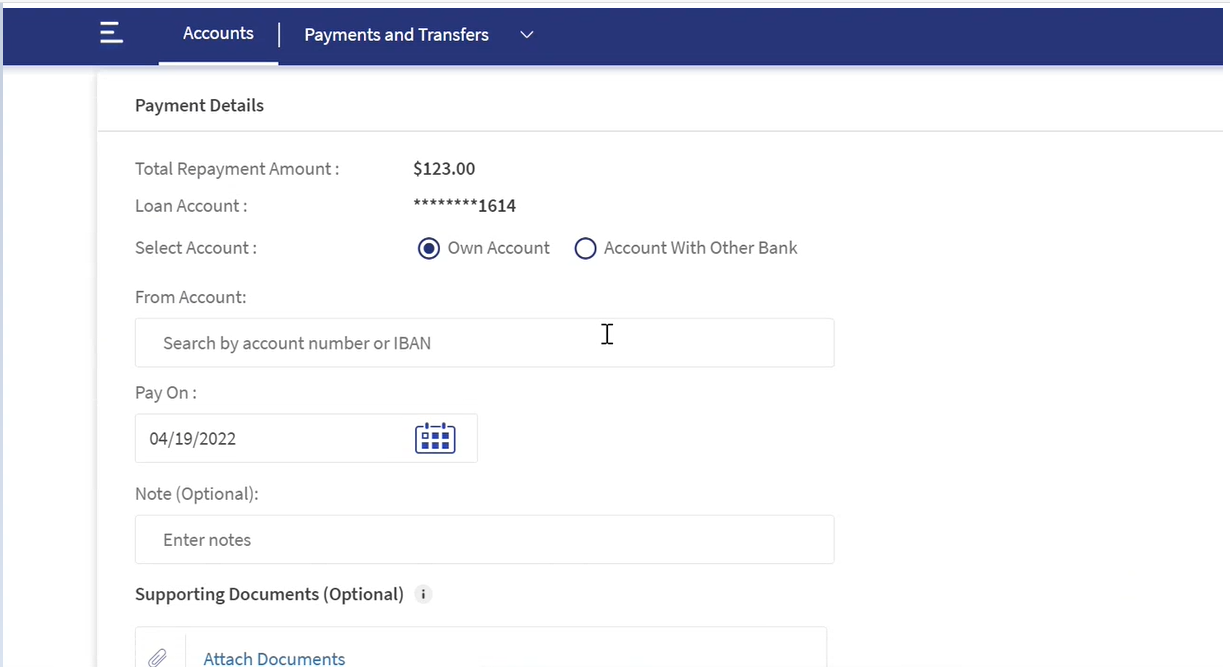
Account with Other Bank button is enabled for L3 Development team and disabled for base Product.
The application provides the information with the following details:
- User can see the Loan account name followed by the last four digits of loan account number
- Total Repayment Amount
- From Account
- Pay Date
- Supporting Documents
User need to provide the information and click on Continue.
Check and confirm the details and click on Confirm and Pay.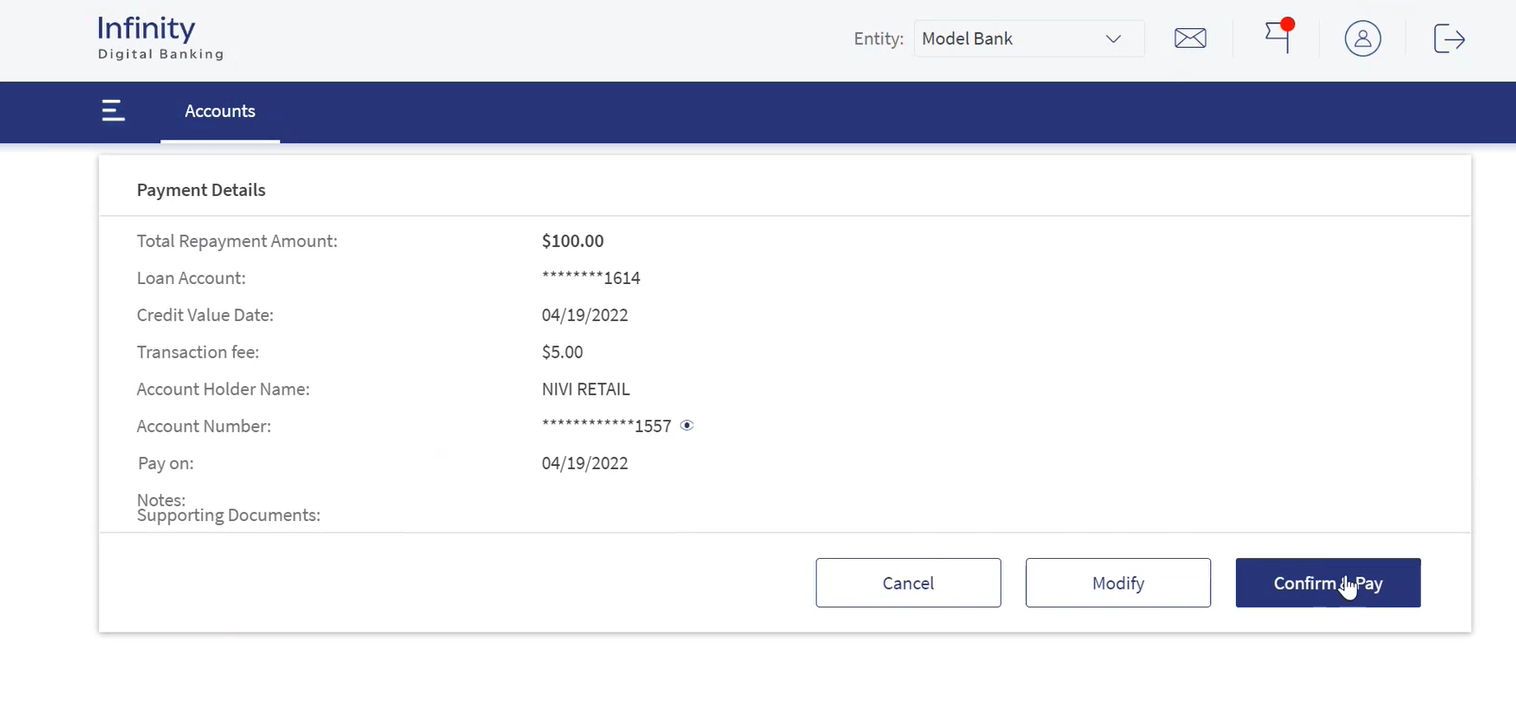
Partial Repayment Confirmation
Use the feature to view the details and confirm the Payment details. 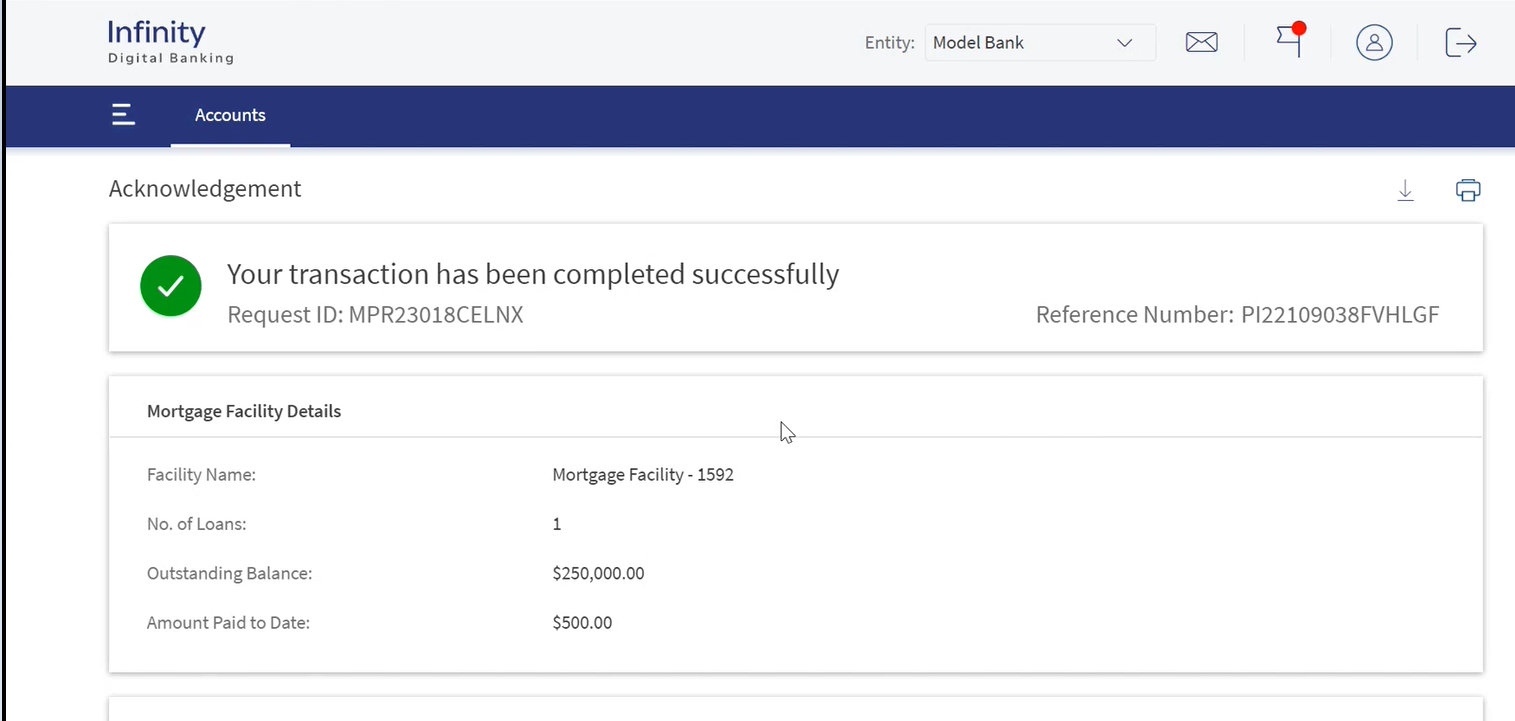
To confirm the repayment for the loan installments under a specific mortgage facility, follow these steps:
- User can view the following details:
- User can navigate to Acknowledgment screen if the user clicks on Confirm &Pay button.
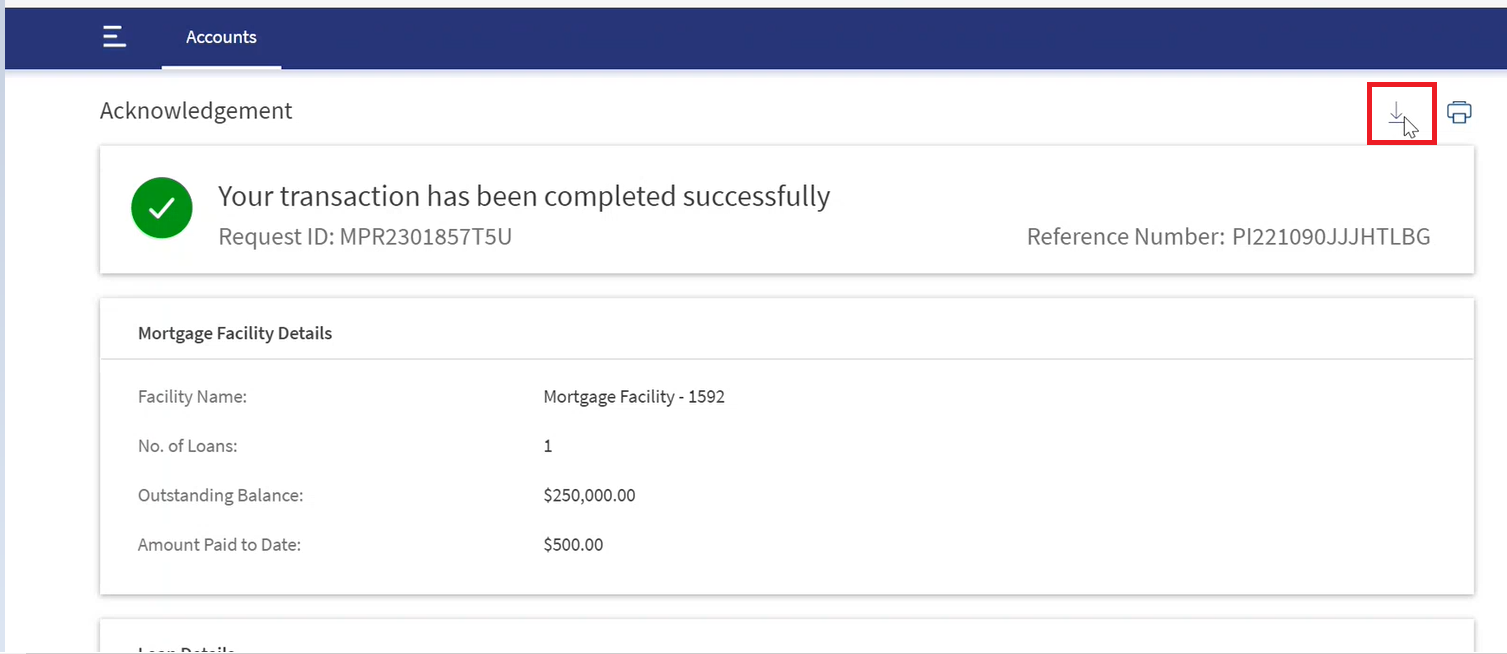
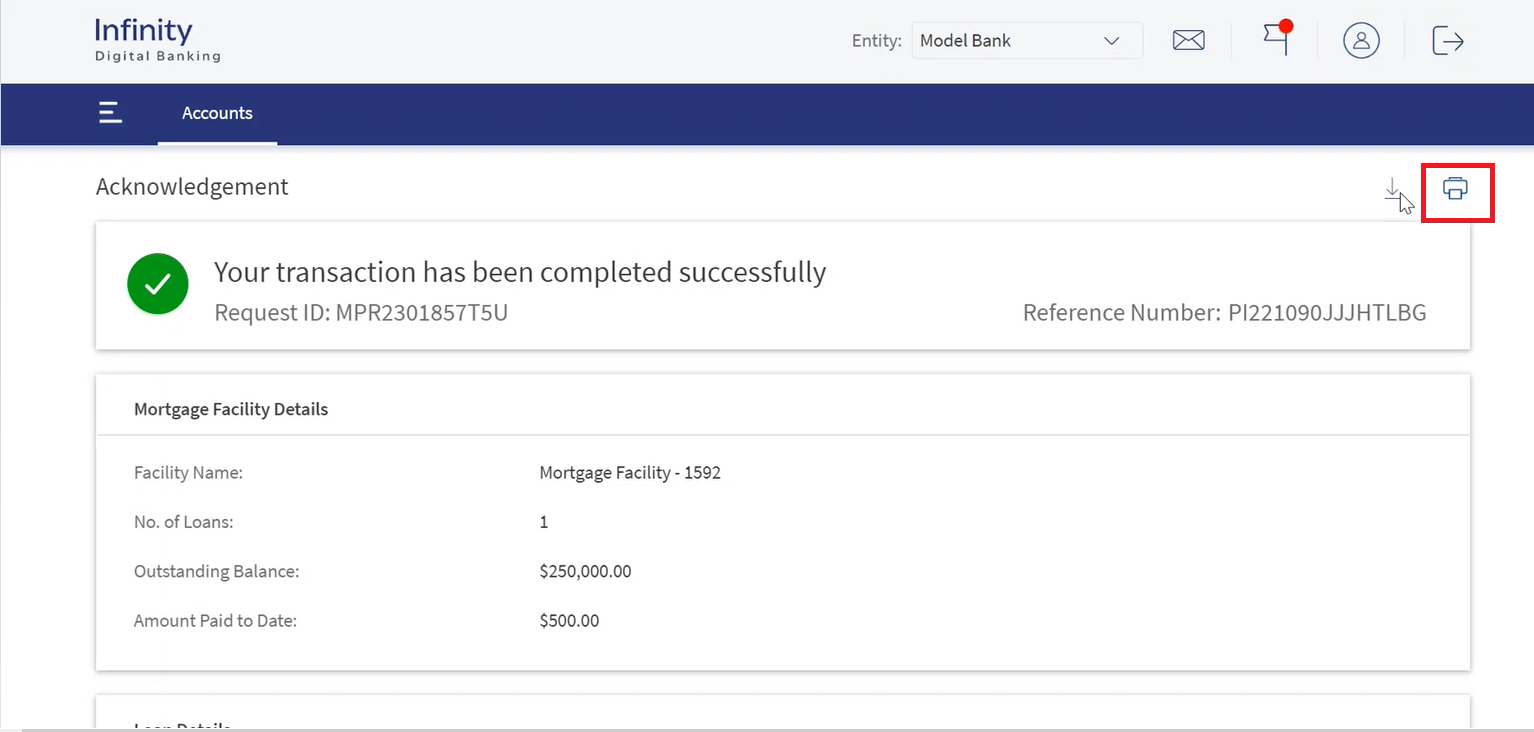
- The application displays the acknowledgment screen once the partial repayment is done with the following details:
- Acknowledgment: Success message with Reference ID generated from the Service Request MS.
- Mortgage Facility Details: Facility Name, Number of Loans, Outstanding Balance, and Maturity Date.
- Do any of the following on the Acknowledgment screen:
- Click the Download icon on the top-right of the screen to download the onscreen data.
- Click the Print icon on the top-right of the screen to print the onscreen data.
- Click the Download icon on the top-right of the screen to download the onscreen data.
Service Request Dashboard
Use the feature to view the Service Request created for Partial Repayment in Dashboard.
To view the service request under a specific mortgage facility, follow these steps:
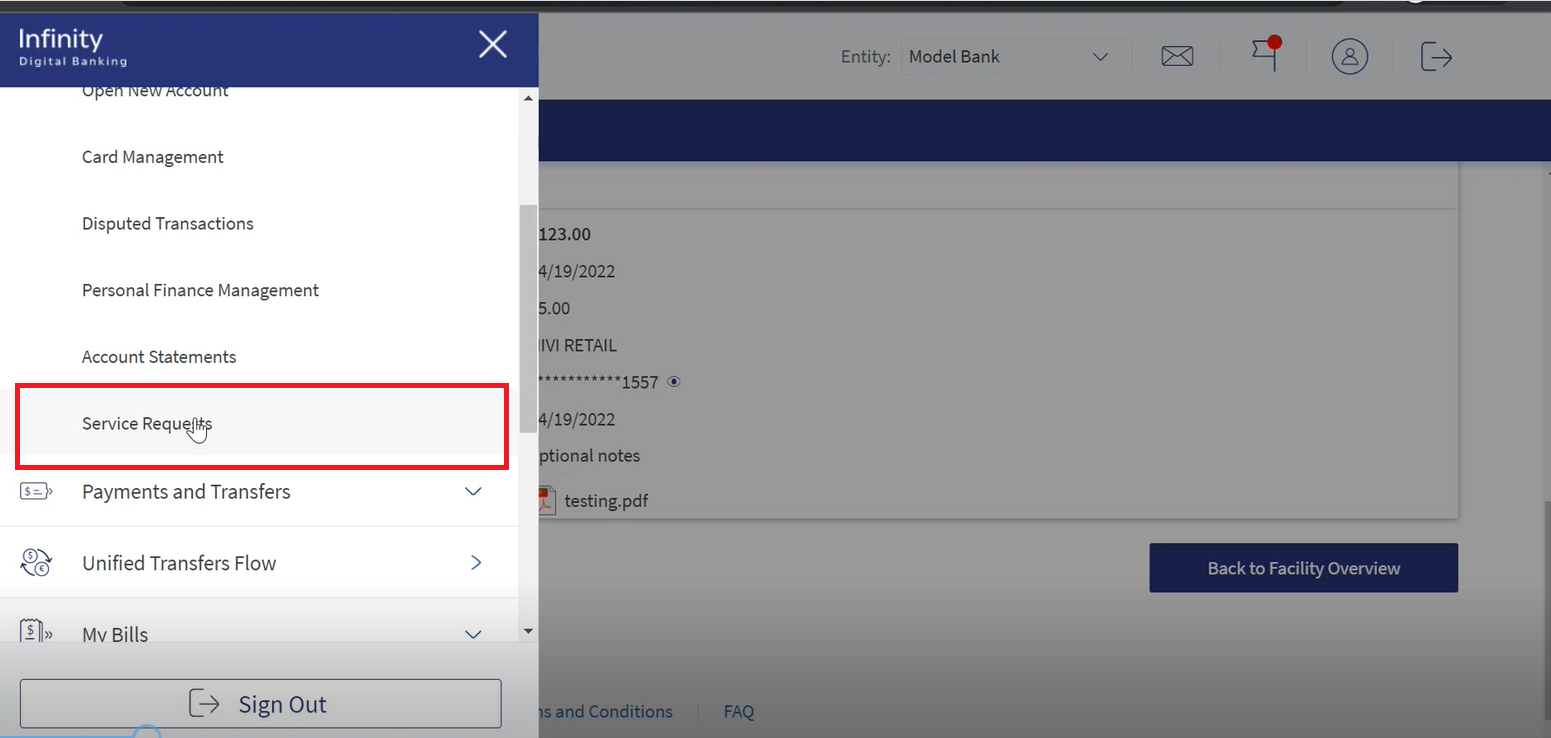
- Navigate to Accounts > Service Request.
- The application displays the status page.
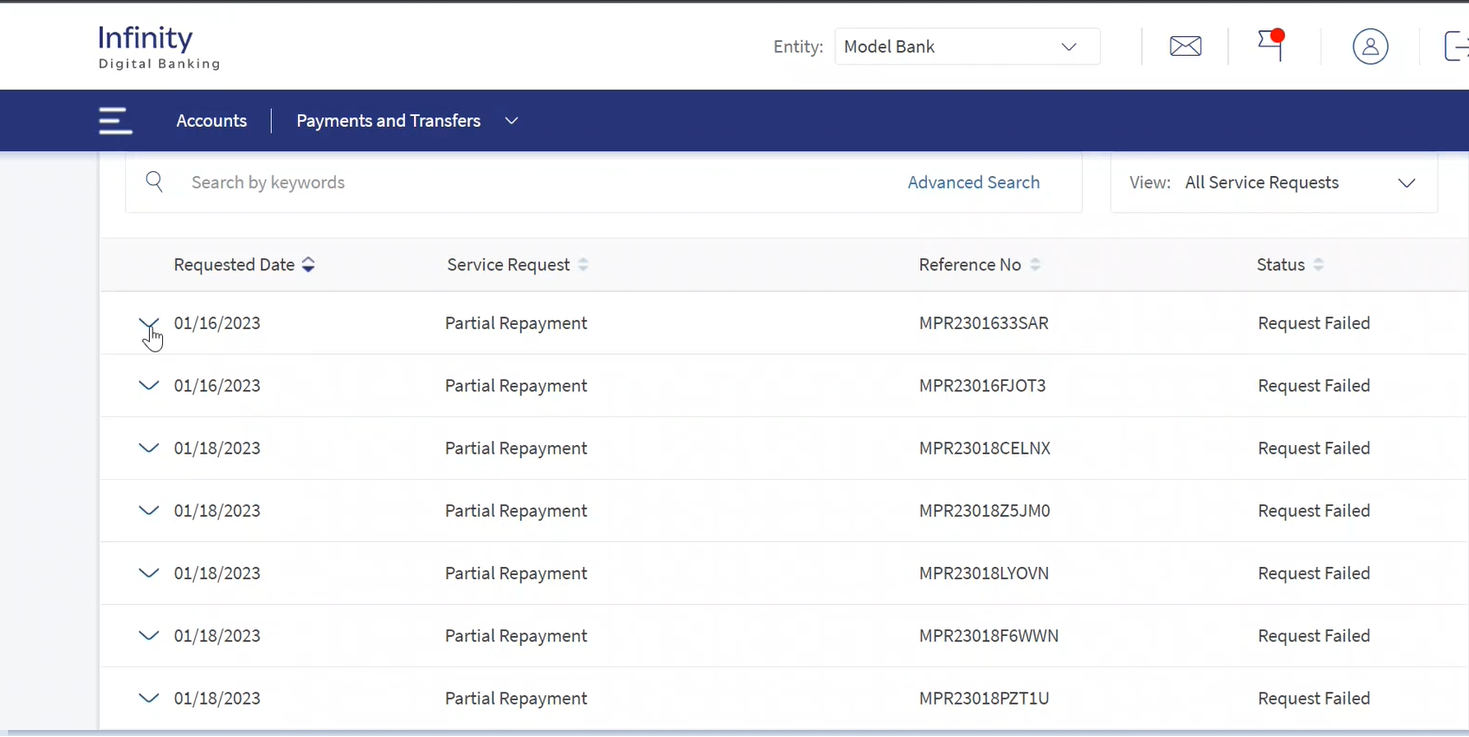
- User can select latest transaction and click on drop-down to view the following information.
.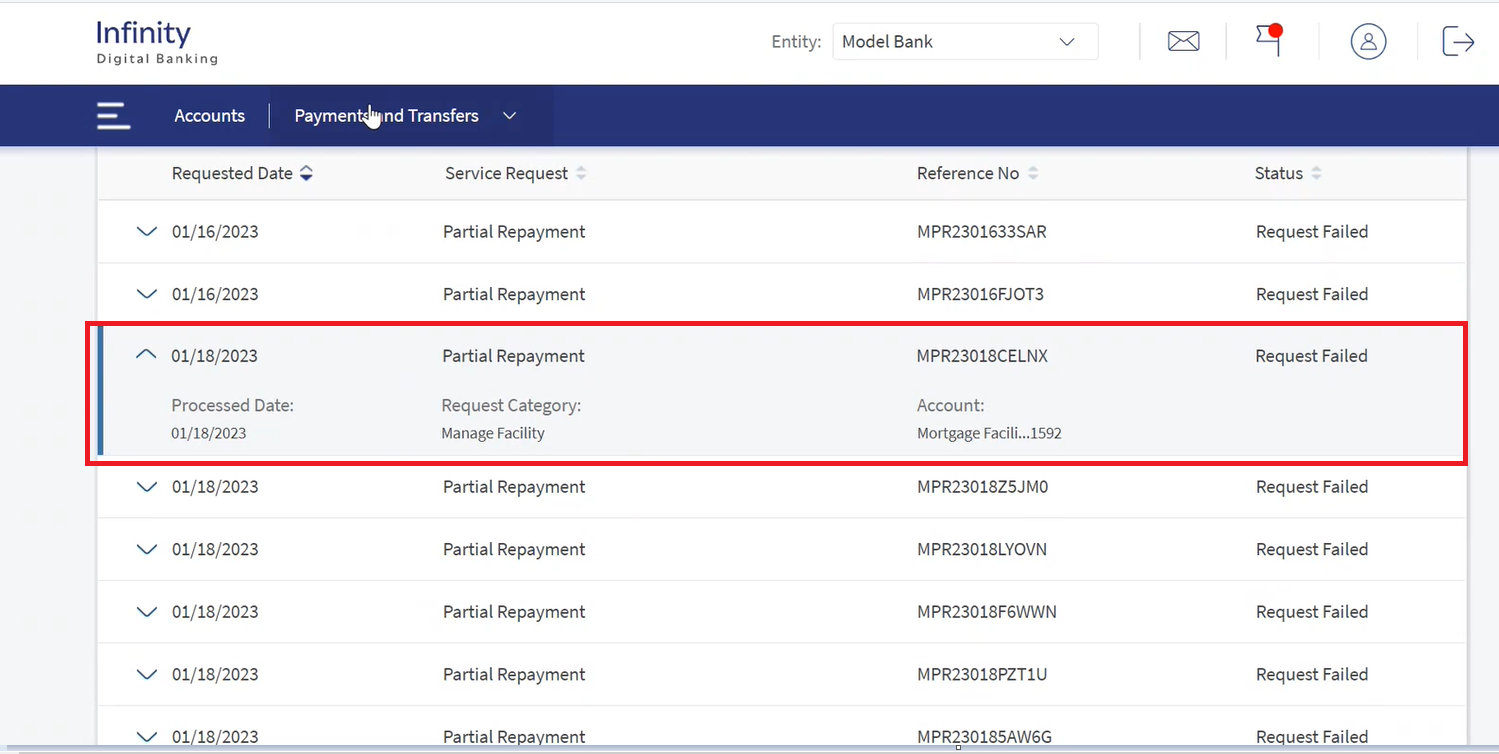
- Requested Date
- Service Request
- Reference Number
- Status
Repayment Transfer Activities
Use the feature to view the Transfer details Created in the Transfer Activities.
To view the Transfer Activities under a specific mortgage facility, follow these steps:
- Log-in to Digital Banking with valid credentials.
- After sign in, Navigate to Payments and Transfers> Manage Transactions.
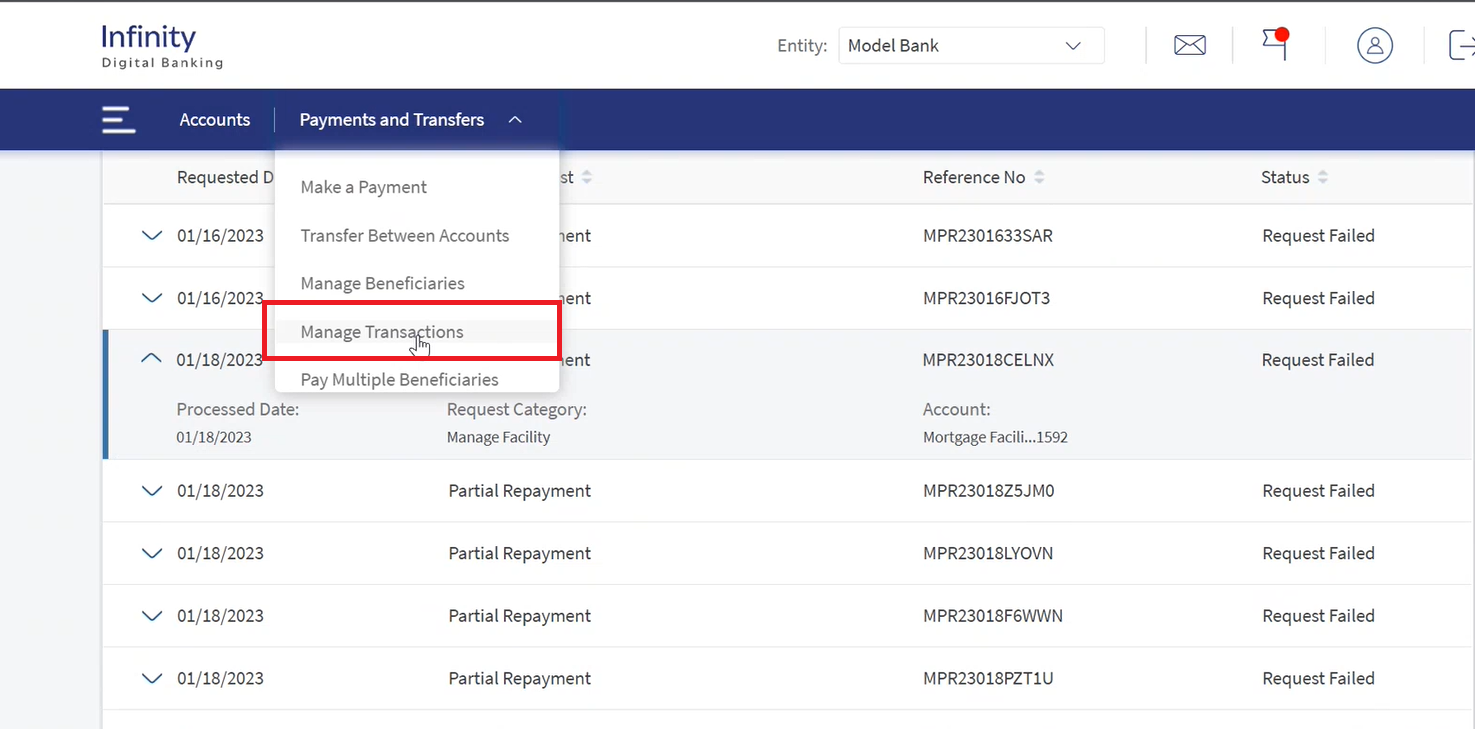
- The application displays the Transfer Activities page.
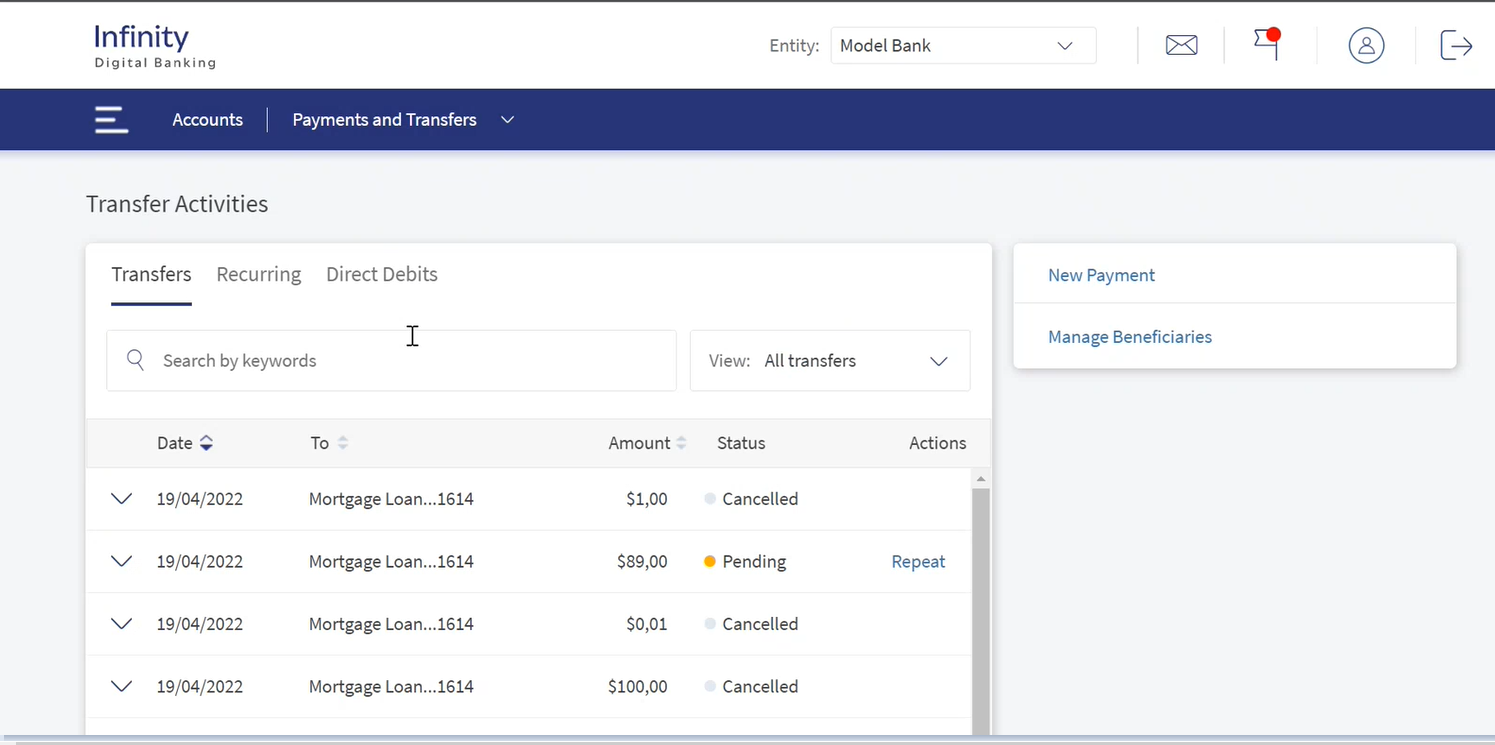
- User can select any transaction and click on drop-down to view the following information.
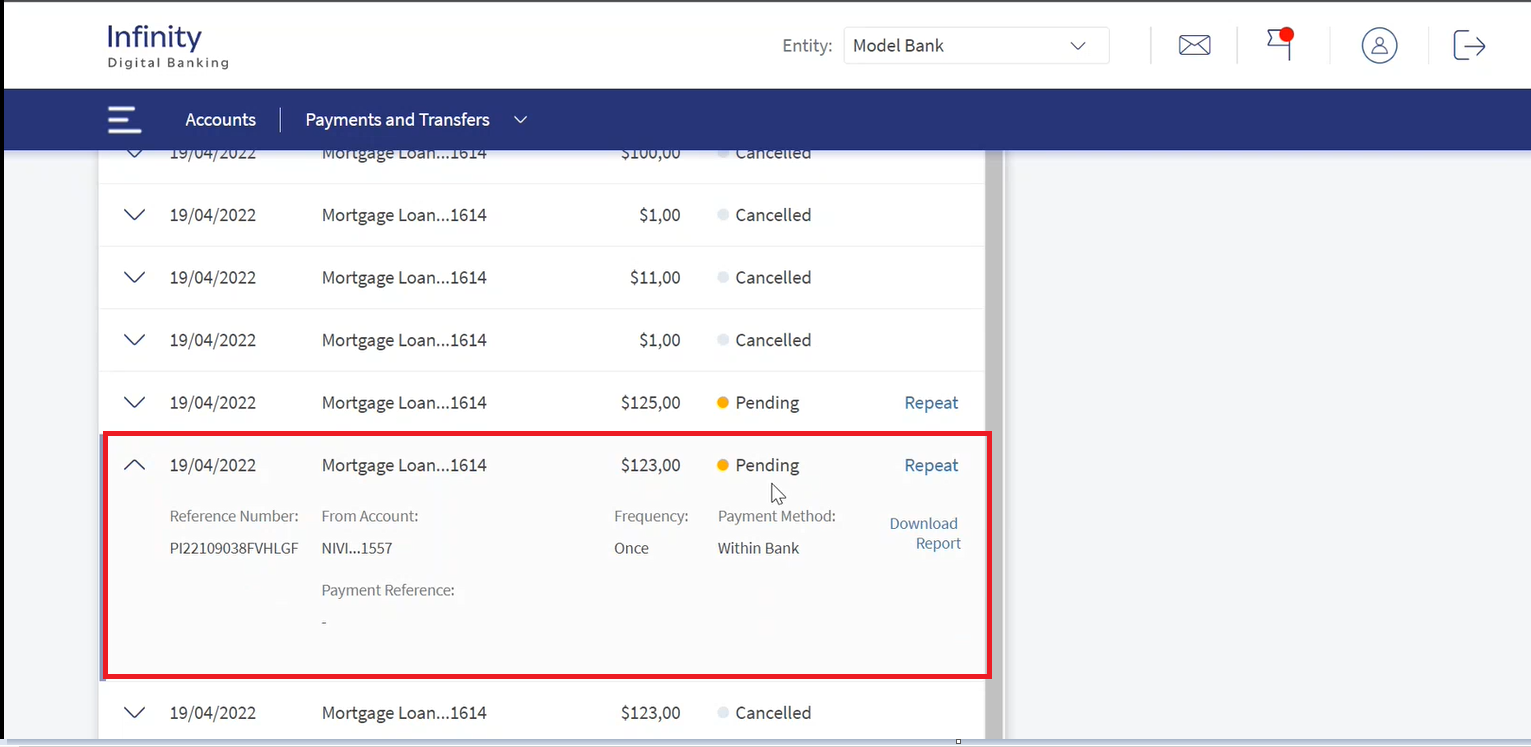
- Requested Date
- Service Request
- Reference Number
- Status
- From Account
- Frequency
- Payment Method
- Payment Reference
Spotlight Permissions
The permissions for Mortgage Partial Repayment is available in the following sections.
- Create Partial Payment
- View Partial Payment
User have two bundle configurations to set up in Spotlight.
- Activity_ID_Simulation is for Simulation purpose.
- Order_Initiation_Type is for Payment initiation.
In this topic