Outward Collections
Outward collections is the document managing tool. This has visual representation capabilities to view Outward collections, to view and give instructions for the outward collections transaction lodged by the bank. For Outward collections corporate user plays the role of the Exporter and his bank is know as collecting bank.
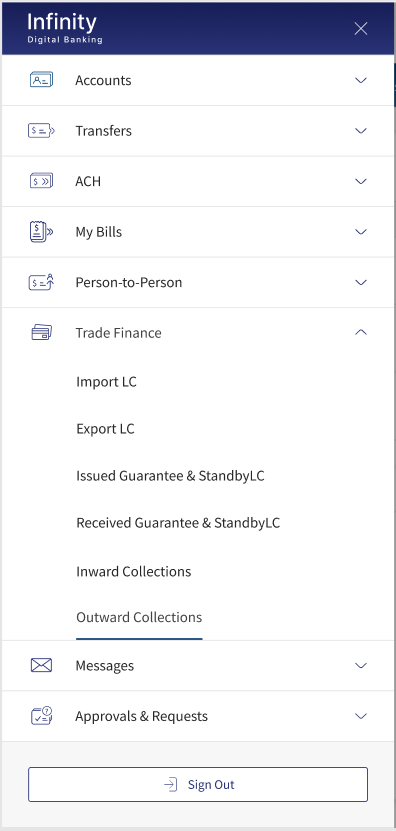
Navigation path: Web Channel > Side Menu > Trade Finance > Outward Collections.
UX Overview
Outward Collection Overview
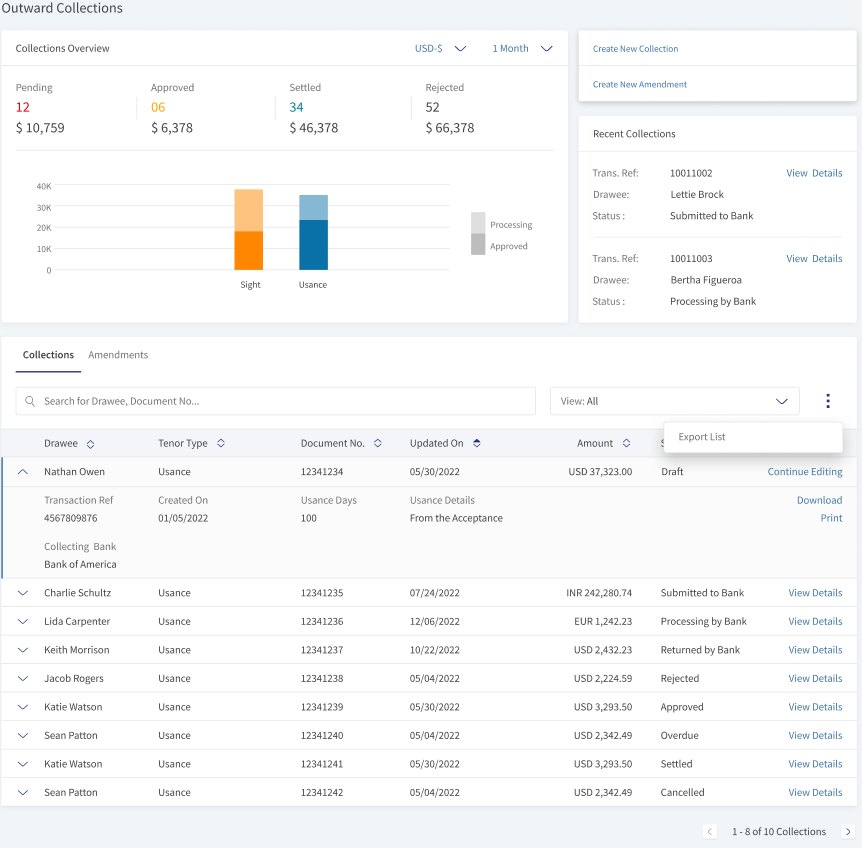
This section displays the summary of all the Outward Collection details. The bank user has options to view the overview in available currency and see only Outward collection. Use the drop-down options to filter accordingly. The user can do any of the following:
- Create a new collection.
- Create a new amendment
- Request due collections.
- Download the list of Outward Collections.
- Expand the record to see the summary of Outward collections.
- Download or print the individual Outward collections.
- View details of individual records. The user has to click on View Details.
Collections Overview
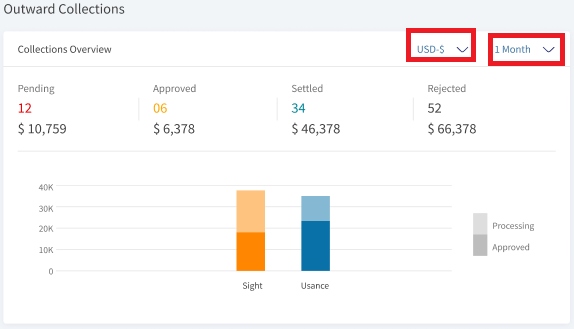
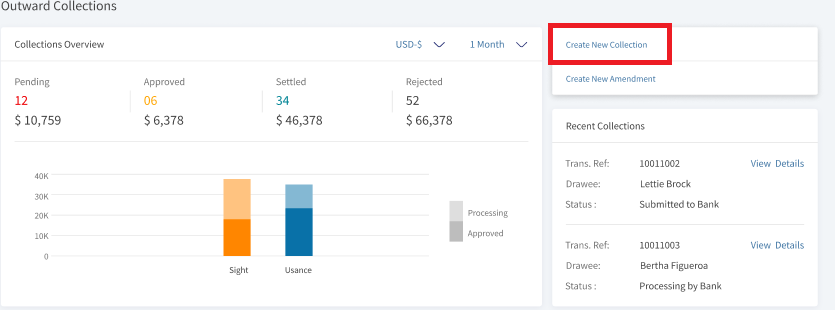
The overview section displays the summary of all the individual collections raised by the user. Certain classifications include the status of the Outward Collections. Following are things the user understands from the Overview section.
- The user understands the current status (Sight and Usance) of the collections. This displays total value of records that are processing and approved.
- The bar chart shows the tenor type Sight and Usance.
- The bar chart has two color codes (light and dark). Light color represents the total fund value raised by the user in the different tenor types. Dark color represents the collection that are approved by bank. If the user focuses on any bar, the user can see sub-options like new requests, pending requests, approved requests, and rejected requests.
- Change the currency.
- Change the details to see for seven days, 14 days, and one month.
Recent Collections
The Recent collections section helps the user see the last two created or updated collections, and the top shows the latest record. The user can also navigate to see the details of recent collections. There are three details Transaction Ref, Drawee, and Status available for each collections and quick link View Details, this navigates to summary details page. The user also has quick links to New Collections and Create New Amendment.
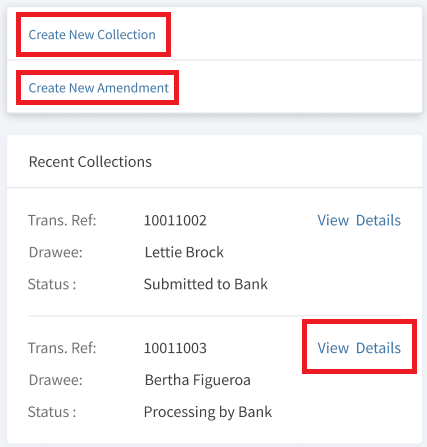
- Transaction Ref - The unique number for the transaction.
- Drawee - Name of the beneficiary.
- Status: The current status of the Outward collection.
Collections
This section displays all the records created by the bank user. The default pagination is 10 records per page.
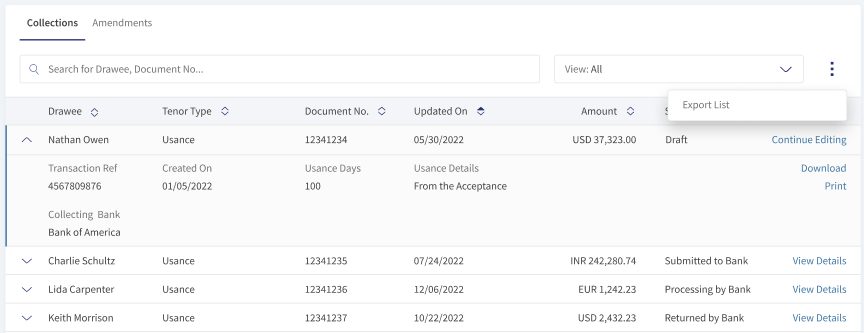
- Search: Use the keywords like Drawee and Document numberto search for the records.
- Filtering: Use the values displayed in the filter to narrow down the search.
 Filtering Options:
- Tenor Type
- Sight
- Usance
- Status
- Draft: The record is created but not submitted to bank.
- Submitted to Bank: The record is submitted to the bank.
- Processing with Bank: The record is processing with the bank.
- Returned by Bank: The record is returned by the bank.
- Rejected: The record is rejected by the bank.
- Approved: The record is approved by the bank.
- Overdue: The record crossed the payment date.
- Settled: The payment of the record is processed and approved by bank
- Cancelled: The request cancelled by the importers bank.
- Time Period
- Today: Considers the records created on the same day.
- Last One Month: Considers the records created from the last 30 days.
- Last Six Months: Considers the records created from the last 180 days.
- Last One Year: Considers the records created from the last 365 days.
- YTD: Considers the records created from start day of the calendar year.
- Tenor Type
- Drawee: Specifies the name of the importer.
- Tenor Type: Specifies the type of collection. Sight or Usance.
- Document Number: Specifies the unique document number.
- Updated on: The date on which record is updated by the user..
- Amount: The total amount of the collection.
- Status: Current status of the record.
- Actions: Available actions for the user. View Details as per the record level and Print and Download when record is expanded.
Collections - Record Expanded
The Outward Collections- record expanded displays the additional details for the particular record.
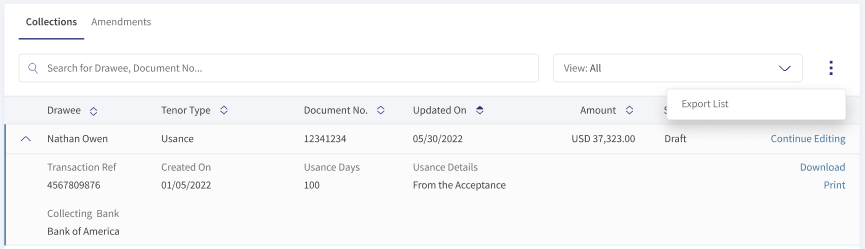
- Transactional Reference: The unique reference number.
- Created On: The date on which the record is created.
- Usance Days: The total usance days of the record.
- Usance Details: The additional details of the usance record.
- Collecting Bank: The name of the collecting bank.
Download and Print options help the user to download or print the LC.
Outward Collection - View Details
The Outward Collection - view details page provides all the details of a specific collection. The user can perform any of the following actions:
- View the Outward Collection details.
- Print and Download the current Outward collection.
- View Swift and Advices.
-
Collection Overview
The following details are displayed for the status Submitted to Bank and Processing by Bank.
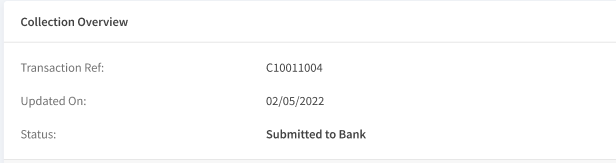
- Transaction Reference: The reference number for this transaction.
- Updated On: The date on which the document is updated.
- Status: Current Status of the record.
The following details are displayed for the status Rejected.
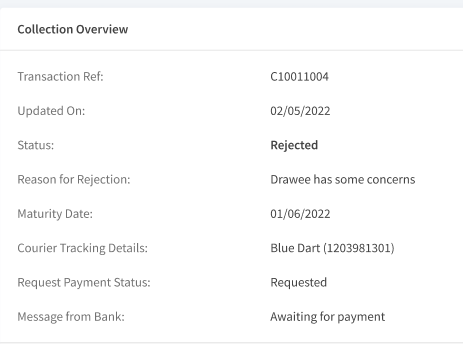
- Transaction Reference: The reference number for this transaction.
- Updated On: The date on which the document is updated.
- Status: Current Status of the record.
- Reason for Rejection: Specifies the reason for rejecting the record.
- Maturity Date: The date on which the record is matured.
- Courier Tracking Details: The tracking details of the courier.
- Request Payment Status: The status of the payment request.
- Message from Bank: Specifies the message received from bank.
The following details are displayed for the status Settled.
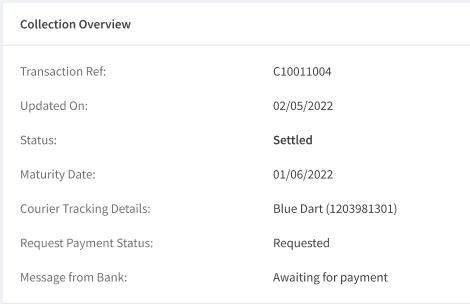
- Transaction Reference: The reference number for this transaction.
- Updated On: The date on which the document is updated.
- Status: Current Status of the record.
- Maturity Date: The date on which the record is matured.
- Courier Tracking Details: The tracking details of the courier.
- Request Payment Status: The status of the payment request.
- Message from Bank: Specifies the message received from bank.
The following details are displayed for the status Cancelled.
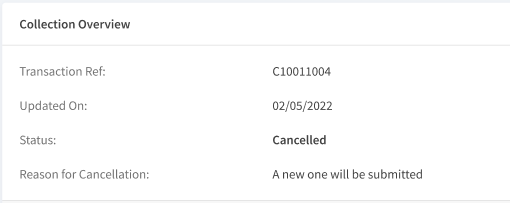
- Transaction Reference: The reference number for this transaction.
- Updated On: The date on which the document is updated.
- Status: Current Status of the record.
- Reason for Cancellation: Specifies the reason for canceling the record.
-
Payment Details
The payment details section appears only when the record status is Settled.
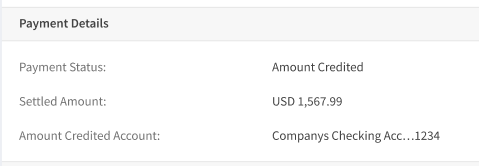
- Payment Status: Specific the current status of the payment.
- Settled Amount: The amount settled in current transaction.
- Amount Credited Account: The crediting account details.
-
Collection Details
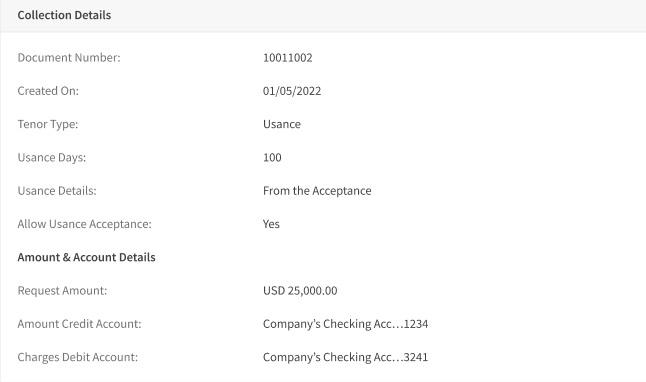
- Document Number: Specific number for the document.
- Created On: The date on which the record is created.
- Tenor Type: The type of Tenor. Sight or Usance.
- Usance Days: The total usance days for the record.
- Usance Details: The additional details for the Usance.
- Amount and Account Details:
- Request Amount: The total amount requested for this collection.
- Amount Credit Account: The crediting account details.
- Charges Debit Account: The charges debiting account details.
-
Drawee and Collecting Bank Details
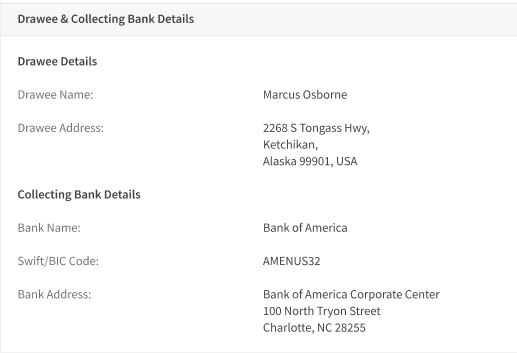
- Drawee Details:
- Drawee Name: The name of the drawee.
- Drawee Address: The address of the drawee.
- Collecting Bank Details
- Bank Name: The name of the bank.
- Swift/ BIC Code: The Swift/ BIC code of the bank.
- Bank Address: The address of the bank.
- Drawee Details:
-
Document and Bank Instructions
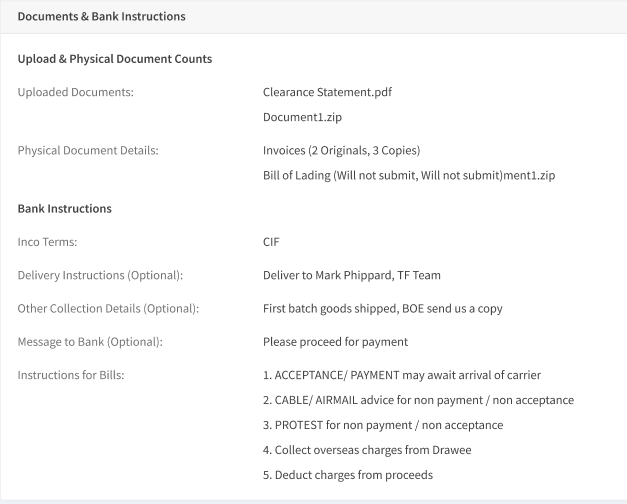
- Upload and Physical Documents Counts
- Uploaded Documents: The documents uploaded to the bank.
- Physical Document Details: The physical documents submitted to the bank.
- Bank Instructions
- Inco Terms: The inco terms for the record.
- Delivery Instructions: The instructions for delivery. This is an optional field.
- Other Collection Details: Specify any other collection details for the record. This is an optional field.
- Message to Bank: Specifies the message to the bank. This is an optional field.
- Instruction for Bills: Specifies the instruction for the bill.
- Upload and Physical Documents Counts
Create Outward Collection
The following are the steps to create an outward collection.
- In the Outward Collection dashboard, click Create New collection.
- In Collection Details page, enter the following details:
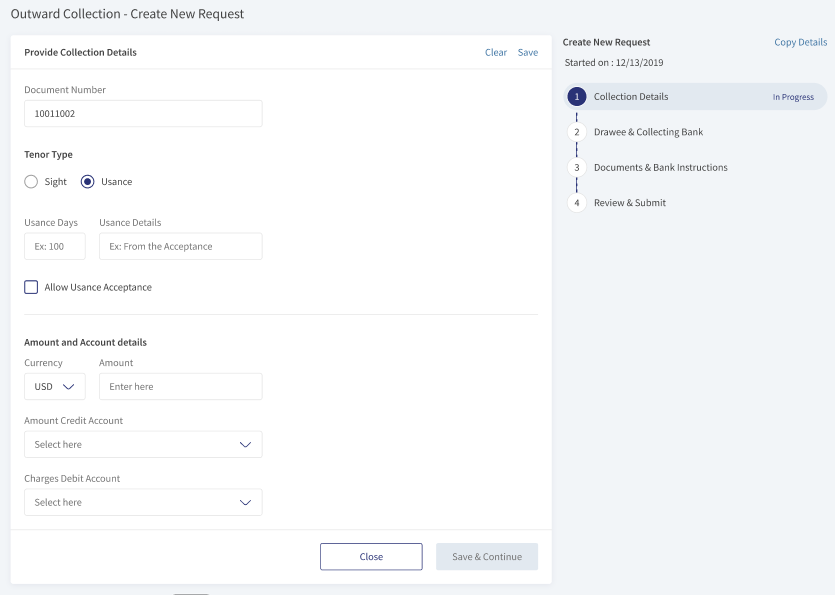
- Provide Collection Details
- Document Number: Enter the document number.
- Tenor Type: Select the type of tenor. Sight or Usance.
- Usance Days: Enter the usance days.
- Usance Details: Enter the additional usance details.
- Allow Usance Acceptance: Check the box to allow usance acceptance.
- Amount and Account Details
- Currency: Select the currency from drop-down list.
- Amount: Enter the amount.
- Amount Credit Account: Select the credit account from drop-down list.
- Changes Debit Account: Select the debit account from drop-down list.
- Provide Collection Details
- Click Save and Continue. This navigates to Drawee and Collecting Bank page.
- Enter the following details
- Select the Drawee Details from the list. Either from existing Drawee or Enter Manually
- If the user Selects from Existing Drawee then select the Drawee from the drop-down list.
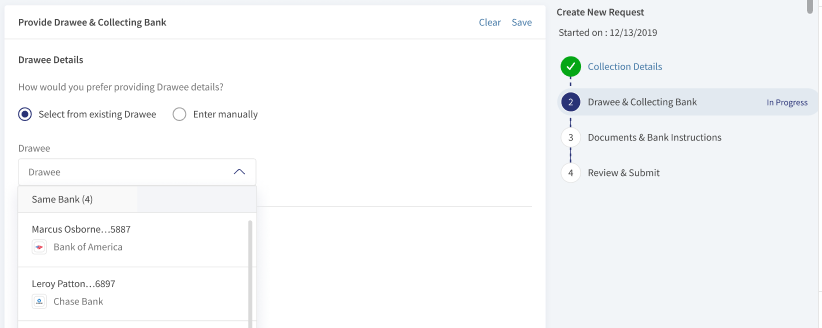
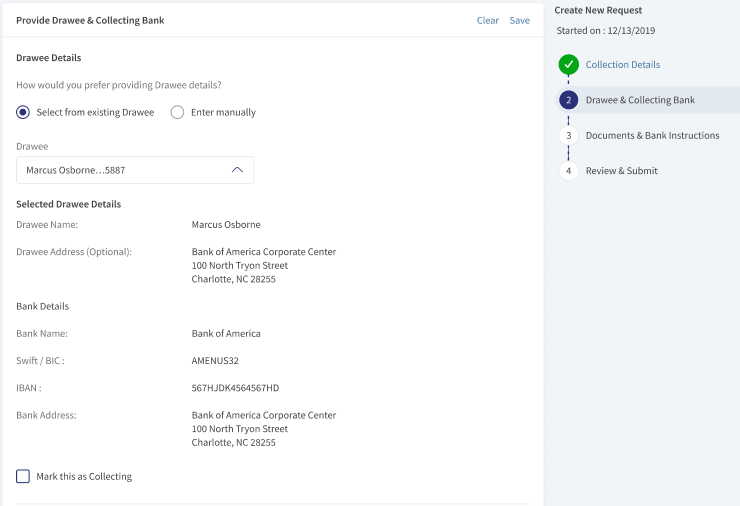
- If the user selects Enter Manually then the following details are to be entered.
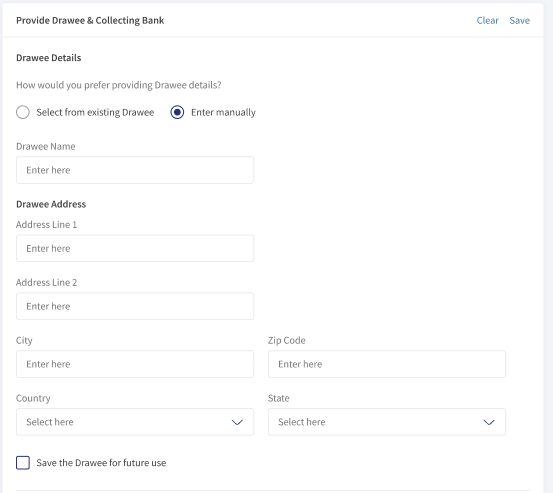
- If the user Selects from Existing Drawee then select the Drawee from the drop-down list.
- In Collecting Bank details, click look up
- In the pop-up box, search for the bank and click Select. These details will be auto populated in the collecting bank.
- Select the Drawee Details from the list. Either from existing Drawee or Enter Manually
- Click Save and Continue, this navigates to Documents and Bank Instructions page.
- Enter the following details
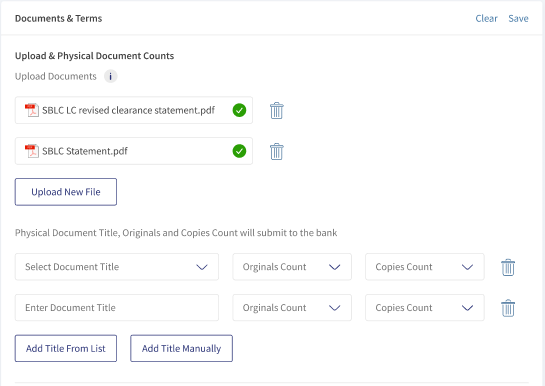
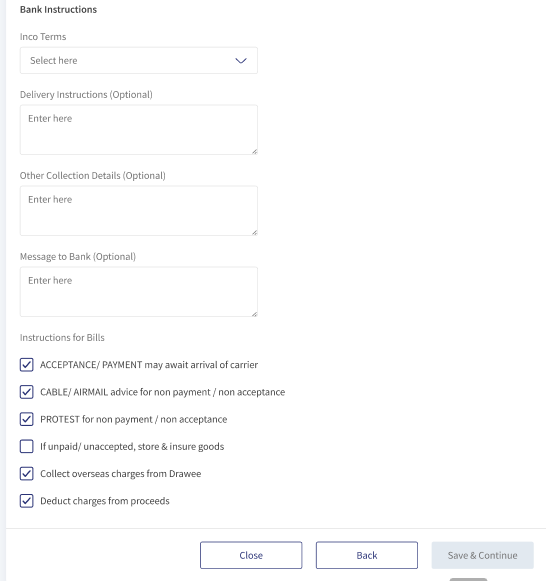
- In Document and Terms section,
- Click Upload New File, in the pop-up box navigate and select the file to upload.
- Select
- Add Title from list to select the physical document title, original Count, and Copies count from drop-down list.
- Add Title Manually to enter Document tittle manually, Original count and Copies count from drop-down list.
- In Bank Instructions section,
- Select the Inco Terms from drop-down list.
- Enter the Delivery Instructions. This is an optional field.
- Enter the Other Collection Details. This is an optional field.
- Enter Message to Bank. This is an optional field.
- Select Instructions for Bills. user can select more than one options from the available list.
- In Document and Terms section,
- Click Save and Continue. This navigates the Review and Submit page.
- Verify the details and click and Submit.
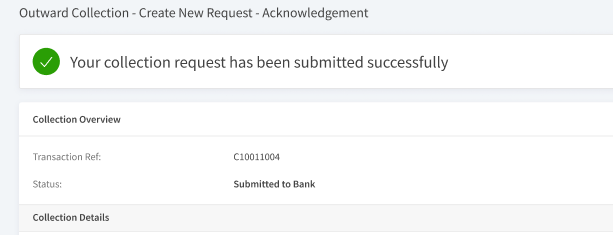
- An acknowledgment page appears with a success message.
- An error message appears when the record is not created.
- In the Collection Details page, use Copy Details copy all the details from an existing record. In the pop-up box select the record from the available list.
- The user can save the record as draft or delete the current record by clicking Close. Choose appropriate option in the pop-up box.
- Use Clear to clear all the fields in the current page.
- Use Save to save the record as draft.
Outward Collections - Approved and Overdue
The user can request for payment status, for the records with status Approved and Overdue.
Following is the procedure to request for payment status for Approved Status.
- In the Outward collection dashboard page, search for the record with status Approved.
- Click Request Payment Status.
- In the pop-up box, enter the message to bank. This is an option field.
- Click Send. This sends request to the bank for payment status.
- A success message appears at the top of the page.
Following is the procedure to request for payment status for Overdue Status.
- In the Outward collection dashboard page, search for the record with status Overdue.
- Click Request Payment Status/ Bill of Exchange.
- In the pop-up box,
- Select Payment Status or Bill of Exchange document.
- Enter the message to bank. This is an option field.
- Click Send. This sends request to the bank for payment status.
- A success message appears at the top of the page.
Outward Collections - Returned by Bank
The user can request for payment status, for the records with status Returned by Bank. Following is the procedure to update the details.
- In the Outward Collection dashboard page, search for the record with status Returned by Bank.
- In the view details page, Click Continue to Revise.
- Update the details accordingly and click Submit.
- A success message appears at the top of the screen and status is updated to Submitted to Bank.
The user can click View History to view the history of messages for the record.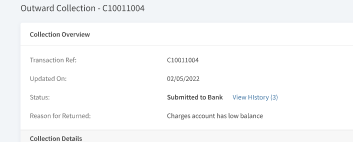
Request Cancellation - Outward Collection
The bank user can create a request to cancel the Outward Collection for the record status Approved and Overdue. The request cancellation sends a request to corporate bank to cancel the current Outward Collections. The reasons and necessary documents are attached to request. Following is the procedure to request cancellation of Outward Collections.
- In the Outward Collection page, search or filter the record and click View Details. This navigates to Outward Collection details page.
- At the bottom of the page, click Request Cancellation. This navigates to the request cancellation page.
- Click Upload document to attach the required documents for cancellation.
- Enter message to the bank and click Confirm and Submit.
- In the pop-up box, click Submit Cancellation.
- This raises a request to bank and a success message appears at the top of the screen.
After successful request, the outward collection record will have an additional field called as Cancellation, this is displayed only in Expanded Outward Collection record.
Request for Payment Status
The bank user with required permissions can initiate payment request for the Outward Collection. The bank user can create the payments request for the records with status Approved/ Overdue.
Following are the procedure to create the Payment status for the records with status as Approved.
- In the Outward Collection page, search or filter the record and click View Details. This navigates to Outward Collection details page.
- Click Request Payment Status. A pop up box appears.
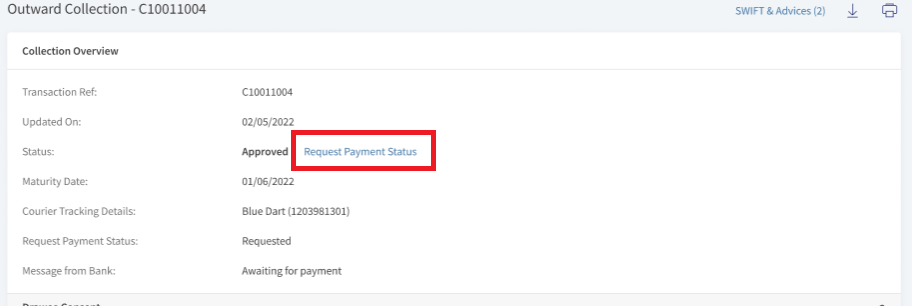
- Enter the message to bank(This is optional). Click Send.
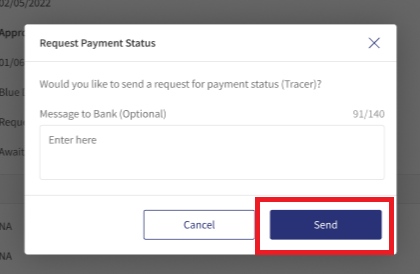
- This raises a request to bank and a success message appears at the top of the screen.
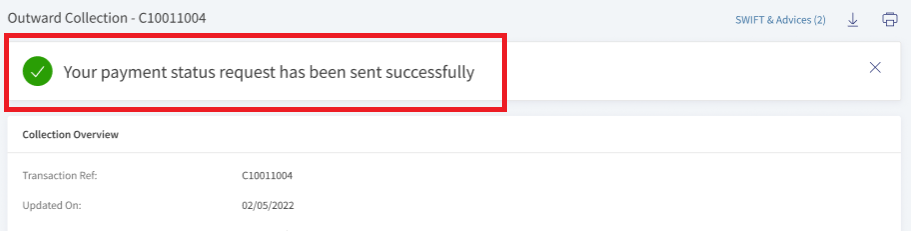
Following are the procedure to create the Payment status for the records with status as Overdue.
- In the Outward Collection page, search or filter the record and click View Details. This navigates to Outward Collection details page.
- Click Request Payment Status / Bill of Exchange. A pop up box appears.
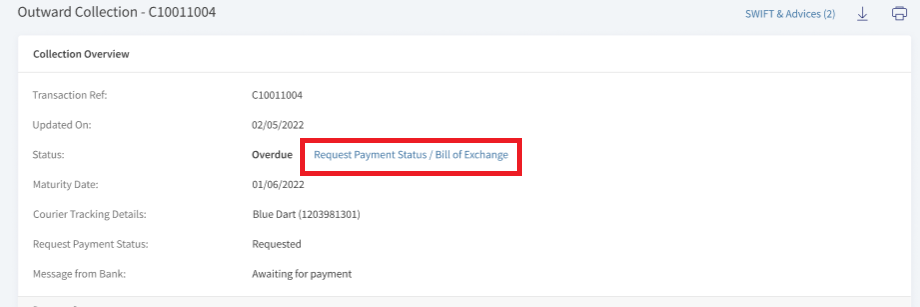
- Select Payment Status(Tracer) or Bill of Exchange Document as per the requirement.
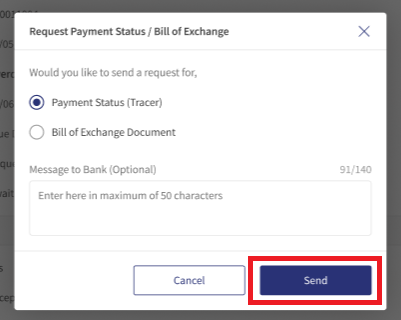
- Enter the message to bank(This is optional). Click Send.
- This raises a request to bank and a success message appears at the top of the screen.
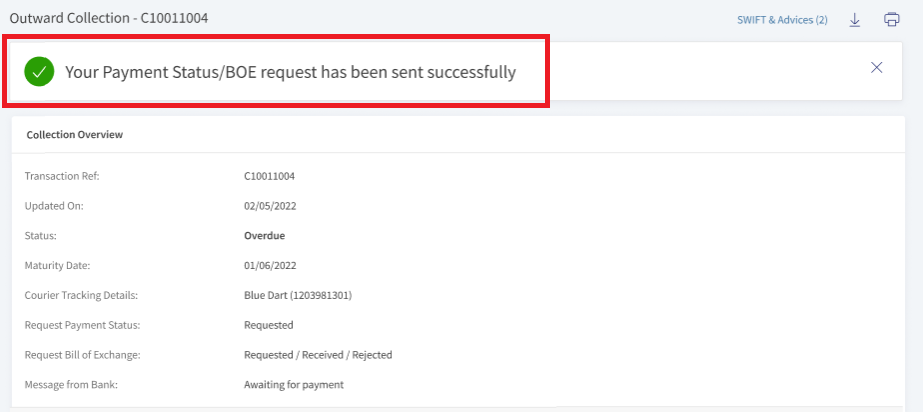
After successful request, the outward collection record will have an additional field called as Bill of Exchange, this is displayed only in Expanded Outward Collection record.
Download or Print Outward Collection
The user has two options to download Outward Collection records. Either download the complete list displayed on the Collection dashboard page and download or print individual Outward Collection.
Download Outward Collection list
Following are the steps to download Outward Collection list into excel (.xlsx).
- Click the Ellipses.
- Select the option Export List. This downloads the list of Outward Collection records into an excel file.
There are two ways to download or print an Outward Collection. The first way is to expand the individual record(click the arrow) to see the action items Download and Print at the right of the record and second way is to download the Outward Collection from the view details page.
Download or Print individual Outward Collection from Dashboard
- Click the arrow to see the summary of the Outward Collection record.
- Click Download or Print to download or print Outward Collection.
The download options downloads Outward Collection in a PDF format. The print option opens a print dialogue box for printing the Outward Collection details.
Download or Print individual Outward Collection - from Outward Collection View Details page
- Click View Details of the individual Outward Collection.
- Click Download or Print icon at the top right of the page to download or print Outward Collection details
SWIFT MT 700
SWIFT is an acronym for Society for Worldwide Interbank Financial Telecommunication. SWIFT provides a secure, highly encrypted, and reliable messaging service to all financial institutions.
This is an additional feature provided to the Trade Finance Micro App to implement the SWIFT MT700 codes to the fields available in LCs. If there is no SWIFT code, then NA will display adjacent to the field. The same SWIFT MT700 codes will also display in the download and print LCs.
Enable the Spotlight configurations to display the SWIFT tags. Individual configurations are available for Web Channel, download, and print LCs.
Web Channel SWIFT MT700 codes: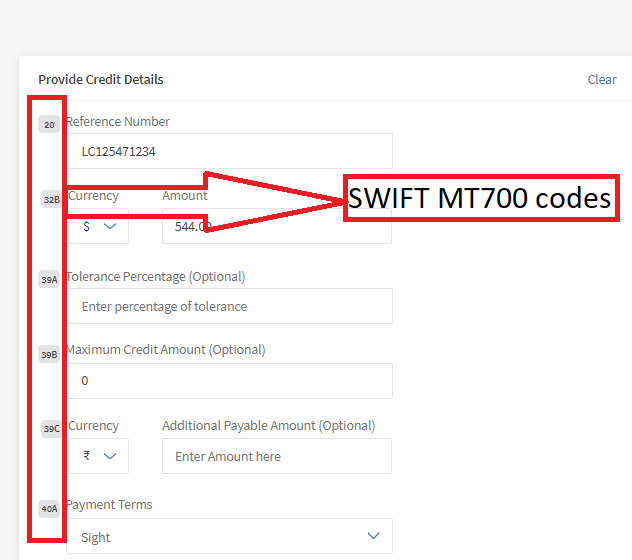
Download and Print SWIFT MT700 codes: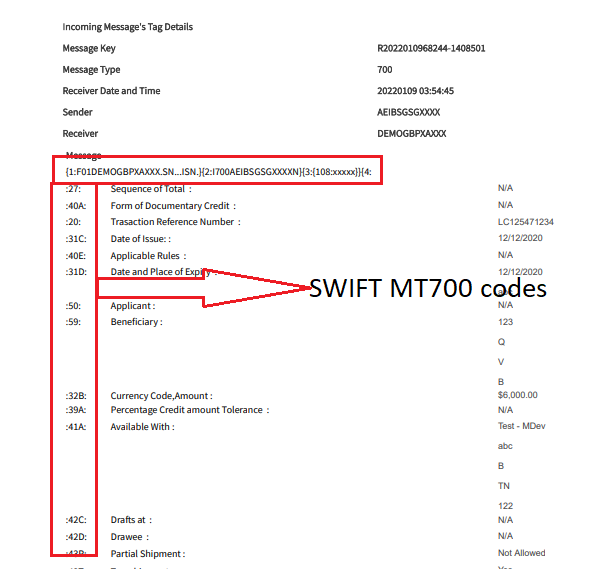
Swift and Advices
The bank user with required permissions can see the Swift MT messages and Payment Advices for a particular record. The following is the procedure to view Swift and Advices for a particular record.
- In the dashboard, search or filter for the record.
- Click View Details on the record to view Swift and Advices. The navigates to the detailed page view.
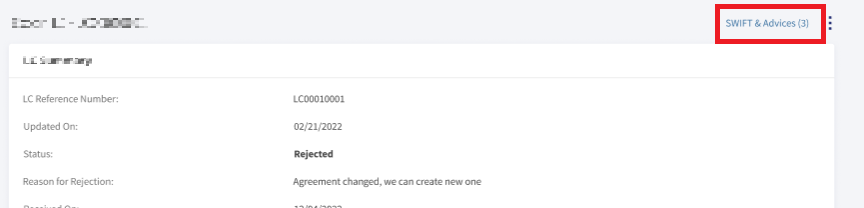
- Click SWIFT & Advices.
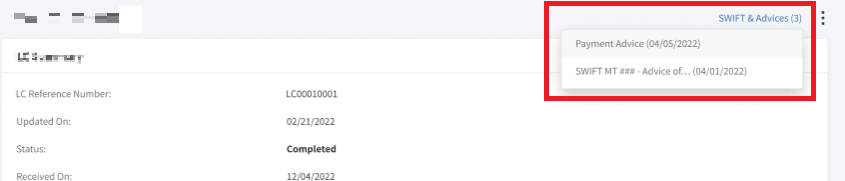
- In the pop-up,
- Select Payment Advices to view payment advices for a particular record.
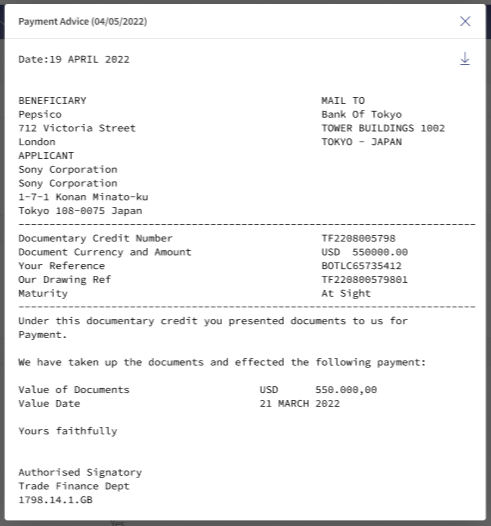
- Select SWIFT MT to view in advices in SWIFT MT mode.
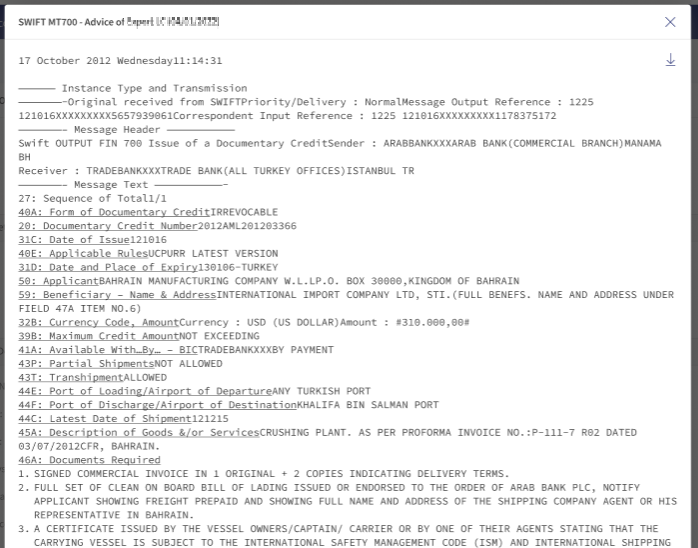
- Select Payment Advices to view payment advices for a particular record.
SRMS Configuration
The SRMS configurations are shipped as a part of this feature. For more information, see SRMS Configurations.
Experience API
Following are the APIs for Outward Collections.
| Name | Description | Introduced In |
|---|---|---|
| createCollection | This API is a service to create Outward Collections. | 2023.01 |
| deleteCollection | This API deletes the Outward Collections. | 2023.01 |
| saveCollection | This API save the Outward Collections. | 2023.01 |
| getCollections | This API retrieves the Outward Collections for particular user. | 2023.01 |
| getCollectionById | This API retrieves the Outward Collections by ID. | 2023.01 |
| updateCollection | This API updates the Outward Collections. | 2023.01 |
| updateCollectionByBank | This API updates the Outward Collections by bank. | 2023.01 |
| requestCollectionStatus | This API updates the request collection status of Outward Collections. | 2023.01 |
| generateCollectionReport | This API downloads the report for Outward Collections. | 2023.01 |
| generateCollectionsList | This API exports list of Outward Collections records. | 2023.01 |
| Object Data Model | This Object Data Model describes the parameter name and other attribute details for Trade Finance. |
In this topic