Import Letter of Credit(LC)
Import Letter of Credit is a document issued by the bank to assure remittance to the exporter. The bank issues an Import Letter of Credit on behalf of the importer stating the exporter as the beneficiary. The bank guarantees that the exporter receives the money on behalf of the importer. The advantages are improved credibility, reduced risk, proper terms and conditions, and maintaining documents related to proof of shipment.
Business Flow Diagram

Import LC Flow Diagram

UX Overview
The Web Channel user with access to Trade Finance has capabilities to view the Import LCs limit overview.
The limit overview display details as follows:
- The limit amounts for different statuses of Import Letters of Credit.
- The limit utilization for each type of Import LC and the limit utilization shows the amounts Available, Pending, and Approved for each type of Import LC.
Following are the sections in the Import LC:
Import Overview
The overview section displays the summary of all the LCs raised by the user. Certain classifications include the status of the LCs and the type of LCs. Following are things the user understands from the Overview section.
The Top section shows the numeric representation of individual categories The bottom section displays the bar chart of individual status.
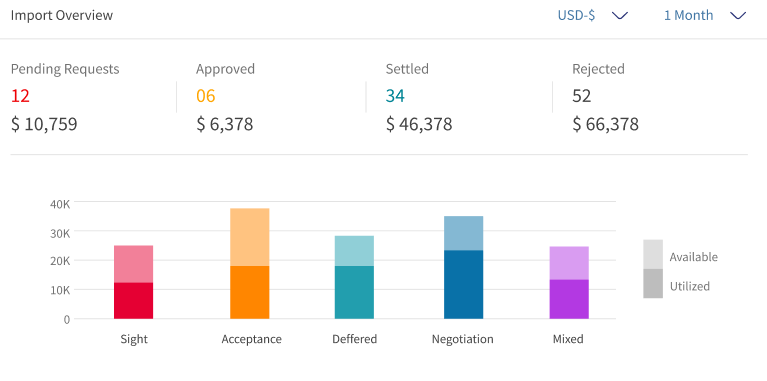
- The user understands the current status (Pending Requests, Approved, Settled and Rejected) of the LCs. This displays the total records and total value of each status.
- The bar chart shows the type of LCs Sight, Acceptance, Deferred, Negotiation, and Mixed.
- The bar chart has two color codes (light and dark). Light color represents the total fund value raised by the user in the different LC types. Dark color represents the LCs that are approved by bank. If the user focuses on any bar, there are sub-options stating the total limit, Available limit, and Utilized.
- Change the currency.
- View summary of last seven days, fourteen days, or one month.
Quick Links and Recent Details
The quick links section is the collection of two frequently used action by the user. Following the two quick links available:
- Create New Import LC
- Create New Amendment

The Recent Details section helps the user see the last two created or updated LCs, and the top shows the latest record. The user can also navigate to see the details of recent LCs.
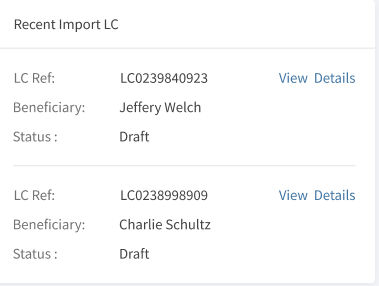
- LC Ref: The unique reference number for the LC.
- Beneficiary: Name of the beneficiary.
- Status: The current status of the LC.
- View Details: On click of this, navigate to the page to view LC details of the record.
Letter of Credits
The Letter of Credits section displays all the LC details created by the user.
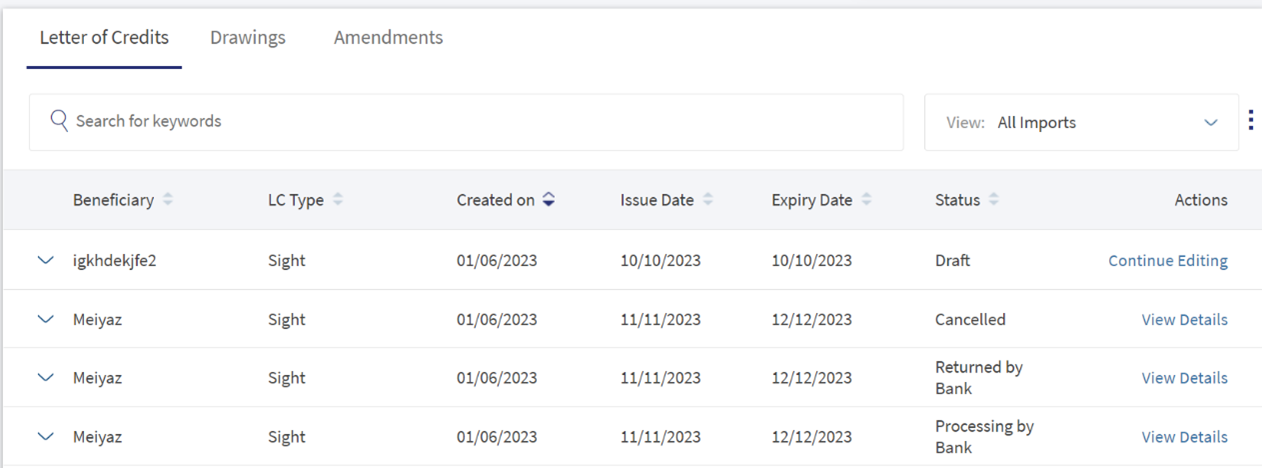
- Search for keywords: Helps the user find the records using the keywords.
- View: This is a filtering option that allows the user to filter further the search based on the criteria. The search default shows all the LC created in the last six months.
 Click here to find information on all available filtering options.
- LC Type
- Sight: LC is payable immediately.
- Deferred: LC in which the bank takes a conditional undertaking to pay the seller on behalf of the buyer on a specified future date after completion of the transaction.
- Acceptance: LC that is paid by a time draft authorizing payment on or after a specific date, if the terms of the letter of credit have been complied with.
- Negotiation Sight: Negotiation means the purchase by the nominated bank of drafts (drawn on a bank other than the nominated bank) and or documents under a complying presentation, by advancing or agreeing to advance funds to the beneficiary on or before the banking day on which reimbursement is due to the nominated bank.
- Negotiation Acceptance: Regarding LC, when the documents are presented and reviewed by the bank, the process is referred to as negotiation of the documents. In accordance with UCP 600, a bank authorized to negotiate documents or drafts is authorized to give value for the draft(s) and or document(s), which means the LC can stipulate that payment be made by the advising, issuing or confirming bank.
- Status
- Draft: Record partially completed by the user and saved it.
- Approved: The LC request is approved by the bank and issued successfully.
- Rejected: The LC is rejected by bank.
- Submitted to Bank: The record is submitted for approval.
- Processing by Bank: The record is in process to approve from bank.
- Cancelled: The record is cancelled by the user.
- Returned by Bank: The record is returned to user for other modification from bank.
- Partially Settled: The drawing status of the current status is settled, the LC displays as partially settled.
- Closed: The LC transaction is completed.
- Time Period
- Last six months: Considers the record created in the previous 180 days.
- Today: Considers only the record created on the same day.
- Last one Month: Considers the record created in the previous 30 days.
- Last one Year: Considers the record created in the previous 365 days.
- LC Type
- Beneficiary: Name of the beneficiary.
- LC Type: Specifies the type of LC.
- LC Type
- Sight: LC is payable immediately.
- Deferred: LC in which a conditional undertaking is taken by the bank to pay the seller on behalf of the buyer on a specified future date after completion of the transaction.
- Acceptance: LC that is paid by a time draft authorizing payment on or after a specific date, if the terms of the letter of credit have been complied with.
- Negotiation Sight: Negotiation means the purchase by the nominated bank of drafts (drawn on a bank other than the nominated bank) and or documents under a complying presentation, by advancing or agreeing to advance funds to the beneficiary on or before the banking day on which reimbursement is due to the nominated bank.
- Negotiation Acceptance: Regarding LC, when the documents are presented and reviewed by the bank, the process is referred to as negotiation of the documents. In accordance with UCP 600, a bank authorized to negotiate documents or drafts is authorized to give value for the draft(s) and or document(s), which means the LC can stipulate that payment be made by advising, issuing or confirming bank.
- Created on: Record creation date.
- Issue Date: Record issued date.
- Expiry Date: Record expiry date.
- Status: This shows the current status of the record.Click here to find information on different types of status options.
- Status
- Draft: Record partially completed by the user and saved it.
- Approved: The LC request is approved by the bank and issued successfully.
- Rejected: The LC is rejected by bank.
- Submitted to Bank: The record is submitted for approval.
- Processing by Bank: The record is in process to approve from bank.
- Cancelled: The record is cancelled by the user.
- Returned by Bank: The record is returned to user for other modification from bank.
- Partially Settled: The drawing status of the current status is settled, the LC displays as partially settled.
- Closed: The LC transaction is completed.
- Status
- Actions: This shows the action that the user can take.
Click here to find information about different LC Types.
Letter of Credits - Record Expanded
The Letter of Credits -Record Expanded section displays all the additional details for a particular LC.

- Reference: Specifies the unique reference number.
- Amount: Specifies LC amount for the specified record.
- Payment Terms: Specifies the LC type.
- Inco Terms: Specifies the type of the Inco terms.
- Charges: Specifies the costs for LC.
- Expiry Place: Specifies the location where LC is LC is expired.
- Transferable: Specifies if the LC can be transferred.
- Stand by LC: It is a lender's guarantee of payment to an interested third party if the client defaults on an agreement.
Create New Import LC
There are five pages while creating a New LC Record.
-
Credit Details
This page describes the basic credit details for an LC.
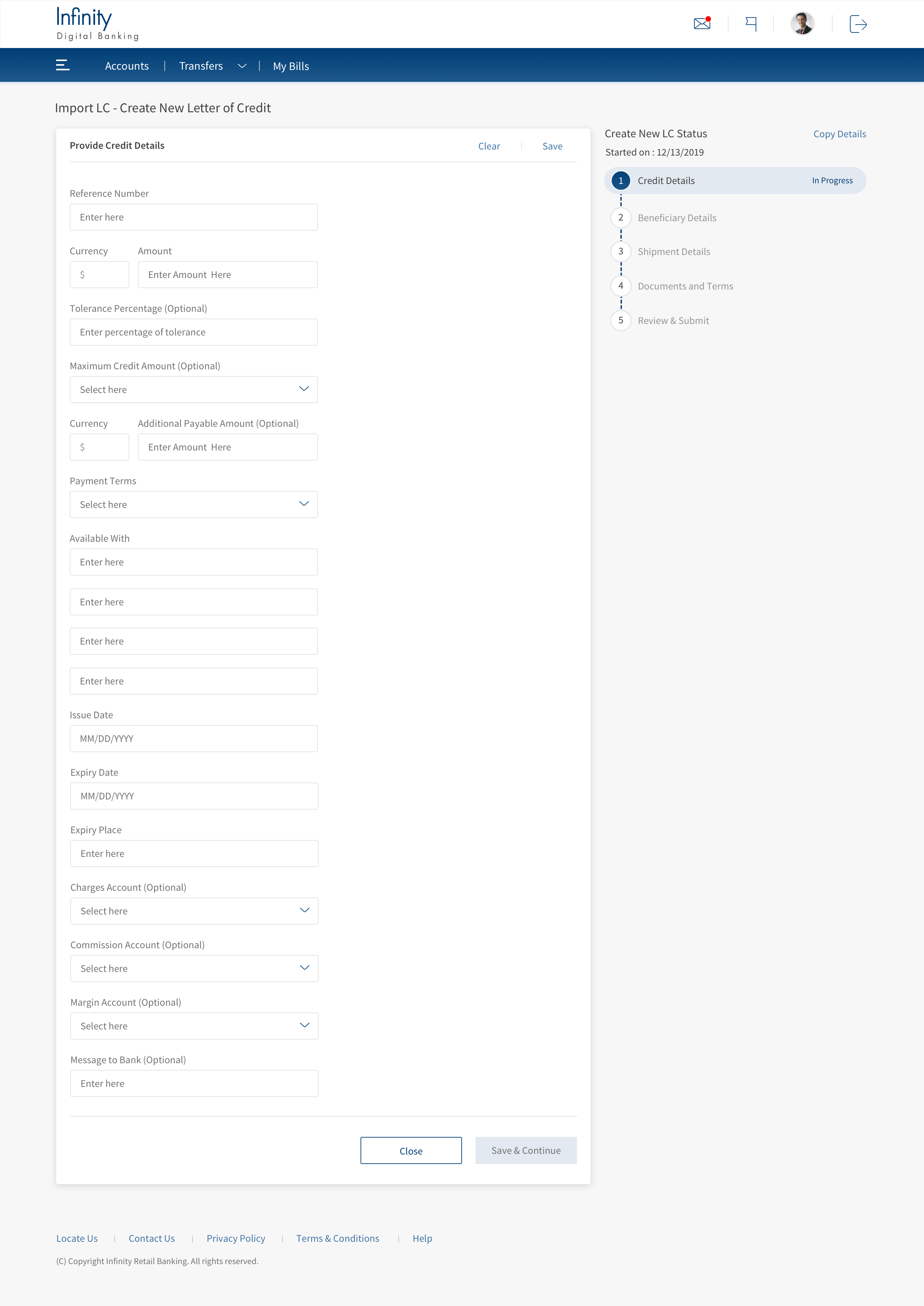
Reference number (Mandatory): Specifies the unique reference number of the LC.
Amount (Mandatory): Specifies the LC amount.
Currency (Mandatory): Specifies the currency selected particular LC.
Tolerance Percentage: Specifies a value where Positive means the upper tolerance limit set for the selected LC/ Negative is the lower tolerance limit set for the LC.
Maximum credit amount: Specifies the maximum amount that can be credited based on the selected LC.
Additional amount payable: Specifies if an extra amount that needs to pay.
Payment terms (Mandatory): Specifies a value selected for the specified LC record.
Click here to find information about different LC Types.
- LC Type
- Sight: LC is payable immediately.
- Deferred: LC in which a conditional undertaking is taken by the bank to pay the seller on behalf of the buyer on a specified future date after completion of the transaction.
- Acceptance: LC that is paid by a time draft authorizing payment on or after a specific date, if the terms of the letter of credit have been complied with.
- Negotiation Sight: Negotiation means the purchase by the nominated bank of drafts (drawn on a bank other than the nominated bank) and or documents under a complying presentation, by advancing or agreeing to advance funds to the beneficiary on or before the banking day on which reimbursement is due to the nominated bank.
- Negotiation Acceptance: Regarding LC, when the documents are presented and reviewed by the bank, the process is referred to as negotiation of the documents. In accordance with UCP 600, a bank authorized to negotiate documents or drafts is authorized to give value for the draft(s) and or document(s), which means the LC can stipulate that payment be made by advising, issuing or confirming bank.
Available with (Mandatory): The bank details for the selected LC.
Issue date (Mandatory): Issuance LC date.
Expiry date (Mandatory): Expiry date for the selected LC.
Expiry place (Mandatory): Place where the selected LC expires.
Charges Account: Specifies from account name for costs.
Commission Account: Specifies from account name for commission charges.
Margin Account: Specifies from account name for Margin charges.
Message to Bank: Specifies the message to the bank.
- LC Type
-
Beneficiary Details
The user needs to enter the beneficiary details of LC.
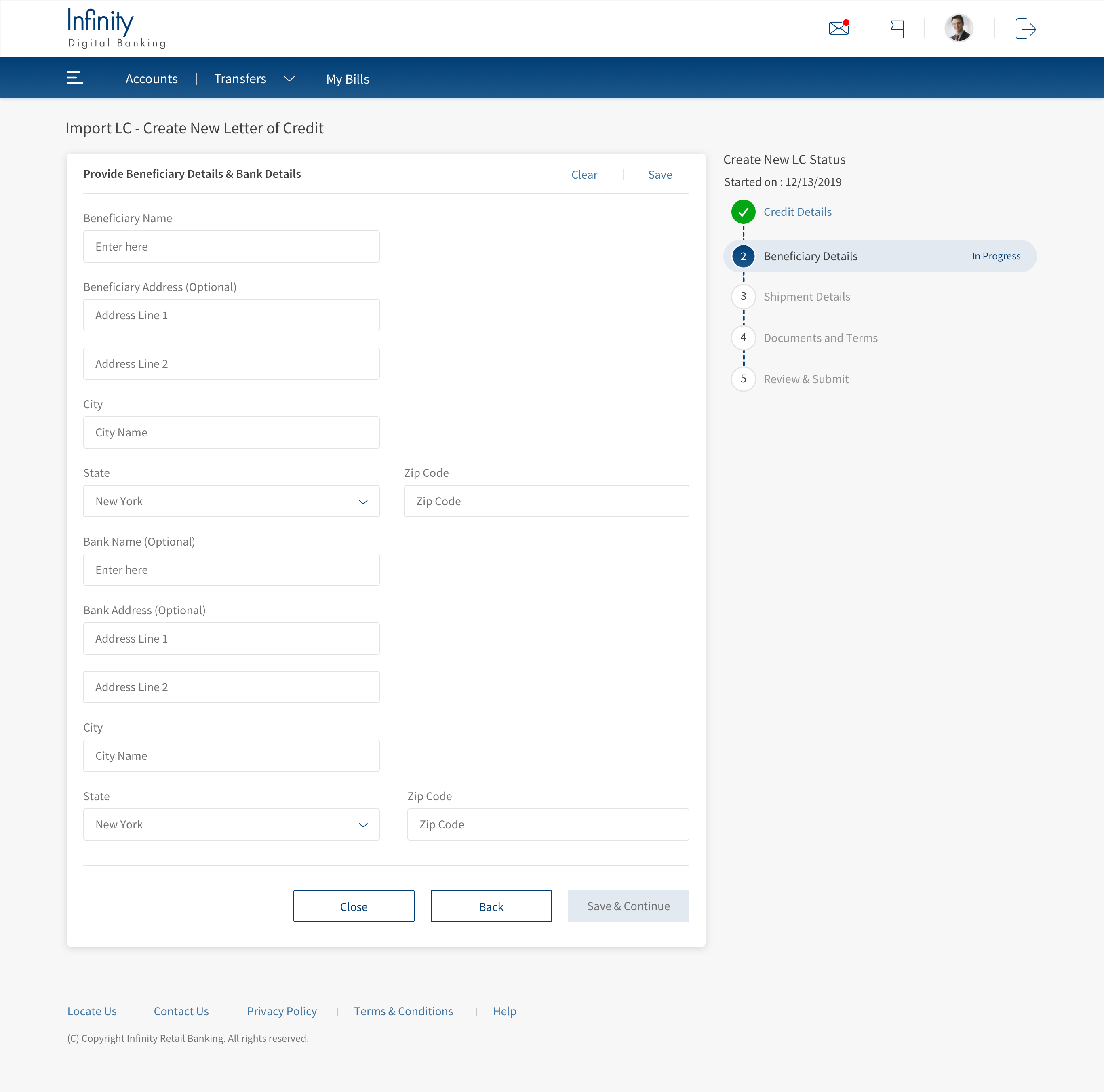
Beneficiary Name (Mandatory): Specifies the name of the beneficiary.
Beneficiary Address: Specifies the address of the beneficiary.
City (Mandatory): Specifies the city name of the beneficiary.
State (Mandatory): Specifies the State name of the beneficiary.
Zip code (Mandatory): Specifies the postal code of the beneficiary.
Bank Name (Mandatory): Specifies the name of the bank.
Bank Address: Specifies the bank address.
City (Mandatory): Specifies the bank's city name.
State (Mandatory): Specifies the bank's state name.
Zip code (Mandatory): Specifies the bank's postal code.
-
Shipment Details
The user needs to enter the Shipment details of LC.
Place of taking in charge: Specifies the location of accepting the goods of the selected LC.
Port of Loading: Specifies the location of loading for the selected LC.
Port of Discharge: Specifies the location destination port details for the selected LC.
Place of Final Delivery: Specifies the final delivery location for the selected LC.
Latest Shipment Date: Specifies the newest shipment date for the selected LC.
Transshipment: If there are other different shipment destinations. Choose between Allowed or Not Allowed.
Partial Shipments: If the goods are delivered partially shipped. Choose between Allowed or Not Allowed.
Inco Terms (Mandatory): If all type of Inco terms documents that the seller can provide. The Inco terms should be aligned with the presentation of compliant documents to the bank because this event triggers payment by the bank.
Mode of Shipment: Specifies all the existing shipment modes of the selected LC.
-
Documents and Terms
The user needs to enter Documents and Terms.
Description of goods: Specifies details about the goods.
Documents required: Specifies all the documents related to the selected LC.
Additional conditions code: Specifies additional codes for the selected LC.
Other Additional Conditions: Specifies other conditions for the selected LC.
Charges (Mandatory): Specifies the costs for the selected LC.
Confirmation instructions (Mandatory): The user must choose between Confirm or May Add or Without.
Transferable (Mandatory): is a letter of credit that permits the initial beneficiary of the credit to make some or all of the credit transferable to another party, thereby creating a secondary beneficiary. You need to choose between Yes / NO.
Stand by LC (Mandatory): is a lender's guarantee of payment to an interested third-party if the client defaults on an agreement. You need to choose between Yes / NO.
Upload Documents (Mandatory): The user can upload the documents related to the LC.
-
Review & Submit
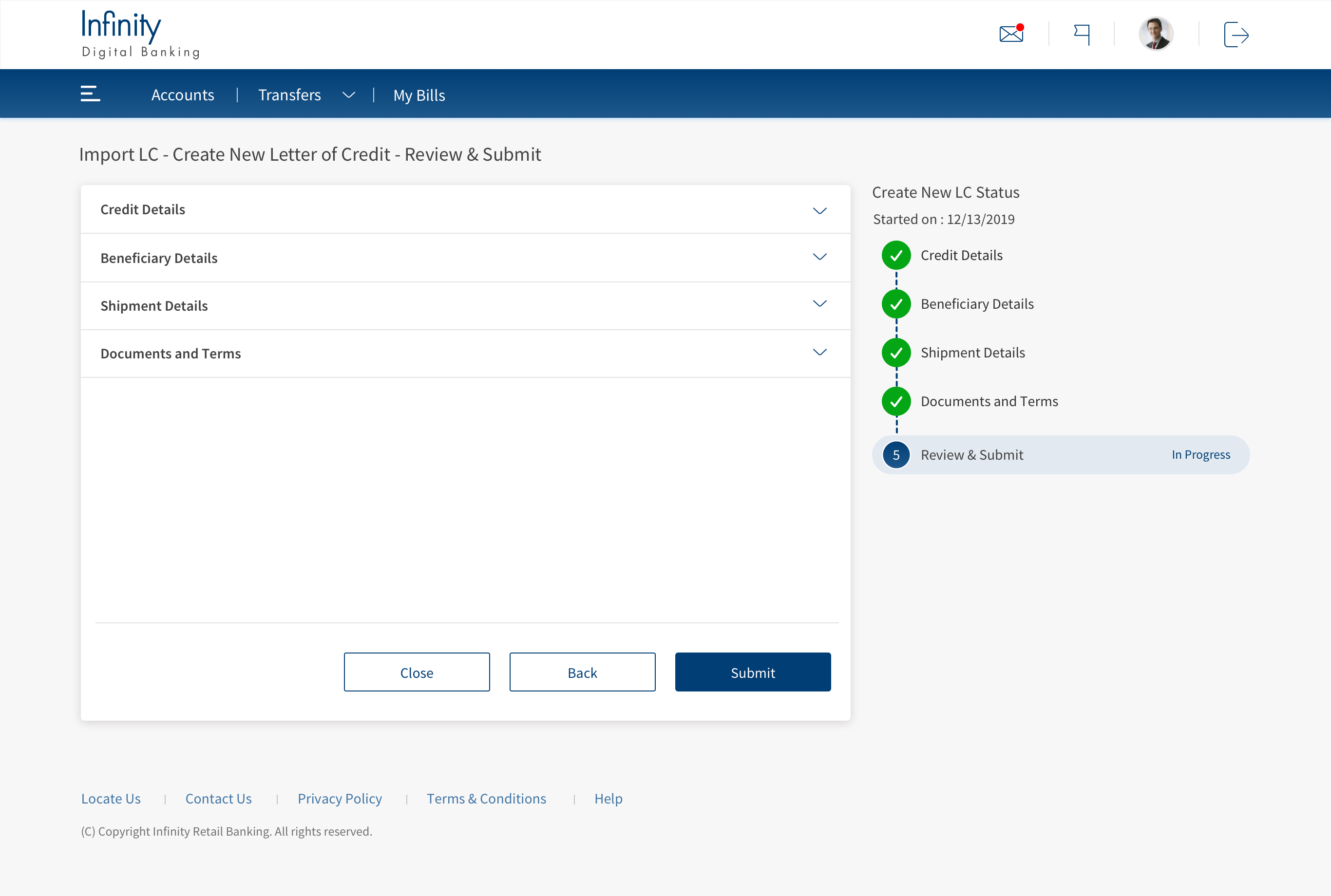
This page helps the user to review the entered details. To review, click on the section name. This expands to section details.
In this page, the user can do any of the following:
- View the list of Import LC created.
- Create a new Import LC request.
- Save, edit, and delete a draft Import LC.
- Download Import LC records.
Create a request for a new Import LC
This allows the user to create a new Import LC request. The following are thesteps for creating a new Import LC request. There is an option for the
- Navigate Web Channel >Trade Finance > Import LC. This will navigate to Import Dashboard.
- Click Create New Import LC.
- In Credit Details, Fill all the mandatory fields and click Save & Continue.
- LC Type
- Sight: LC is payable immediately.
- Deferred: LC in which a conditional undertaking is taken by the bank to pay the seller on behalf of the buyer on a specified future date after completion of the transaction.
- Acceptance: LC that is paid by a time draft authorizing payment on or after a specific date, if the terms of the letter of credit have been complied with.
- Negotiation Sight: Negotiation means the purchase by the nominated bank of drafts (drawn on a bank other than the nominated bank) and or documents under a complying presentation, by advancing or agreeing to advance funds to the beneficiary on or before the banking day on which reimbursement is due to the nominated bank.
- Negotiation Acceptance: Regarding LC, when the documents are presented and reviewed by the bank, the process is referred to as negotiation of the documents. In accordance with UCP 600, a bank authorized to negotiate documents or drafts is authorized to give value for the draft(s) and or document(s), which means the LC can stipulate that payment be made by advising, issuing or confirming bank.
- In Beneficiary Details, fill all the mandatory fields and click Save & Continue.
The user can look up Bank Name, City, Country, Branch Name, and BIC / SWIFT Code and auto-fill the details automatically. Click on the Look Up to open the Beneficiary Bank – Look Up dialogue box. The user can search in two ways:- Enter the BIC / SWIFT Code and click Search. The search retrieves the list; click Select to auto fill the fields.
- Enter the details Bank Name along with City, Country, Branch Name, and click Search. This will narrow down the search based on the inputs, and the user can select the desired bank to auto-fill the fields.

- In Shipment Details, Fill all the mandatory fields and click Save & Continue.
- In Document and Terms, Fill all the mandatory fields and click Save & Continue.
Documents and Terms
The user needs to enter Documents and Terms.
Description of goods: Specifies details about the goods.
Documents required: Specifies all the documents related to the selected LC.
Additional conditions code: Specifies additional codes for the selected LC.
Other Additional Conditions: Specifies other conditions for the selected LC.
Charges (Mandatory): Specifies the costs for the selected LC.
Confirmation instructions (Mandatory): The user must choose between Confirm or May Add or Without.
Transferable (Mandatory): is a letter of credit that permits the initial beneficiary of the credit to make some or all of the credit transferable to another party, thereby creating a secondary beneficiary. You need to choose between Yes / NO.
Stand by LC (Mandatory): is a lender's guarantee of payment to an interested third-party if the client defaults on an agreement. You need to choose between Yes / NO.
Upload Documents (Mandatory): The user can upload the documents related to the LC.
- To upload documents click on Upload New File.
- A pop-up window appears, navigate to a specific file and click Upload.
- To Delete the uploaded file click on <Trash Icon>.
- Click Yes on the confirmation box appears to delete the file.
- In Review and Submit, Review the entered details and click Submit.
Credit Details
This page describes the basic credit details for an LC.
Reference number (Mandatory): Specifies the unique reference number of the LC.
Amount (Mandatory): Specifies the LC amount.
Currency (Mandatory): Specifies the currency selected particular LC.
Tolerance Percentage: Specifies a value where Positive means the upper tolerance limit set for the selected LC/ Negative is the lower tolerance limit set for the LC.
Maximum credit amount: Specifies the maximum amount that can be credited based on the selected LC.
Additional amount payable: Specifies if an extra amount that needs to pay.
Payment terms (Mandatory): Specifies a value selected for the specified LC record.
Click here to find information about different LC Types.
Available with (Mandatory): The bank details for the selected LC.
Issue date (Mandatory): Issuance LC date.
Expiry date (Mandatory): Expiry date for the selected LC.
Expiry place (Mandatory): Place where the selected LC expires.
Charges Account: Specifies from account name for costs.
Commission Account: Specifies from account name for commission charges.
Margin Account: Specifies from account name for Margin charges.
Message to Bank: Specifies the message to the bank.
Beneficiary Details
The user needs to enter the beneficiary details of LC.
Beneficiary Name (Mandatory): Specifies the name of the beneficiary.
Beneficiary Address: Specifies the address of the beneficiary.
City (Mandatory): Specifies the city name of the beneficiary.
State (Mandatory): Specifies the State name of the beneficiary.
Zip code (Mandatory): Specifies the postal code of the beneficiary.
Bank Name (Mandatory): Specifies the name of the bank.
Bank Address: Specifies the bank address.
City (Mandatory): Specifies the bank's city name.
State (Mandatory): Specifies the bank's state name.
Zip code (Mandatory): Specifies the bank's postal code.
Shipment Details
The user needs to enter the Shipment details of LC.
Place of taking in charge: Specifies the location of accepting the goods of the selected LC.
Port of Loading: Specifies the location of loading for the selected LC.
Port of Discharge: Specifies the location destination port details for the selected LC.
Place of Final Delivery: Specifies the final delivery location for the selected LC.
Latest Shipment Date: Specifies the newest shipment date for the selected LC.
Transshipment: If there are other different shipment destinations. Choose between Allowed or Not Allowed.
Partial Shipments: If the goods are delivered partially shipped. Choose between Allowed or Not Allowed.
Inco Terms (Mandatory): If all type of Inco terms documents that the seller can provide. The Inco terms should be aligned with the presentation of compliant documents to the bank because this event triggers payment by the bank.
Mode of Shipment: Specifies all the existing shipment modes of the selected LC.
Review & Submit
This page helps the user to review the entered details. To review, click on the section name. This expands to section details.


Create a request for a new Import LC - Using the previous record
This allows the user to copy existing Import LC details and create new Import LC details.
- Navigate Web Channel > Trade Finance > Import LC. This navigates to Import Dashboard.
- In the Letter of Credits section, click on the desired beneficiary name. This will expand the selection.
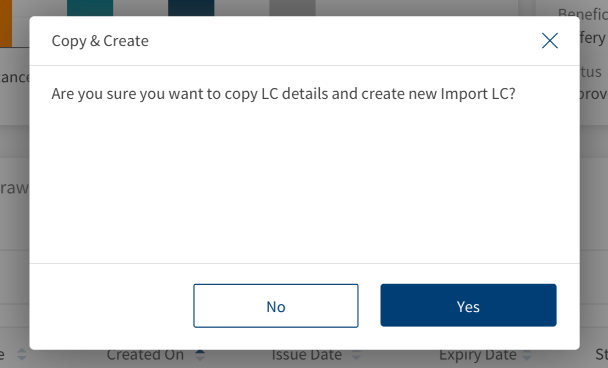
- In Action Column, click on Copy & Create New LC. This will navigate to create the Import LC details page, where fields have copied information.
The user can either take these details and submit the application or clear inputs from the page to update new information. - After the updates as per user, Click on Submit to create a new Import LC record.

Edit LC
The following is the procedure to Edit an LC:
- Navigate Web Channel > Trade Finance > Import LC. This will navigate to Import Dashboard.
- Click Continue Editing. This will navigate to the Review and Submit page.
- The user can only edit the LC which are not submitted.
- The user has options to edit, save, and submit the draft.
The Import LCs details that a user can edit are:
Credit Details
- Amount
- Currency
- Tolerance (min & max percentage)
- Maximum credit amount
- Additional amount payable
- Payment terms
- Available with
- Issue date
- Expiry date
- Expiry place
Beneficiary Details
- Name
- Address
- ZIP/ Postcode
- Country
Beneficiary Bank Details
- Beneficiary’s bank
- Address
- ZIP/ Postcode
- Country
Shipment Details
- Place of taking in charge
- Port of loading
- Port of discharge
- Place of final delivery
- Latest shipment date
- Presentation period
- Transshipment
- Partial shipments
- Inco terms
- Mode of shipment
Documents & Terms Details
- Description of goods
- Additional conditions code
- Other additional conditions
- Charges
- Confirmation instructions
- Transferable
- Stand by LC

Delete Draft LC
A record can be deleted if the status is Continue Editing, else the record cannot be deleted. The following are thesteps for deleting a record.
- Navigate Web Channel > Trade Finance > Import LC. This will navigate to Import Dashboard.
- Click Continue Editing. This will navigate to the Review and Submit page.
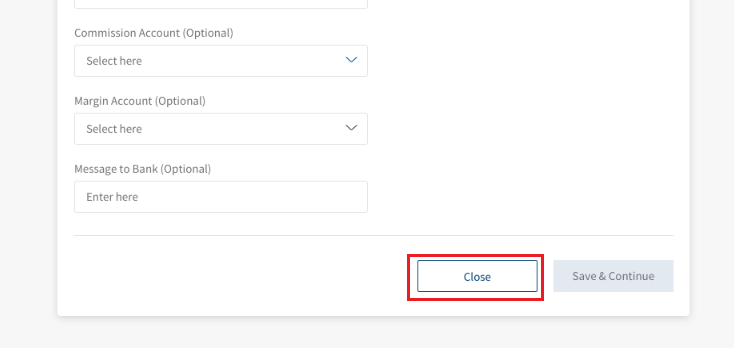
- Click the Close button on any of the five pages.
- Click the Delete Permanently button in the confirmation dialogue box to delete the record and go to the Import LC dashboard.

Save Record
This helps the user save an LC record's partially or completely filled details. There are two ways to save a record.
First method
- Click Save.
- Click Yes in the dialog box to save the record.


Second method
- Click the Close button on any of the 5 pages.
- In the confirmation dialog box, click the Save as Draft & Close button to save the record and go to the Import LC dashboard.
Clear Inputs
This allows the user to reset the details to blank fields for the record. The following are thesteps to clear inputs.
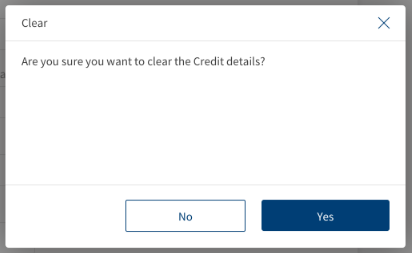
- Click Clear.
- Click Yes in the dialog box.

Copy Details
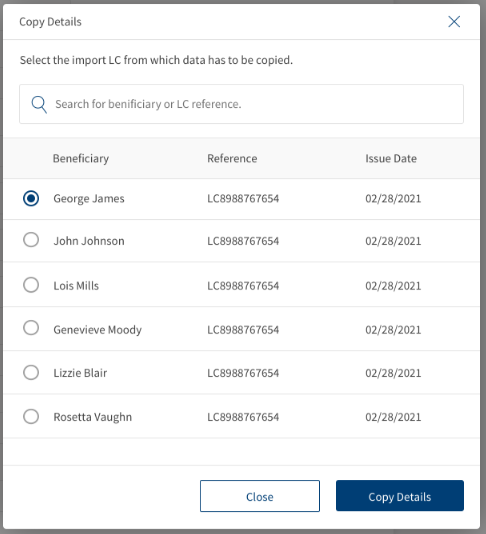
This allows the user to copy existing Import LC details on the page. This only copies the details of a specific page. The following are thesteps to Copy details.
- Click Copy Details.
- Select the Import LC details from the list. The user can also search using beneficiary of LC.
- Click Copy Details in the dialog box.

Download or Print Import LC
The user has two options to download Import LC records. Either they can download the complete list displayed on the LC dashboard page and download or print individual LCs.
Download Import LC list
The following are thesteps to download Import LC list into excel (.xlsx).
- Click the Ellipses.
- Select the option Export List. This downloads the list of Import LC records into an excel file.

There are two ways to download or print an LC. The first way is to expand the individual record(click the arrow) to see the action items Download and Print at the right of the record and second way is to download the LC from the view details page.
Download or Print individual Import LC - from LC Dashboard:
- Click the arrow to see the summary of the Import LC record.

- Click Download or Print to download or print LC.
The download options downloads LC in a PDF format. The print option opens a print dialogue box for printing the Import Drawing Details.
Download or Print individual Import LC - from LC Details page.
The following are thesteps to download or print individual LCs from view details page.
- Click View Details of the individual LC. This opens the LC - Report page.
- Click Download or Print icon at the top right of the page to download or print LC details.

Success Message
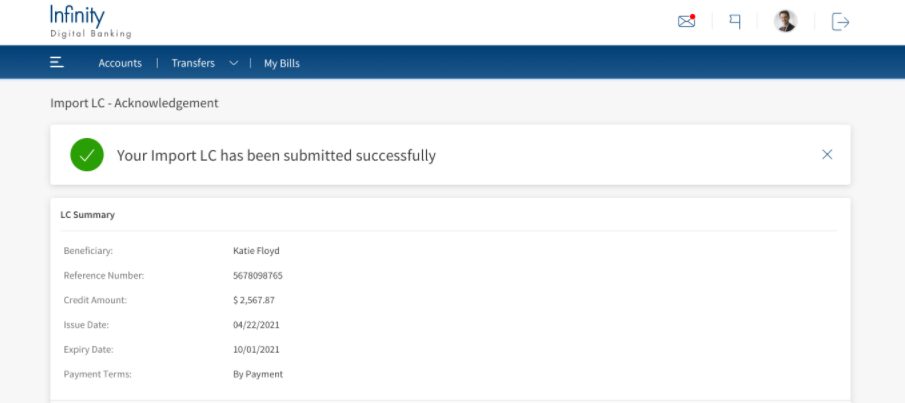
A notification Your Import LC has been submitted successfully with appearing on the top of the page.
Error Message
The following Error Messages might appear while filling the application.
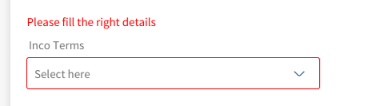
Please Fill the Right Details.
This message states that the user did not enter the proper details or must fill the mandatory fields. Check the UX Overview to see details of fields.
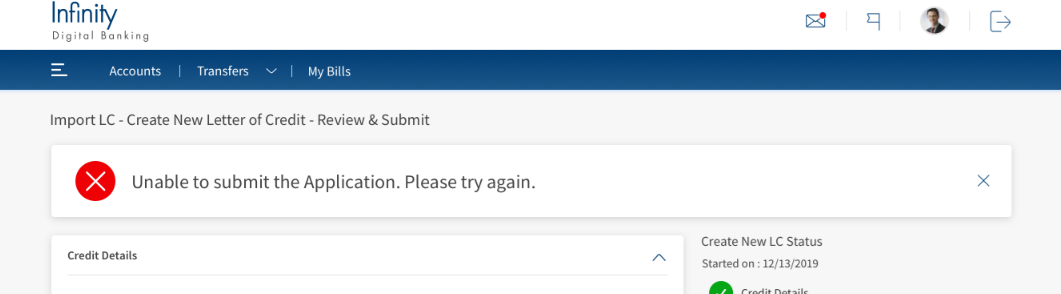
Unable to submit the Application. Please try again.
This message states that the user entered all the mandatory fields, but the record is not submitted due to the operations error
Solution: The user have to save the application and submit it after some time.
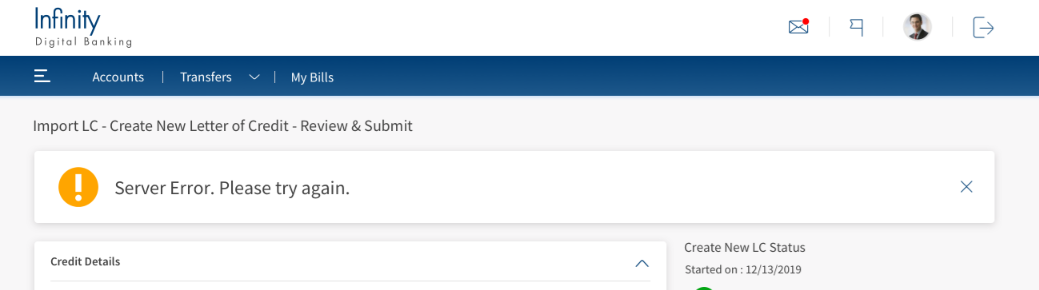
Server Error. Please try again.
This message states that the user entered all the mandatory fields, but the record is not submitted due to a server error.
Solution: The user has to save the application and submit it after some time.
SWIFT MT 700
SWIFT is an acronym for Society for Worldwide Interbank Financial Telecommunication. SWIFT provides a secure, highly encrypted, and reliable messaging service to all financial institutions.
This is an additional feature provided to the Trade Finance Micro App to implement the SWIFT MT700 codes to the fields available in LCs. If there is no SWIFT code, then NA will display adjacent to the field. The same SWIFT MT700 codes will also display in the download and print LCs.
Enable the Spotlight configurations to display the SWIFT tags. Individual configurations are available for Web Channel, download, and print LCs.
Web Channel SWIFT MT700 codes: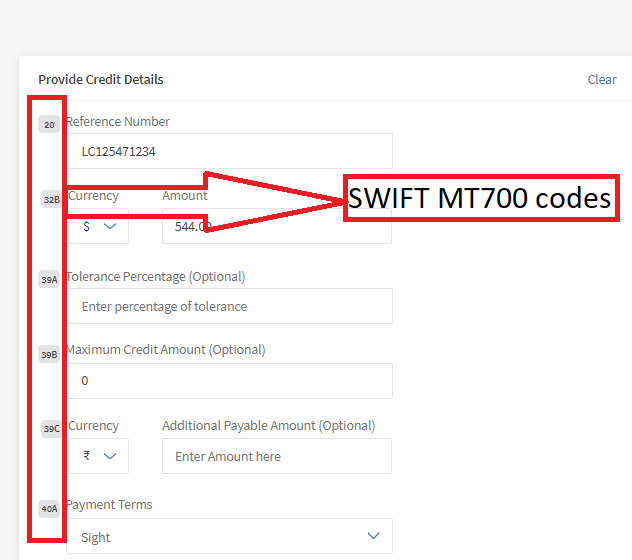
Download and Print SWIFT MT700 codes: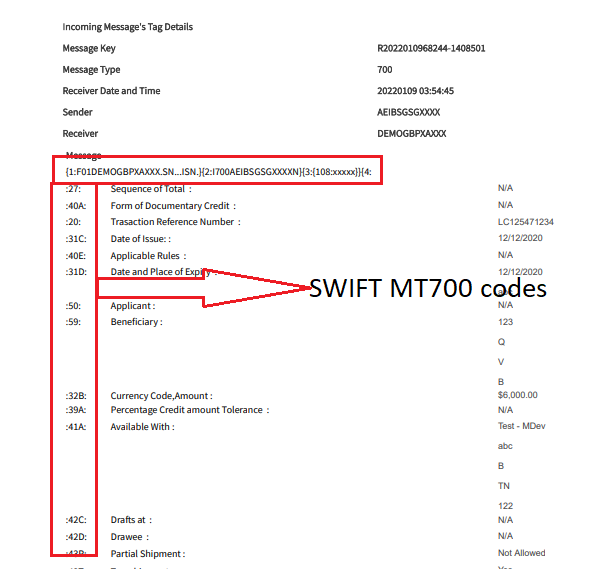
Swift and Advices
The bank user with required permissions can see the Swift MT messages and Payment Advices for a particular record. The following is the procedure to view Swift and Advices for a particular record.
- In the dashboard, search or filter for the record.
- Click View Details on the record to view Swift and Advices. The navigates to the detailed page view.
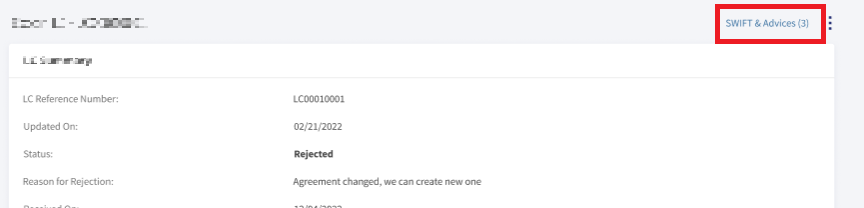
- Click SWIFT & Advices.
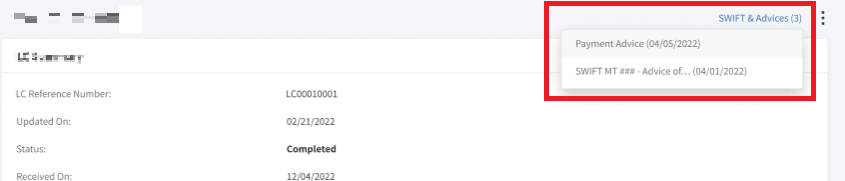
- In the pop-up,
- Select Payment Advices to view payment advices for a particular record.
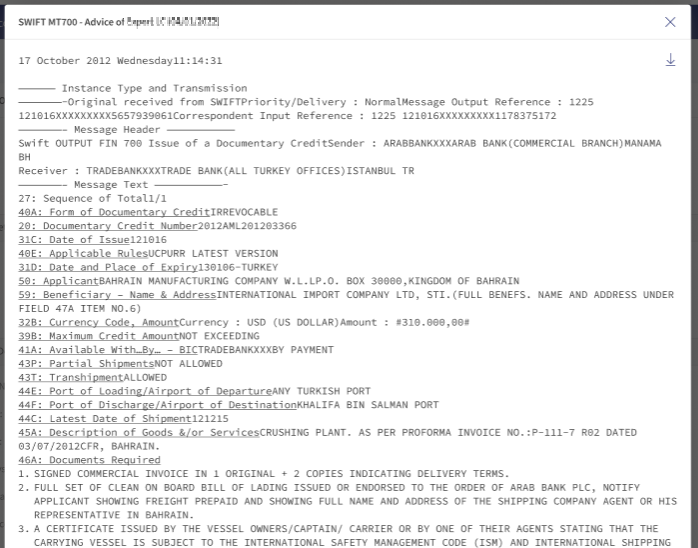
- Select SWIFT MT to view in advices in SWIFT MT mode.
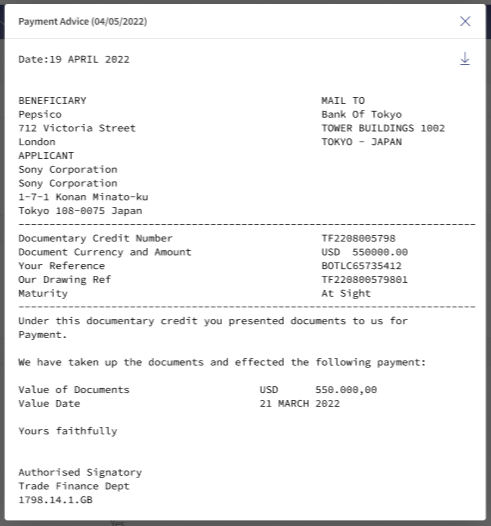
- Select Payment Advices to view payment advices for a particular record.
SRMS Configuration
The SRMS configurations are shipped as a part of this feature. For more information, see SRMS Configurations.
Experience API
The following are theExperience API related to Import Letter of Credit.
| Name | Description | Introduced In |
|---|---|---|
| createImportLC | This API creates the letter of credits imports. | 2021.10 |
| getImportLCs | This API retrieves the letter of credit imports. | 2021.10 |
| getLetterOfCreditsById | This API retrieves the letter of credit imports by ID. | 2021.10 |
| deleteImportLC | This API deletes the letter of credits imports. | 2021.10 |
| generate | This API downloads the letter of credit imports. | 2021.10 |
In this topic