Guarantees and Standby LC - Amendments
The Web Channel user with access to Trade Finance has capabilities to view the Guarantees and Stand by LC Amendments dashboard. The dashboard displays the list of Amendments available. If no Amendments are available, the system throws an appropriate message to the user. Do any of the following in the Guarantees and Standby LC Amendments:
- View all the available Amendments for the user.
- View all the Amendments for an LC.
- Search or filter for an Amendment.
- Create a new Amendment.
- View and respond to the messages from the bank for an Amendment.
- Download the list of available Amendments.
- Download or print an individual Amendment.
Web Channel navigation path: Side Menu > Trade Finance > Guarantees and Standby LC > Amendments.
UX Overview
Guarantees and Standby LC - Amendments
This section displays all the Amendments details available for the user.
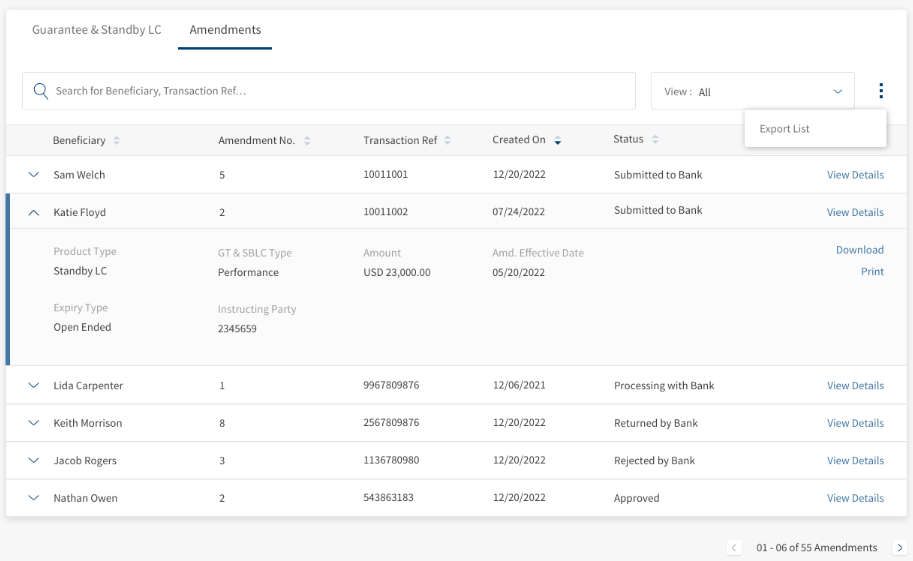
- Search: Helps the user find the records using the keywords.
- View: This is a filtering option that allows the user to filter further the search based on the criteria.
 Click here to find information on all available filtering options.
- Product Type
- Guarantee
- Standby LC
- Guarantee and SBLC Type
- Performance: To secure the applicants satisfactory fulfillment of its contractual performance obligations.
- Bid: This supports the issuers bid for a contract.
- Advance: To ensure the repayment of an advance payment made earlier for the contract.
- Shipping: To ensure the damages repayment during the products shipping.
- Status
- Submitted to Bank: The record is submitted to the bank.
- Processing with Bank: The record is processing with the bank.
- Approved: The record is approved by the bank.
- Rejected by Bank: The record is rejected by the bank.
- Returned by Bank: The record is returned by the bank.
- Approved: The record is approved by the bank.
- Time Period
- Today: Considers the records created on the same day.
- Last One Month: Considers the records created from the last 30 days.
- Last Six Months: Considers the records created from the last 180 days.
- Last One Year: Considers the records created from the last 365 days.
- YTD: Considers the records created from start day of the calendar year.
- Product Type
- Amendment Ref: The sequential amendment number made to the LC.
- Transaction Ref: The transaction reference number.
- Created on: Record creation date.
- Status: The Amendment current status.Click here to find information on available status.
- Status
- Submitted to Bank: The record is submitted to the bank.
- Processing with Bank: The record is processing with the bank.
- Approved: The record is approved by the bank.
- Rejected by Bank: The record is rejected by the bank.
- Returned by Bank: The record is returned by the bank.
- Approved: The record is approved by the bank.
- Status
Amendments - Record Expanded
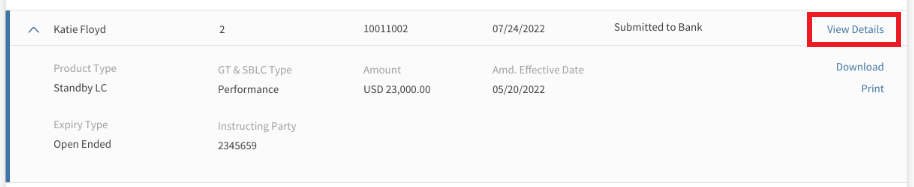
The Expanded section displays summary of Amendment LC details. The user can use this option to view the summary details or perform the quick action like download and print and Amendment LC. To see the summary, the user have click the down arrow for the desired Amendment.
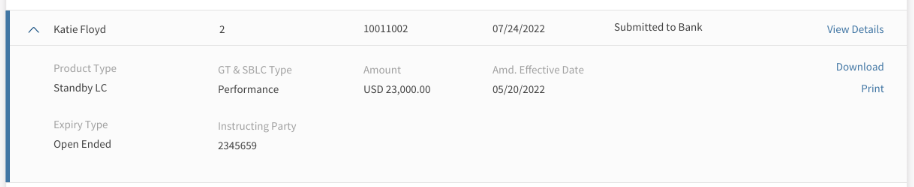
- Product Type: The type of product Guarantee or Standby LC.
- GT & SBLC Type: Specifies the type of Guarantee or SBLC type.Click here to find information on GT & SBLC types.
- Performance: To secure the applicants satisfactory fulfillment of its contractual performance obligations.
- Bid: This supports the issuers bid for a contract.
- Advance: To ensure the repayment of an advance payment made earlier for the contract.
- Shipping: To ensure the damages repayment during the products shipping.
- Amount: Specifies the total amount for the LC.
- Effective Date: The date from which the amendments are effective.
- Expiry Type: The type of expiry open ended, date, and conditions.
- Instructing Party: The party details.
- The additional actions like View Details, Download and Print LC details.
Create New Amendment
The Create New Amendment page displays the summary of the LC details and the Amendment sequential number for the current LC. This helps the user to refer to the summary details before filling in the Amendment Details. The following are the steps to create an Amendment.
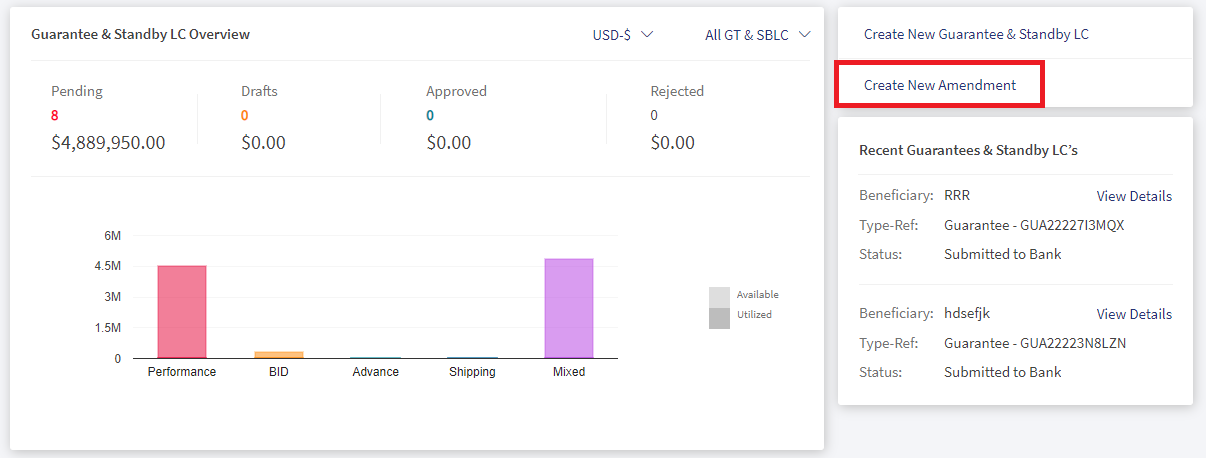
- In GT and SBLC Dashboard page, click Create New Amendment.
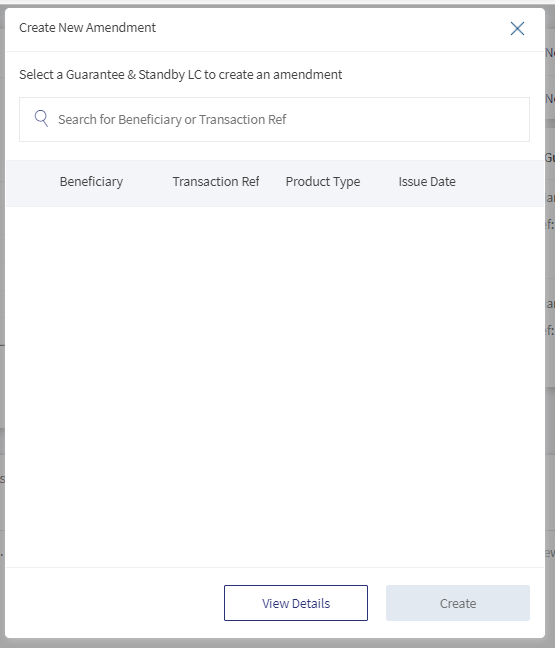
- In the pop-up box, select the Beneficiary name and click Create.This Navigates to the Issued GT and SBLC - Create New Amendment page.
- Check the LC details in the Guarantee and Standby LC Summary section. The user can also click View Details to see the details view of LC.
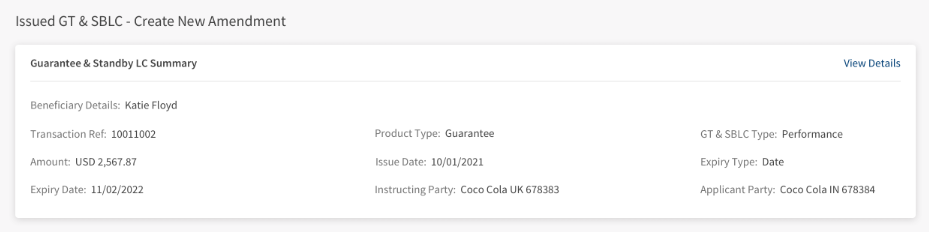
- The user have to select the required fields and update the details. Click Review and Submit.
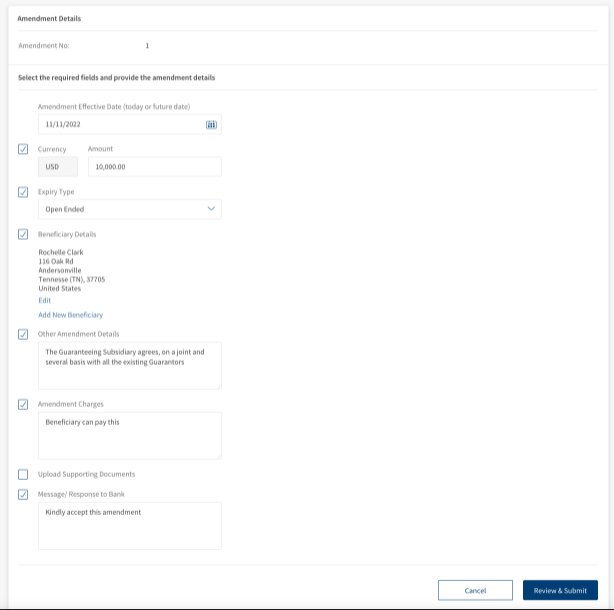
The fields are:- Amendment Effective Date: The date from which the Amendment takes effect. This is a mandatory field to be filled.
- Currency and Amount: The change in amount only. The currency type cannot be edited.
- Expiry Type: Select the type of expiry open ended, date, and conditions.
- Beneficiary Details: Edit or update the new beneficiary details.
- Other Amendment details: Add the other Amendments here.
- Amendment Charges: Specify the party name for the Amendment charges.
- Upload Supporting Document: Upload the supporting or necessary document for this Amendment.
- Message to Bank: Type the specific messages to the bank.
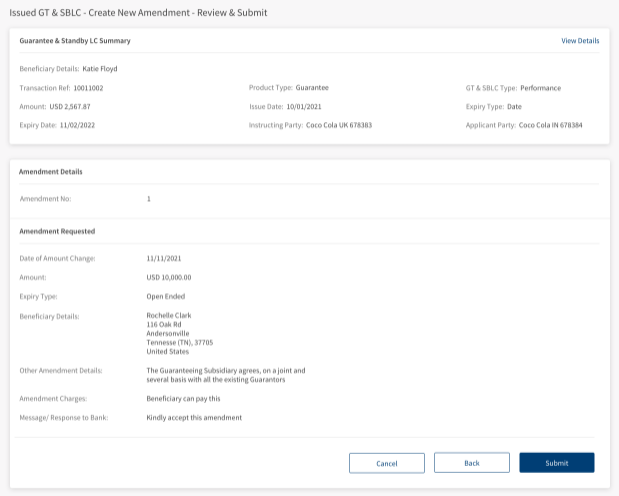
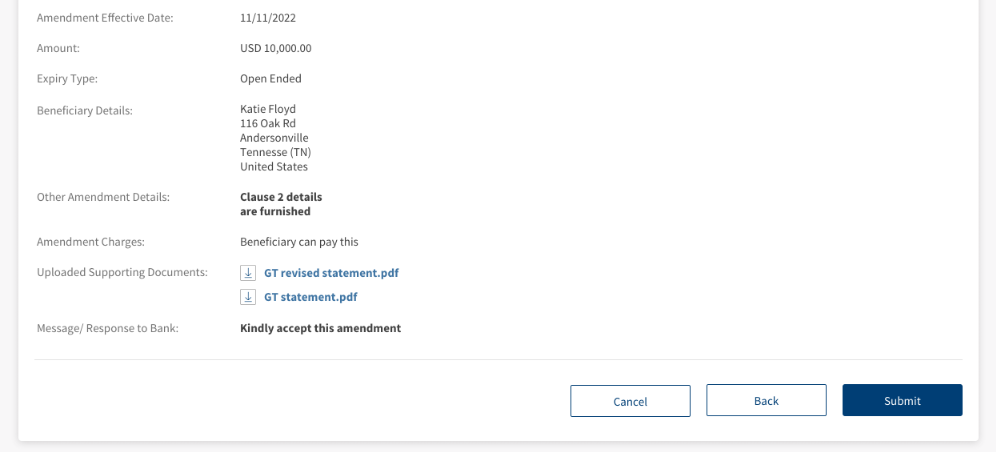
- In the Review and Submit page, verify the detail and click Submit.
- An acknowledgment page displays showing the successful creation of the record.
The user can navigate to View All Amendments page or View All GT and SBLC Page.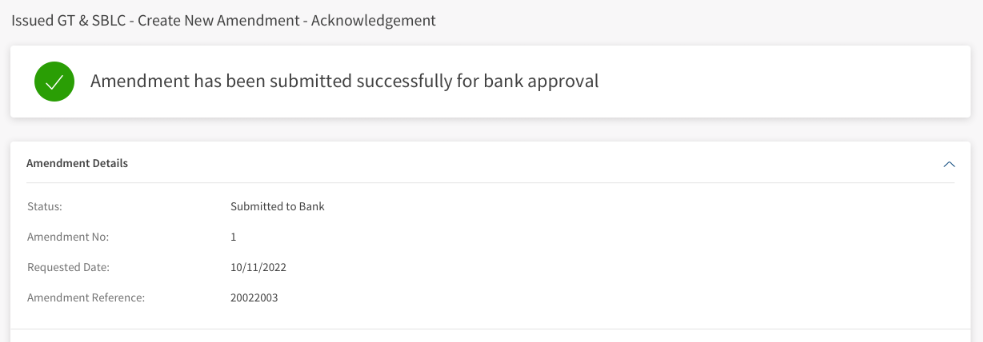
The user can save the record by clicking Close. In the confirmation box click Save to save the record and Discard to delete the draft record with out saving it.
View Amendments
The bank users can see the details of the individual Amendment from the list of the Amendments available in the Amendments dashboard. The users can narrow down their desired Amendment by using the filter or search options. In the detailed Amendments page, the user can do any of the following:
- Download and Print the Amendment LC.
- View Guarantee and Standby LC details for current Amendments.
- View and respond to the messages from the bank.
View Detailed Amendment LC
The following are thesteps to see the detailed view of Amendment LCs.
- In the Search bar use Beneficiary, Transaction Reference and for further filter options to narrow the Amendments.
- On the desired Amendment record, click View Details. This will navigate to Amendments records page viewing the details.
View All Amendments for an Individual LC
There might be one or more than one Amendments for an individual LC. The user has option to view all Amendments for a single LC. There are two ways to view either from LC detailed view or from the Amendments detailed view.
- Navigate to Guarantee and Standby LC detailed view, at the top click Amendments tab. The heading shows as Amendments **, the ** indicate the amendment number for the LC. The page displays the latest Amendment at the top and scroll down the page to see earlier Amendments for the LC.
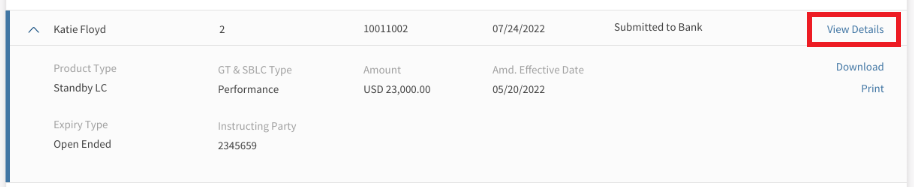
- In the detailed view of Amendment LC,
- Click on View Details. This navigates back to the LC detailed
- Click Amendments tab at the top. The heading shows as Amendments **, the ** indicate the amendment number for the LC. The page displays the latest Amendment at the top and scroll down the page to see earlier Amendments for the LC.
- Click on View Details. This navigates back to the LC detailed
Download or Print Amendment LC
The user has two options to download Amendment LC records. Either they can download the complete list displayed on the Amendment LC dashboard page and download or print individual LCs.
Download Amendment LC list
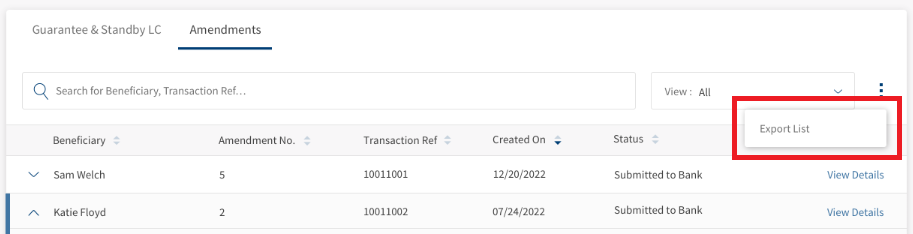
Following are the steps to download Amendment list into excel (.xlsx).
- Click the Ellipses.
- Select the option List. This downloads the list of Amendments records into an excel file.
Download or Print individual Amendments
The following are thesteps to download or print individual LCs.
- Click the arrow to see the summary of the Amendments record.
- Click Download or Print to download or print LC.
The download options downloads LC in a PDF format. The print option opens a print dialogue box for printing the Amendment Details.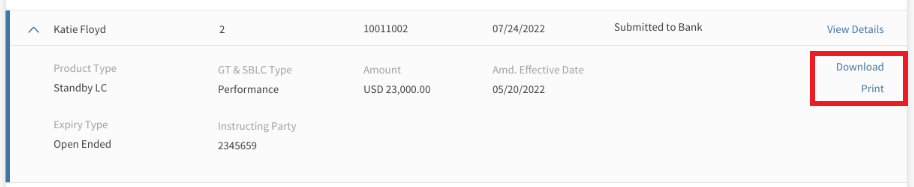
View and Respond to Messages from Bank
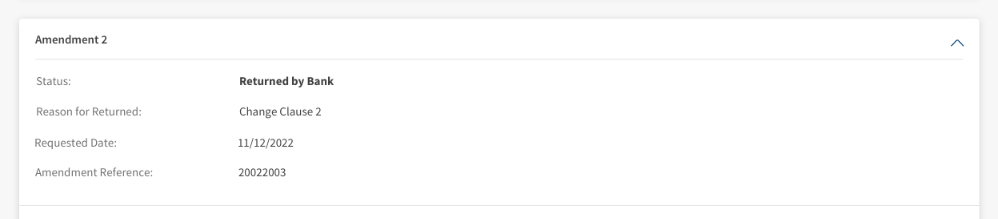
The bank user to view the query from the bank's side and provide clarification for the Guarantee Amendment request. The user can see and respond to the Amendment status - Returned By Bank. The user can see the history of the records where the record is returned by the bank multiple times. The bank user needs to resubmit the record accordingly to approve the Amendment. Following are the steps to view and resubmit the returned record.
- In the GT and SBLC Amendment dashboard, click View Detailsfor the record for the record with status as Returned By Bank.
- Check the reason for status Returned By Bank and click Revise Amendment.
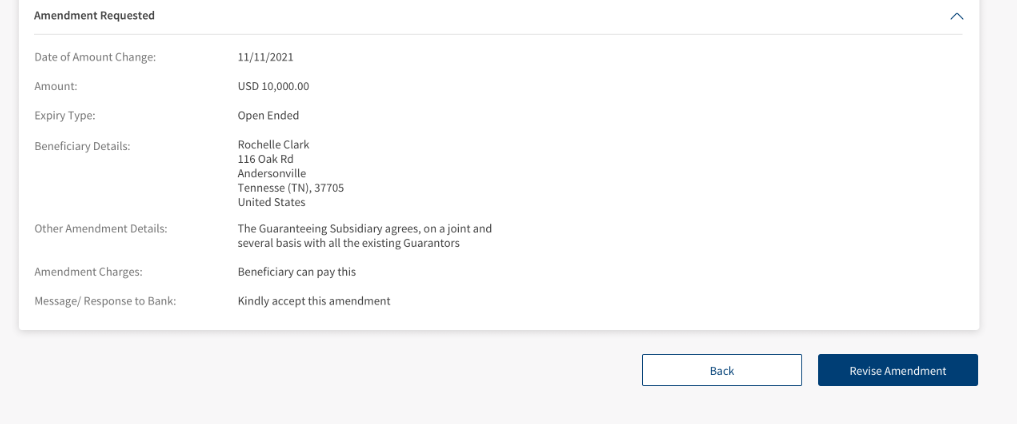
- Update the details accordingly and click Review and Submit. This navigates to the Review and Submit page.
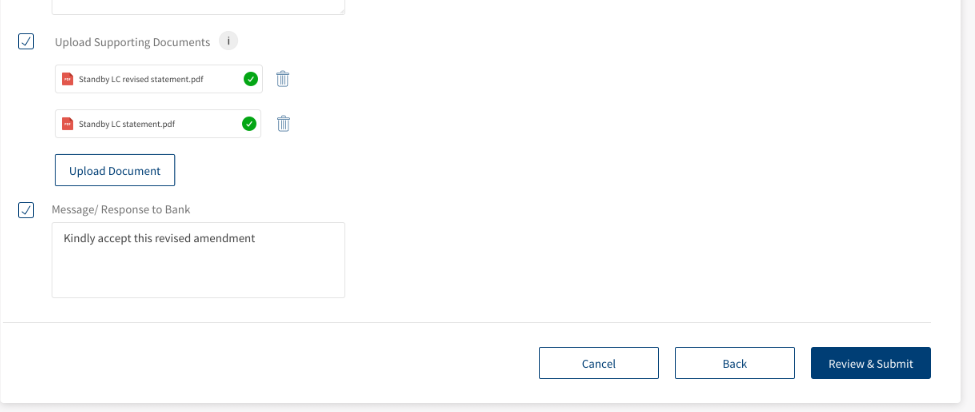
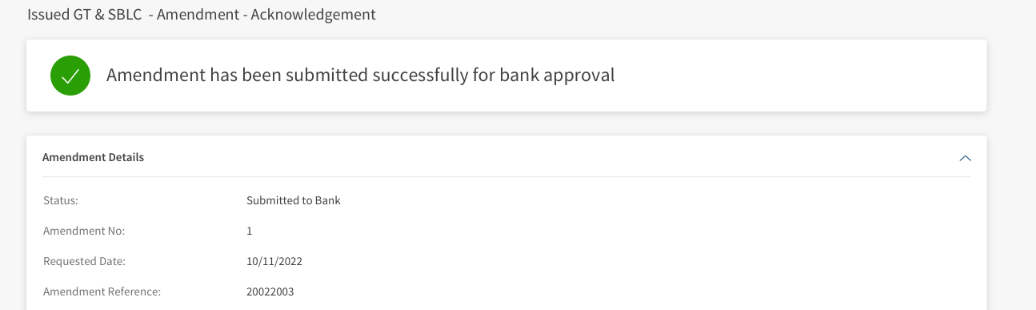
- Verify the details and click Submit. An acknowledgment page appears with success message.
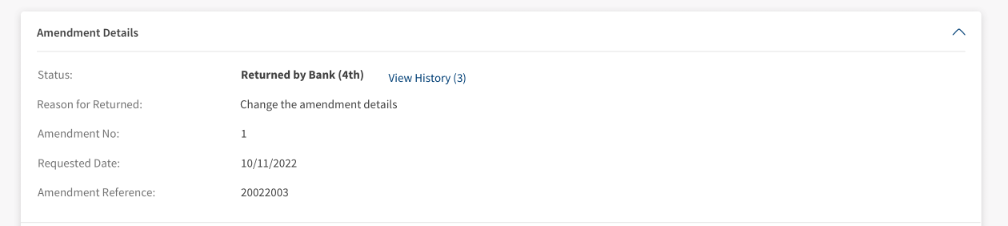
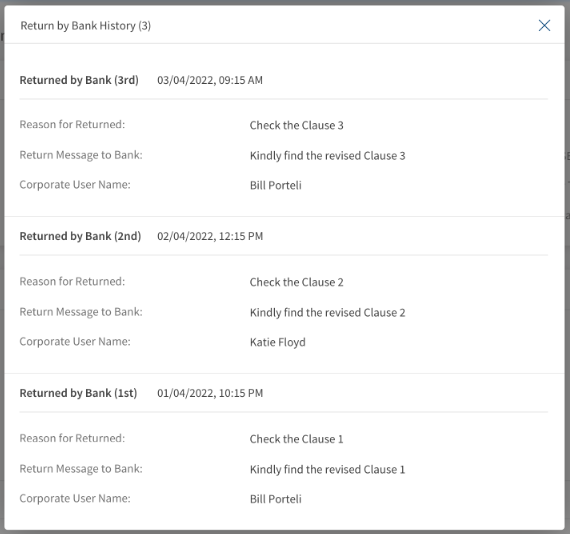
If the same is returned by the bank more than once, then the user can click on View History (**), where ** represents the total number of times the record is returned from the bank.
SWIFT MT 700
SWIFT is an acronym for Society for Worldwide Interbank Financial Telecommunication. SWIFT provides a secure, highly encrypted, and reliable messaging service to all financial institutions.
This is an additional feature provided to the Trade Finance Micro App to implement the SWIFT MT700 codes to the fields available in LCs. If there is no SWIFT code, then NA will display adjacent to the field. The same SWIFT MT700 codes will also display in the download and print LCs.
Enable the Spotlight configurations to display the SWIFT tags. Individual configurations are available for Web Channel, download, and print LCs.
Web Channel SWIFT MT700 codes: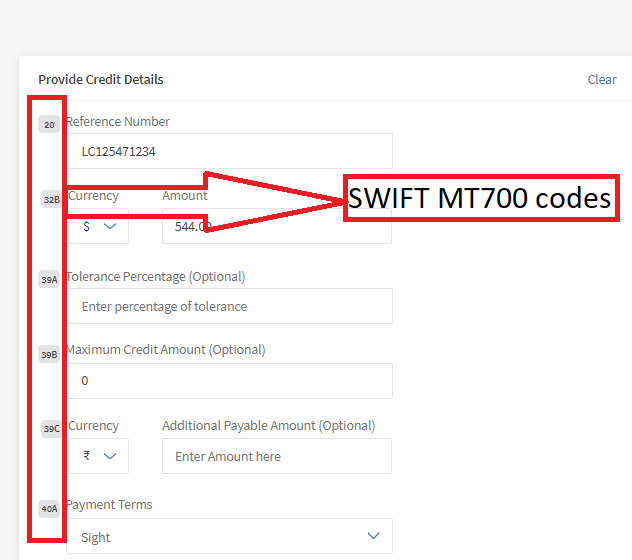
Download and Print SWIFT MT700 codes: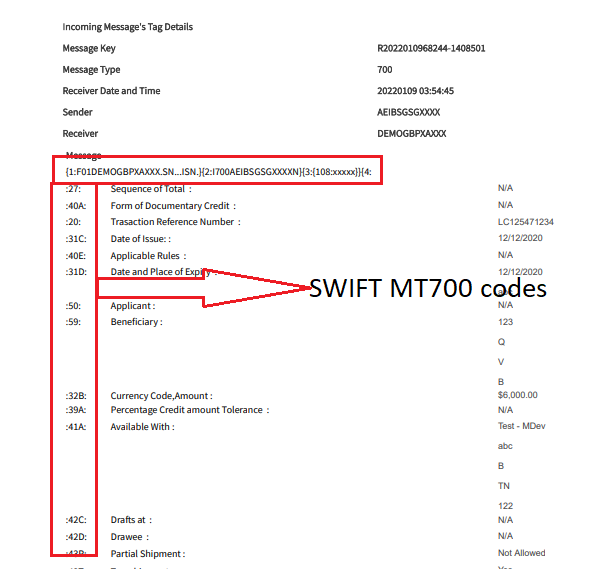
Swift and Advices
The bank user with required permissions can see the Swift MT messages and Payment Advices for a particular record. The following is the procedure to view Swift and Advices for a particular record.
- In the dashboard, search or filter for the record.
- Click View Details on the record to view Swift and Advices. The navigates to the detailed page view.
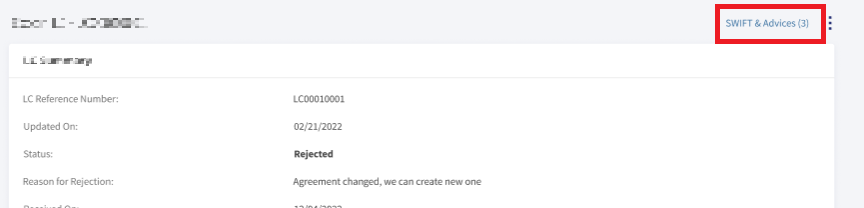
- Click SWIFT & Advices.
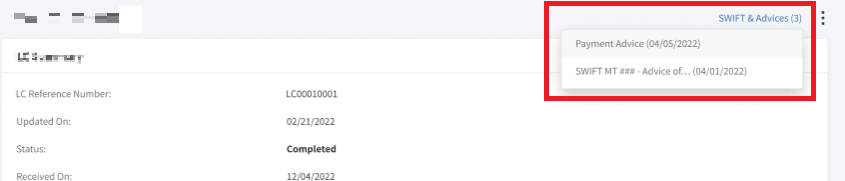
- In the pop-up,
- Select Payment Advices to view payment advices for a particular record.
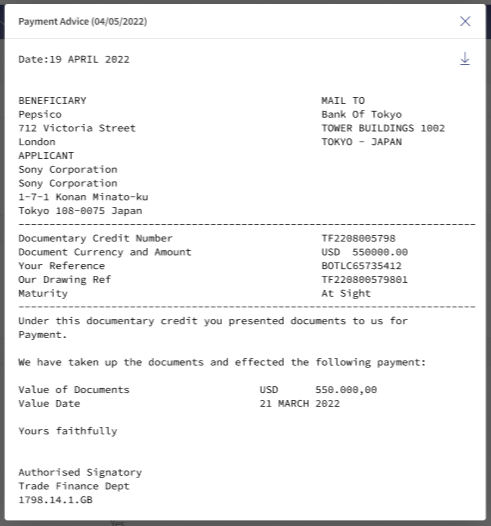
- Select SWIFT MT to view in advices in SWIFT MT mode.
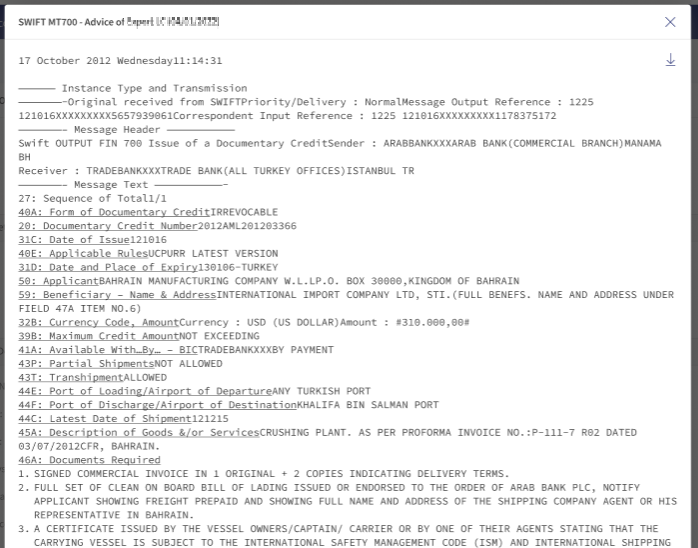
- Select Payment Advices to view payment advices for a particular record.
SRMS Configuration
The SRMS configurations are shipped as a part of this feature. For more information, see SRMS Configurations.
Experience APIs
The following are theexperience APIs for Amendment LCs.
| Name | Description | Introduced In |
|---|---|---|
| createGuaranteeAmendment | This API creates Guarantees Amendments. | 2022.07 |
| getImportLetterOfCreditAmendments | This API retrieves the list of Import LC Amendments. | 2022.07 |
| getGuaranteeAmendmentById | This API retrieves the Guarantee Amendments by ID. | 2022.07 |
| updateGuaranteeAmendment | This API updates the Guarantee Amendments. | 2022.07 |
In this topic